
Reports Tools for Individual Teachers
As a teacher subscribed to any of the Individual plans, you have access to various reporting tools on the site. Access and export reports that include your students’ scores, time spent on task, and more!
Time Reports
Time Reports show teachers the total time students have spent on tasks for a specific class. Time-on-task is tracked per task. The timer starts when the student hits the blue Start button and stops when they land on the results page. If a student minimizes the window or opens a new tab, the time is paused, and resumed when they come back. The time spent on all tasks is added up to calculate the total time.
Step 1
Log in to your account here:
Step 2
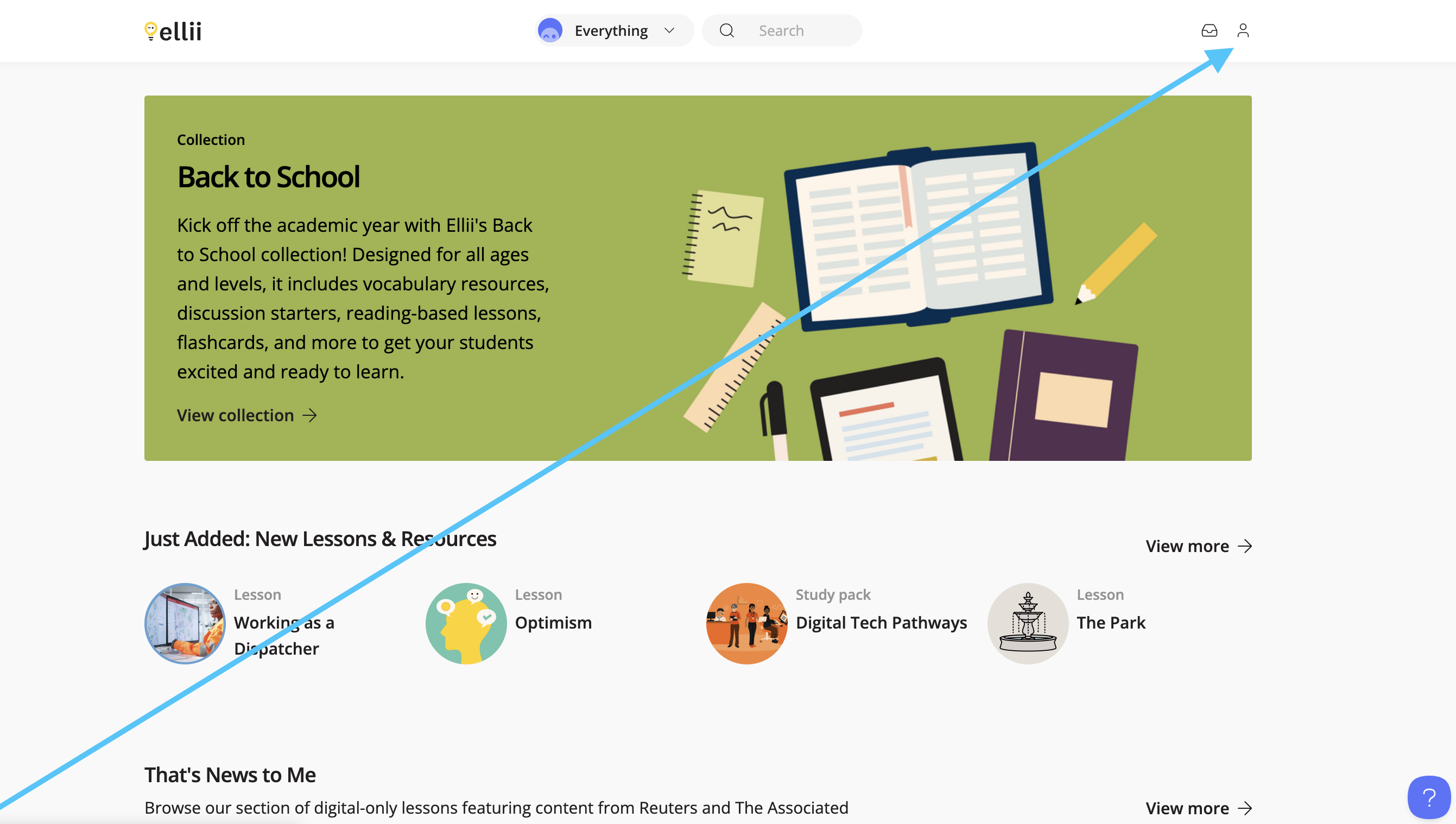
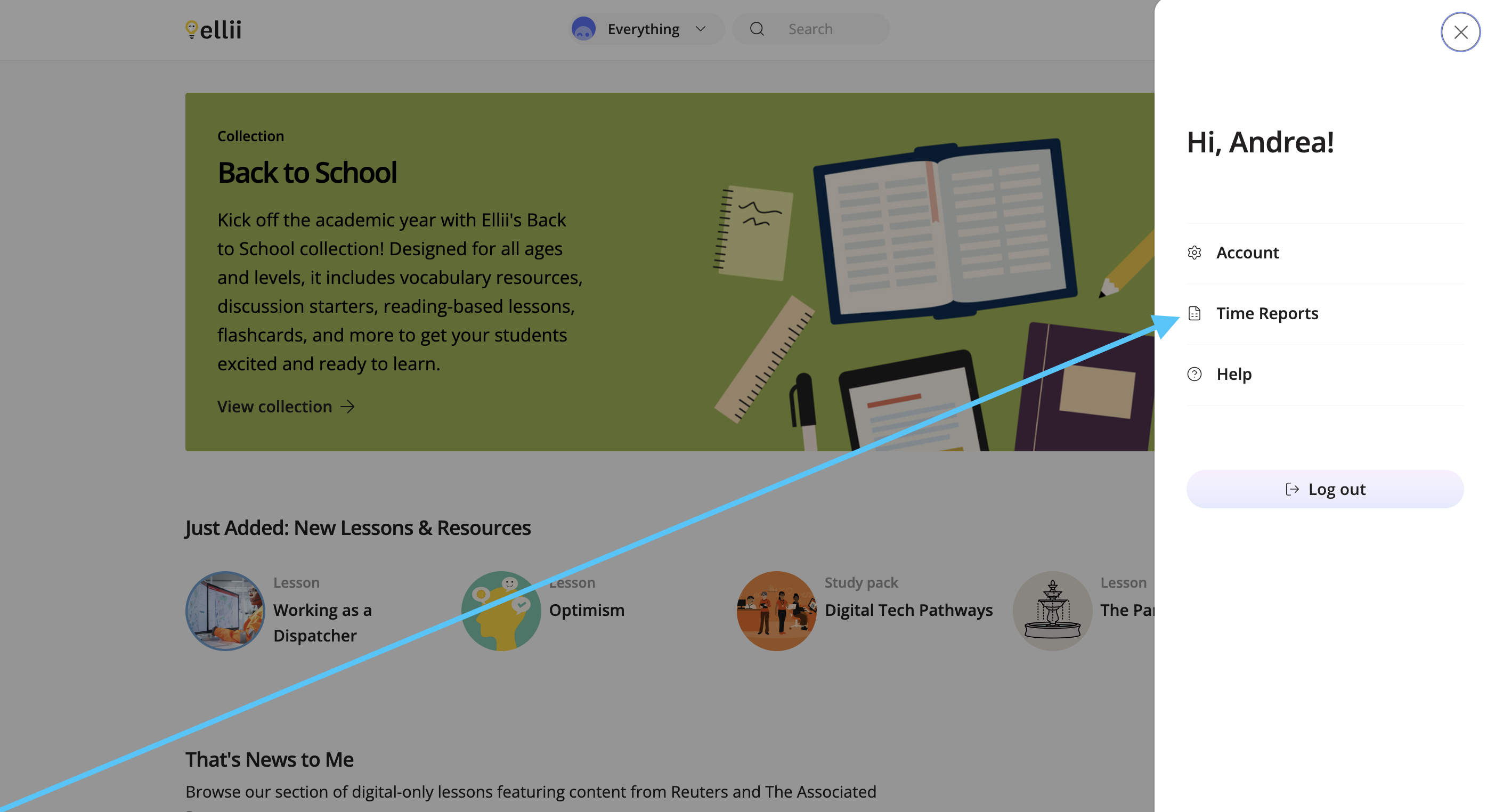
Click the profile icon, and click Time Reports.
Step 3
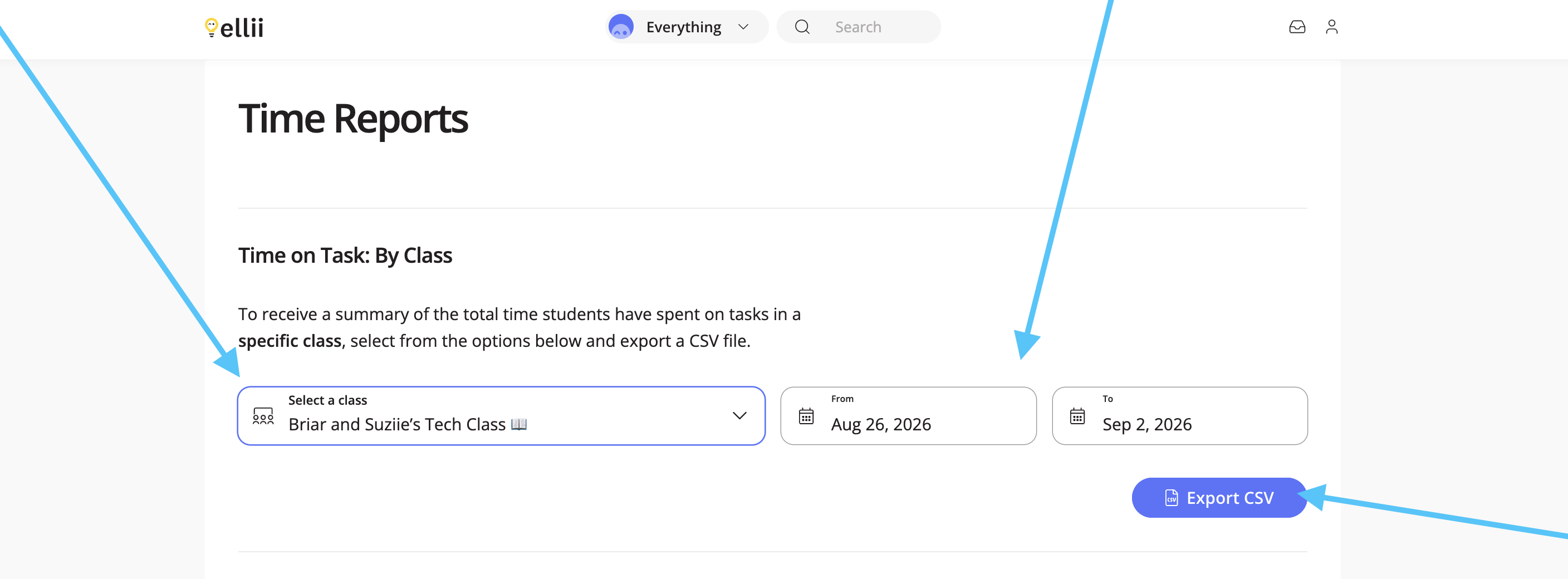
The Time on Task: By Class report allows you to export the time spent on tasks for a specific class. Select the class, and choose a date range. Then, click Export CSV.
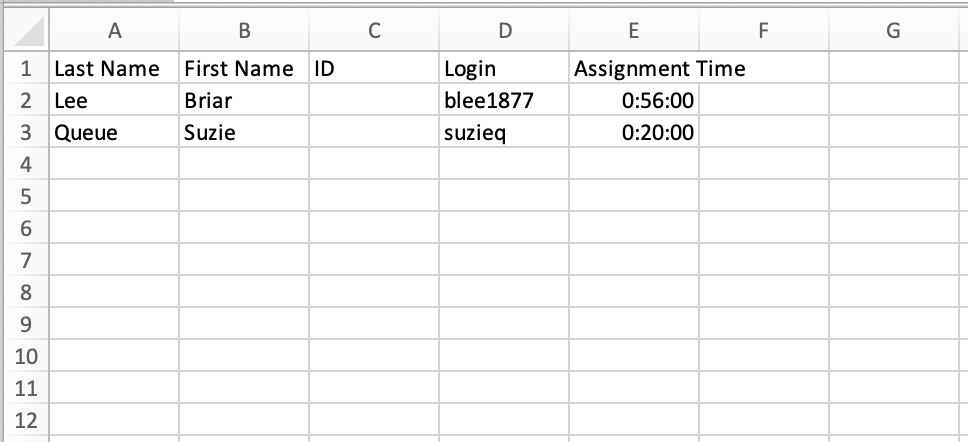
This report includes your students’ first and last names, a student ID (if you have added this information from your account), their logins, and the amount of time they spent on the assignment.
Activity Tab
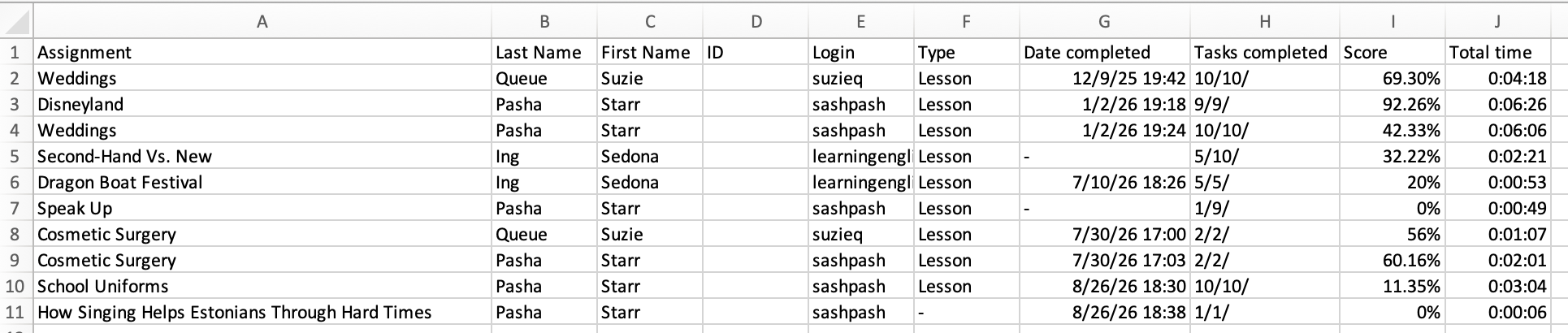
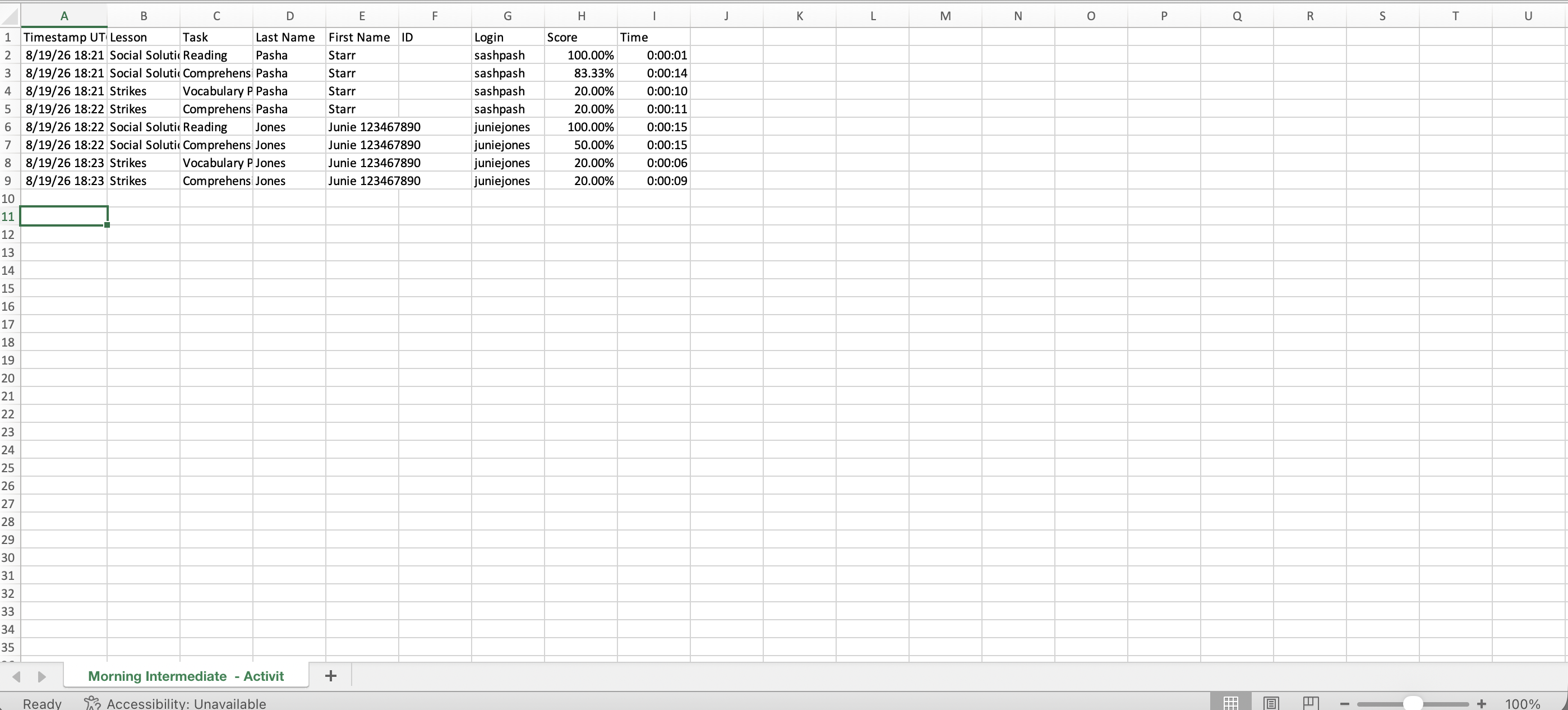
The Activity tab allows you to look at results student by student across all the assignments added to the class. When this file is exported, it will include the assignment names, the students’ first and last names, optional student IDs, their logins, the type of resources completed, the dates they were completed, how many tasks were completed, the score, and the total time.
Step 1
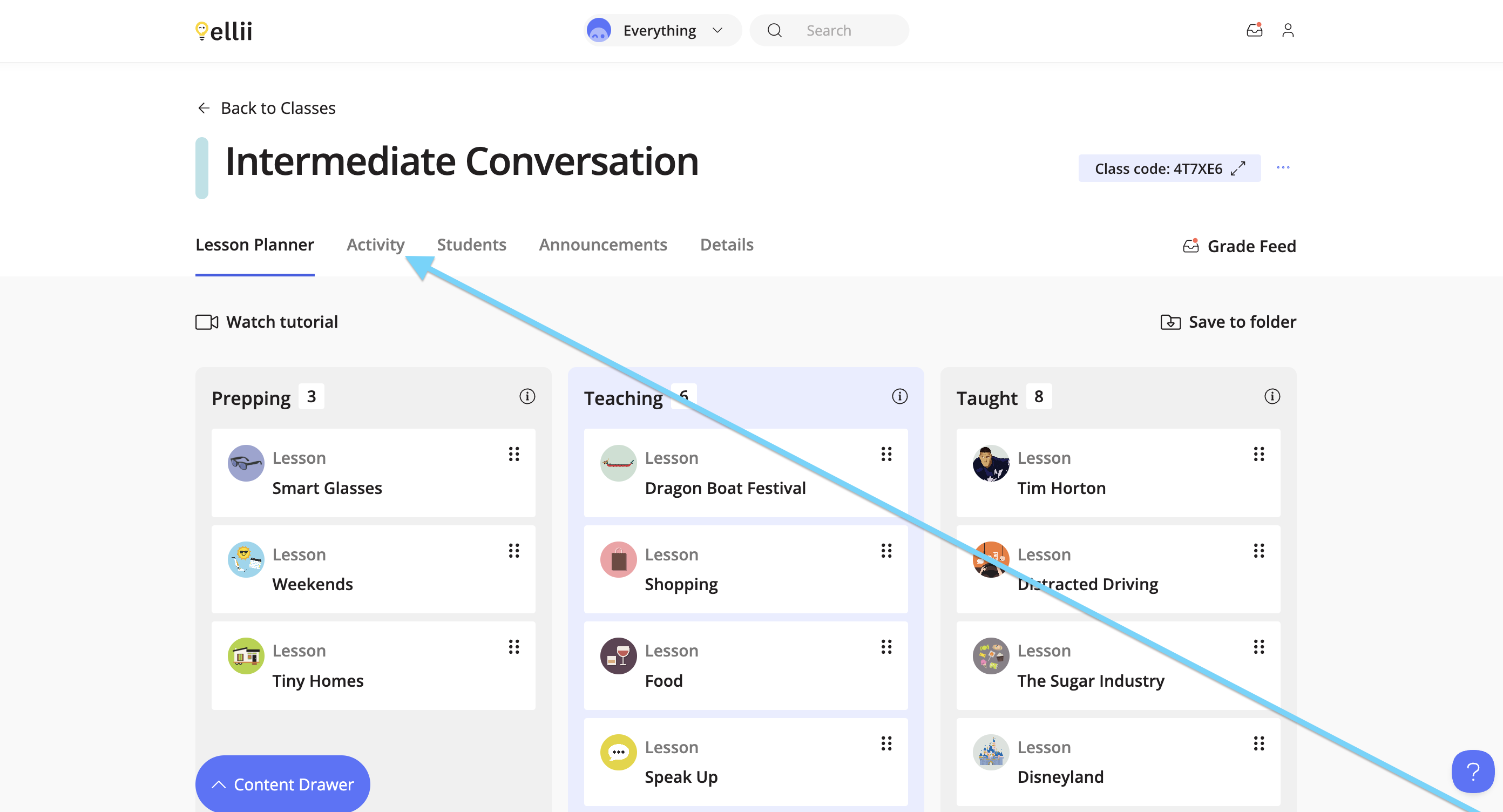
Click the Activity tab from your class.
Step 2
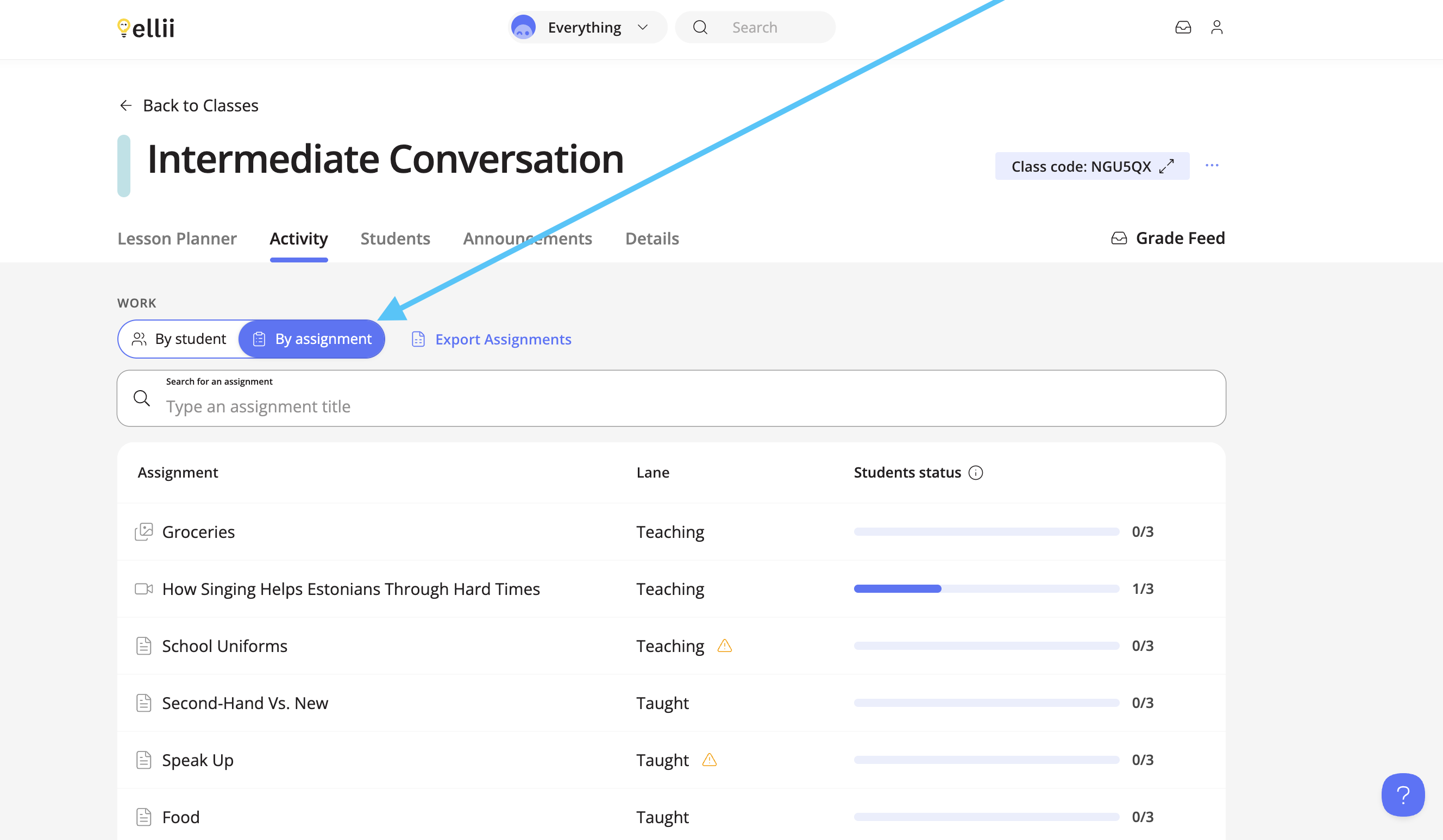
Click the By assignment tab. All of the lessons that have been assigned to the class will appear.
Step 3
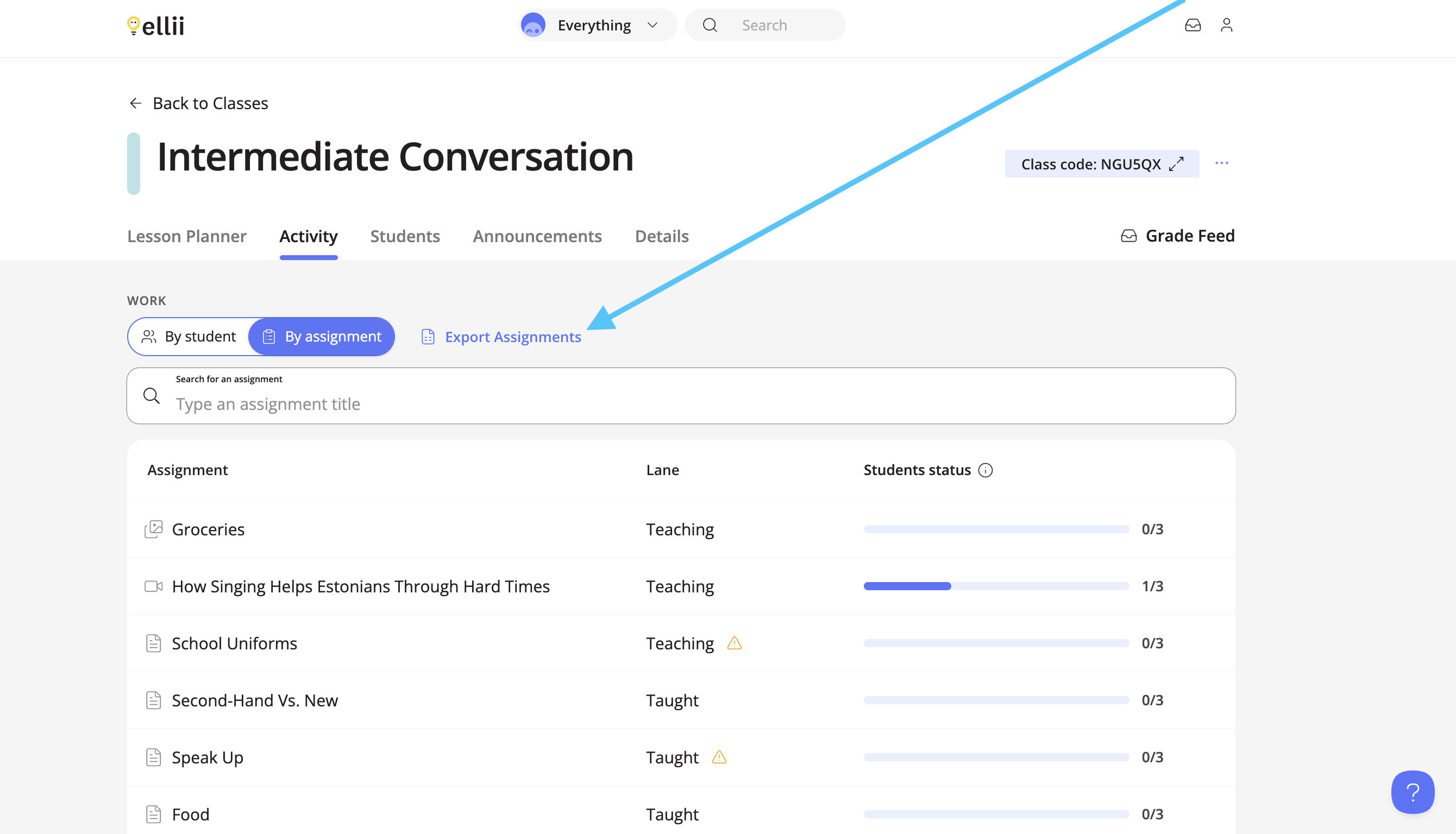
Under the By assignment tab, you can export a CSV file of the assignments by clicking Export Assignments.
Lesson Reports
Teachers can export reports for specific lessons. These reports can be exported by task or by lesson. When you export the report by task, it includes your student’s name, their progress (how much of the lesson was completed), their first attempt score and time, and their best attempt score and time.
When you export a report by lesson, it includes your students’ names, the task names, the task status (complete on incomplete), the first attempt score and time, the best attempt score and time, the date the lesson was completed, how many attempts they made, and their total time.
Step 1
Click on the class you would like lesson results for.

Step 2
Click on the lesson you would like to export the results for.

Step 4
Click View student results.

Step 5
Click Export to download the file to your device.

Step 6
You can export the results per lesson or per task. Once downloaded, you can open the CSV file with your preferred spreadsheet program.

Per Lesson:

Per Task:

Participation and Activity Reports
Participation reports allow teachers to export a report of their students’ total time spent on Ellii tasks, per class. Activity Reports show teachers the dates, the lesson, the tasks, the students’ names, their logins, scores, and the amount of time they spent on each task.
Step 1
Click on the class you would like to see the reports for.
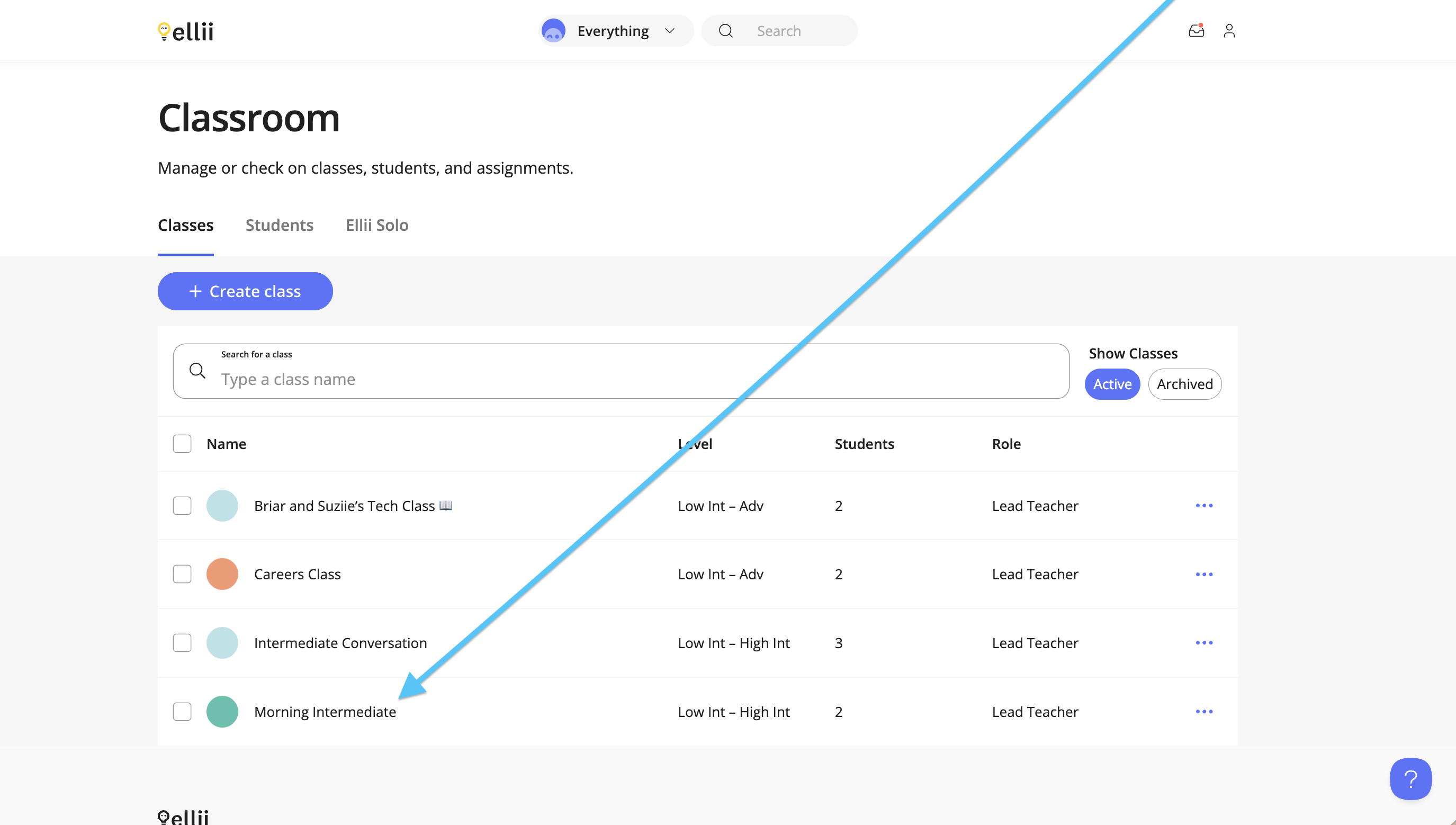
Step 2
Click the Details tab.
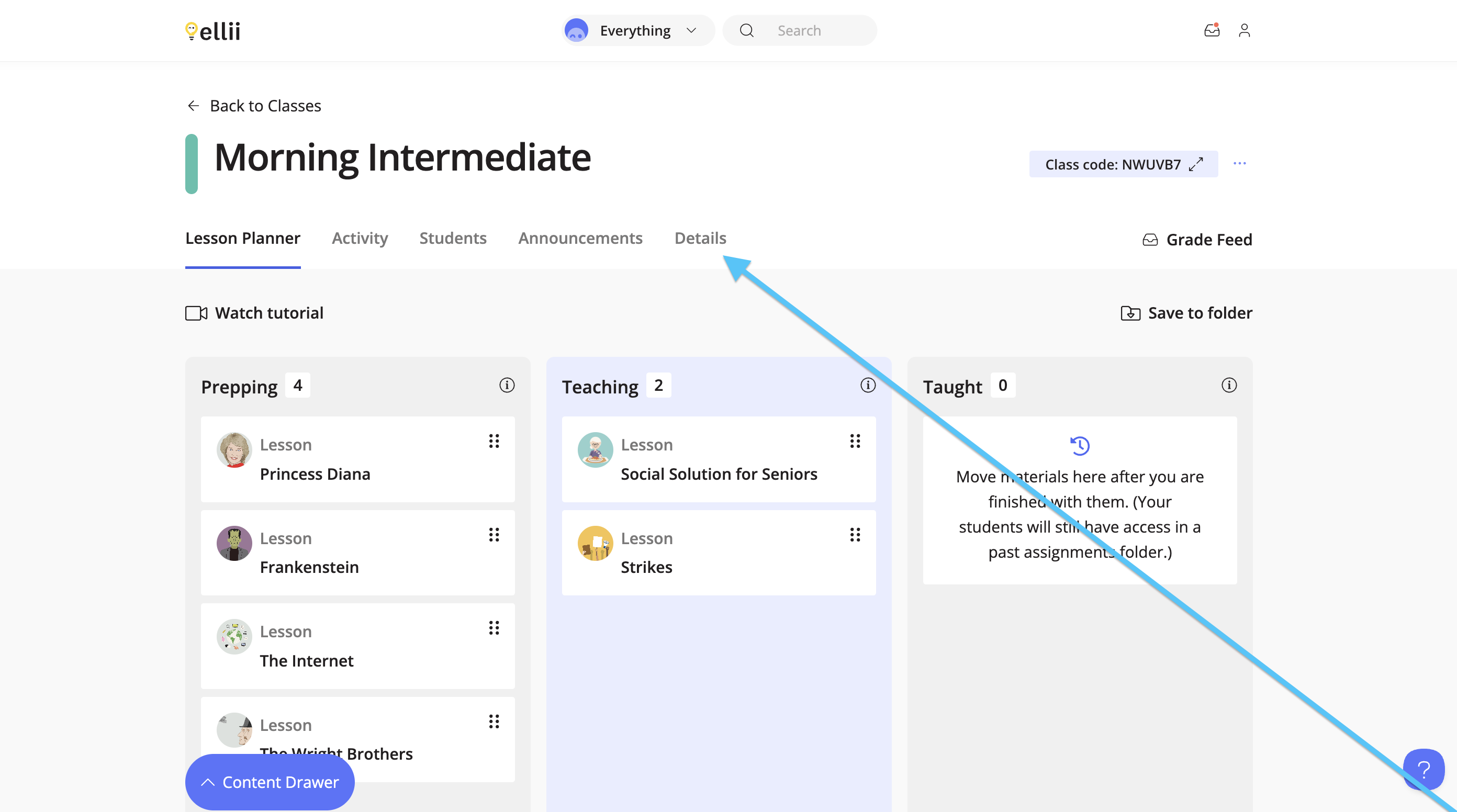
Step 3
On the left-hand side, click Reports.
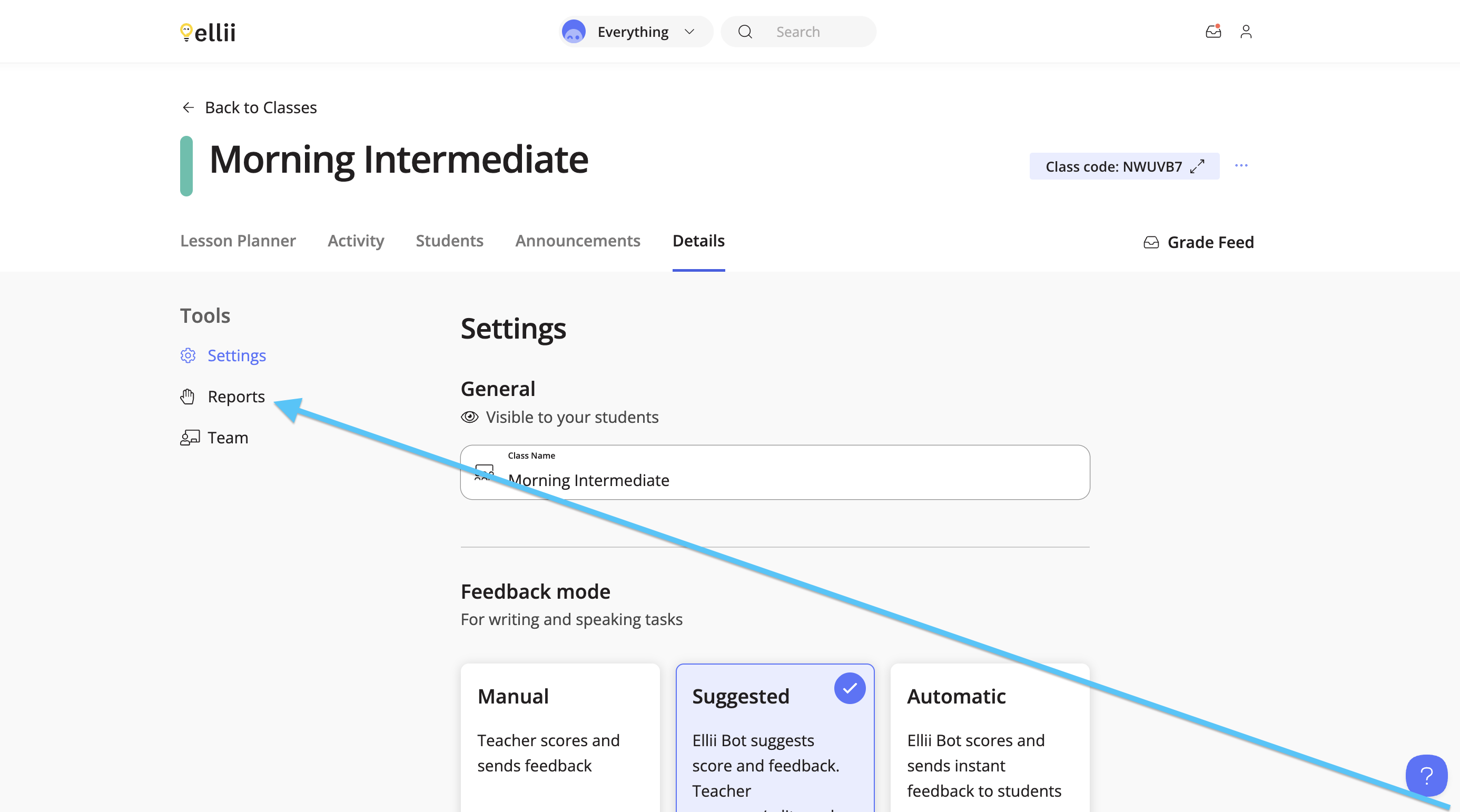
Step 4
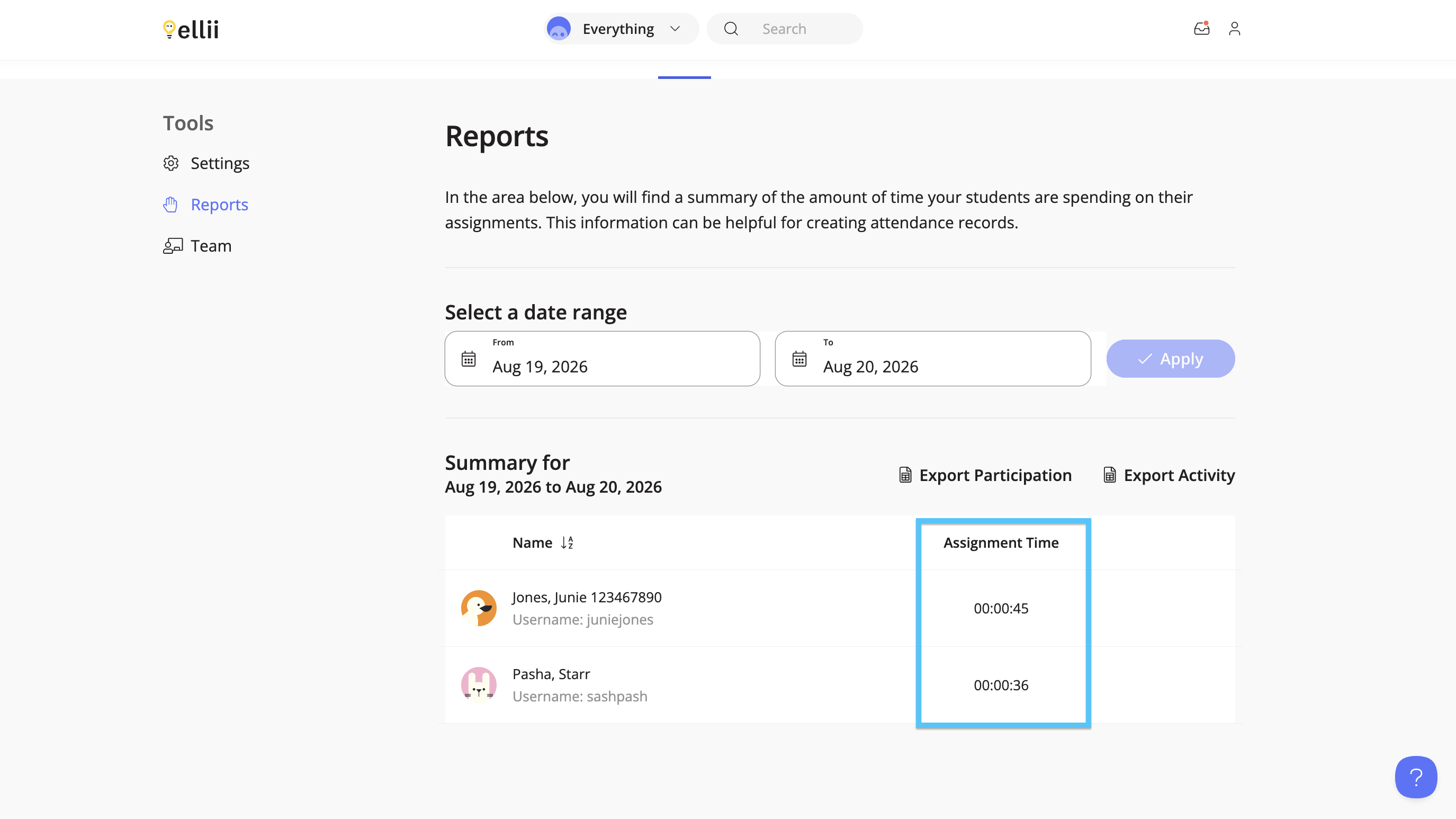
Select a start date by clicking on the From field and choose an end date by clicking on the To field. Once you have chosen your date range, click on Apply.
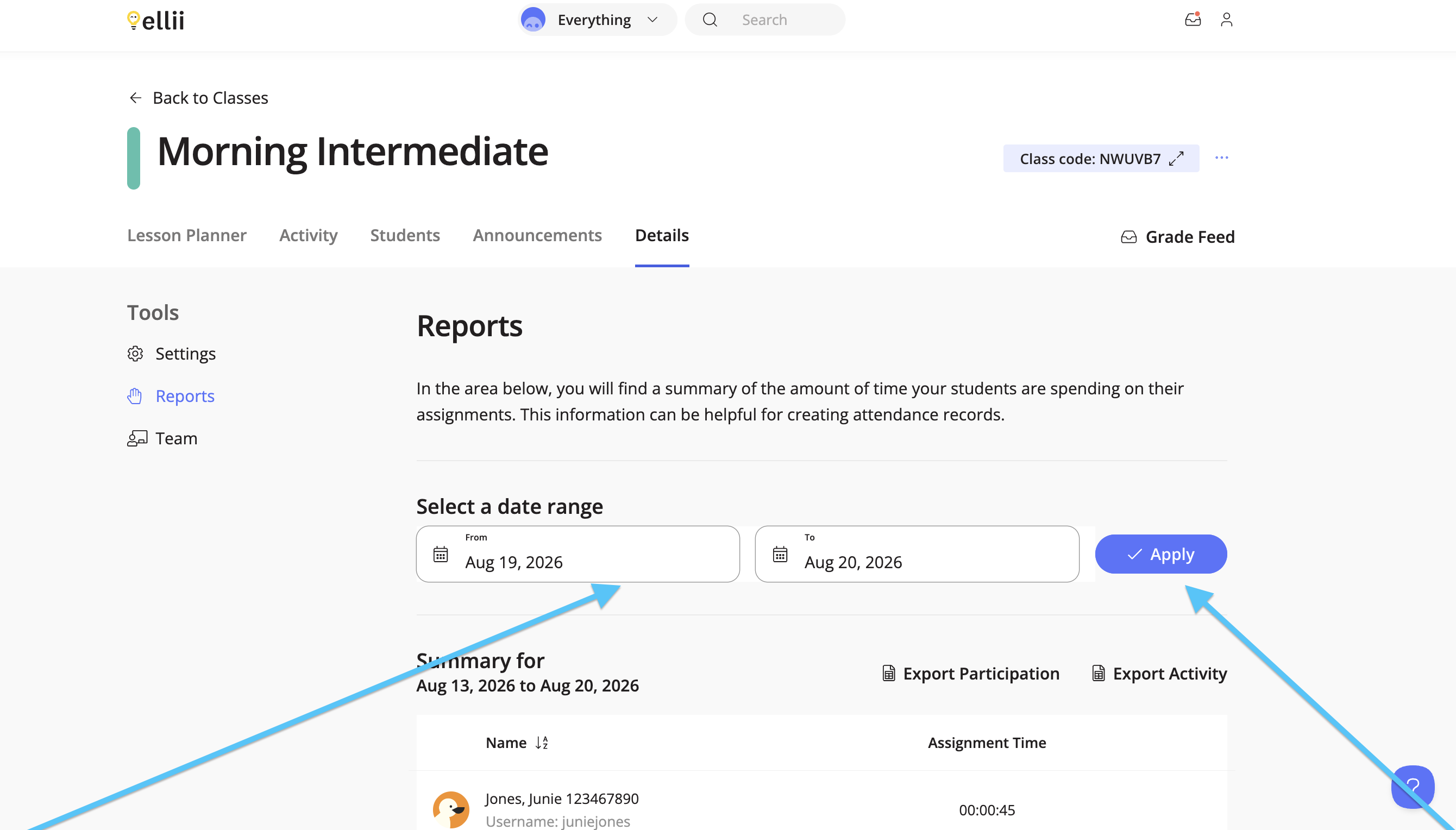
You will then see the total time your students have spent on Ellii, per student, under the summary.
Step 5
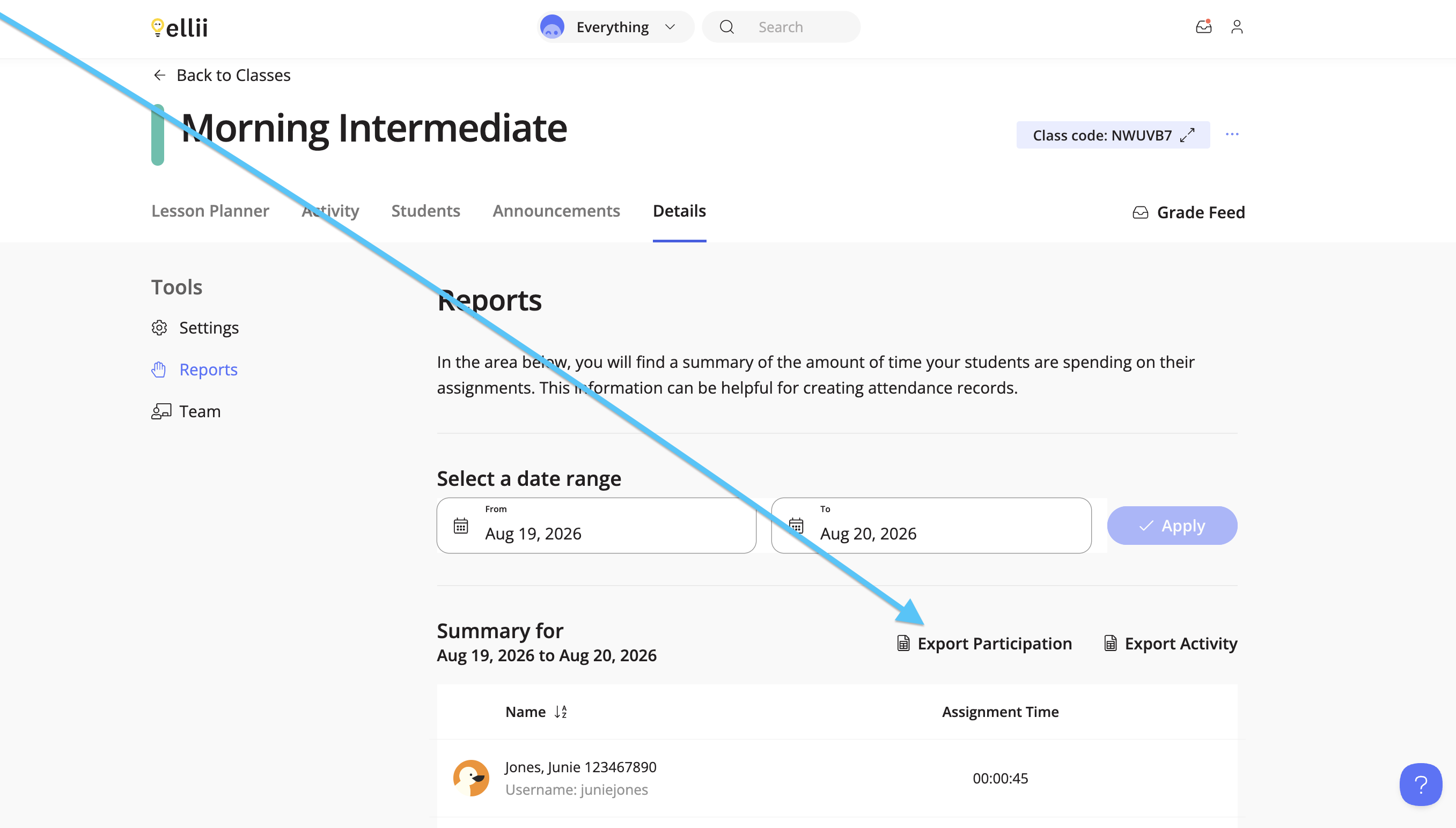
To export this report, click Export Participation.
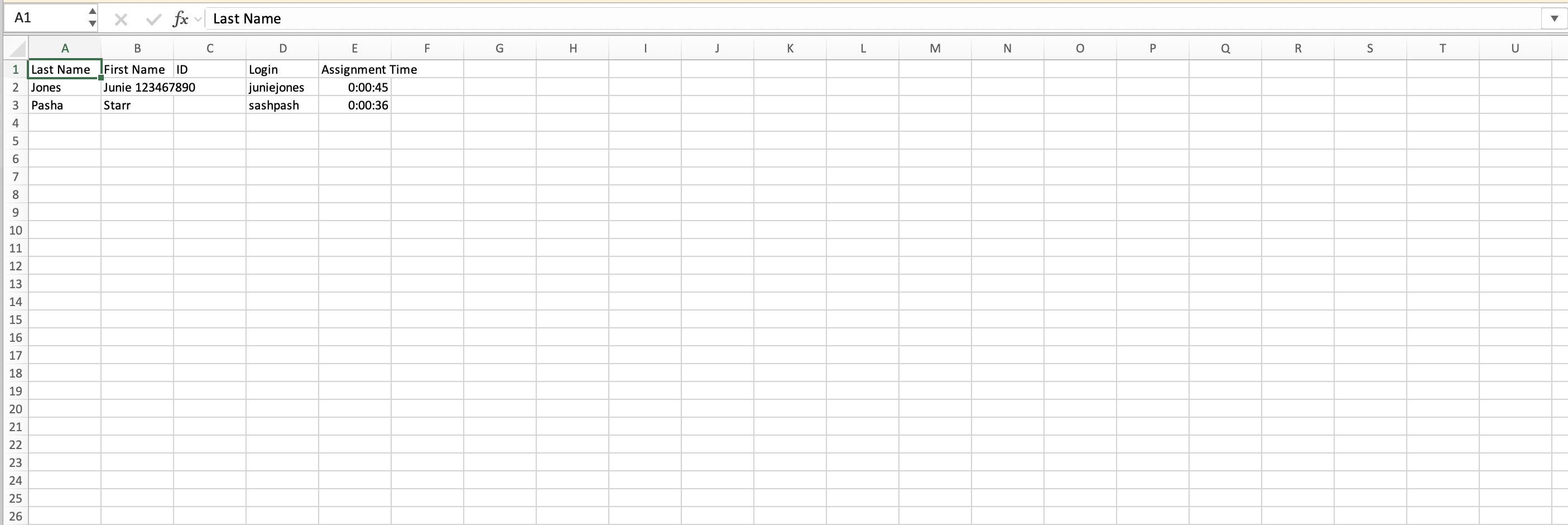
The report will include your students’ names, login details, and total time.
Step 6
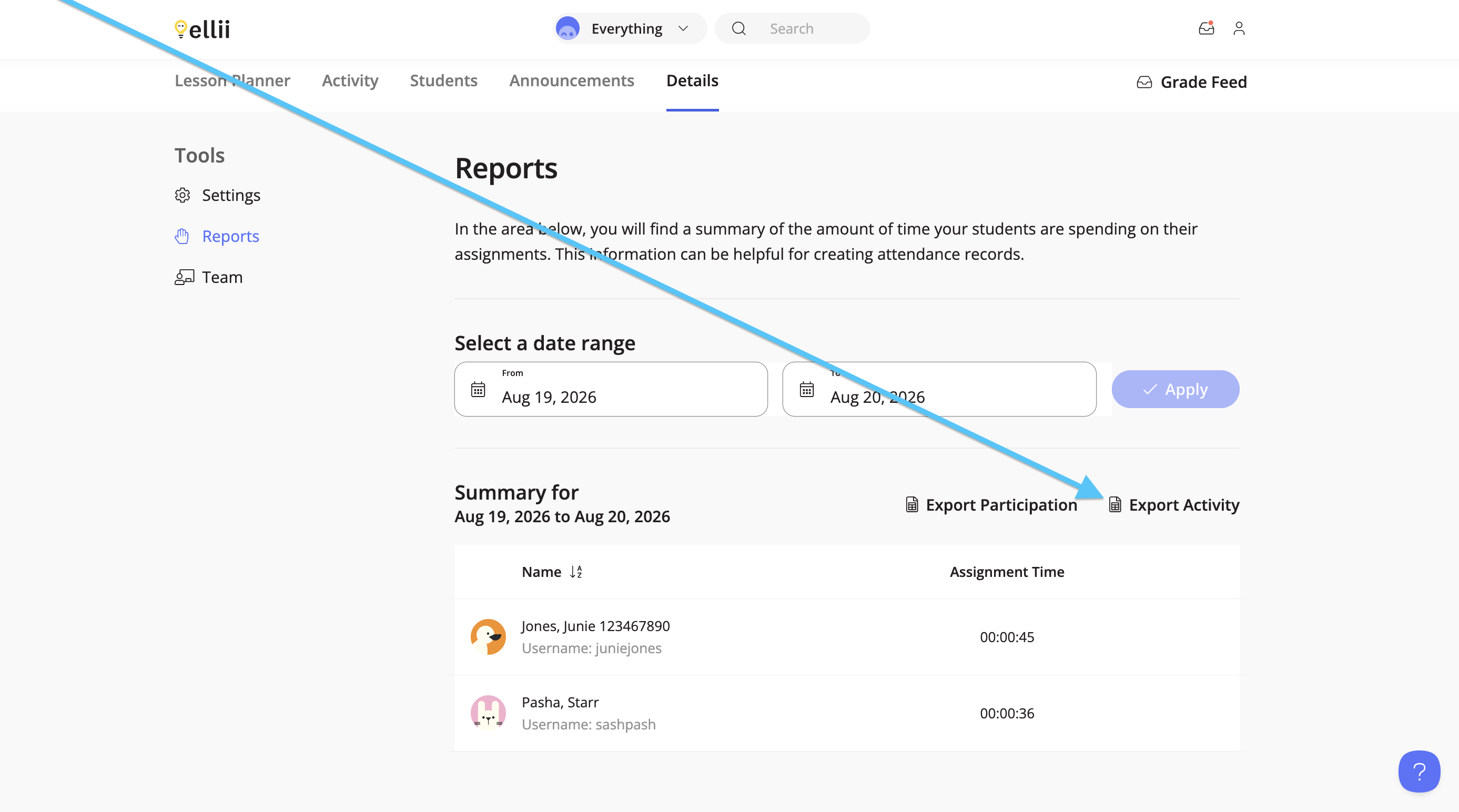
To export an activity report, click Export Activity.
If you have any questions or feedback, please contact us!