
How to Use the Activity Tab
The Activity tab, makes it easy to navigate through student results and export them into CSV files. Follow the steps below to find out how.
Step-by-Step Instructions
Log in to your account here:
Step 1
Click on the Everything menu and select Classroom.


Step 2
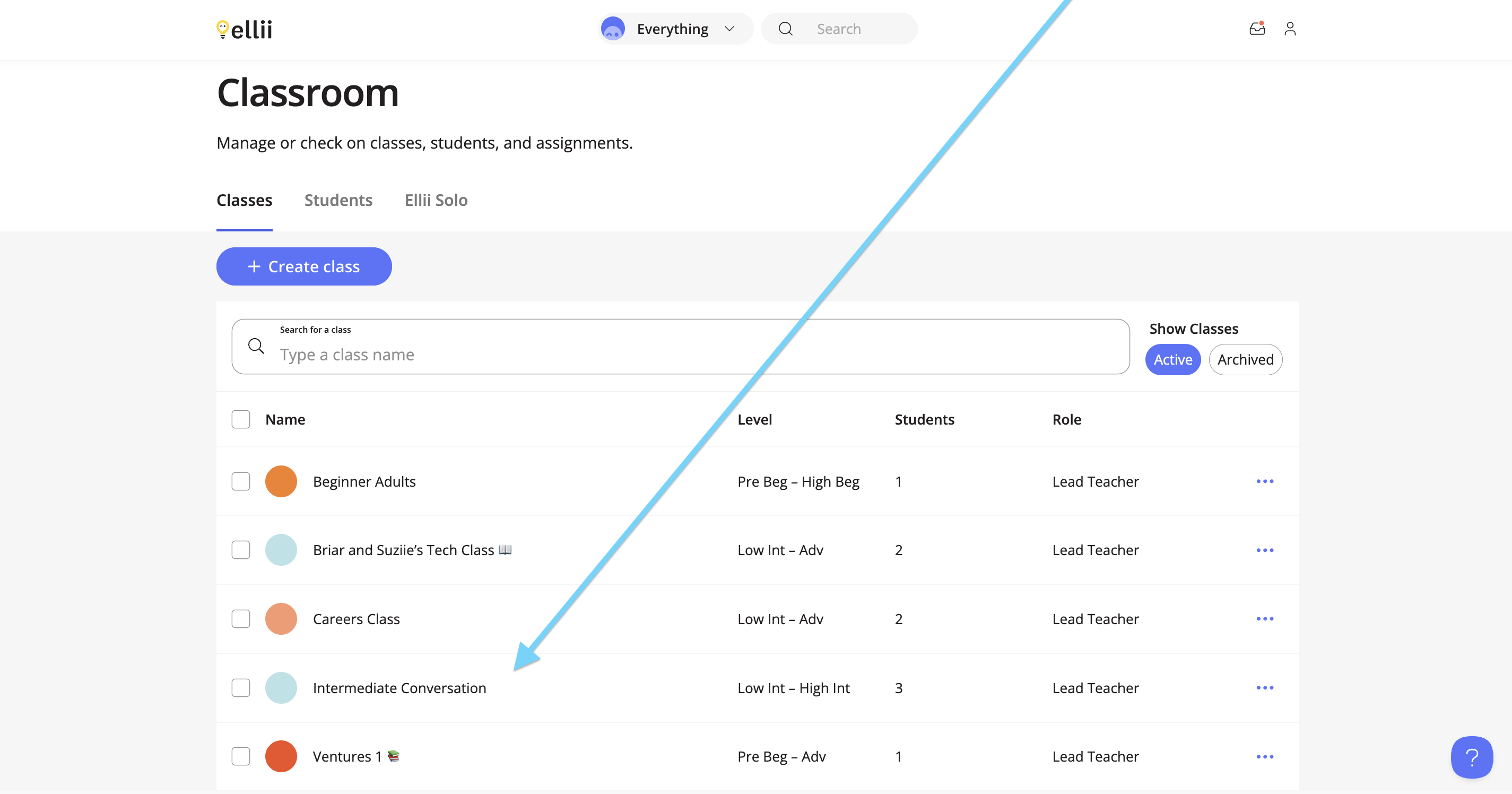
Click on the class you would like to view the activity for.
Step 3
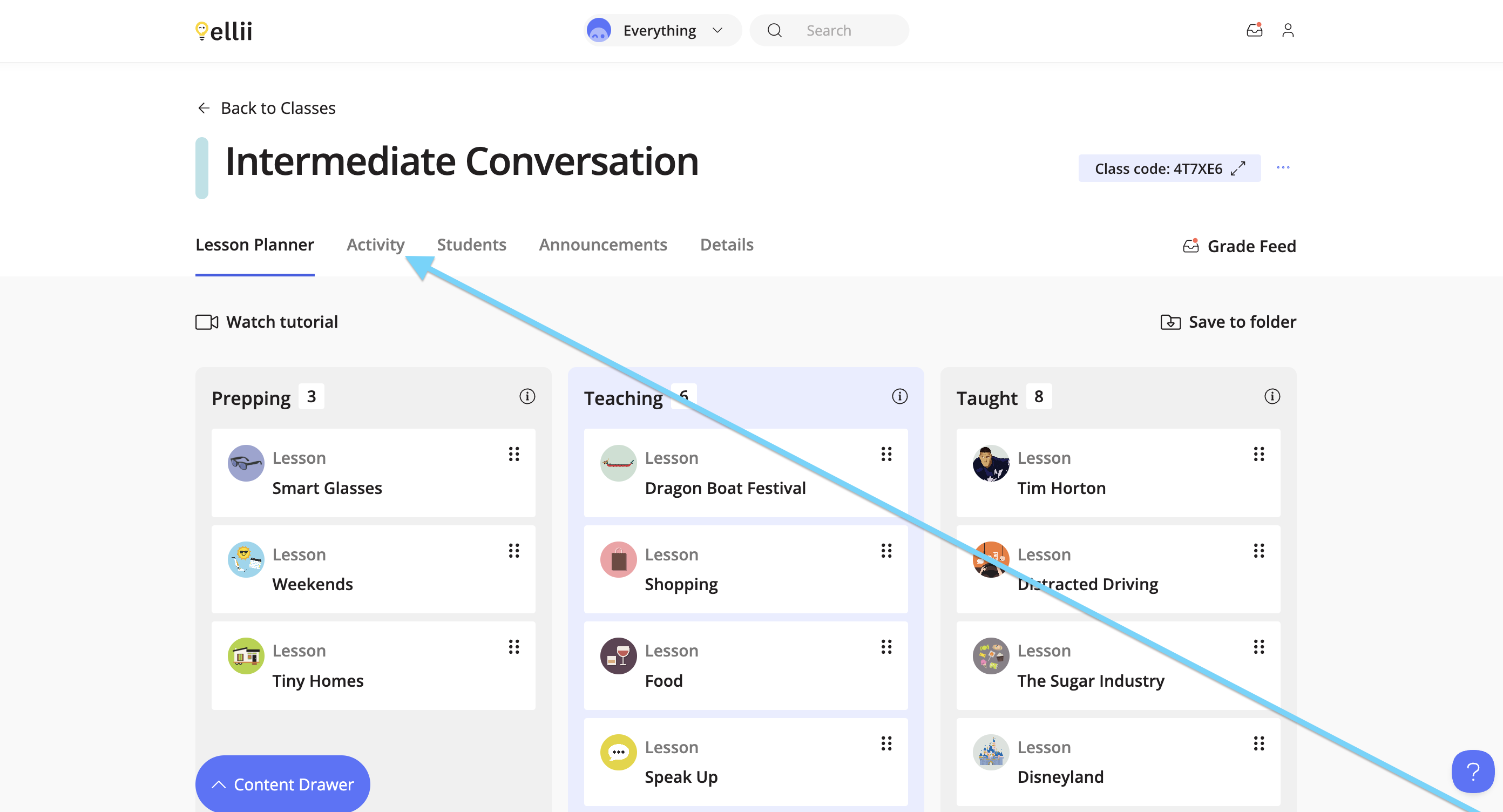
Click on the Activity tab.
Step 4
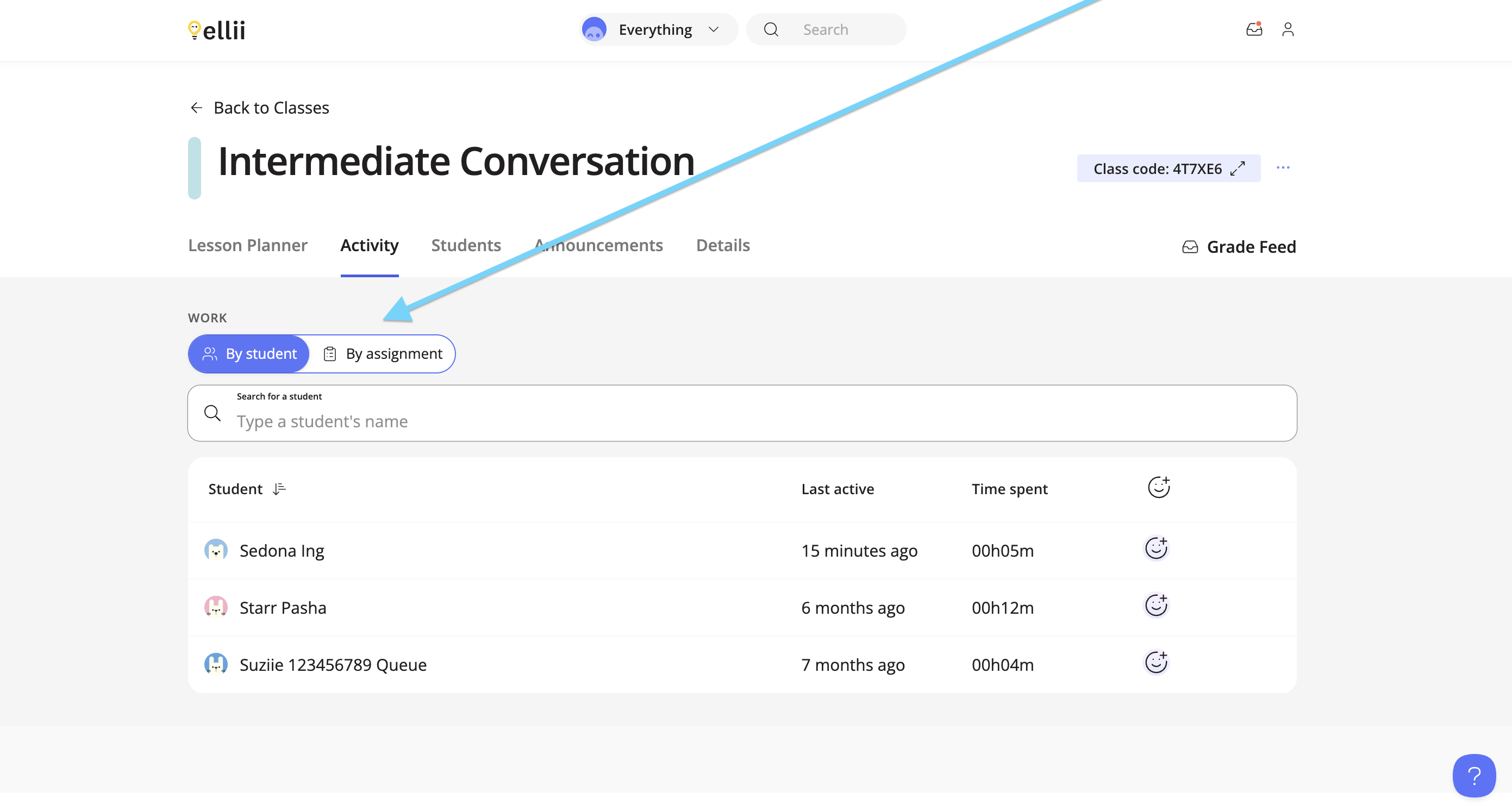
You can choose to view the results By student or By assignment.
Step 5
Under the By Student tab, click on a student's name to view their progress.
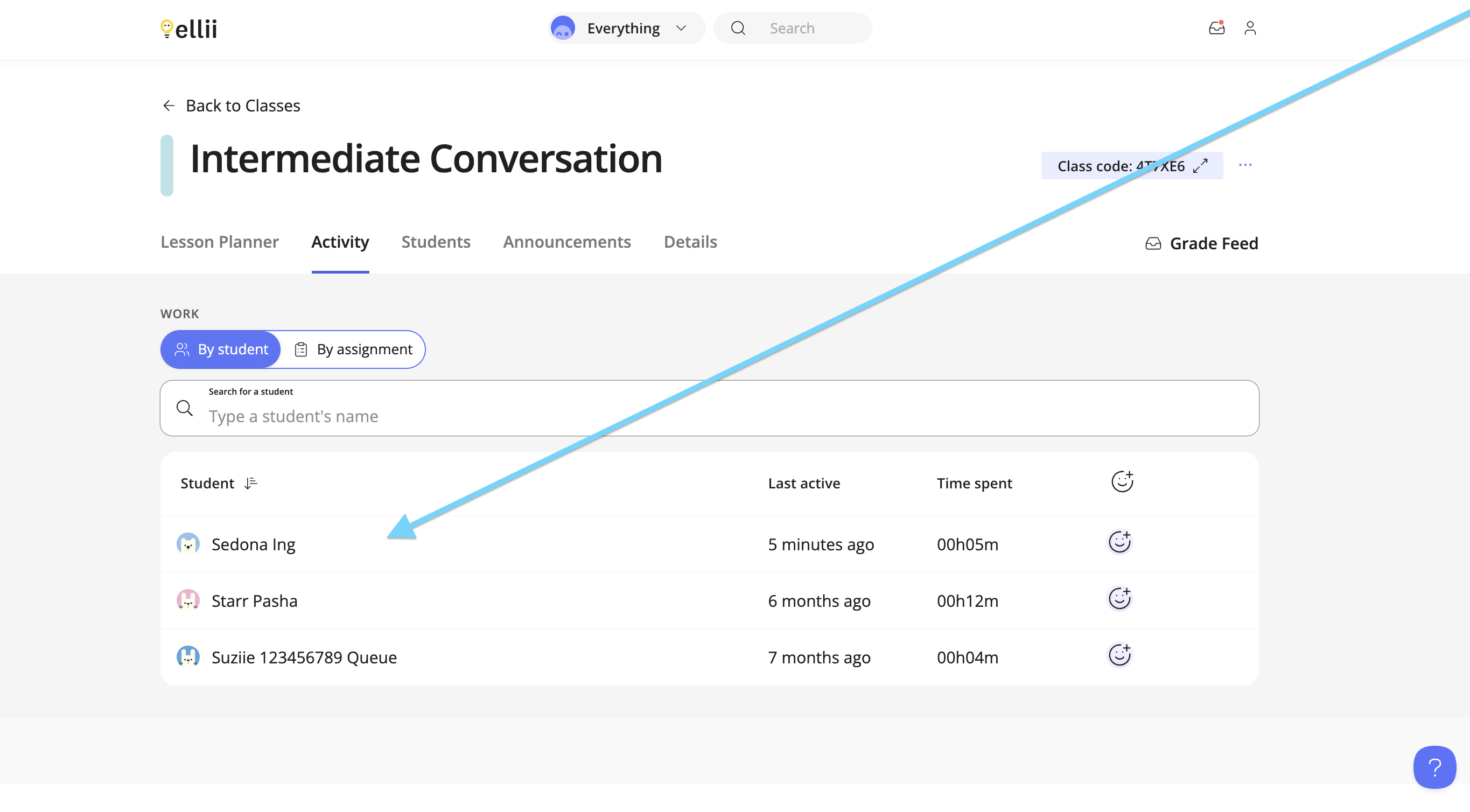
A sheet will appear showing your student's progress across all the lessons assigned to the class. You will see the title, the student's score for their first attempt as well as their best attempt, the total time it took to do the homework and the status of the homework.

Step 6
Click on a lesson to view the results.

Step 7
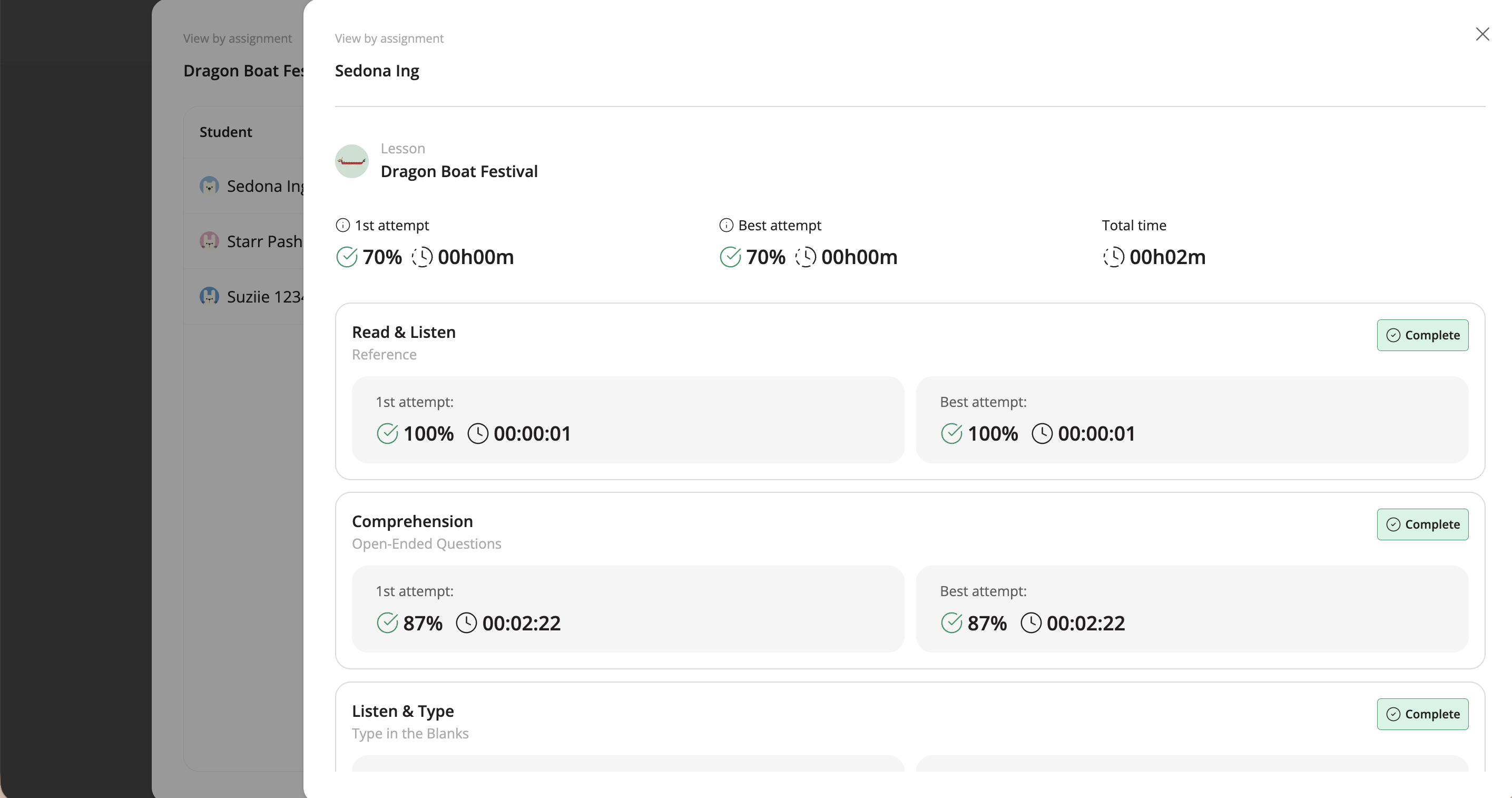
You will see the results organized by task on another sheet. The score for the first attempt and the best attempt will be shown along with the time it took to complete the task. Click on a task to view your student's responses.

Step 8
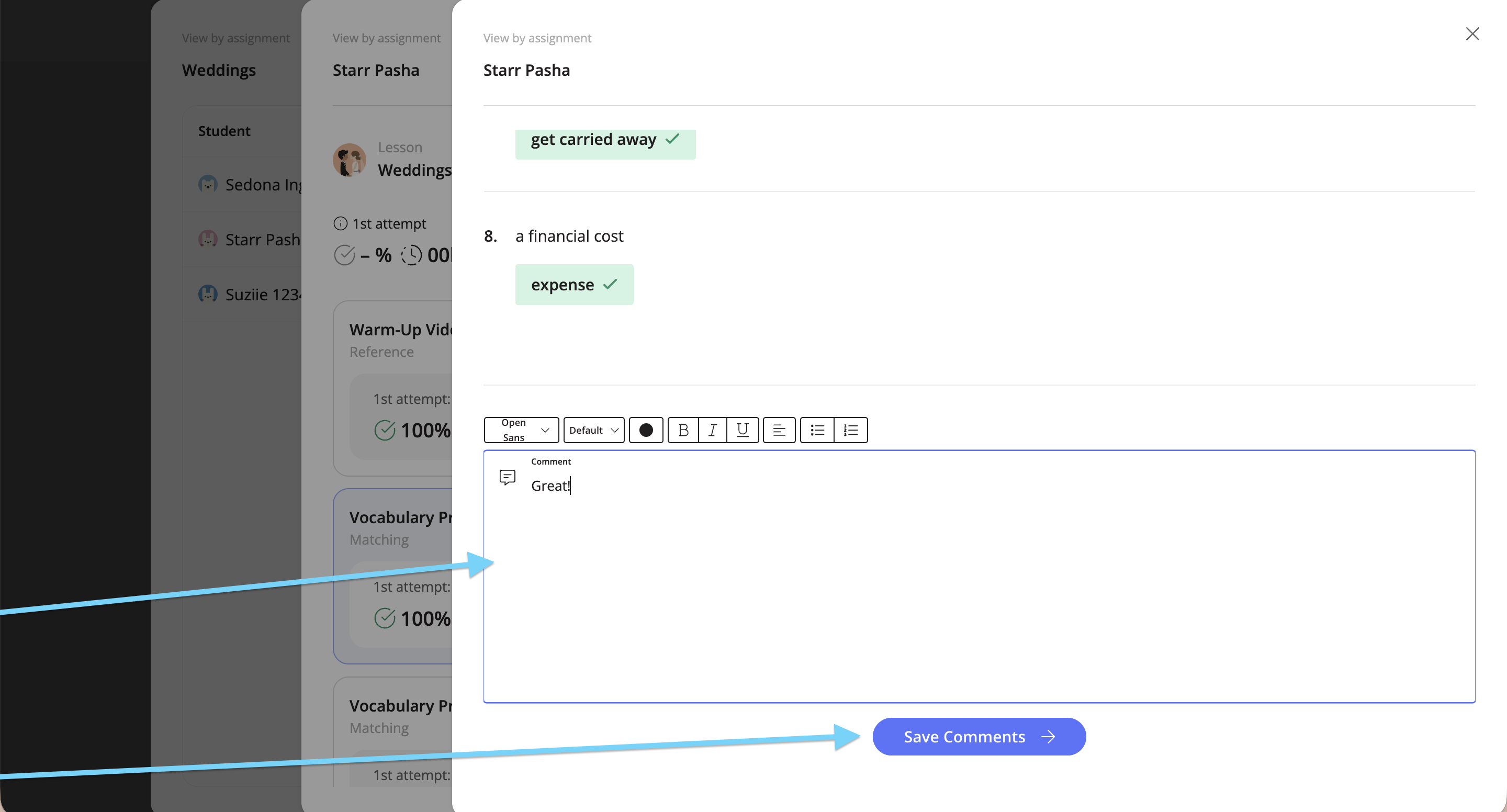
You will see your student's responses for each question in the task appear in another sheet. You can also leave any feedback.

Step 9
To go back, you can click on the X or click outside the sheets.

Step 10
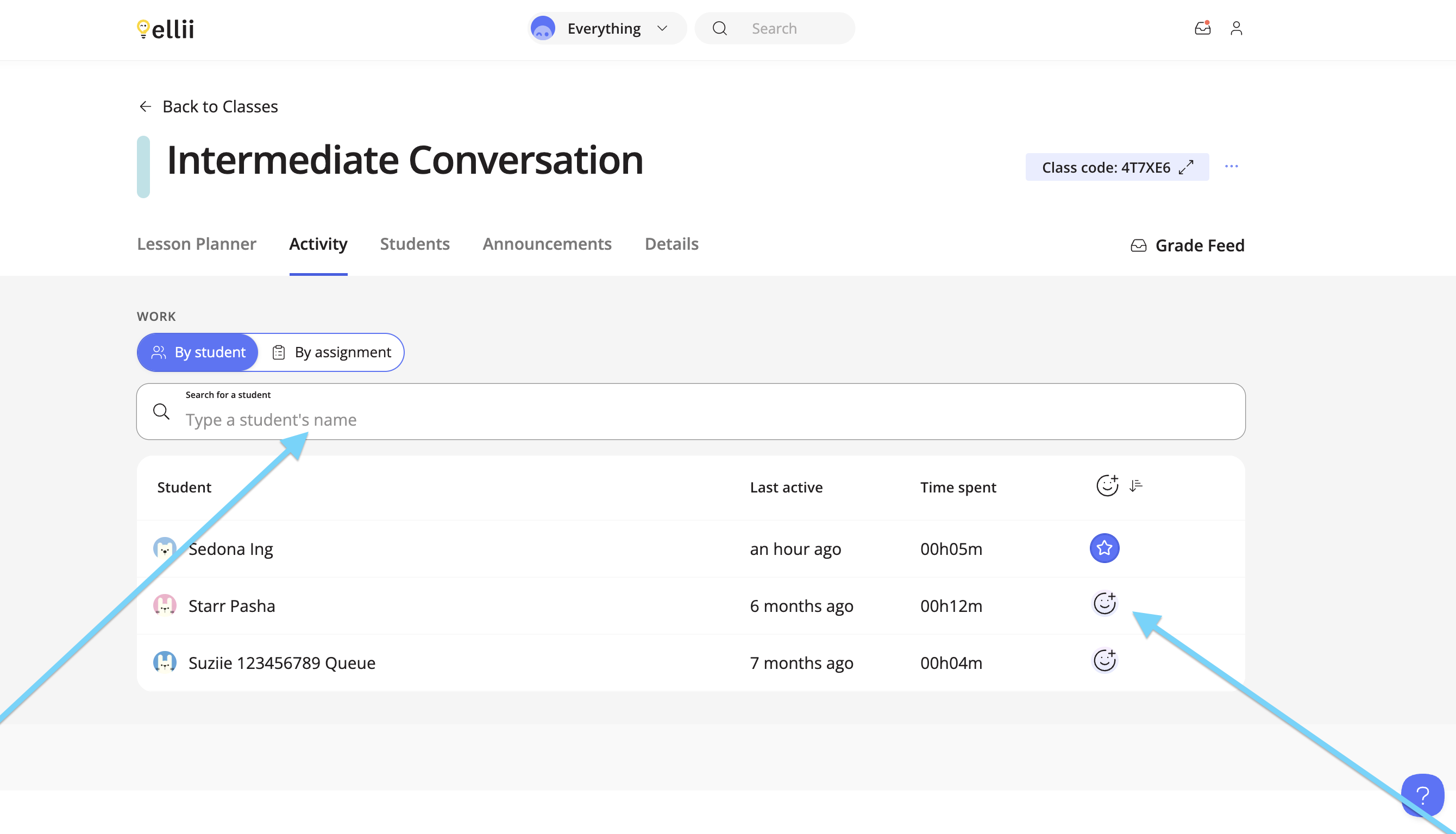
You can search for students or add emojis as a signifier or reminder by your student's name under this tab as well.
Step 11
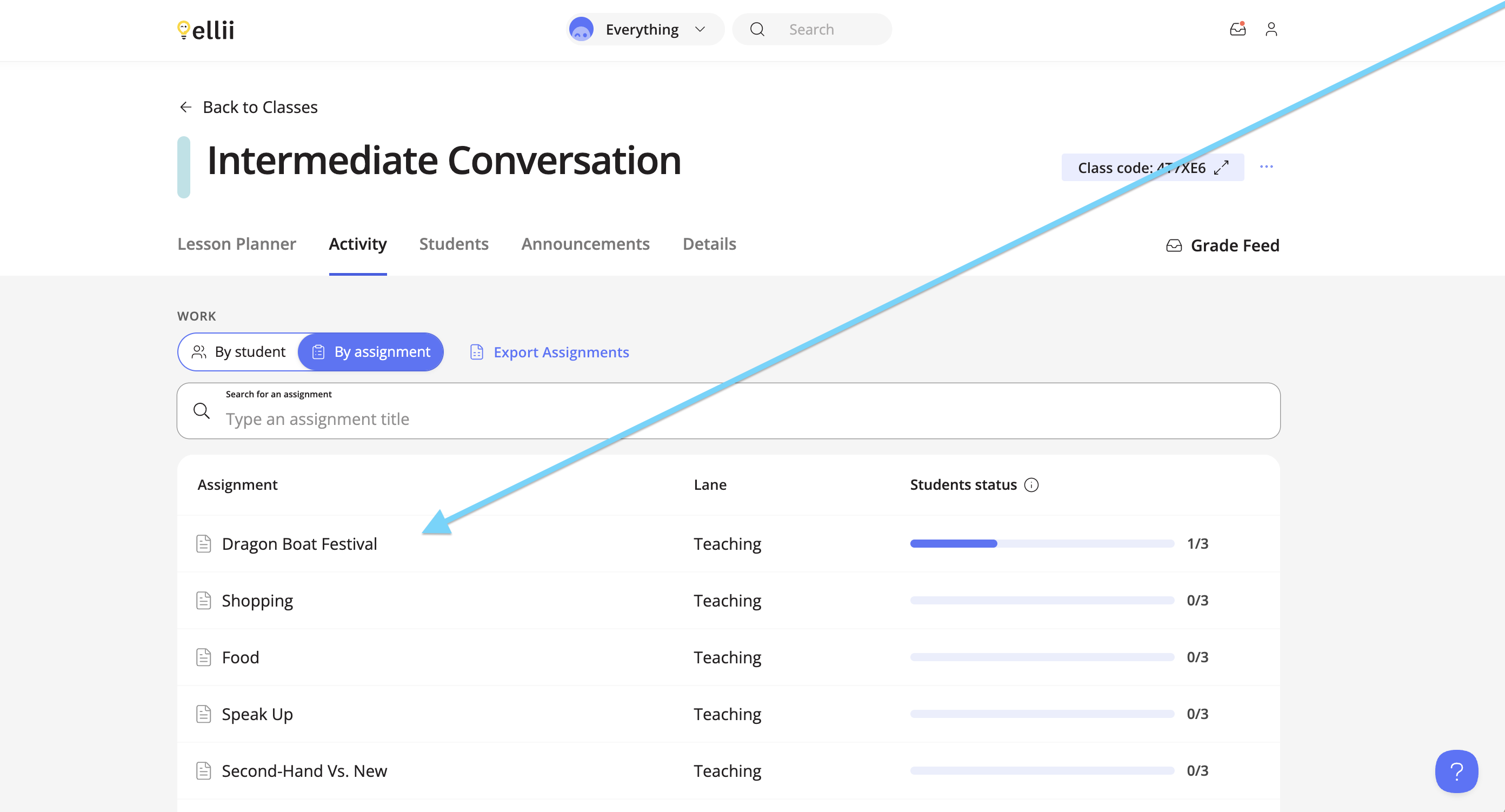
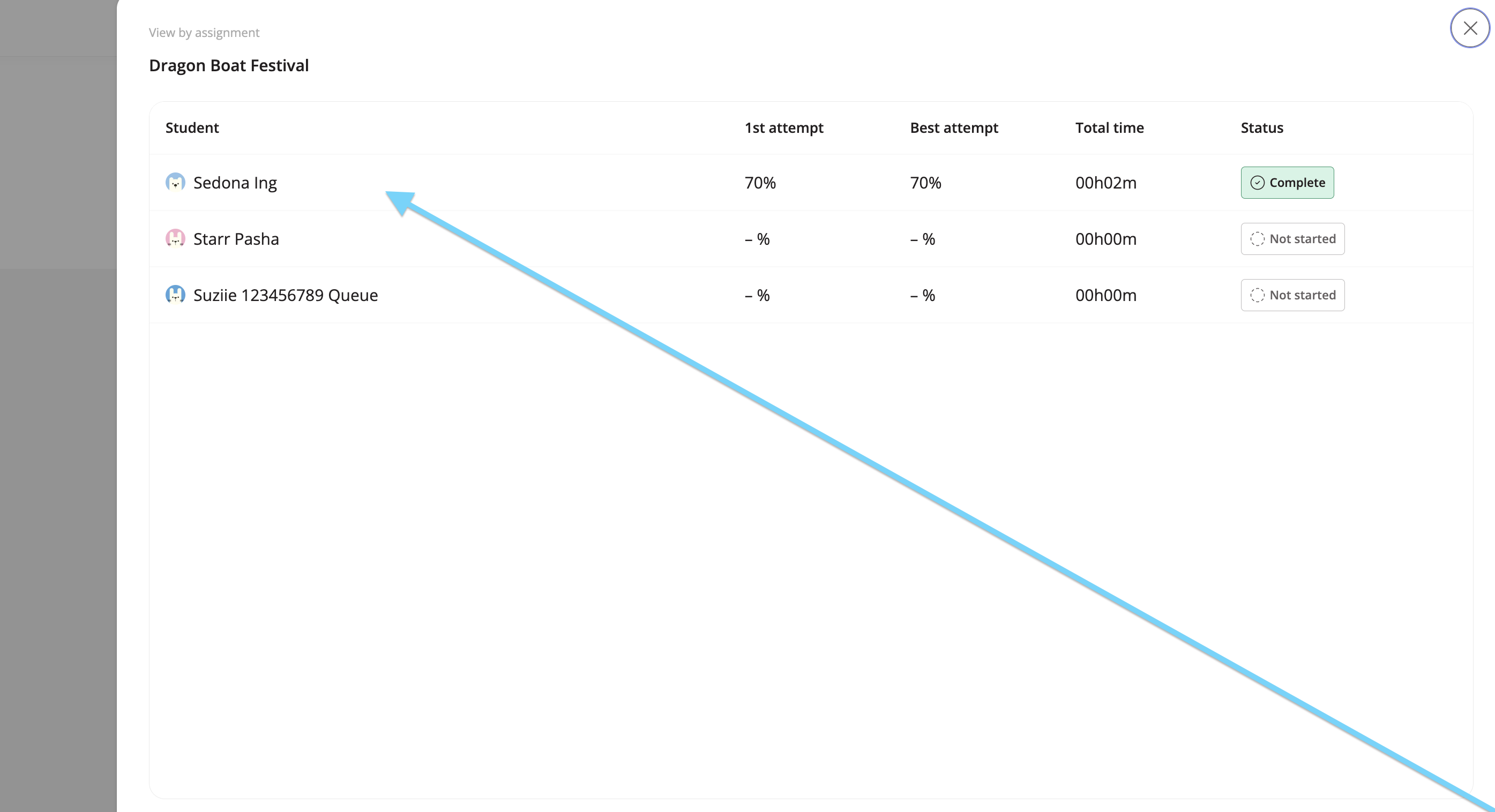
Under the By assignment tab, all of the lessons that have been assigned to the class will appear. Click on a lesson and then click on a student to see the results.
Step 12
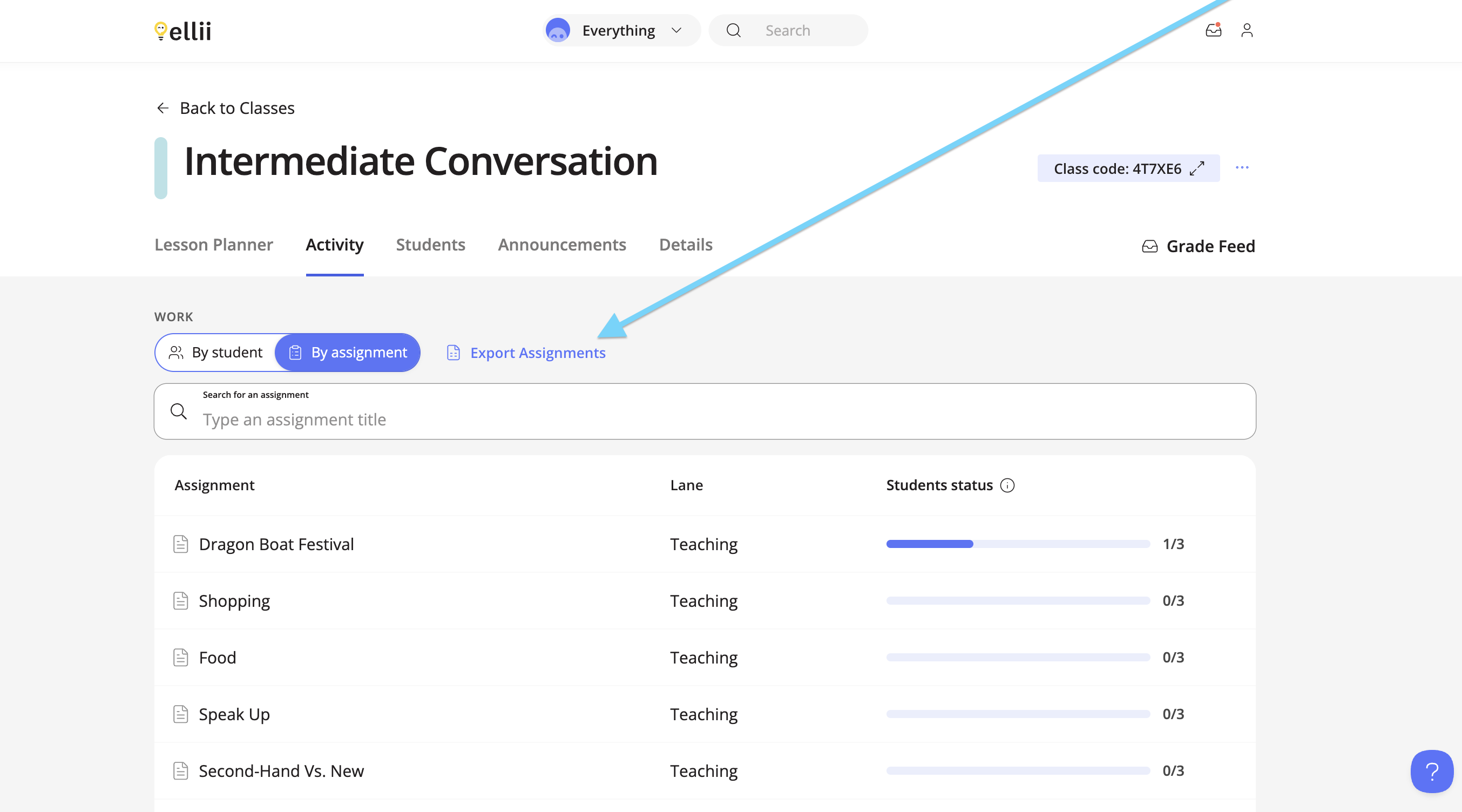
Under the By assignment tab, you can export a CSV file of the assignments by clicking Export Assignment. The file will be downloaded to your device and includes all of the information from the sheet.
Please contact us if you have any questions or feedback regarding the Activity tab!