
How to Use the Reports Tools
Follow the steps below or watch the video to learn how to generate reports for your classes!
Step-by-Step Instructions
Log in to your account here:
Step 1
Click on the Everything menu and select Classroom.


Step 2
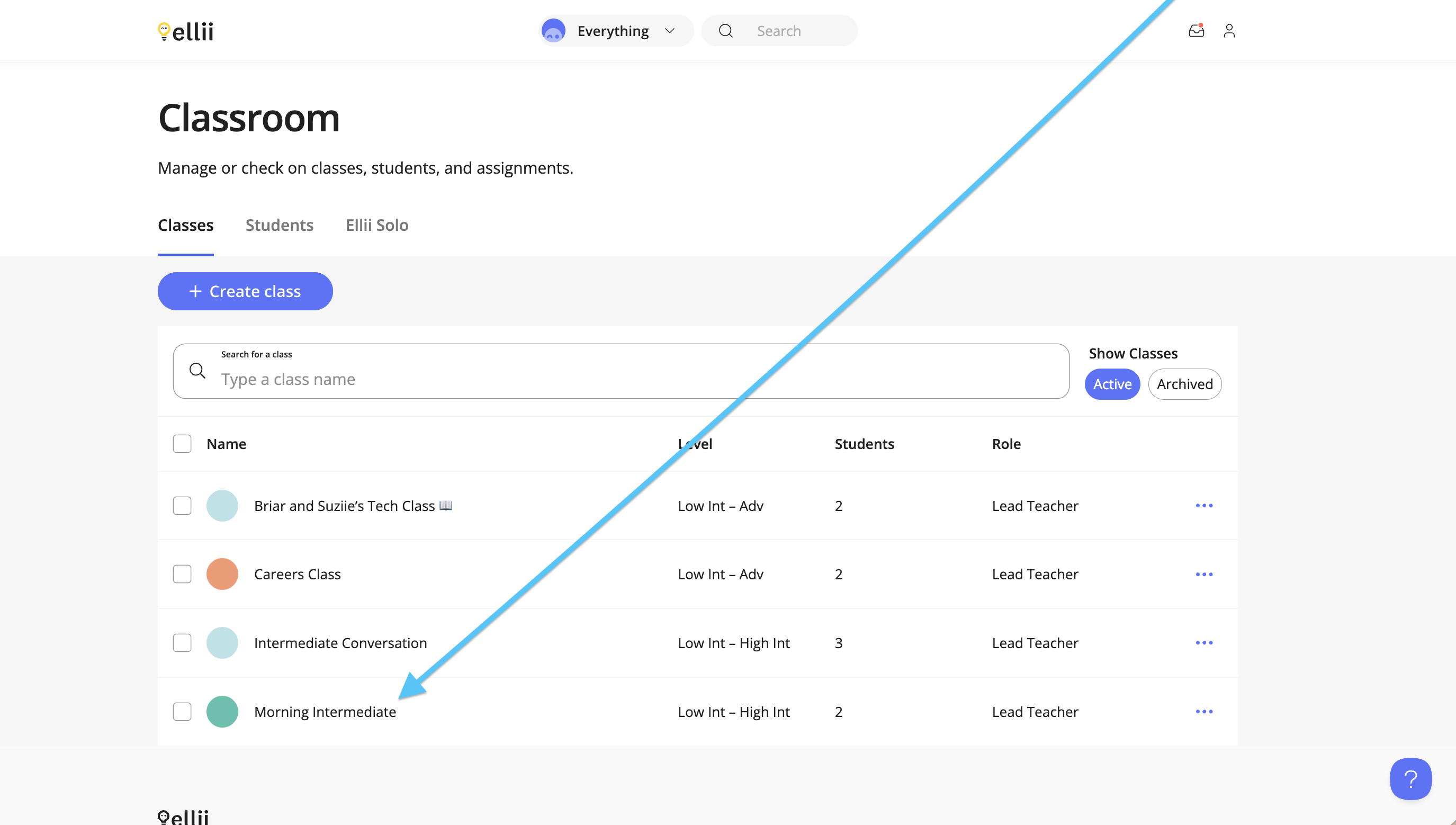
Click on the class you would like to see the reports for.
Step 3
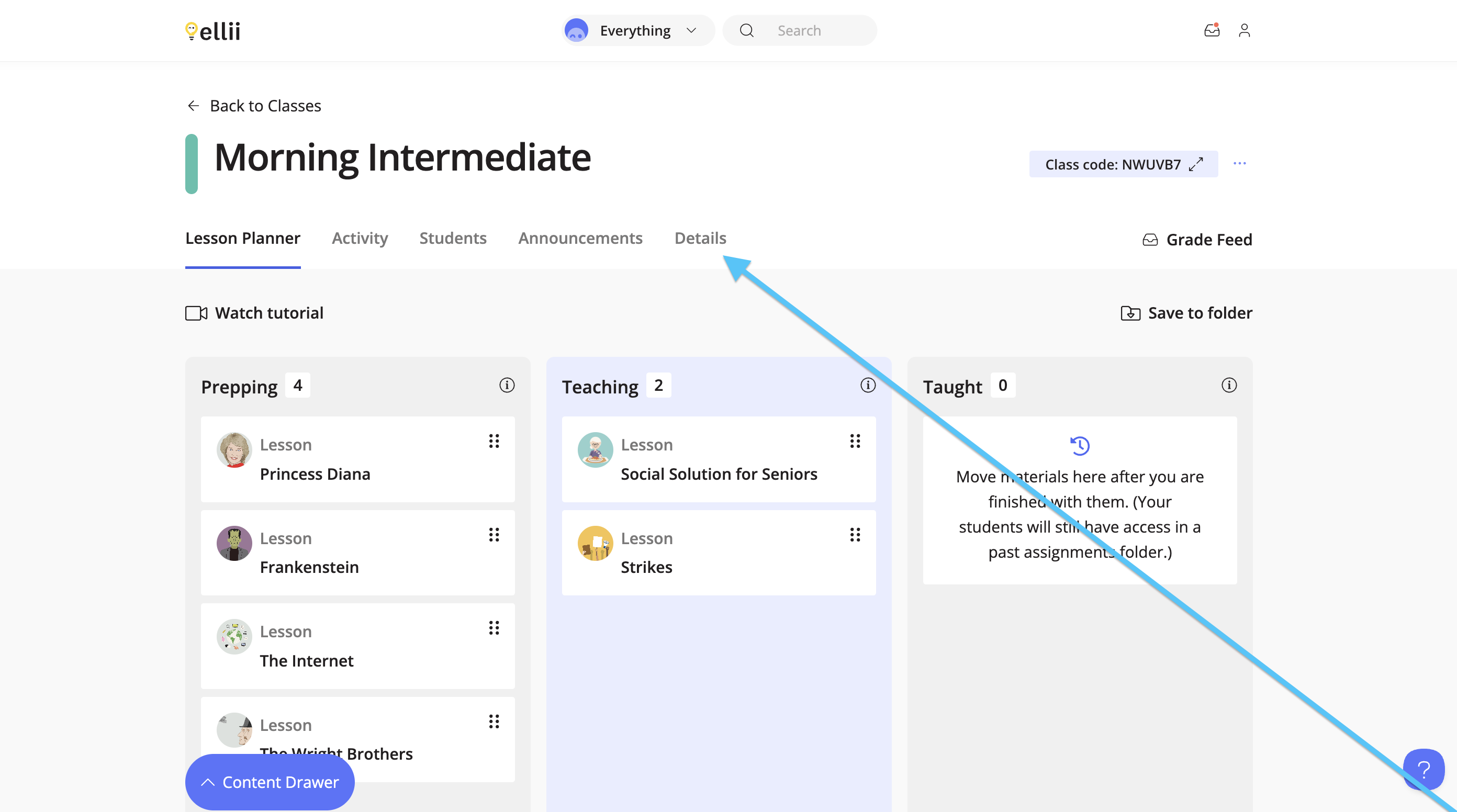
Once you are in the class, click on Details.
Step 4
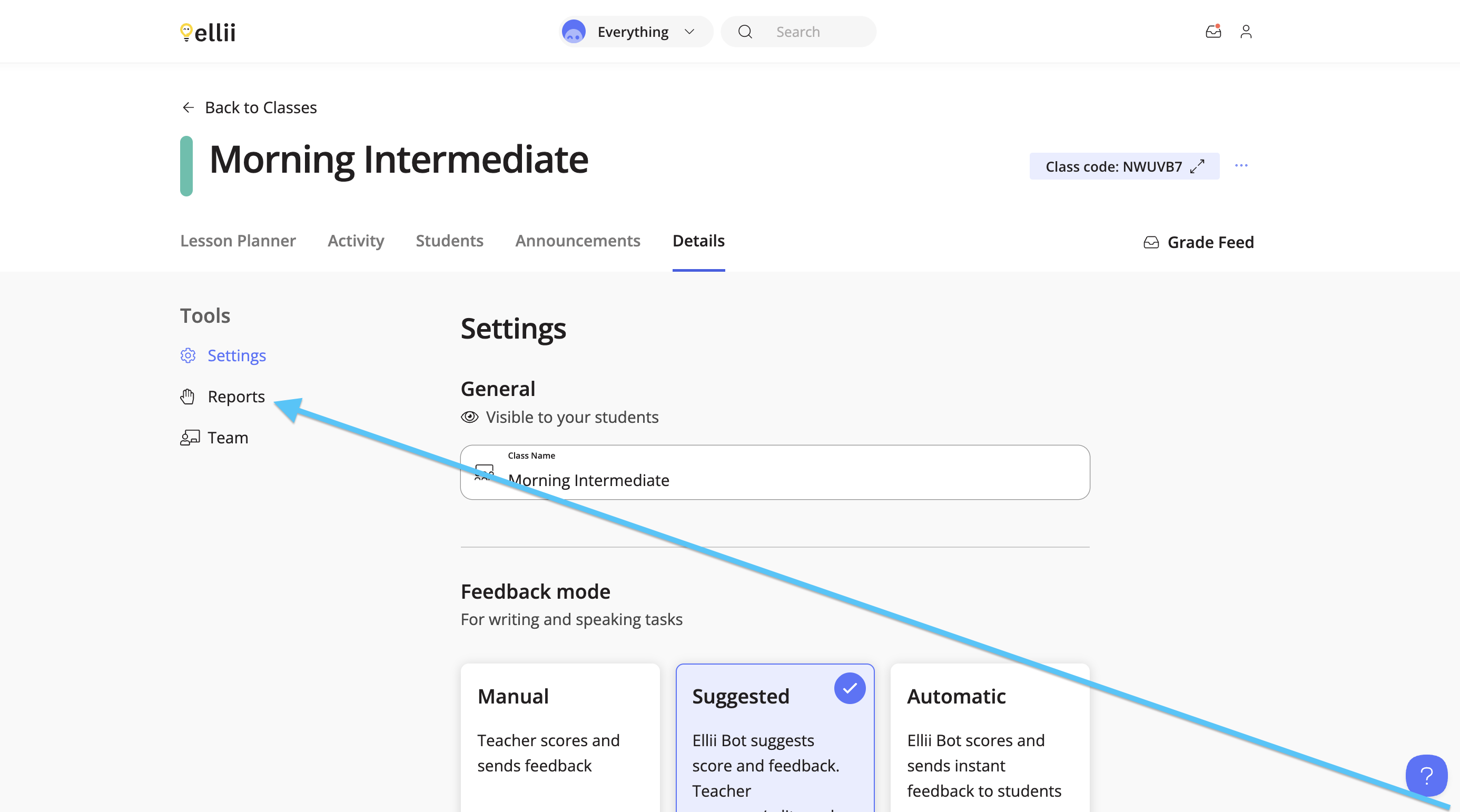
On the left-hand side, click Reports.
Step 5
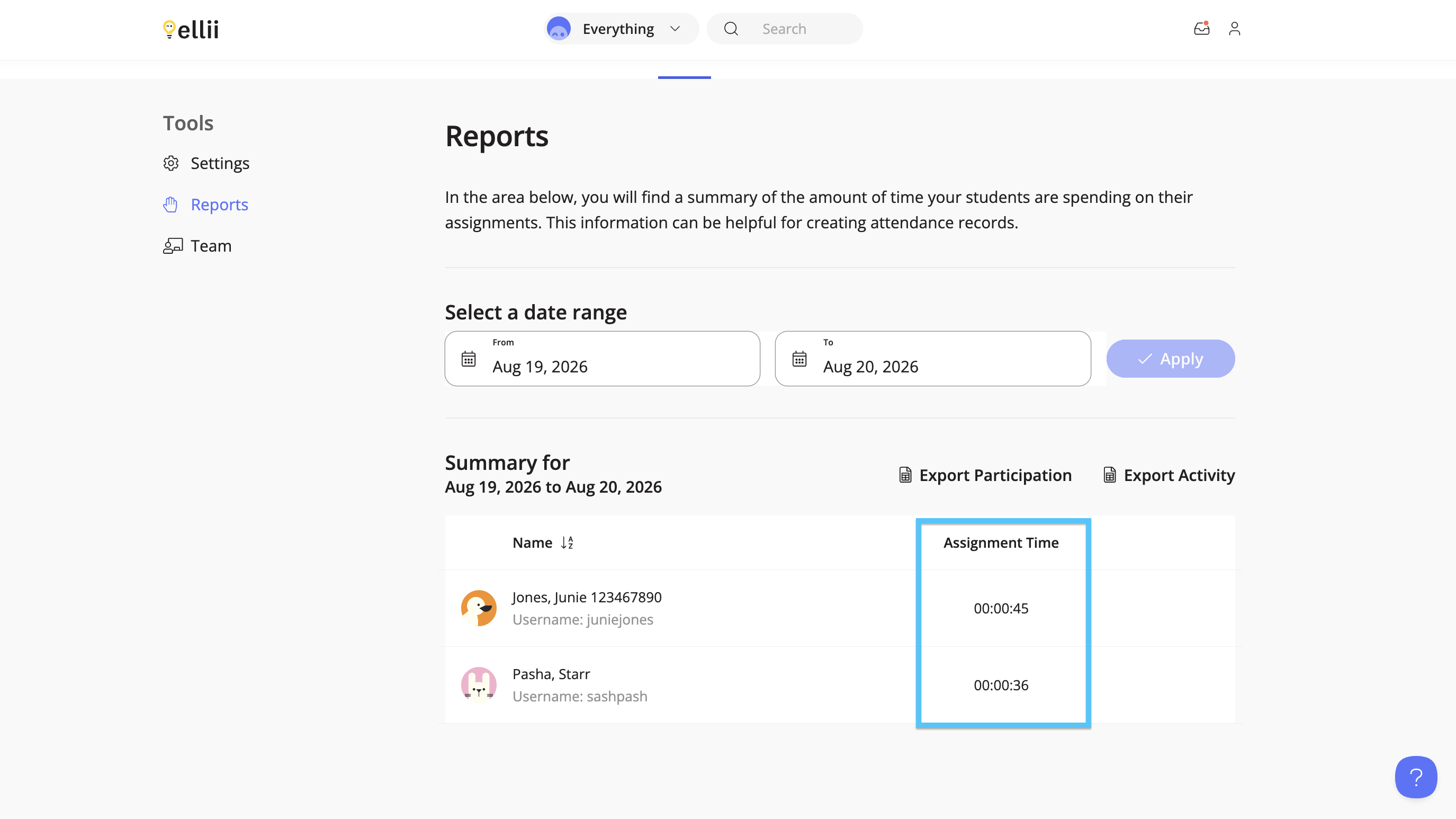
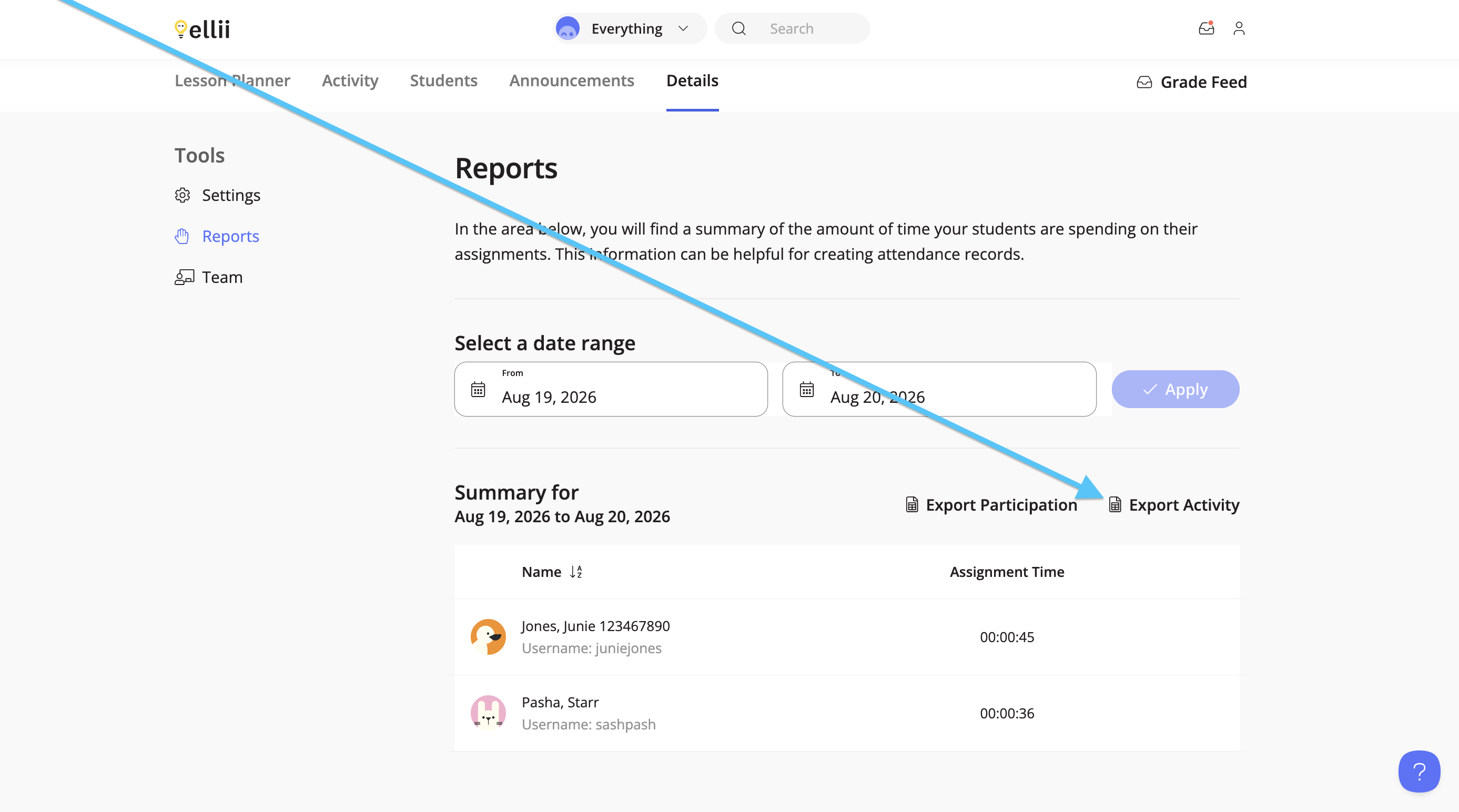
Select a start date by clicking on the From field and choose an end date by clicking on the To field. Once you have chosen your date range, click on Apply.
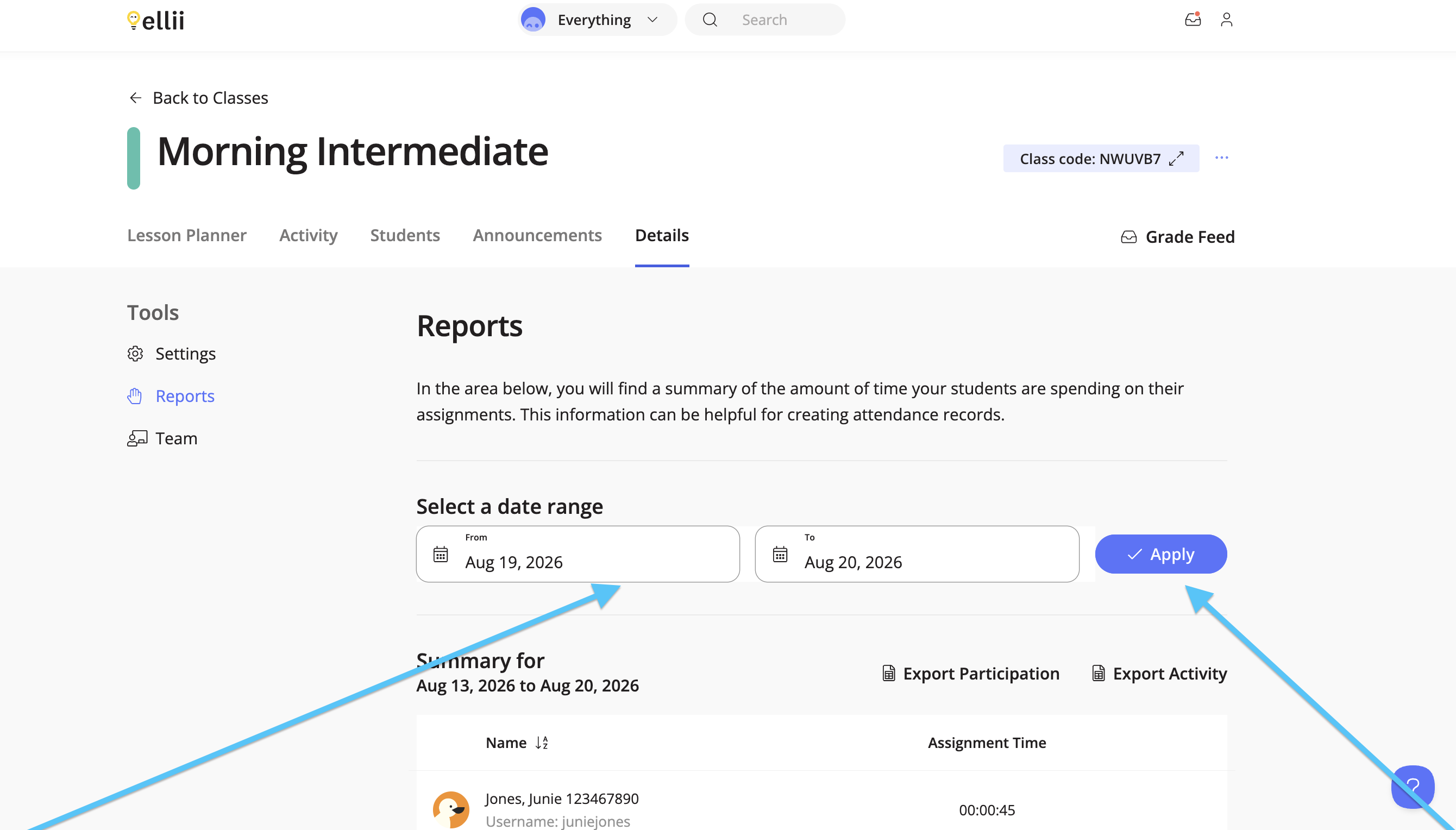
You will then see the total time your students have spent on Ellii, per student, under the summary.
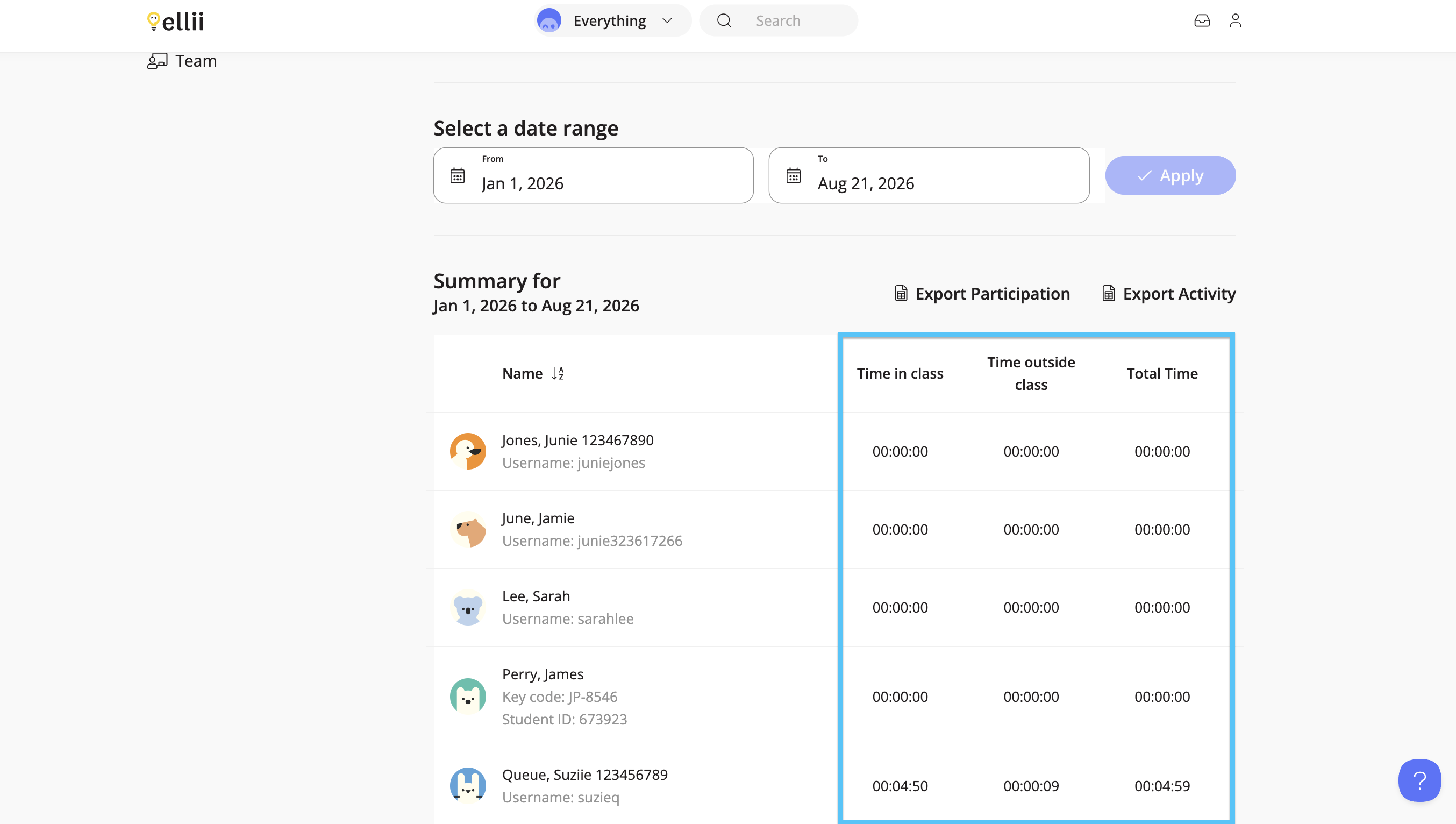
If you are connected to an Organization account, and proxy hours have been turned on by your admin, you will see your students’ participation time organized in two categories: Time spent on Ellii in class and Time outside of class.
Step 6
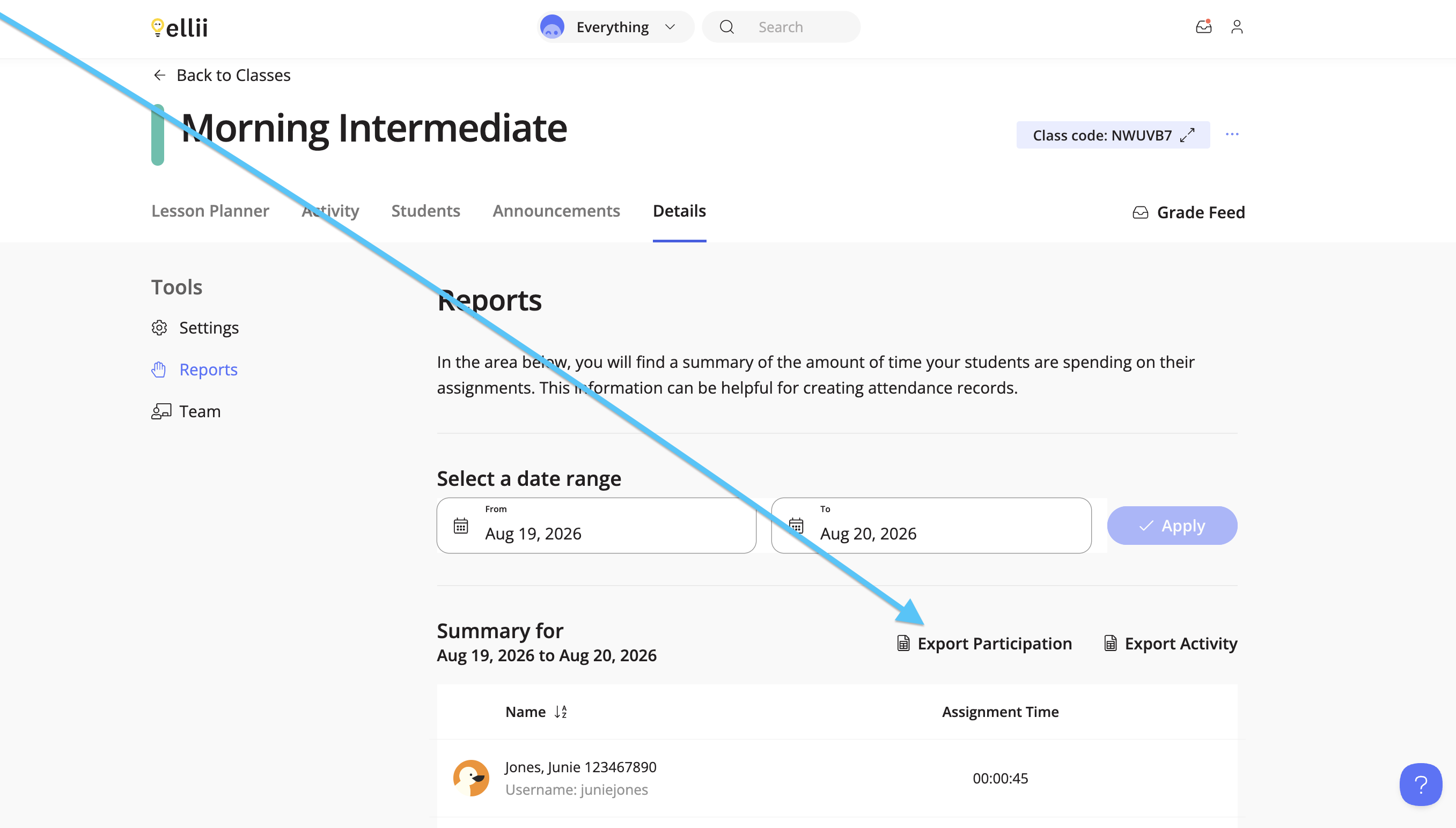
To export a participation report of your students’ total time, click Export Participation.
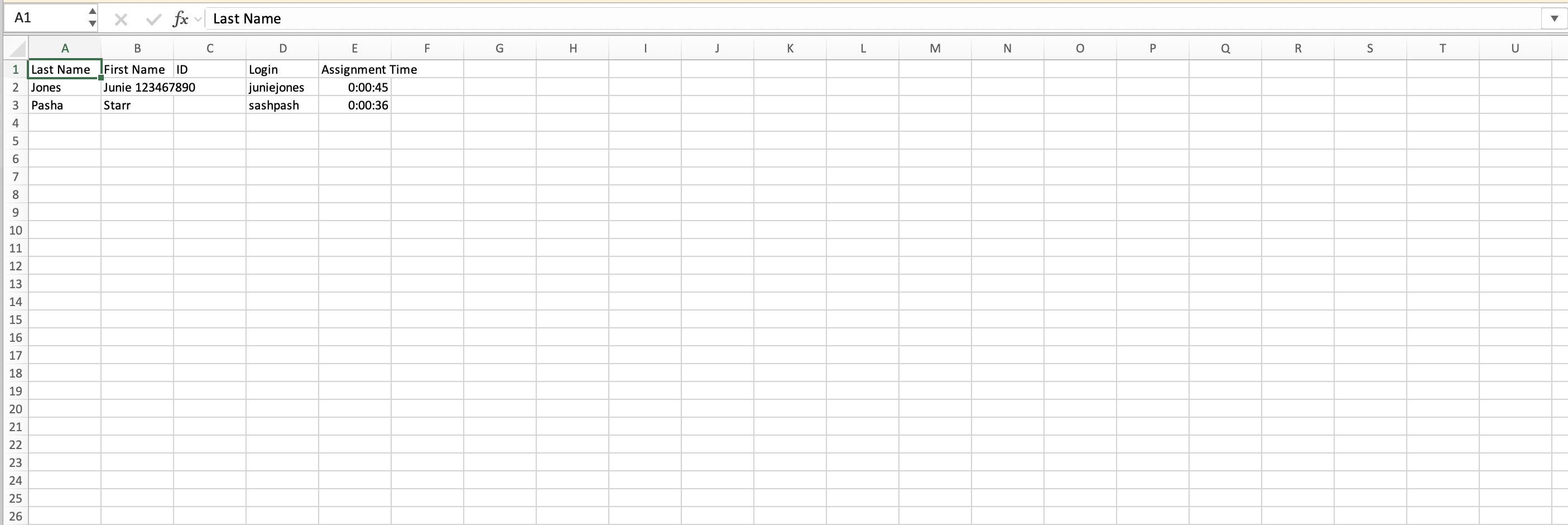
The report will include your students’ names, login details, and total time.
Step 7
To export an activity report, click Export Activity.
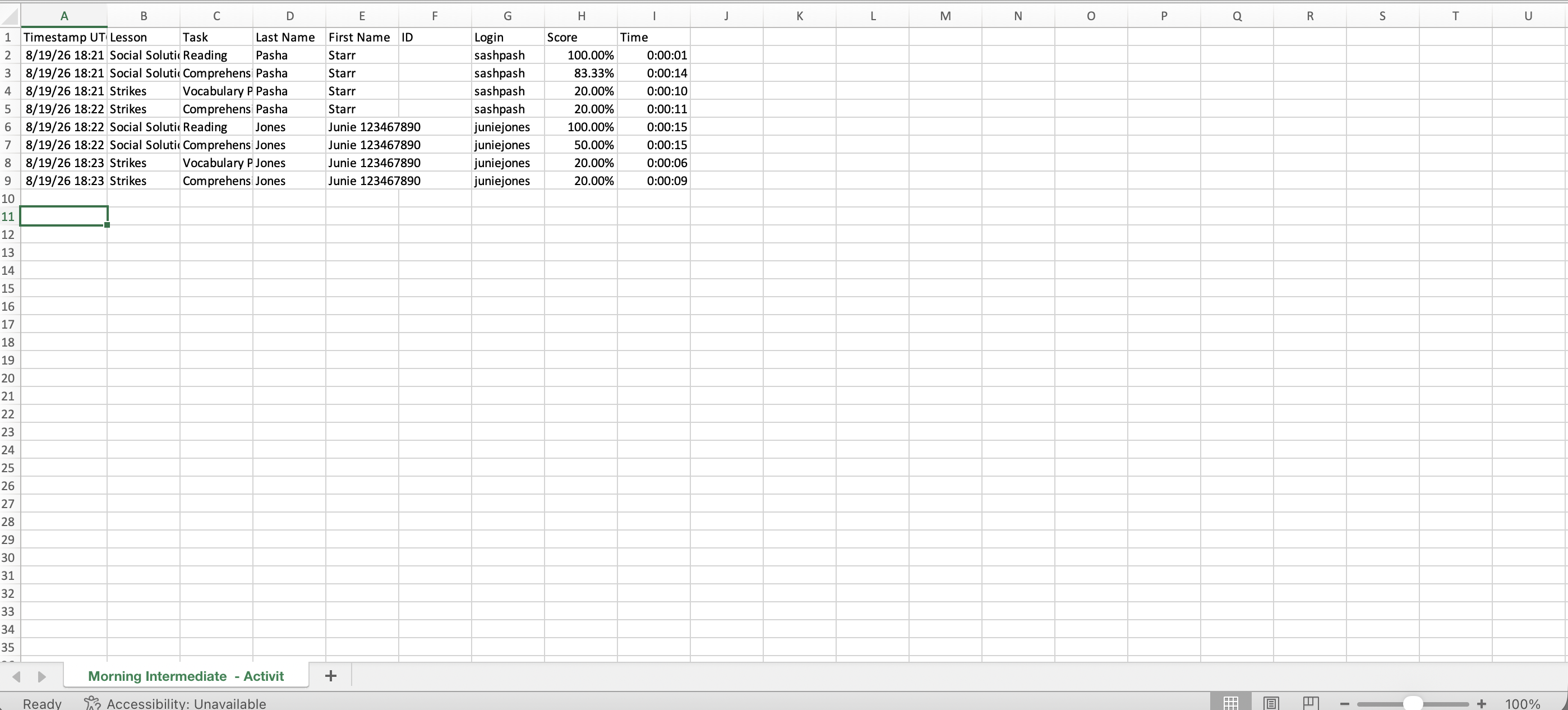
The Activity Report includes the dates, the lesson, the tasks, your students’ names, logins, scores, and the amount of time they spent on each task.
Step 8
You can also export results under the Activity tab.

Step 9
Click By assignment.

Step 10
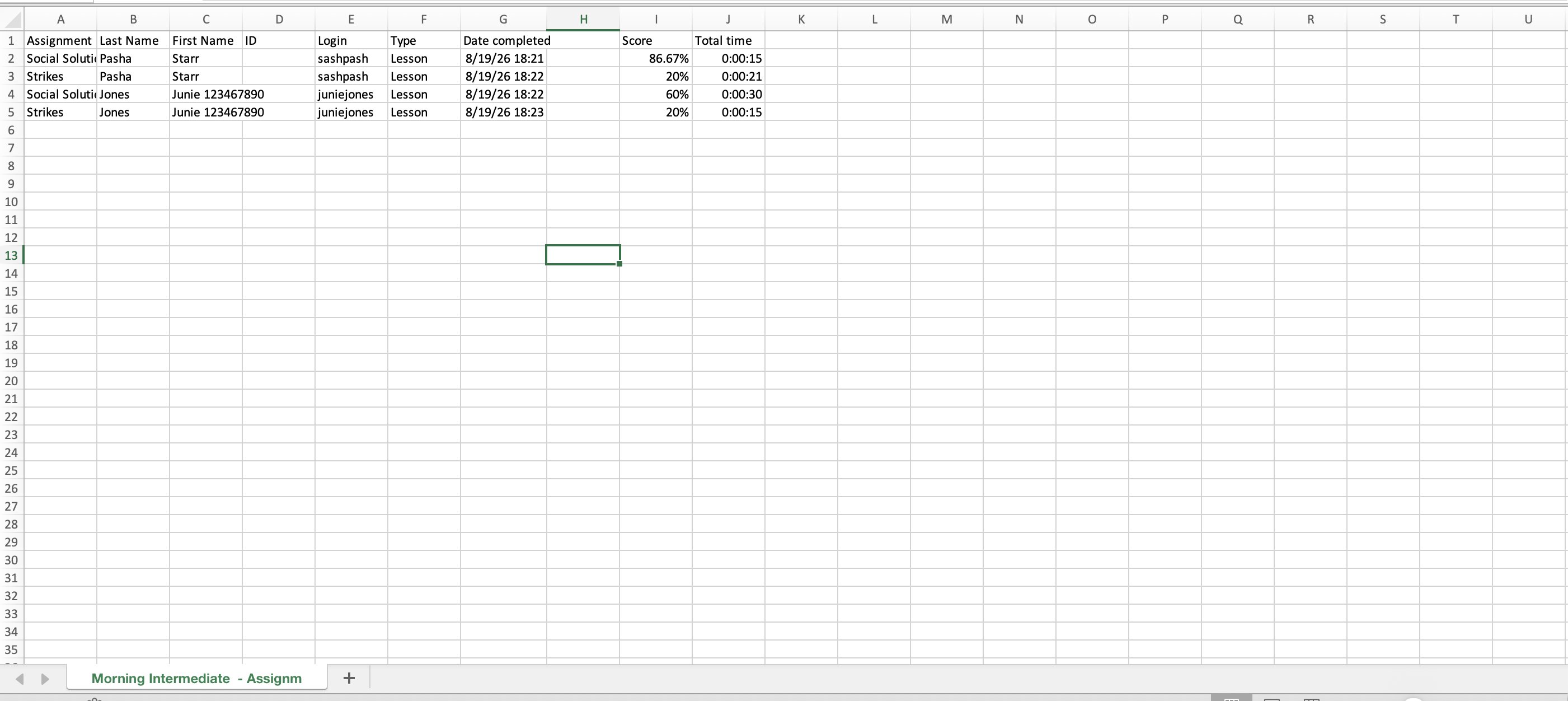
Click Export Assignments. A file will be downloaded to your device. This file includes all of the assignments added to the class, your students’ names, logins, the dates they completed the tasks, the scores for each task, and the total time.

Please contact us if you have any questions!