
How to Use the New Task Player
Follow the steps below to learn how to use our new task player coming soon. Check out the changes we’ve made to the design, audio and more!
Step-by-Step Instructions
Log in to your account here:
Step 1
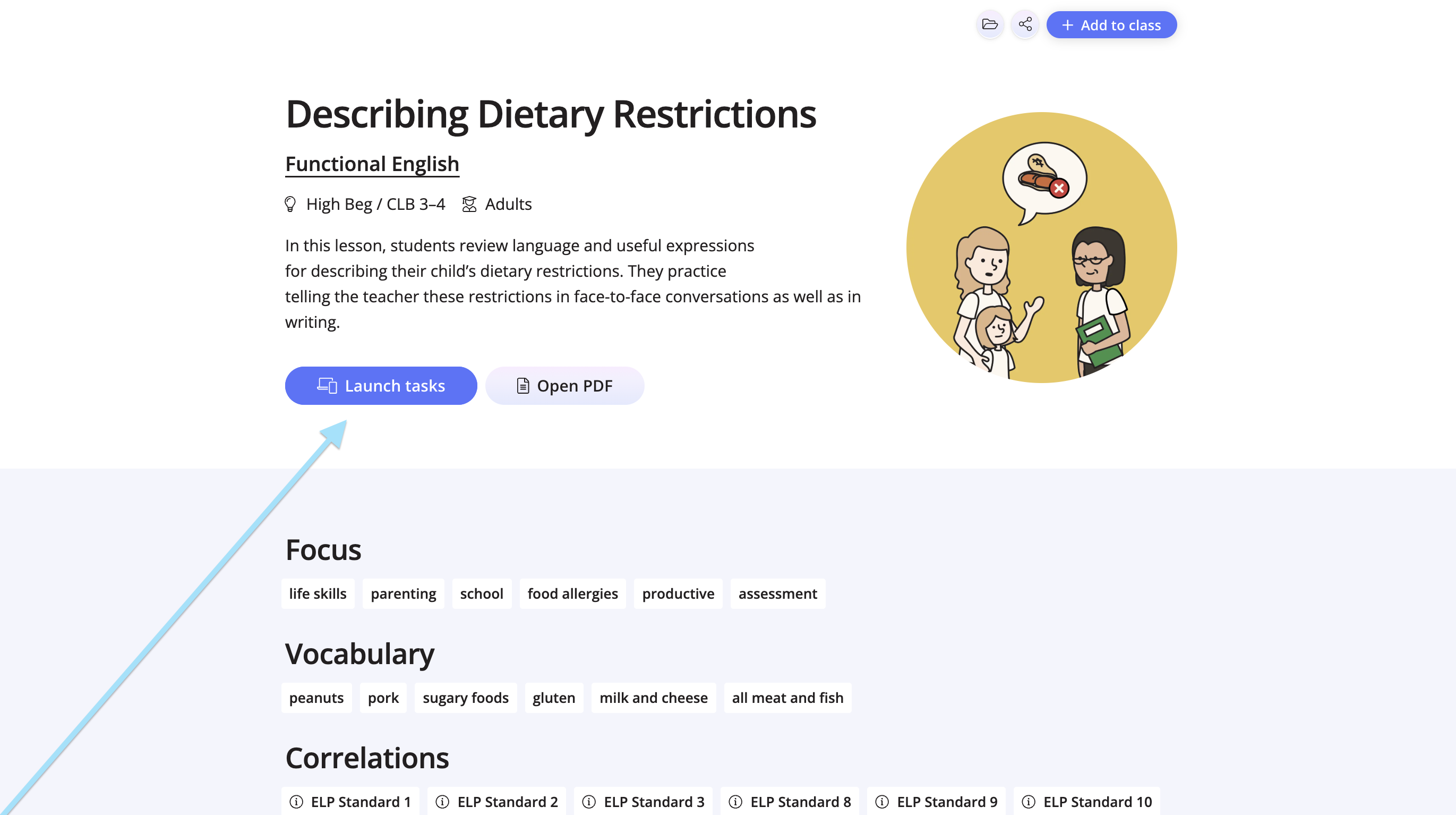
Choose a lesson from the site and click Launch Tasks.
Step 2
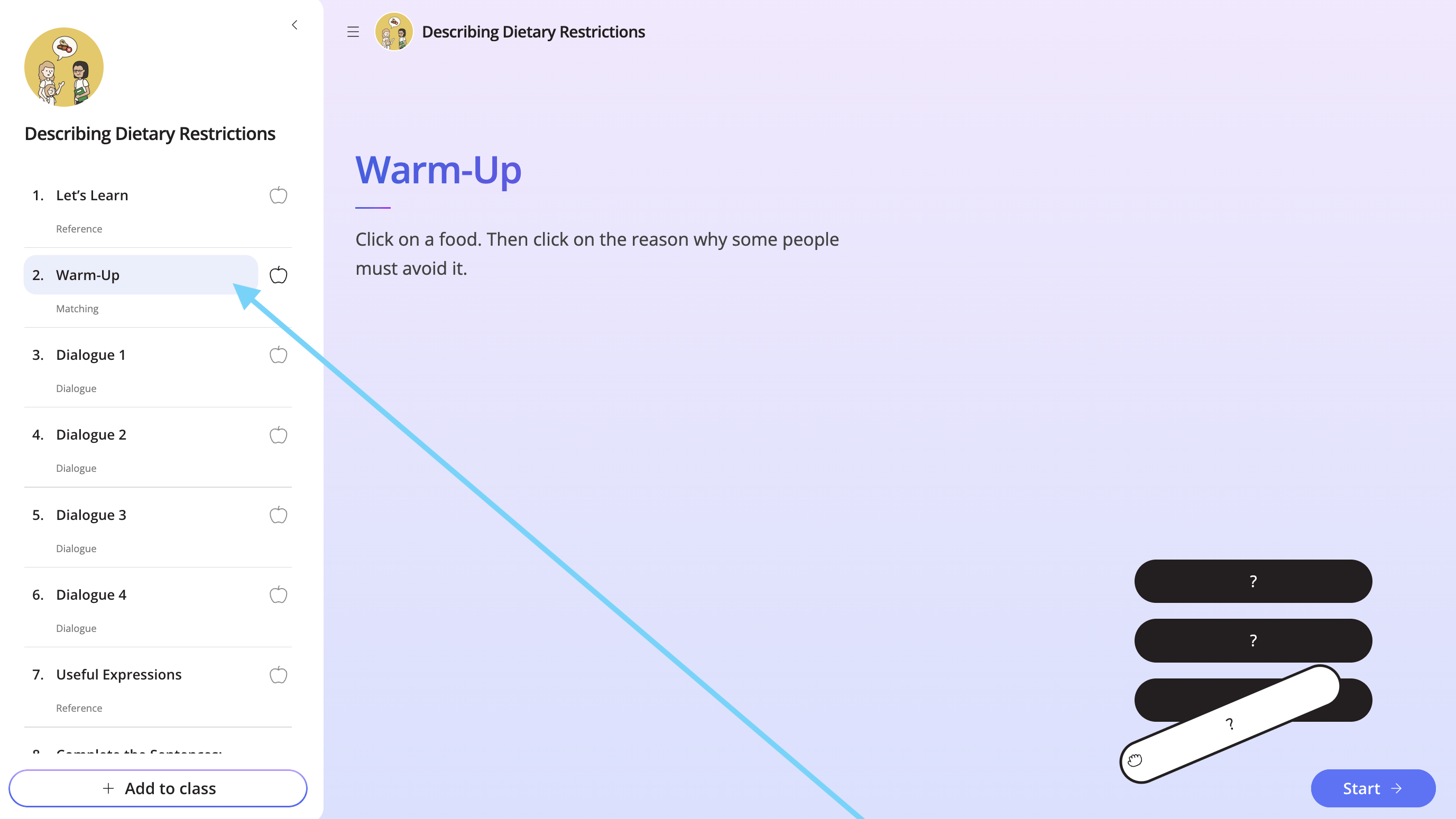
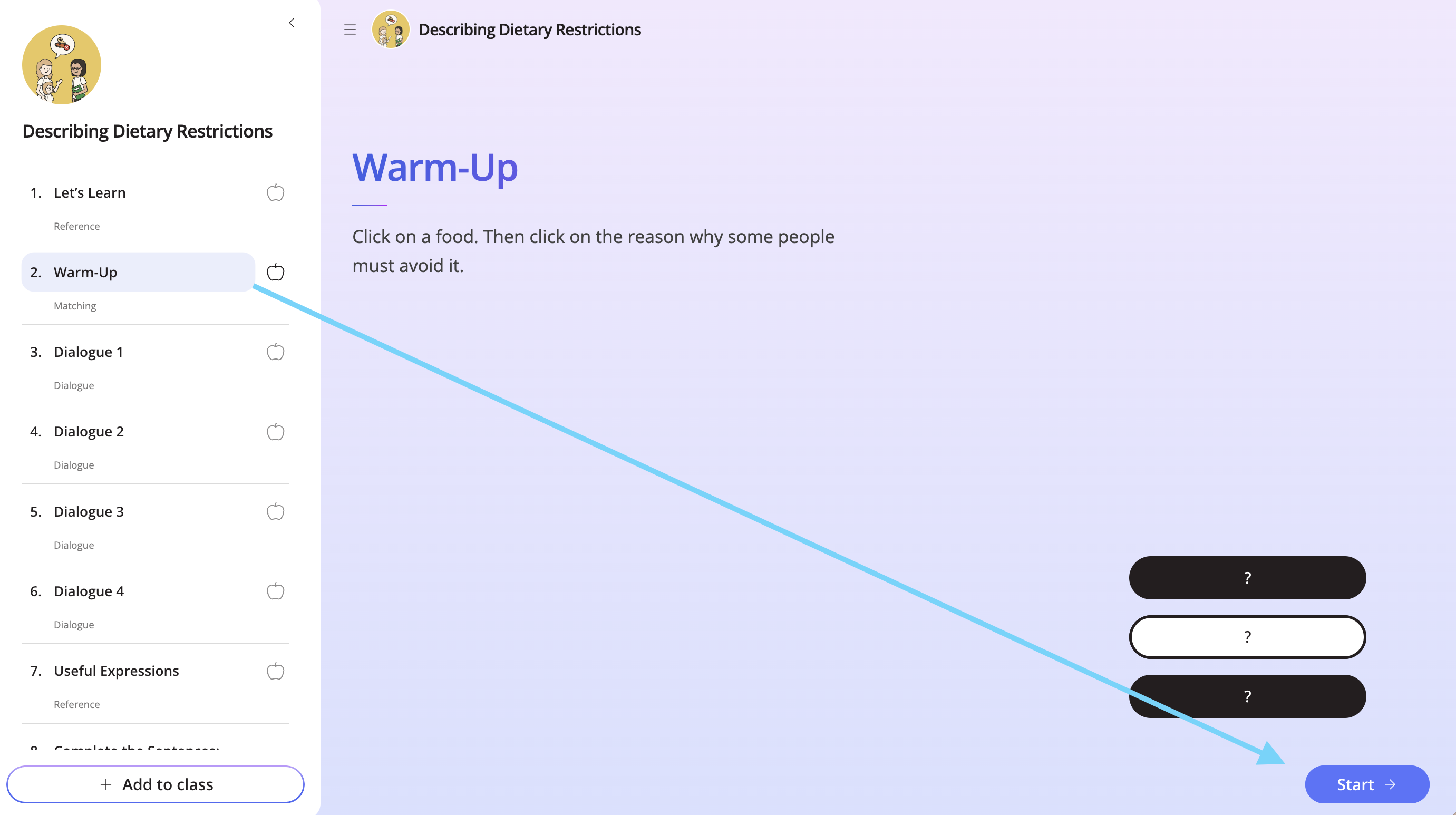
On the left are all of the tasks available in the lesson. These are the tasks your students see when you add the lesson to the class. Click on a task to view it, and then click Start.
Step 3
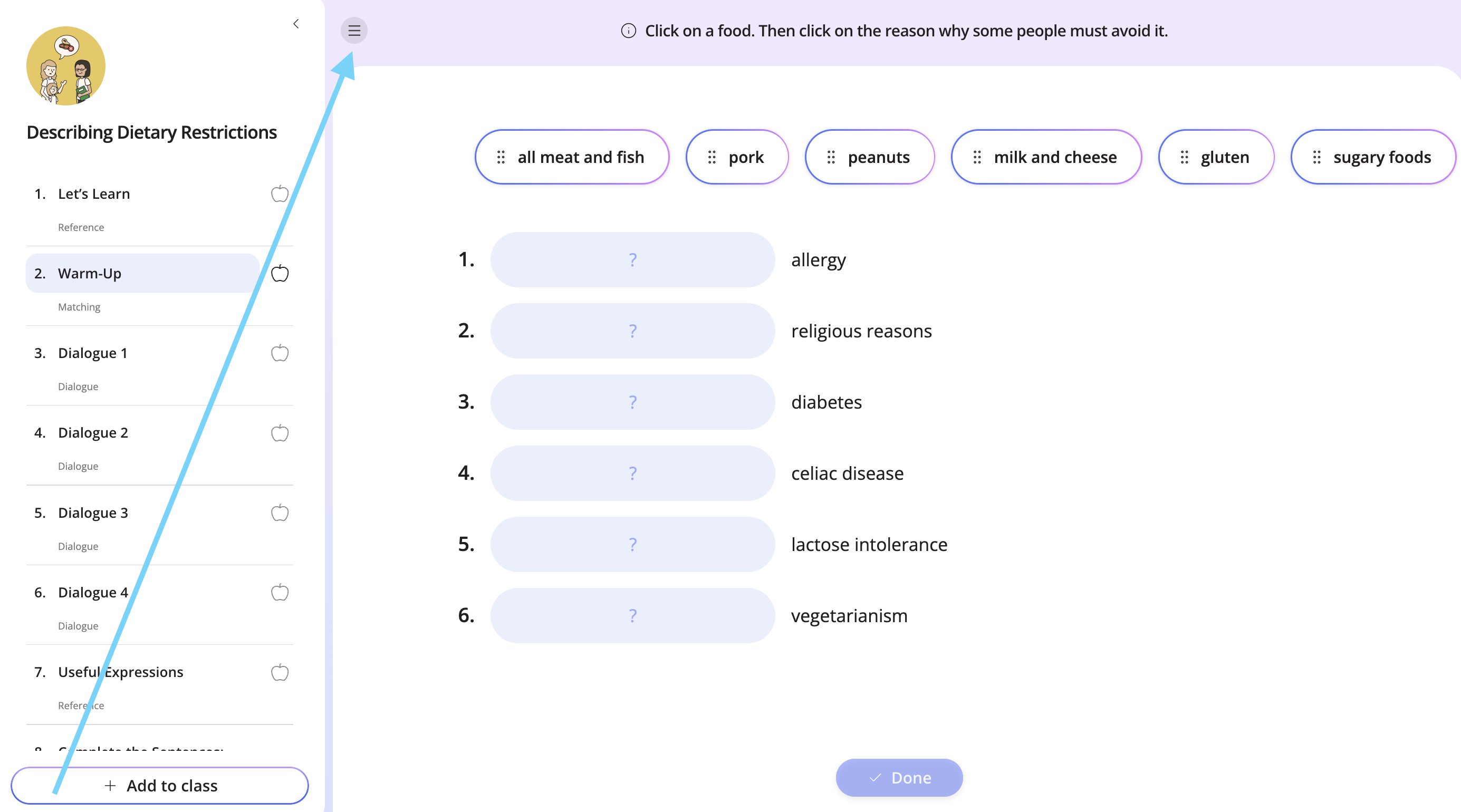
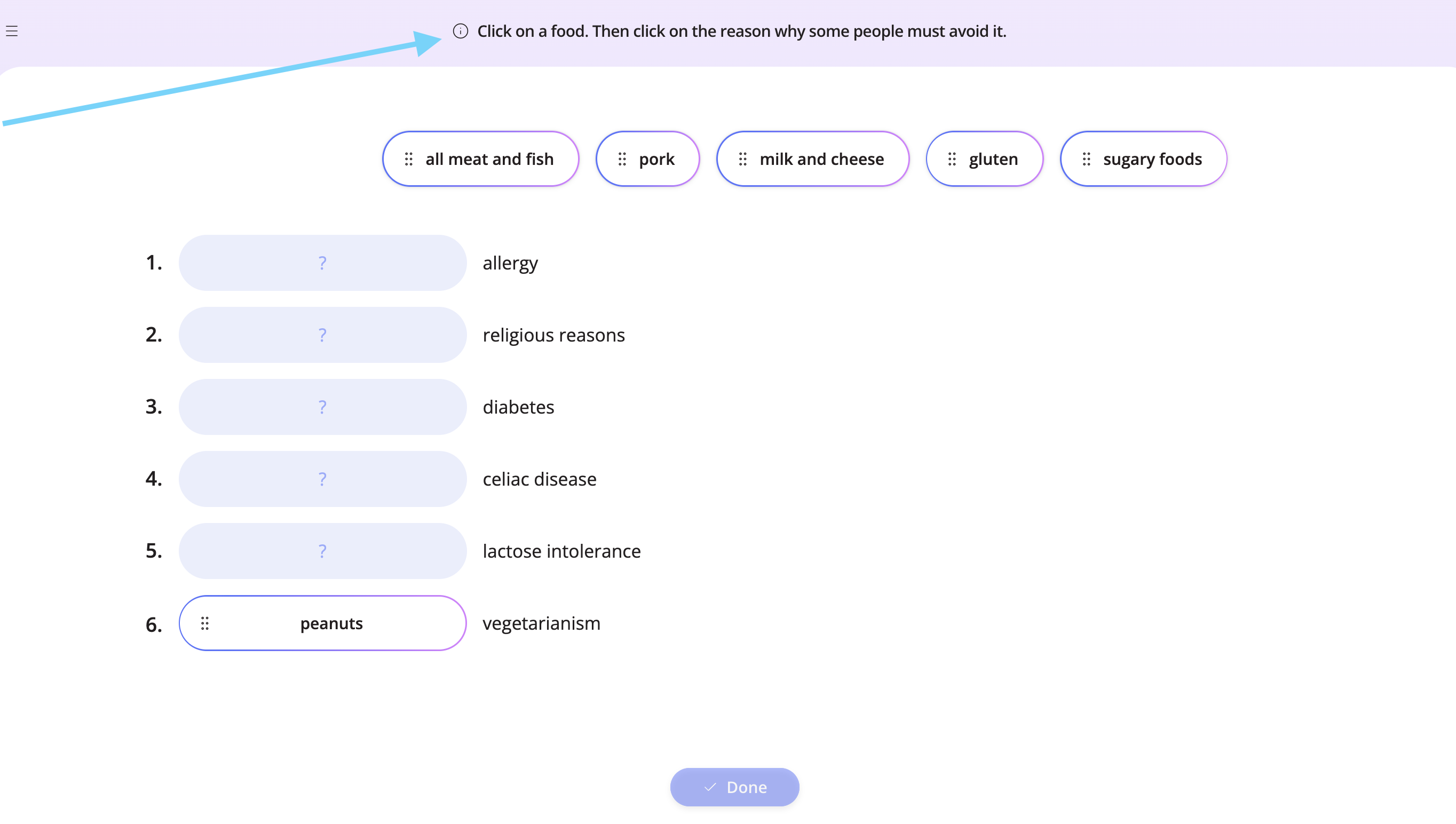
Click the hamburger menu to close the tasks list. View the instructions at the top and try the task live with your students, or try it before you assign it.
Step 4
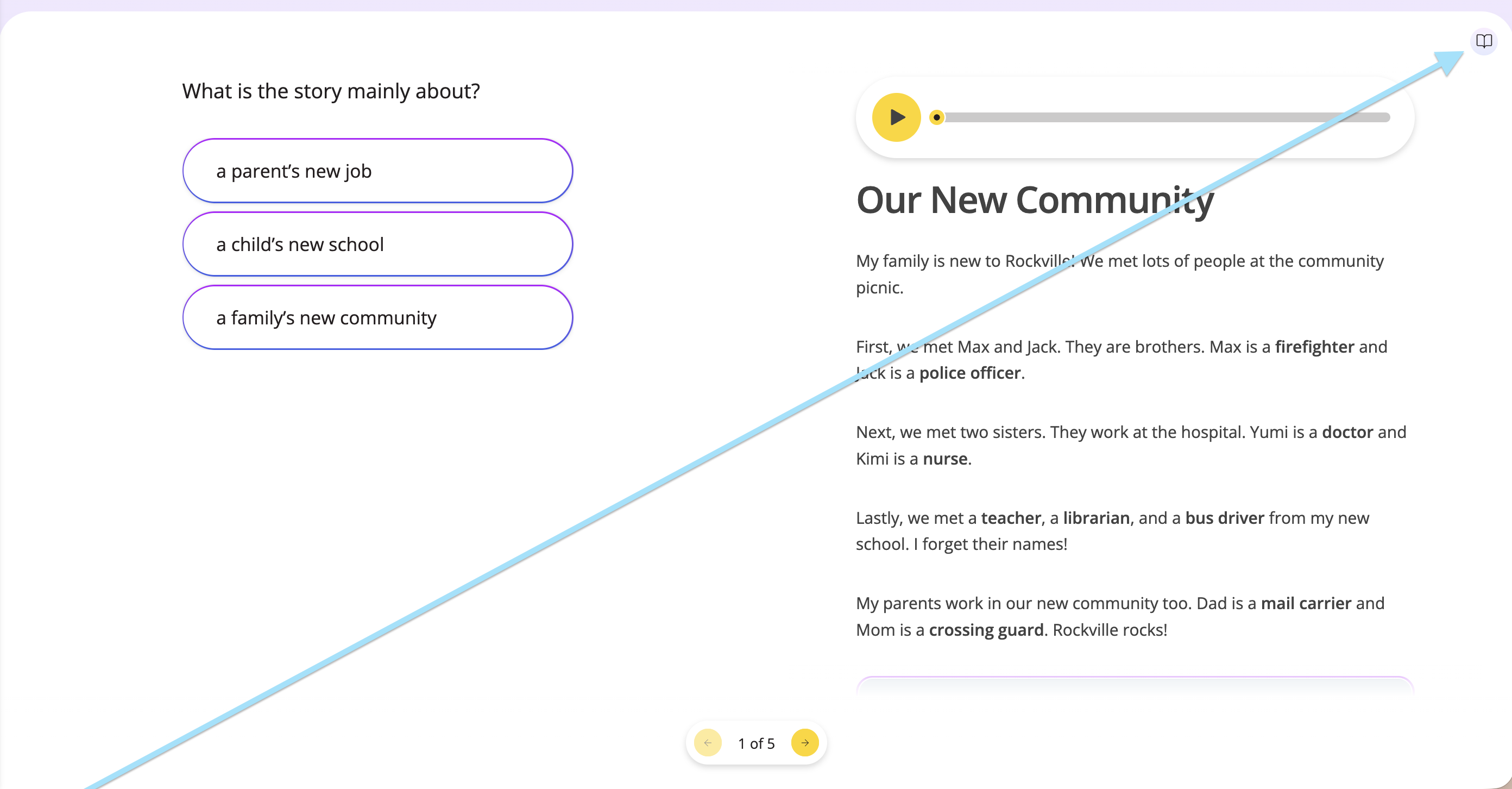
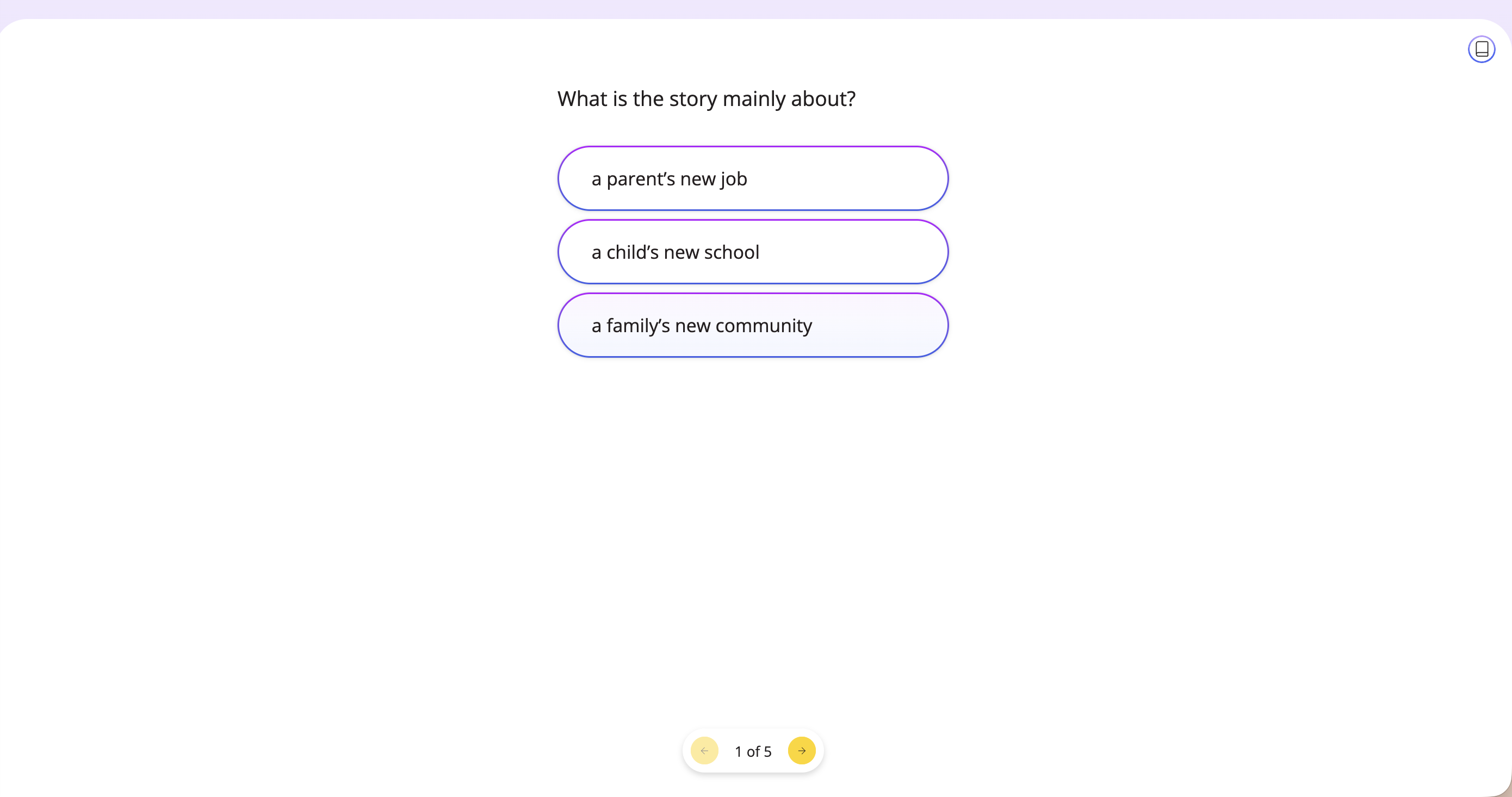
If there is a reference available, you can hide it with the book icon.
Step 5
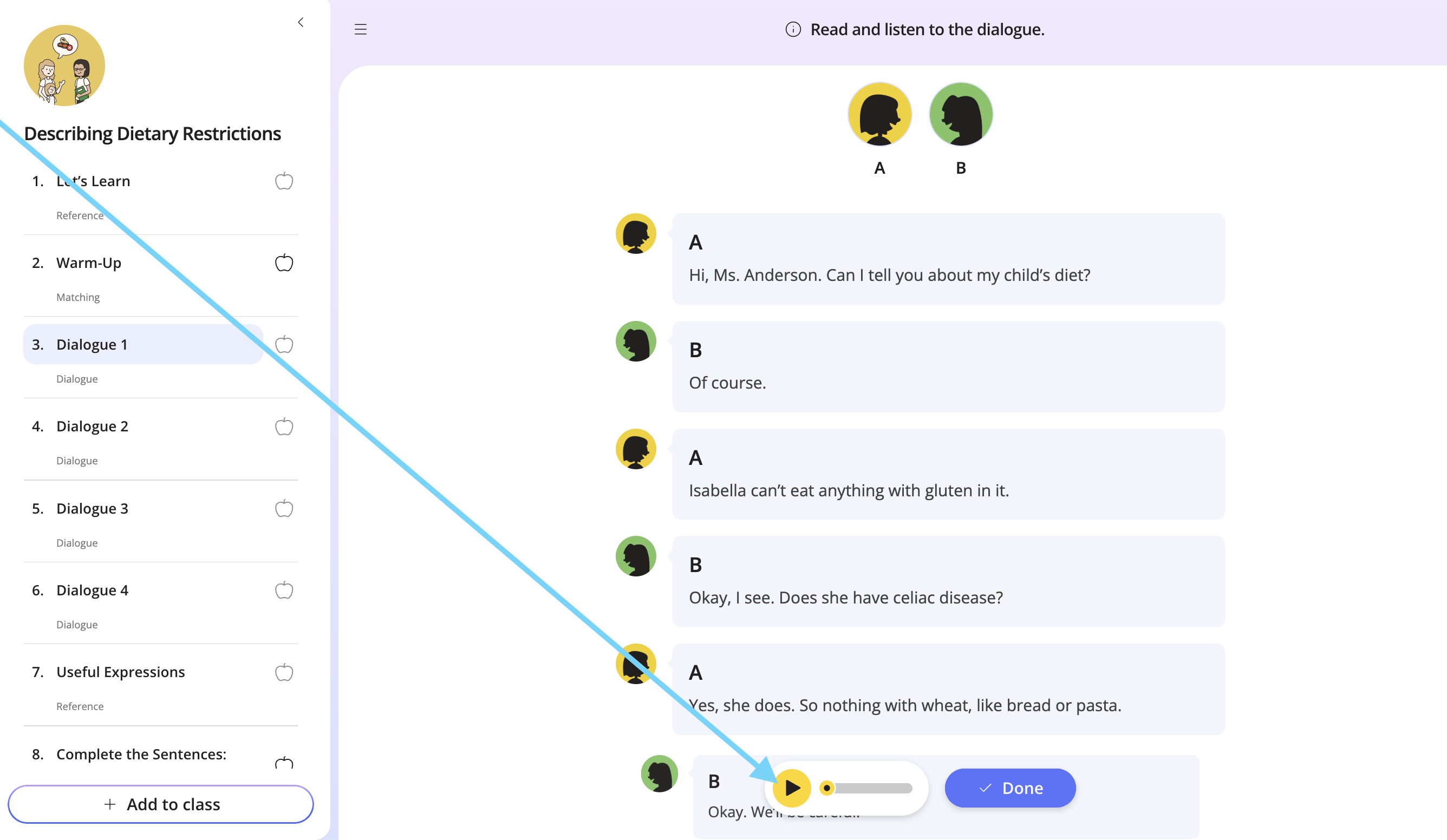
To listen to any available audio, click the play icon.
Step 6
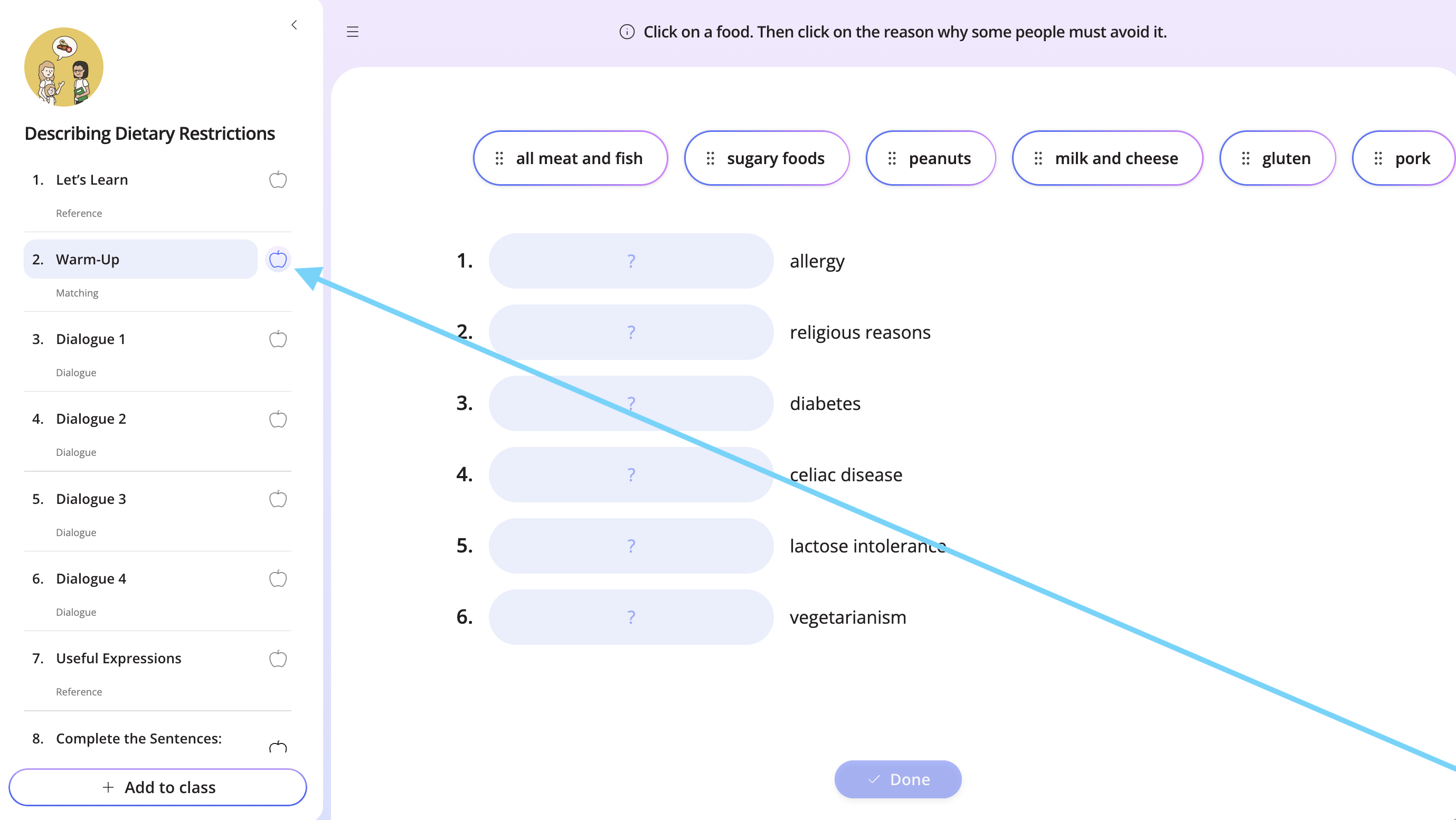
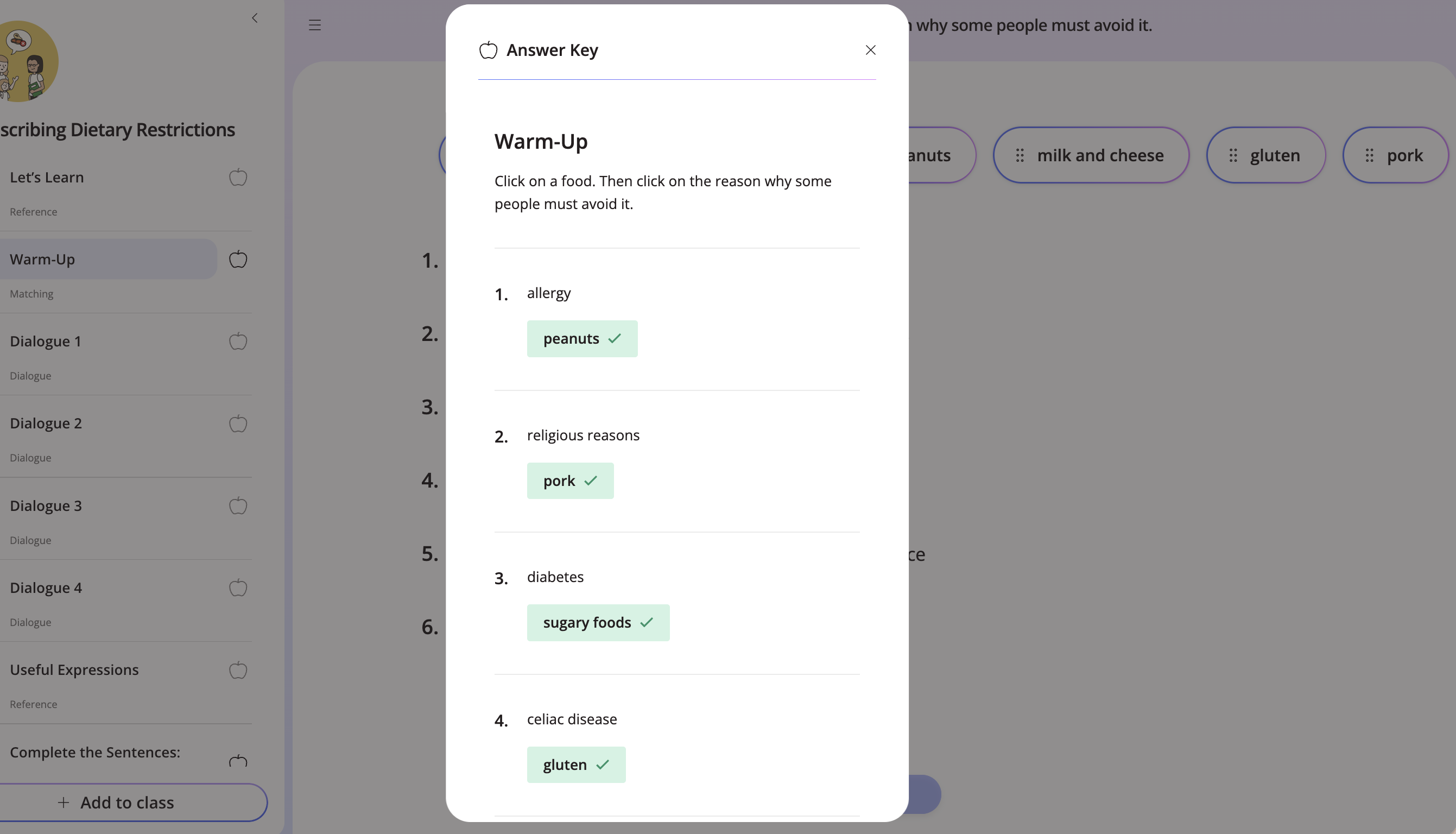
You can find the answer key to a task by clicking the grey apple.
Step 7
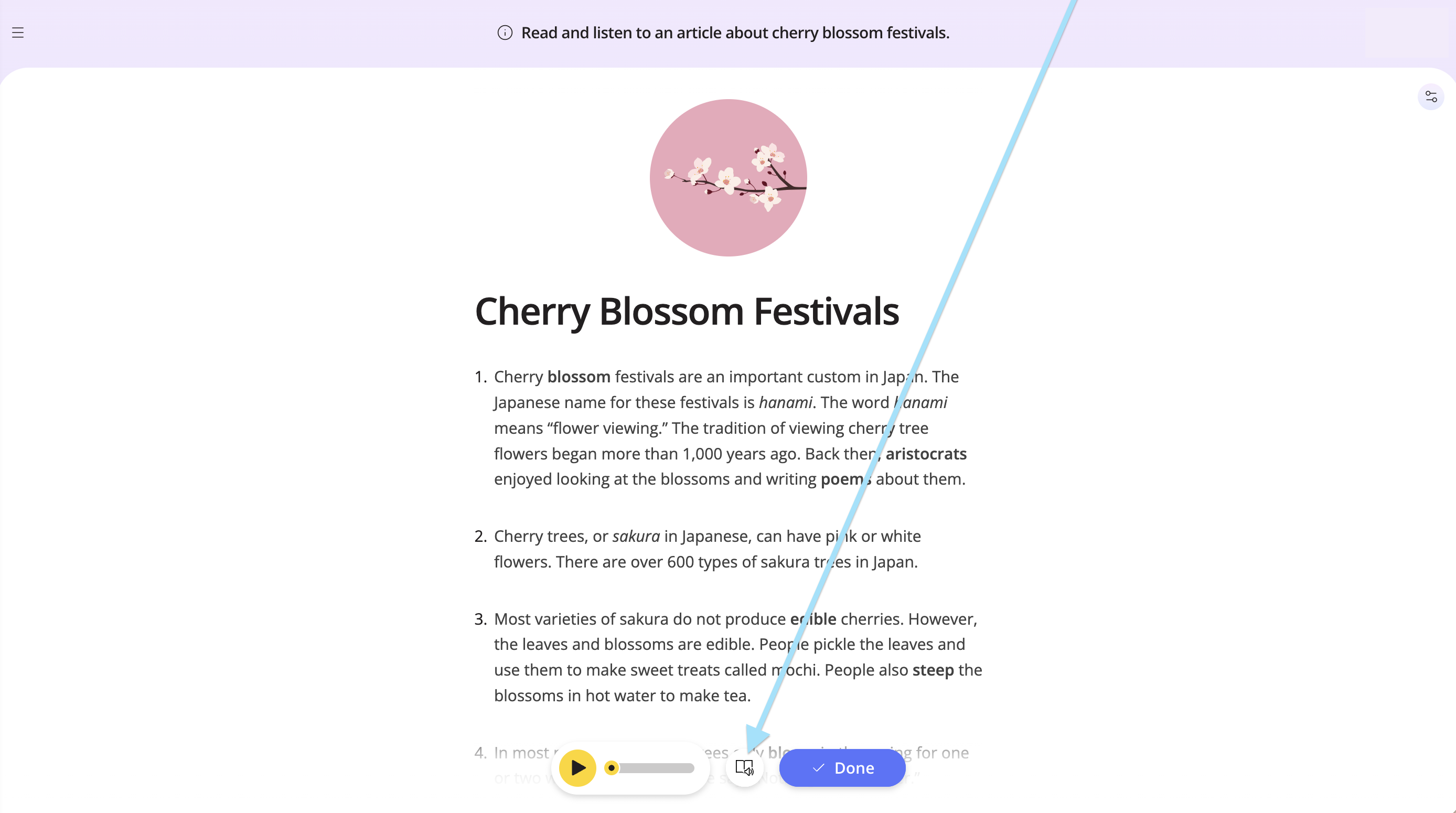
For lessons with readings, you can also use the Immersive Reader by clicking the button at the bottom.
Step 8
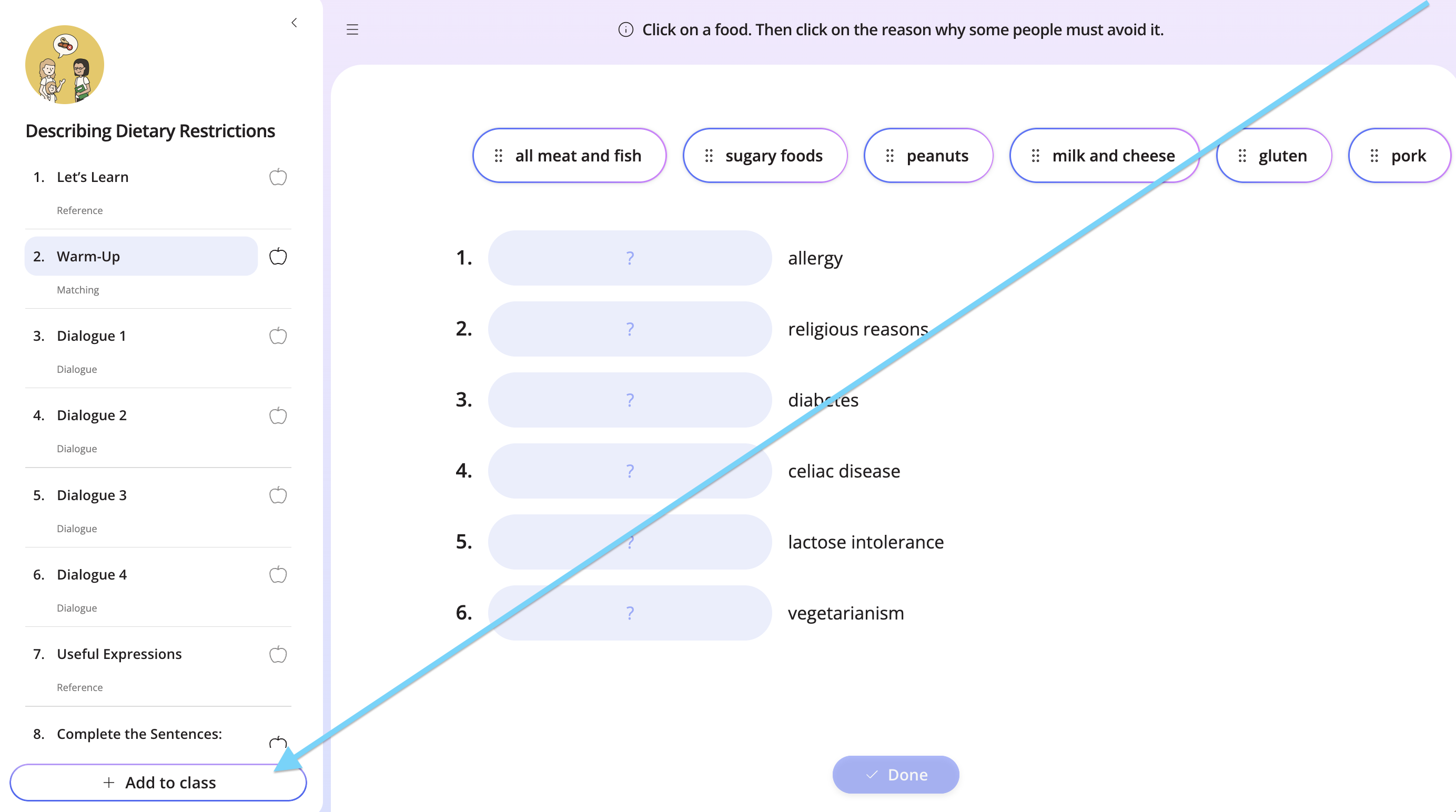
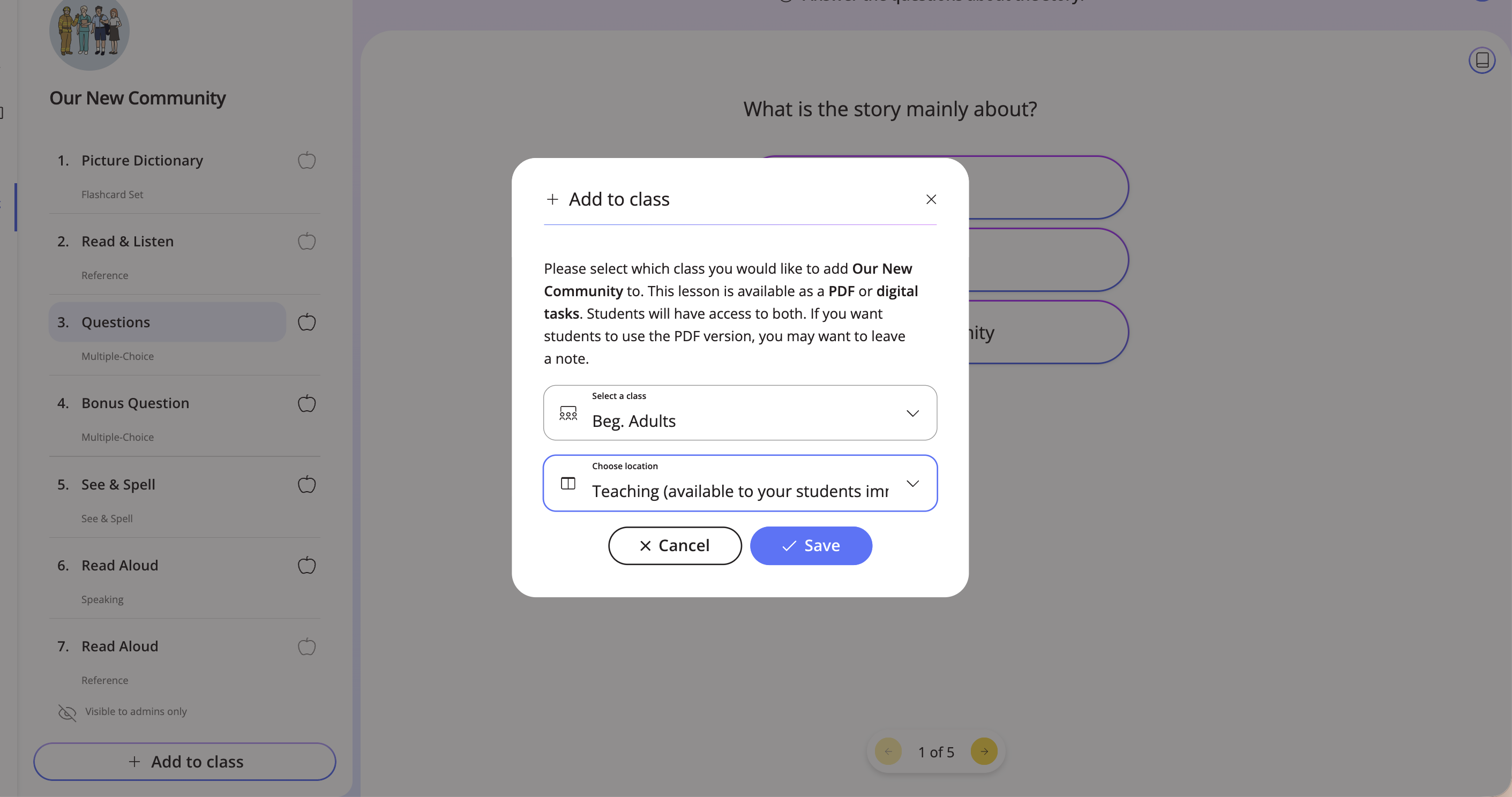
To add the lesson to your class, click Add to class.
We hope you enjoy the new task player! Contact us if you have any questions or feedback.