
How to Use Words on Ellii Solo
The Words area is where students can practice words from their lessons. Follow the steps below to learn more!
Step 1
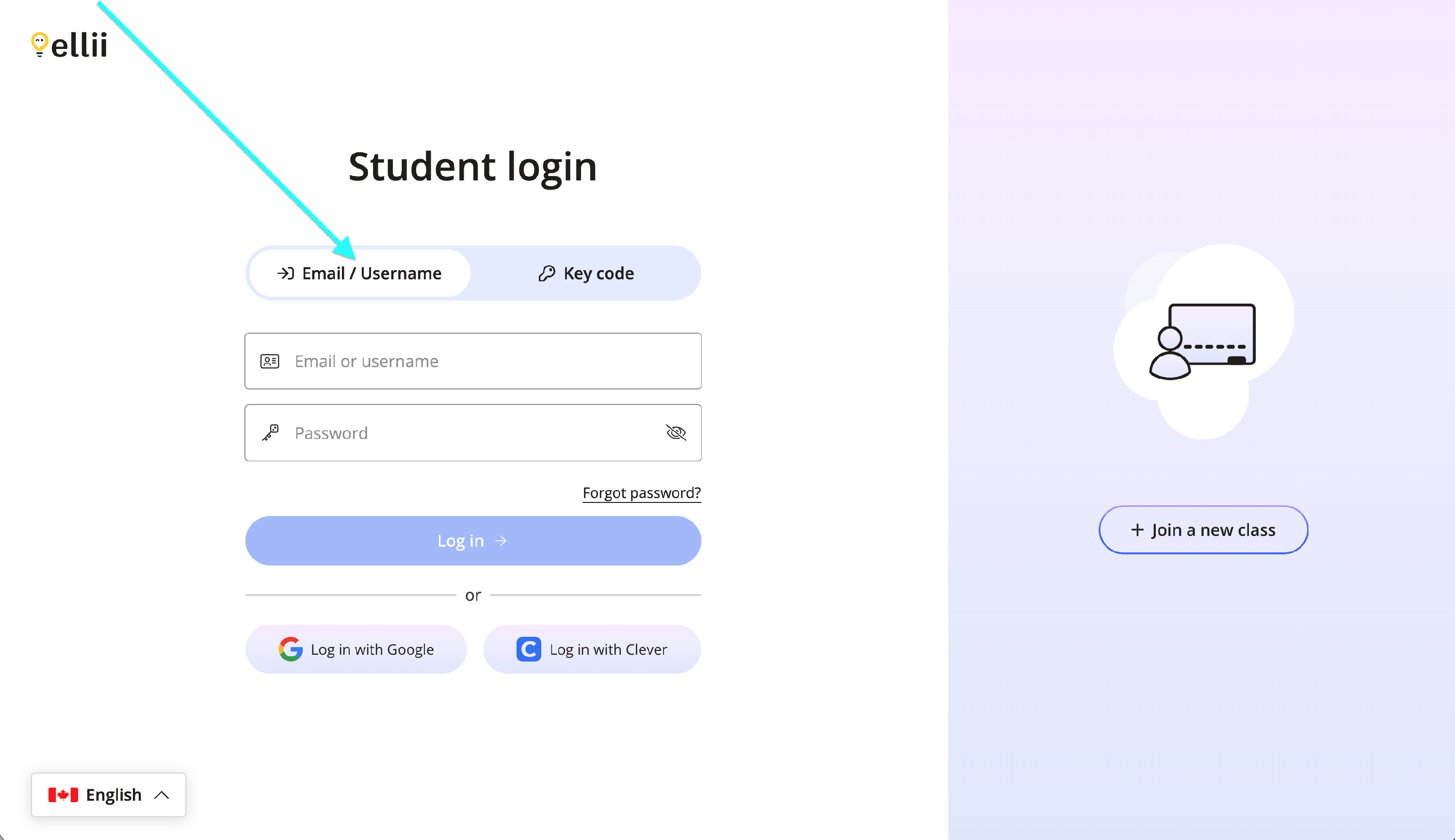
Log into your student account via https://ellii.com/students.
If you log in with an email address or username, click on the Email/Username tab and enter your information.
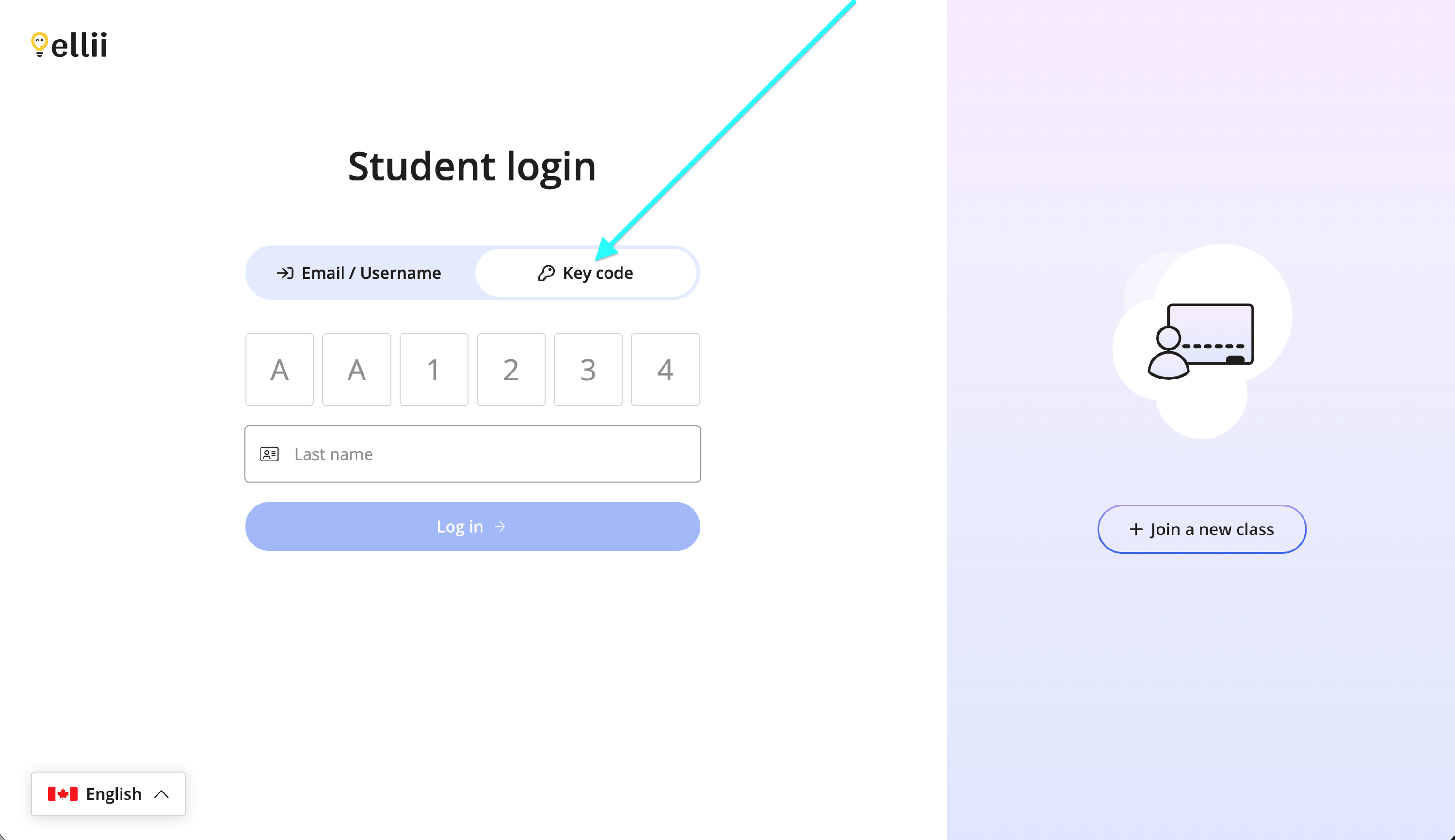
If you use a key code, click on the Key code tab and enter your information.
Step 2
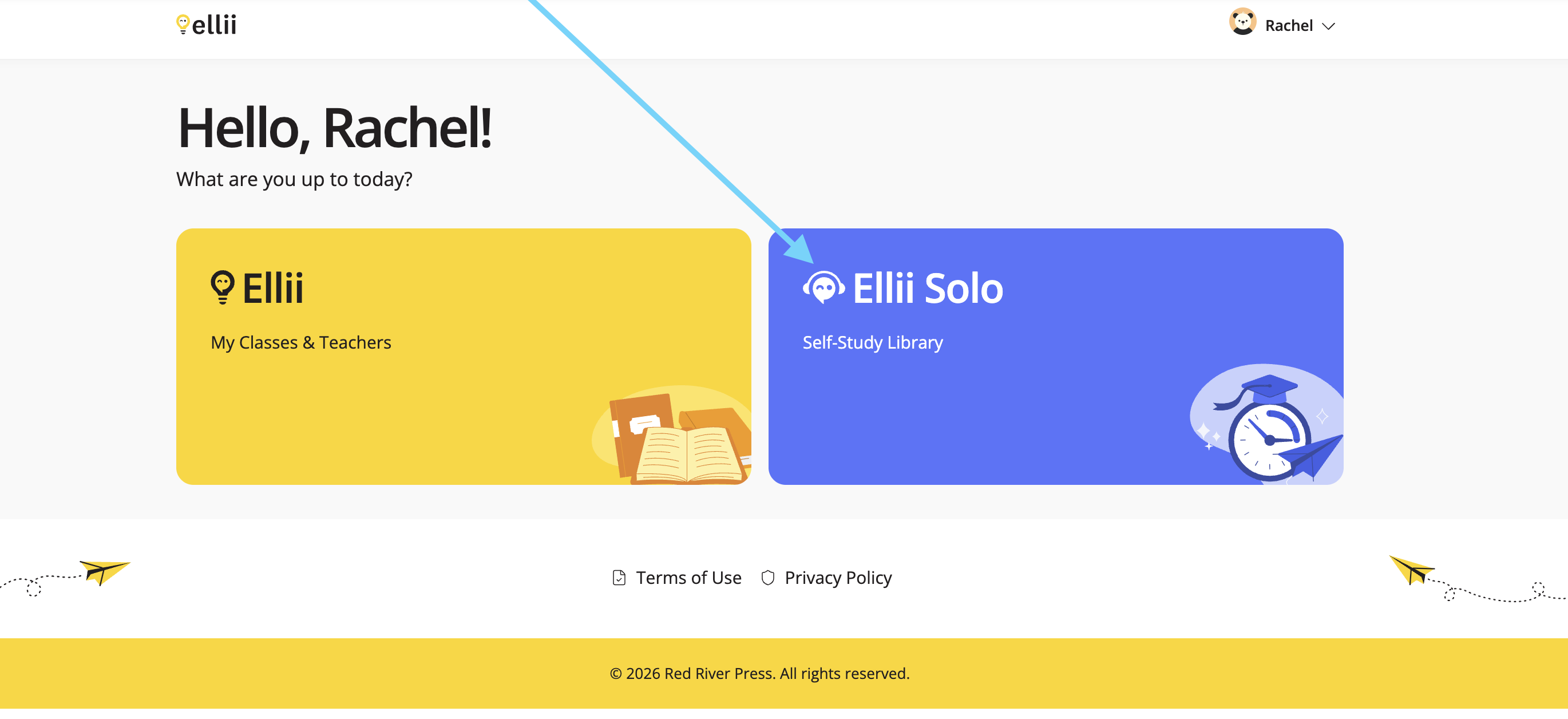
Once logged in, click on Ellii Solo.
Step 3
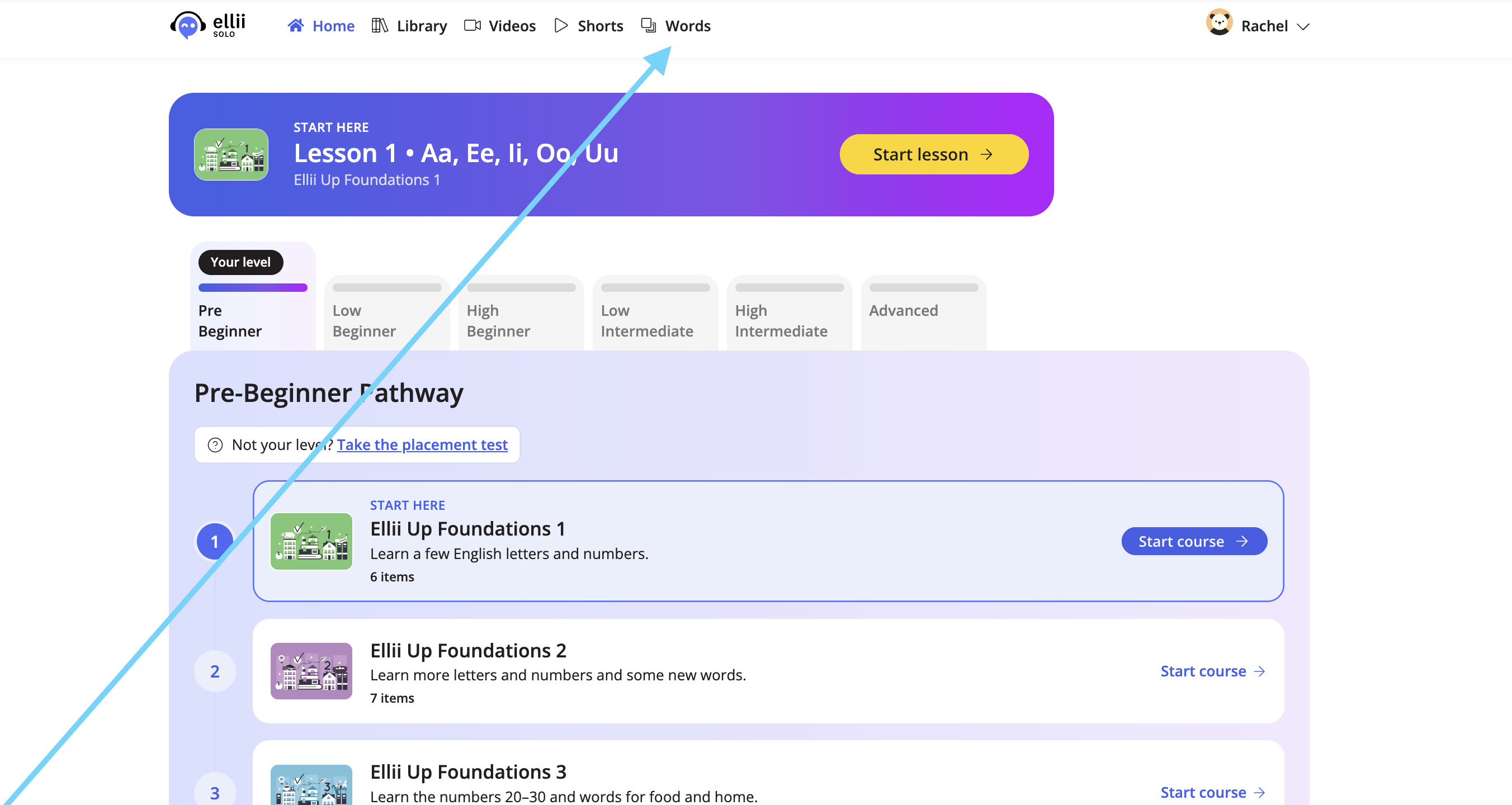
Click Words at the top.
Step 4
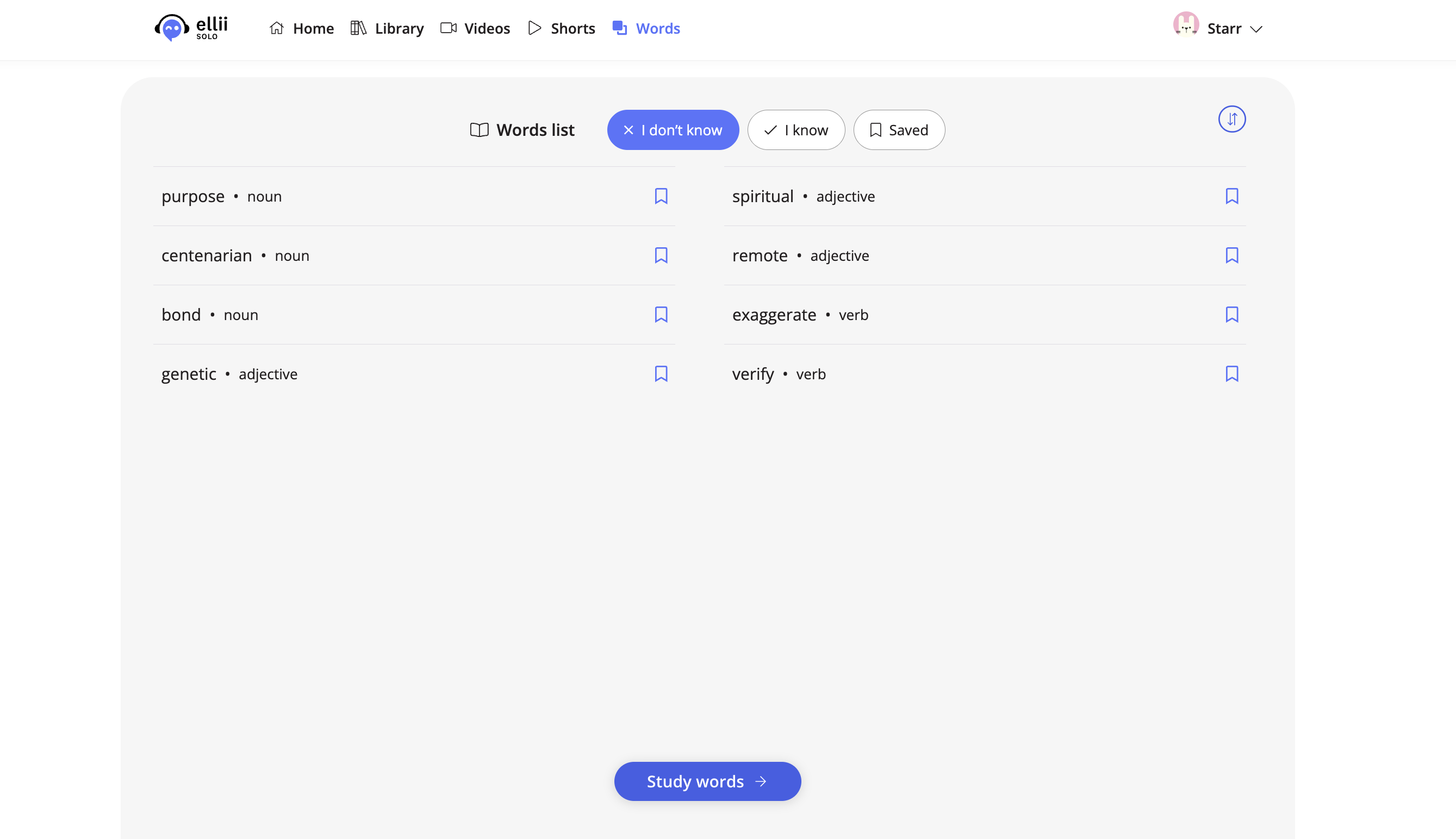
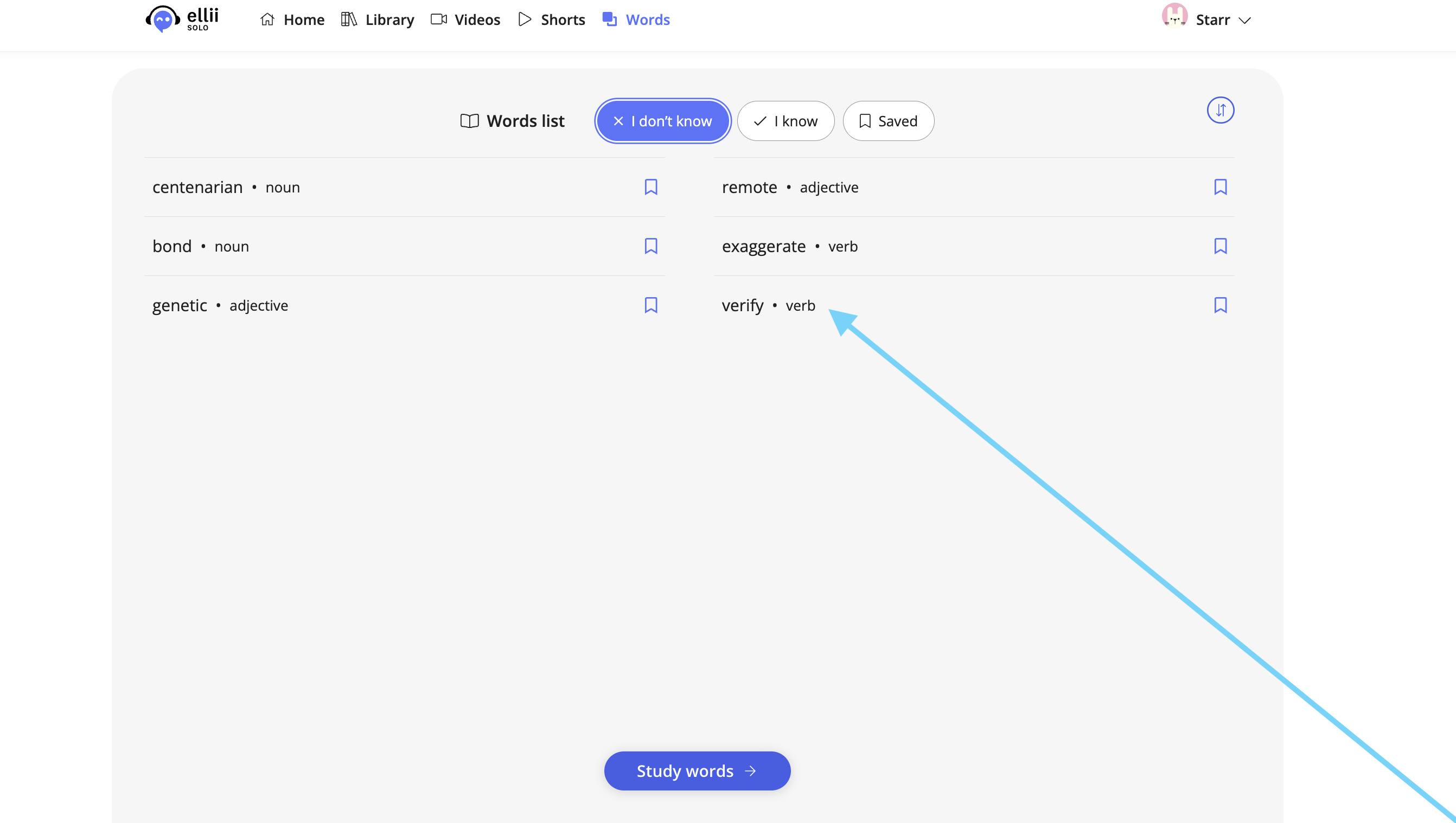
This is where you find all of the words you have reviewed from your lessons.
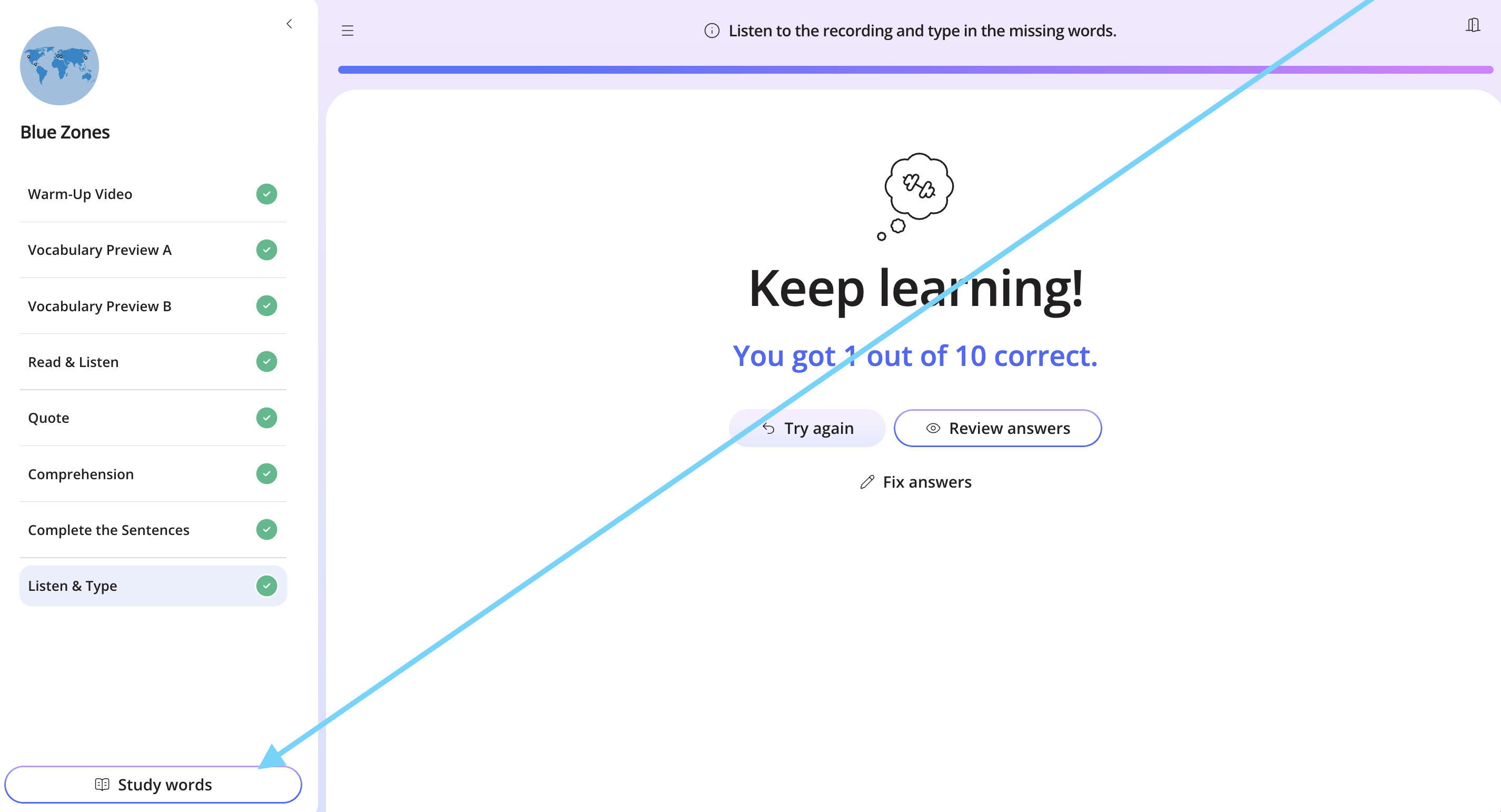
At the end of some higher level lessons, you can study the words learned in the lesson.
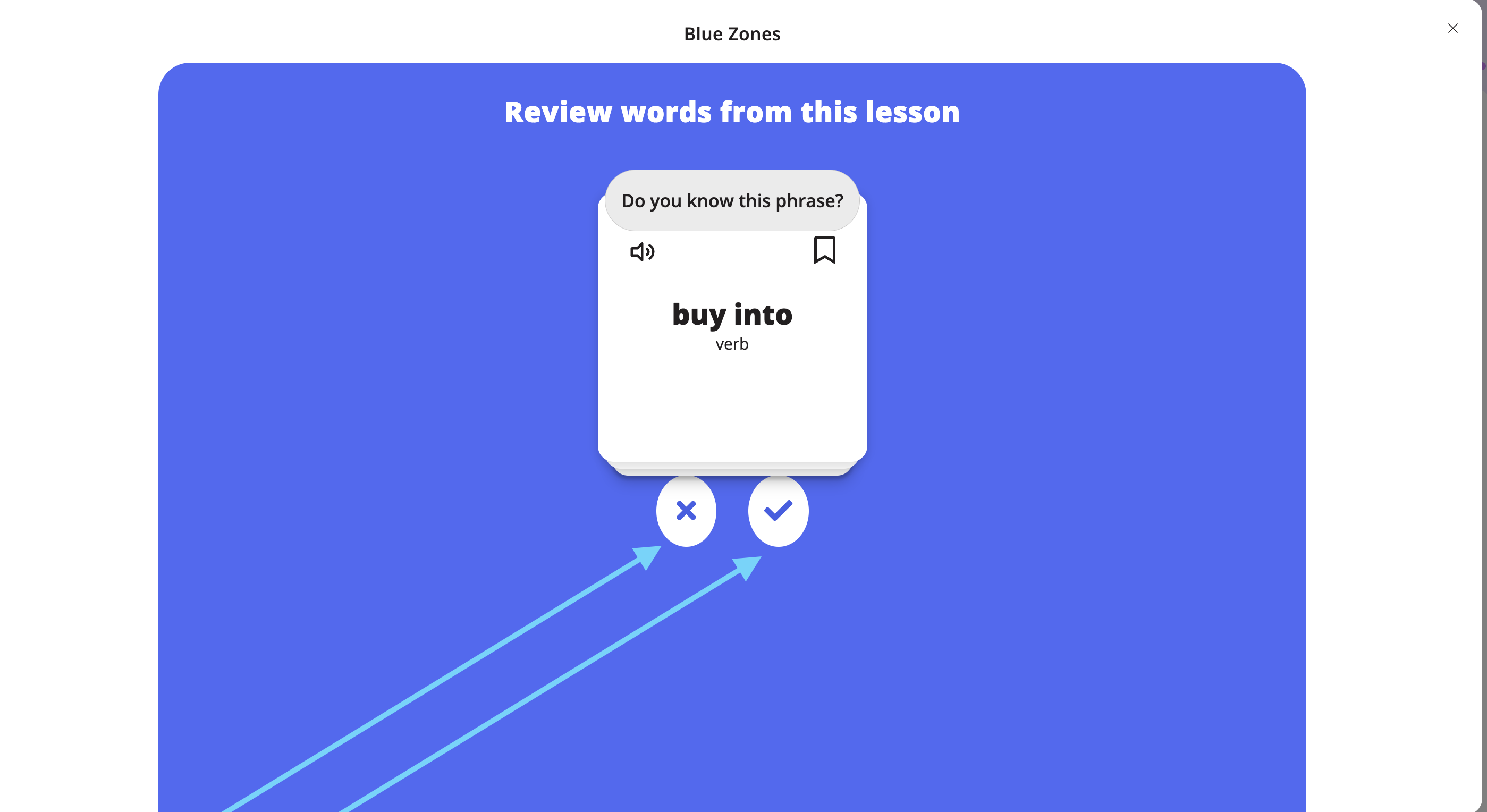
Click the ✔ if you know the word and use the X if you do not know the word. To save the word, click the bookmark icon.
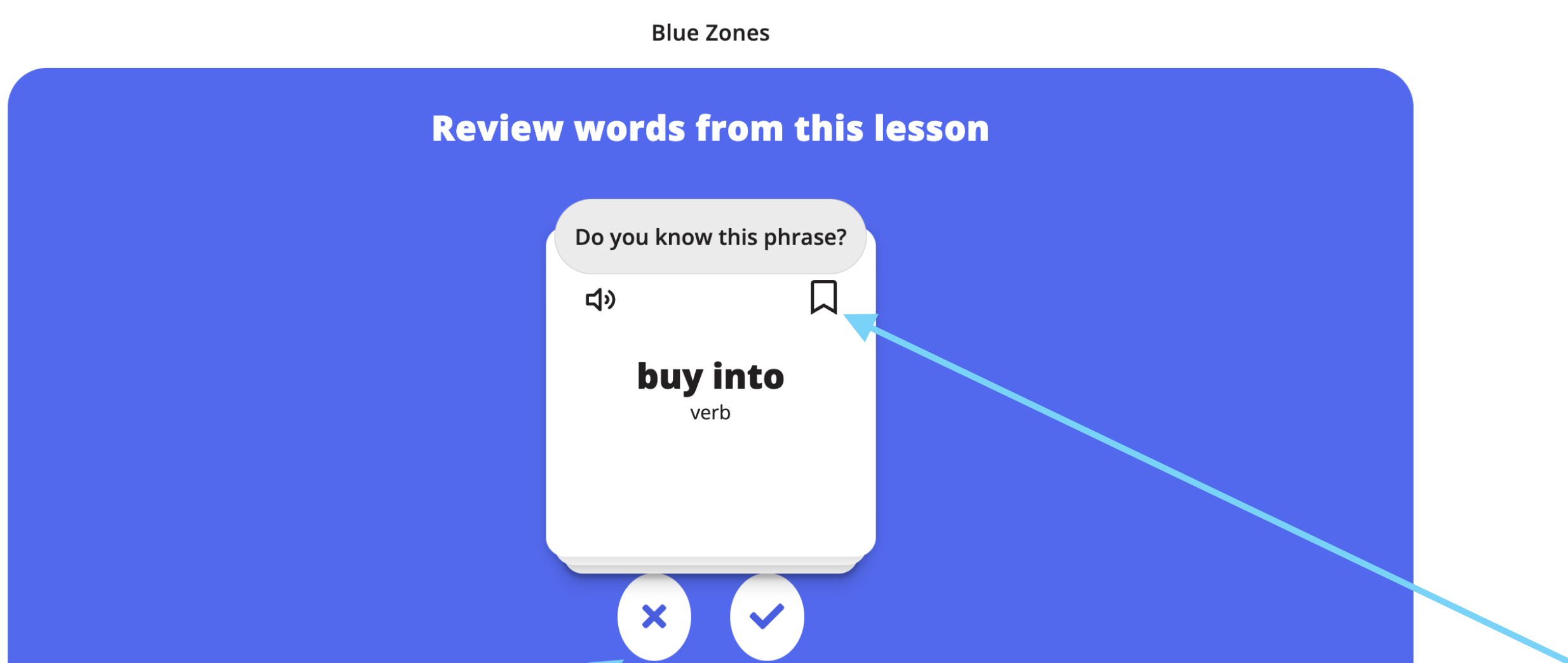
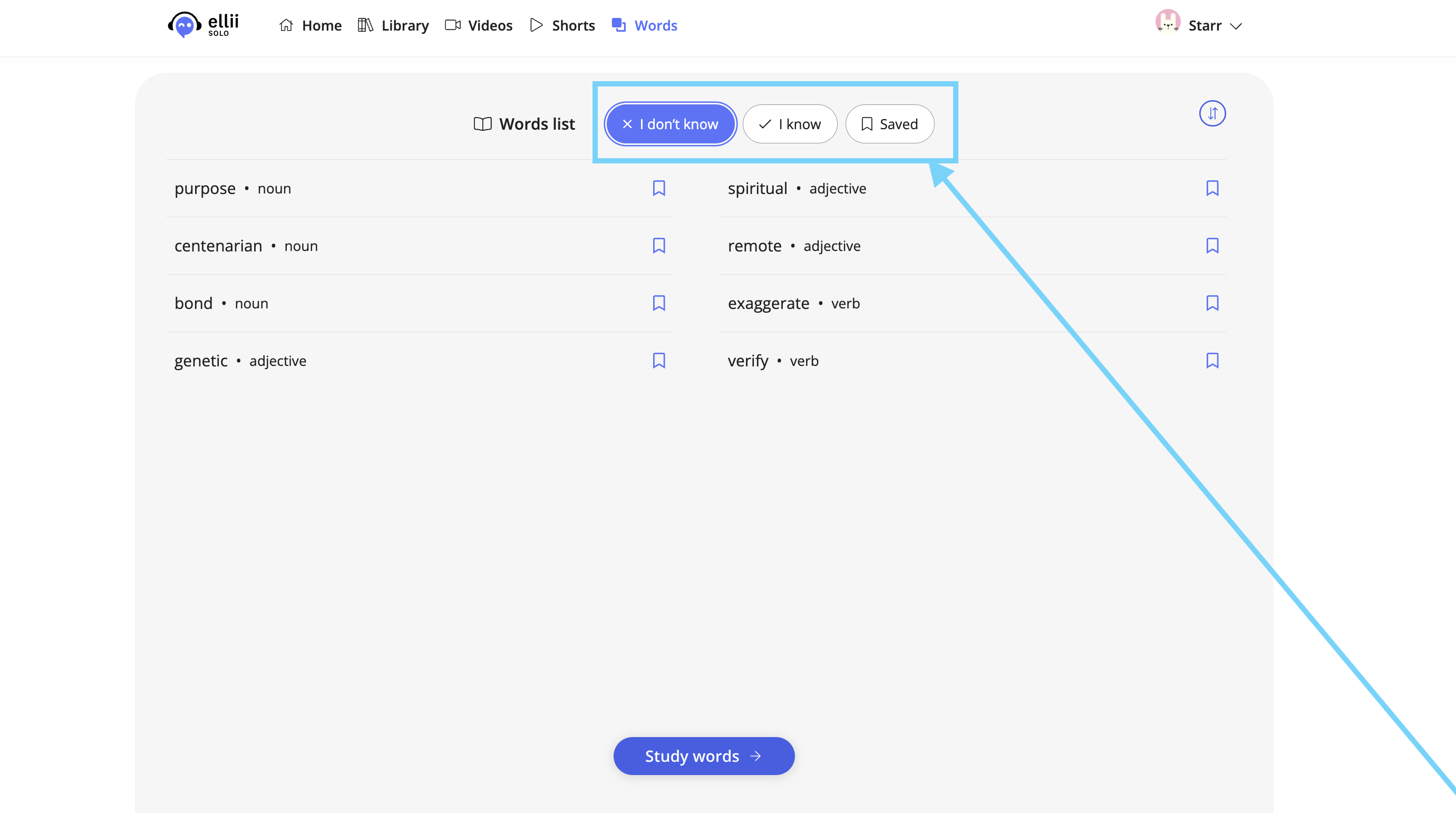
These words are then saved into three categories: X I don’t know, ✔ I know, and Saved.
Step 5
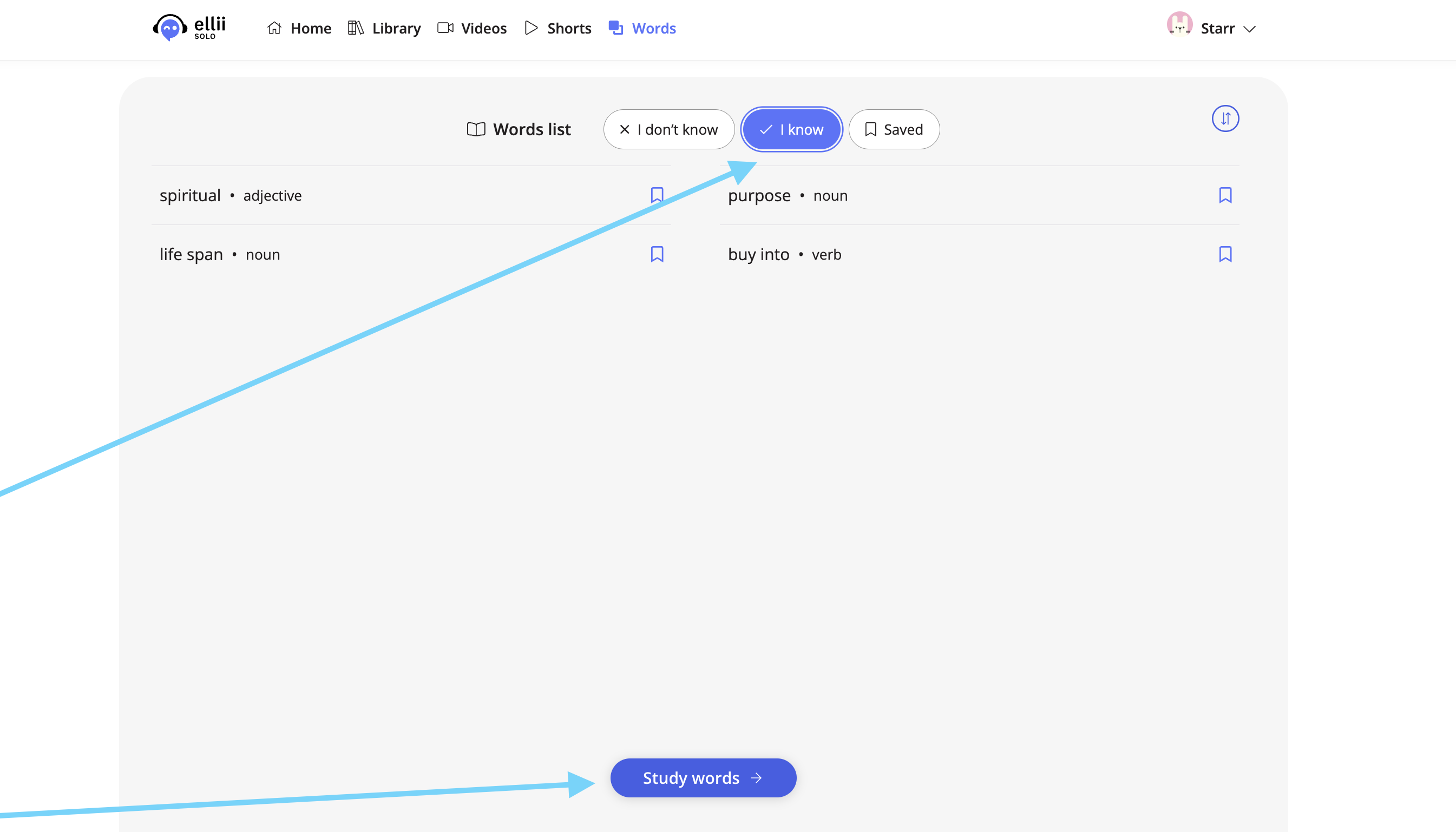
Choose which category of words you’d like to study at the top and click Study Words at the bottom to begin reviewing.
Step 6
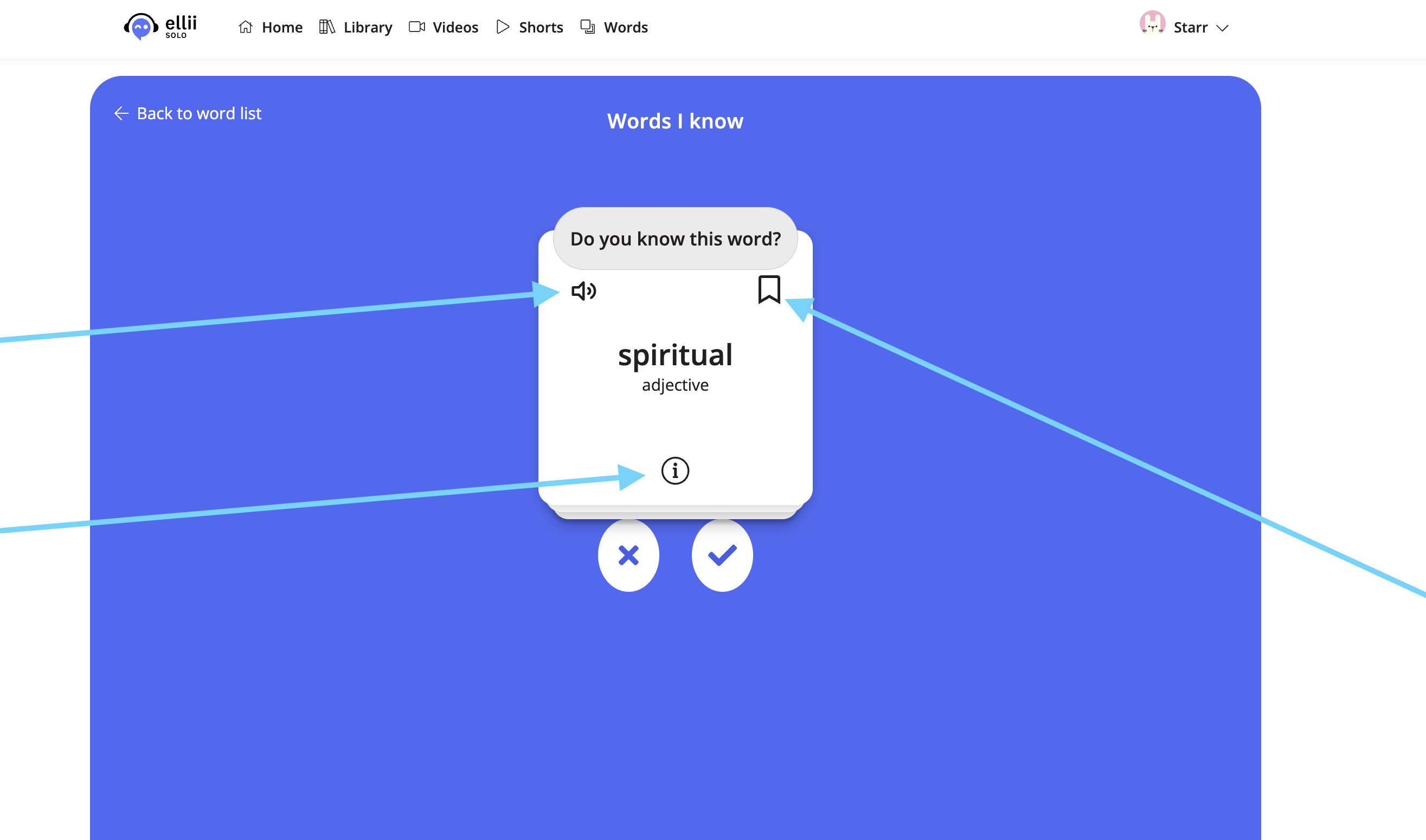
Click the speaker to listen to the word. Click the i for the definition and related courses, and click the bookmark if you would like to save the word.
Step 7
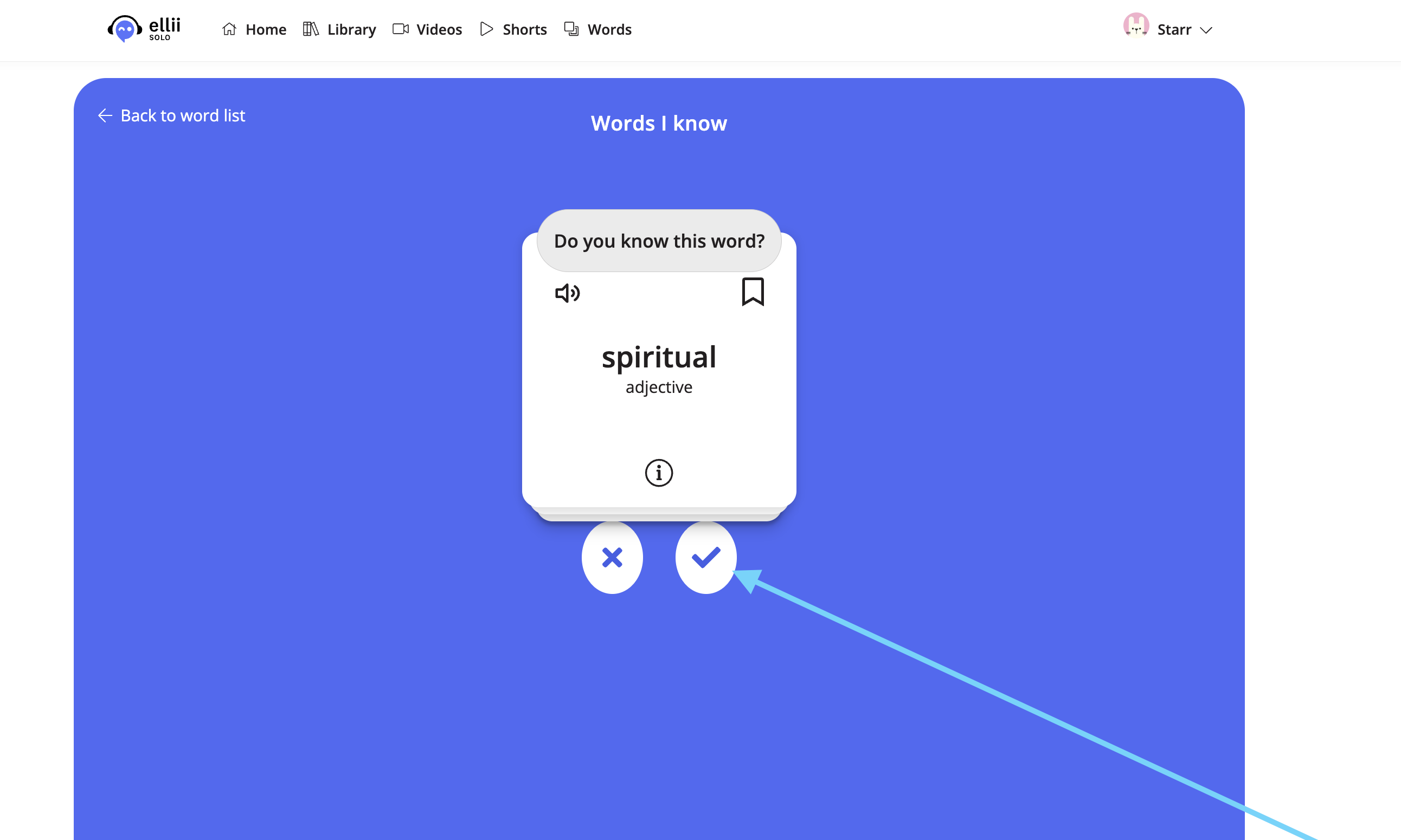
Click the ✔ if you know the word and use the X if you do not know the word. Clicking the ✔ moves the word to words you know and clicking the X, moves the words to words you don’t know.
Step 8
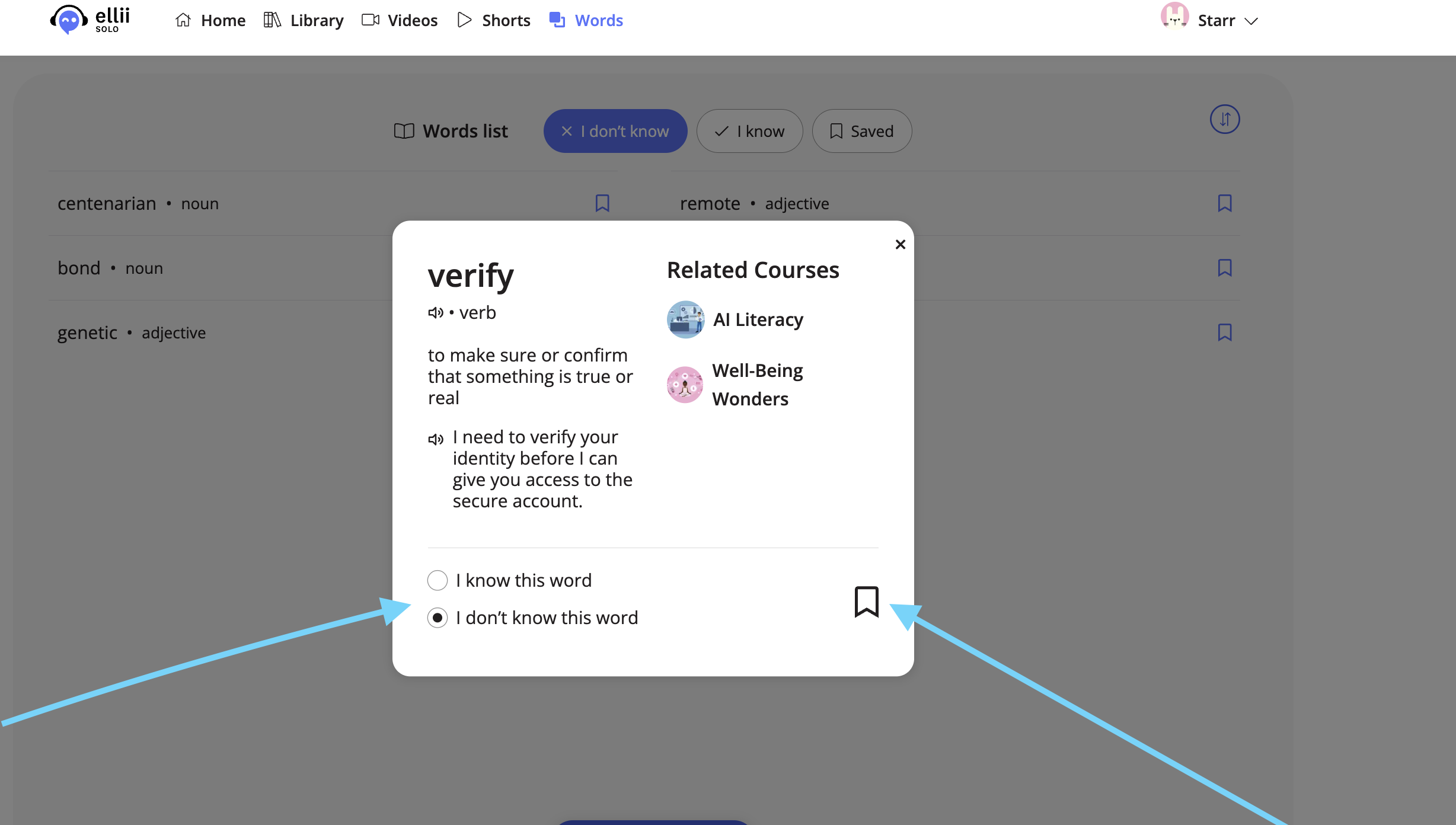
From your Words list, you can also click a word to view the definition, choose if you know the word or not, and save the word to your Saved category.
Please let us know if you have any questions!