
How to Create Class Announcements
Please follow the steps below to find out how to create class announcements as well as how to manage them.
Step-by-Step Instructions
Log in to your account here:
Step 1
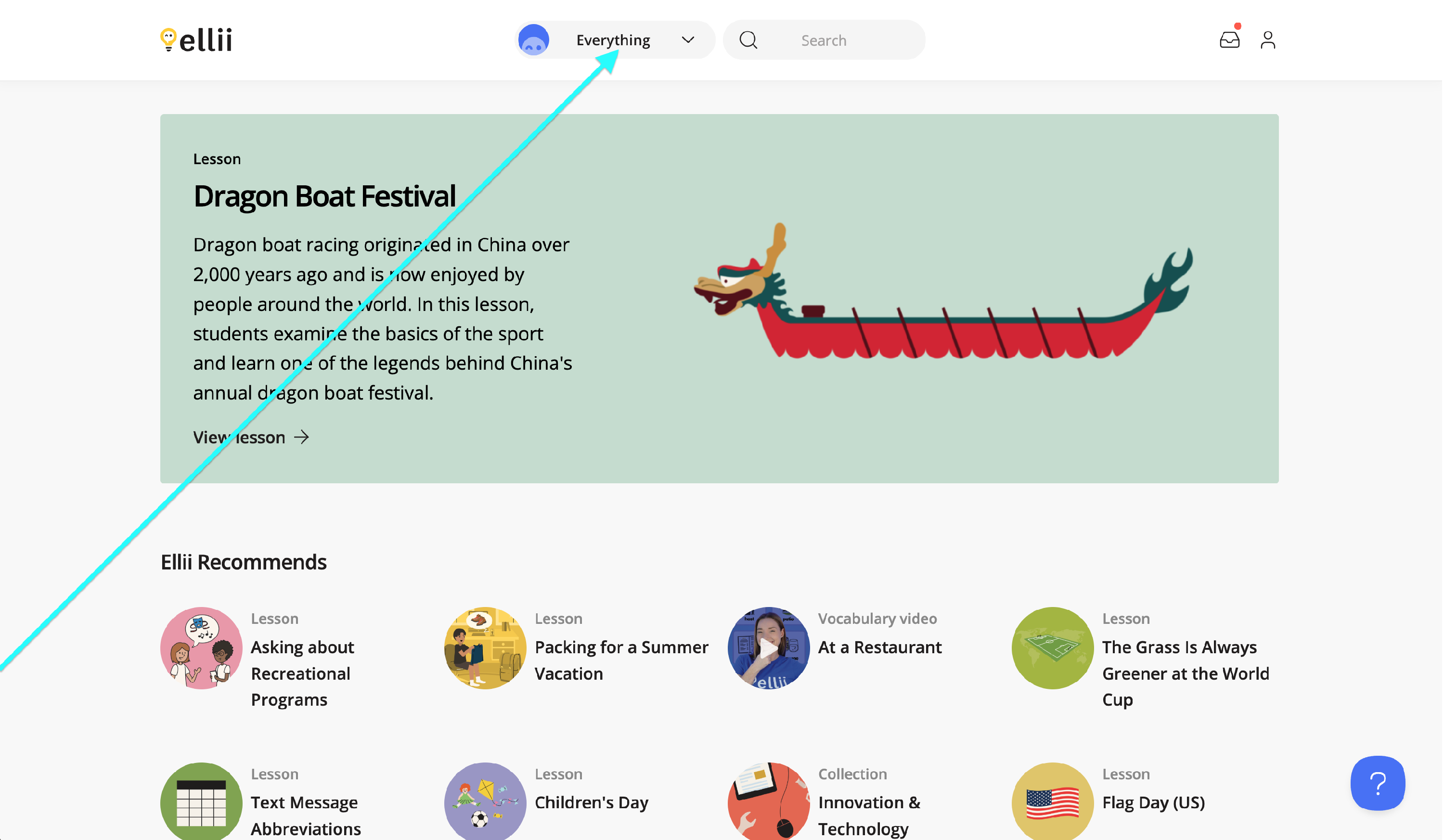
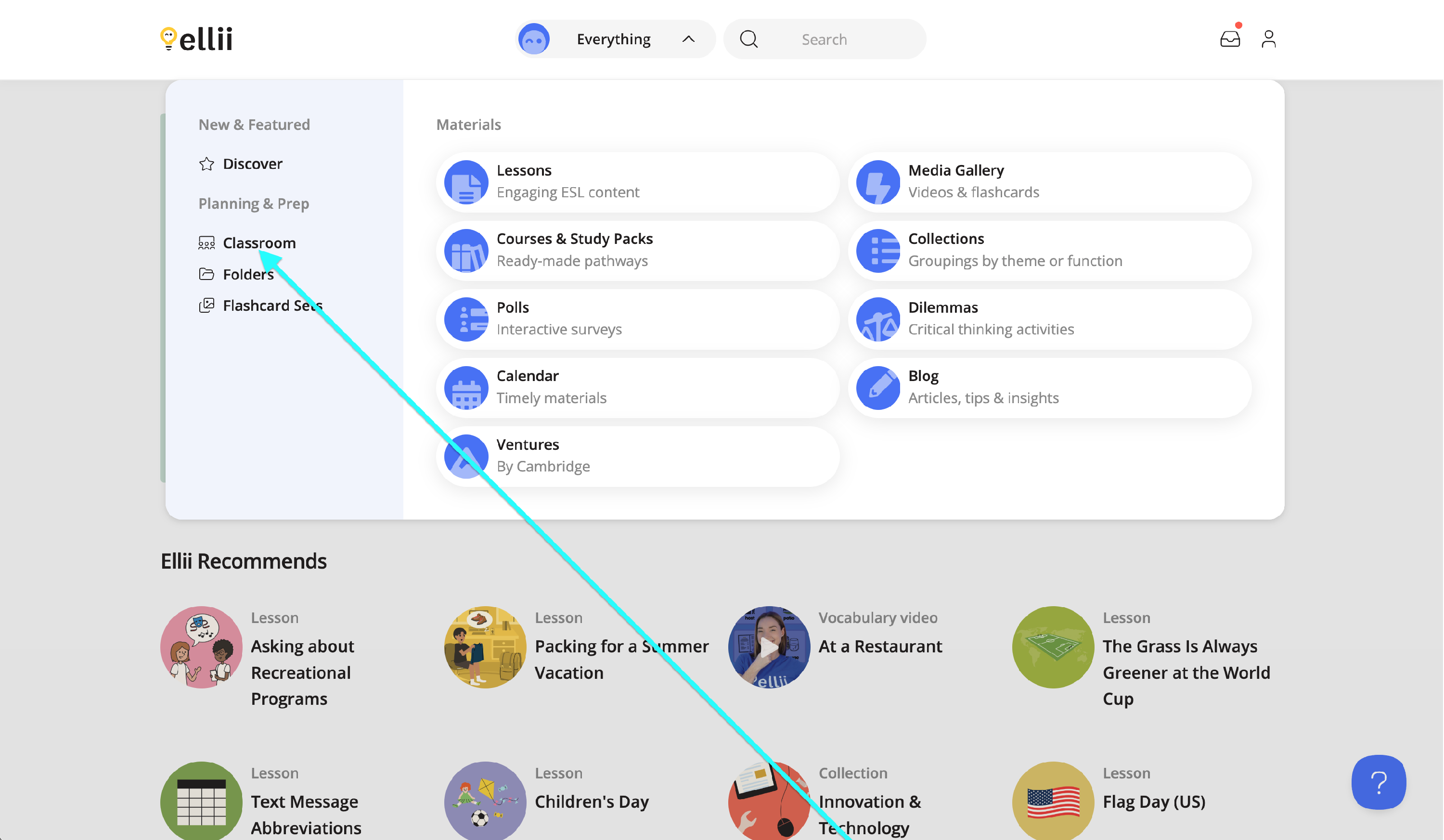
Click on the Everything menu and select Classroom.
Step 2
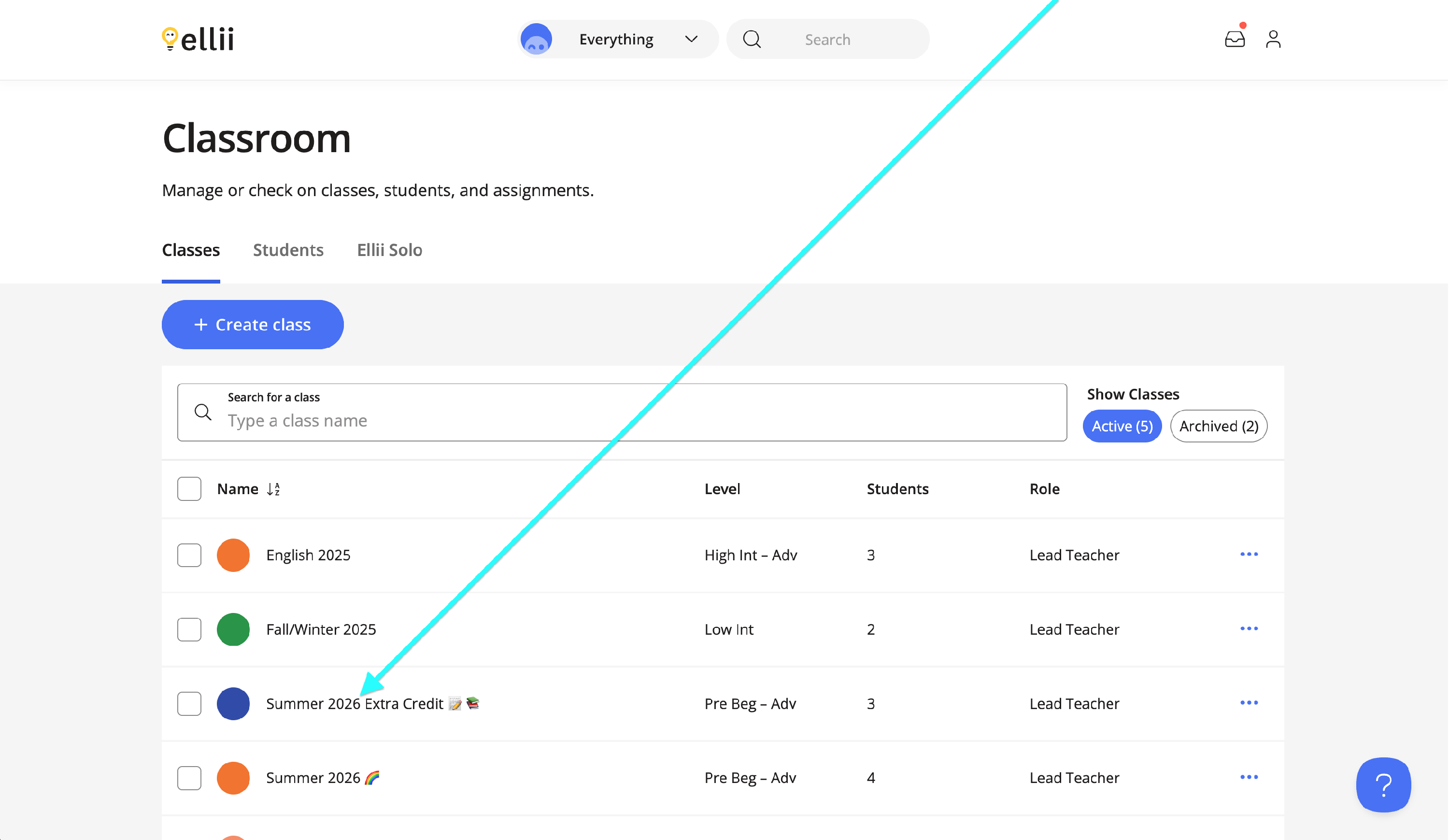
Click on the class you would like to work on.
Step 3
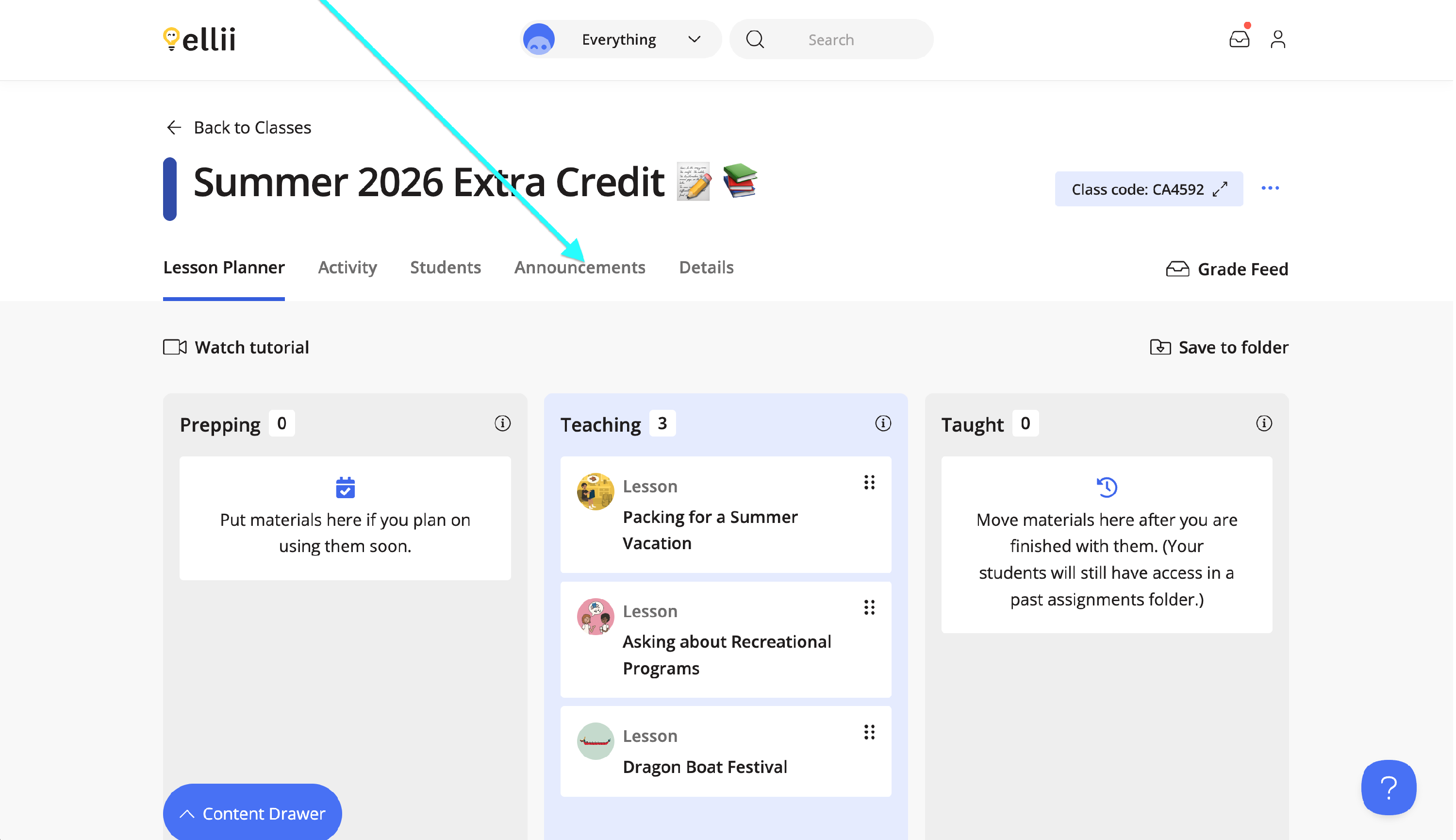
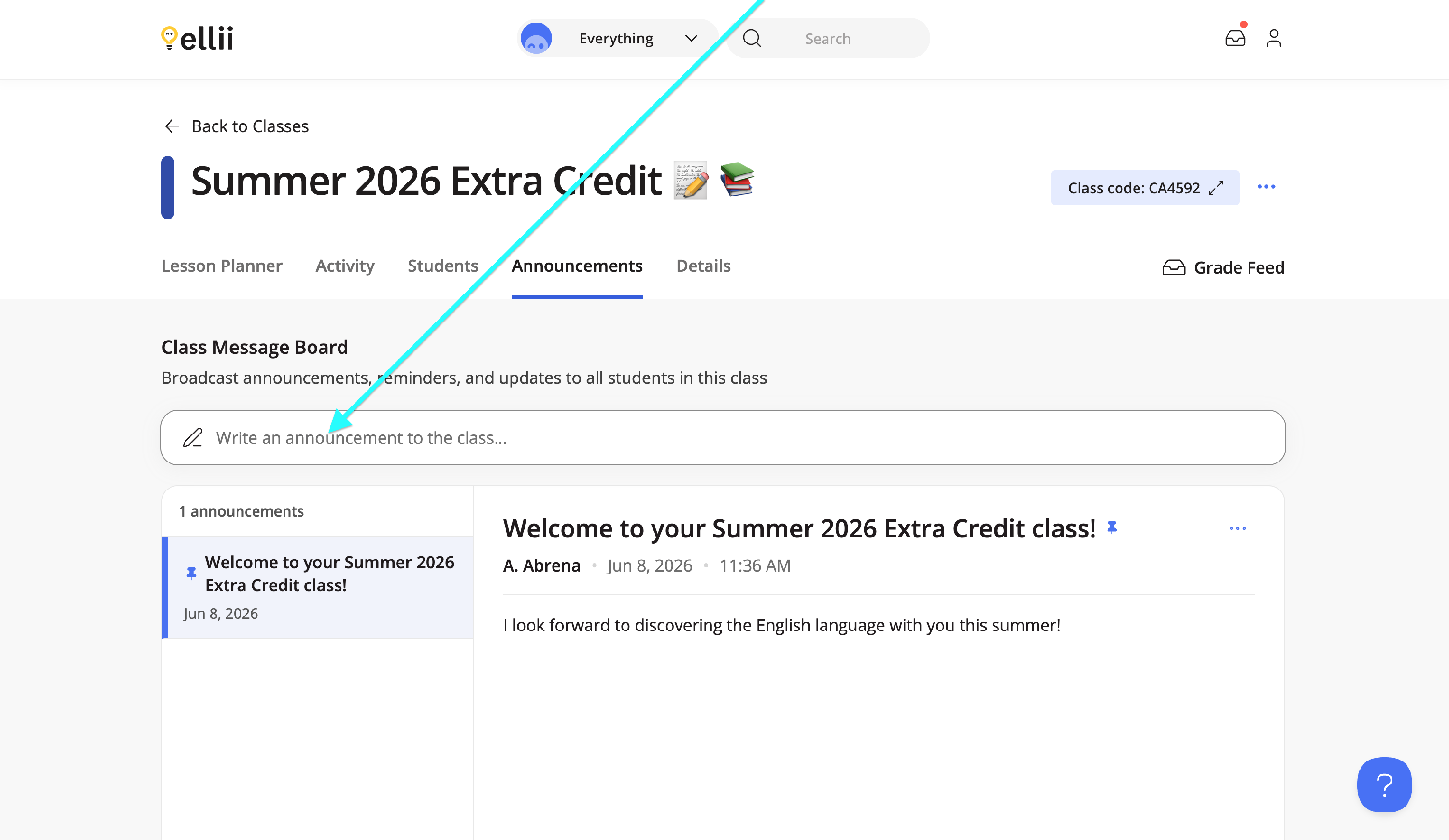
To create an announcement for your students, click on the Announcements tab.
Step 4
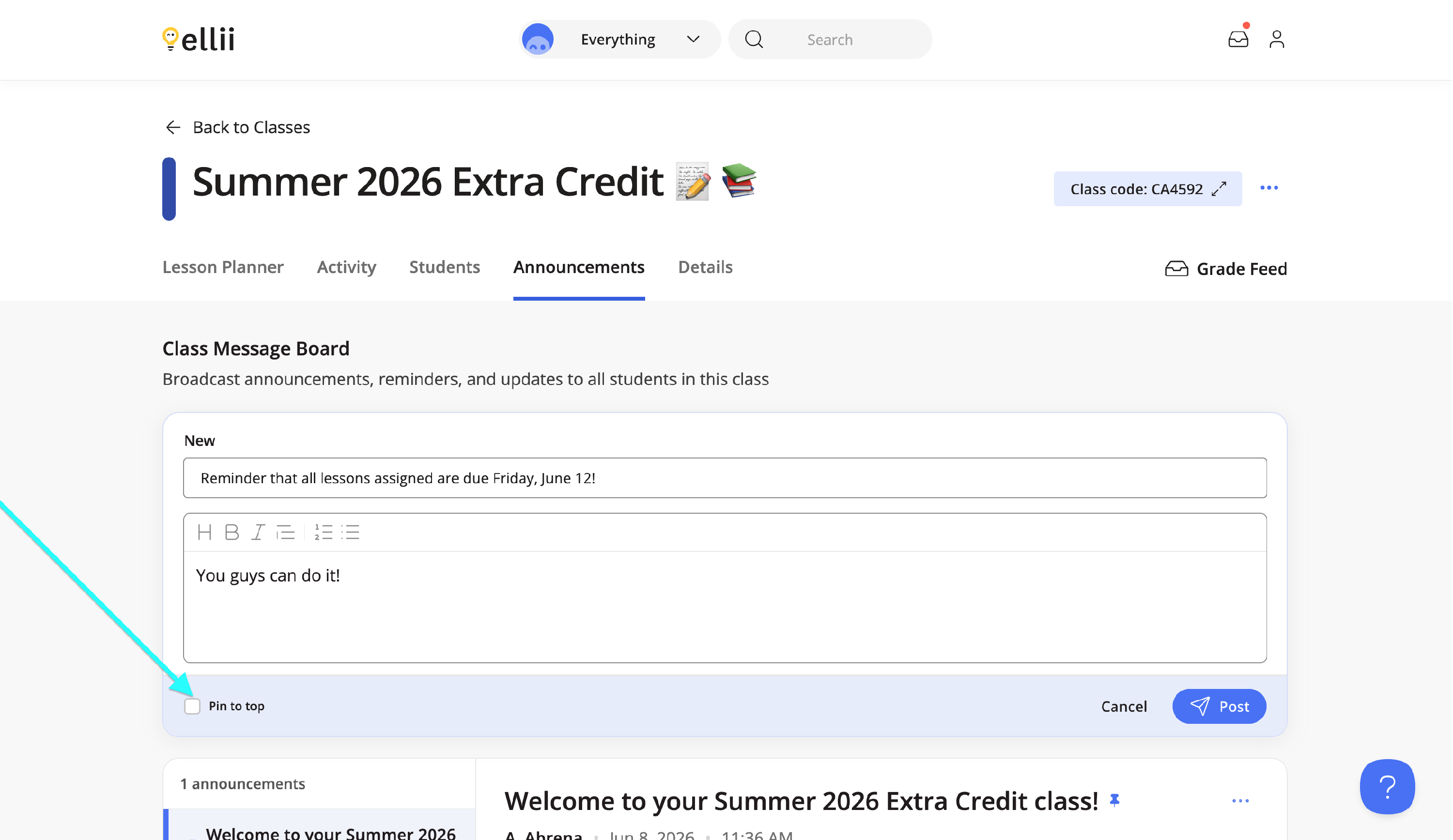
Click on the text field to type your announcement. You can check off Pin to top and the announcement will remain at the top of the page.
Step 5
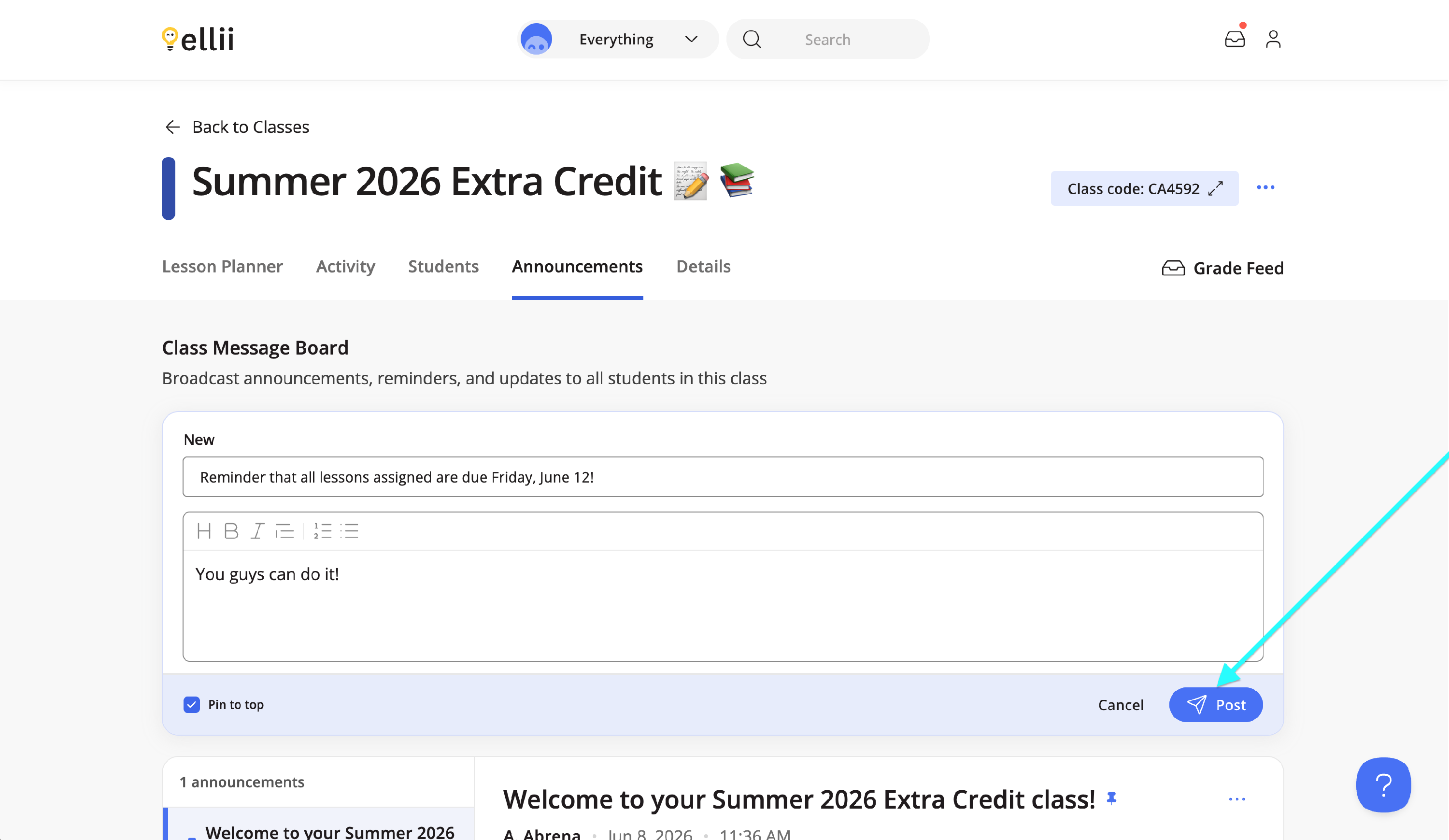
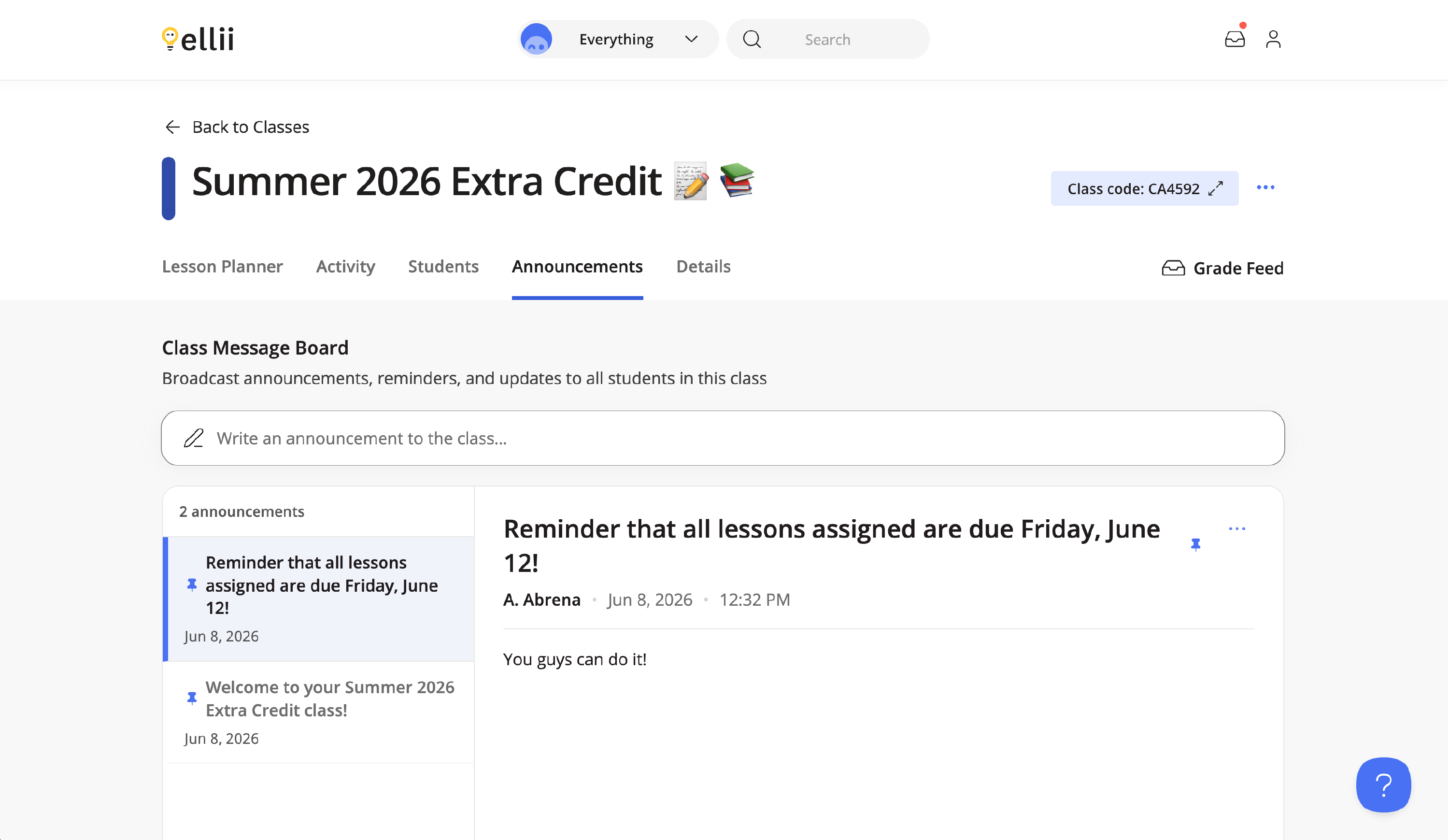
Click Post when ready.
Step 6
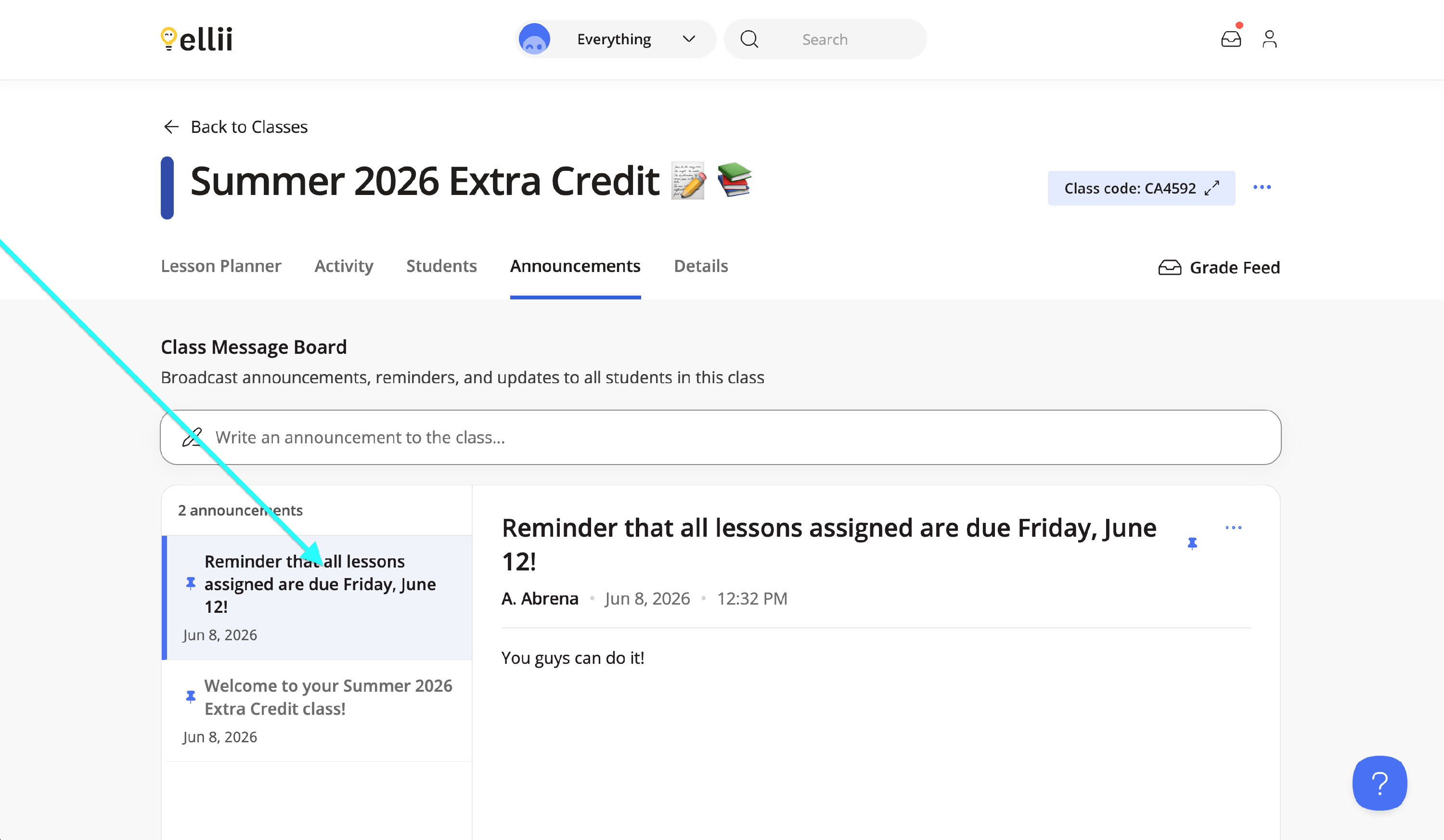
To manage an announcement, click on the announcement you would like to work on.
Step 7
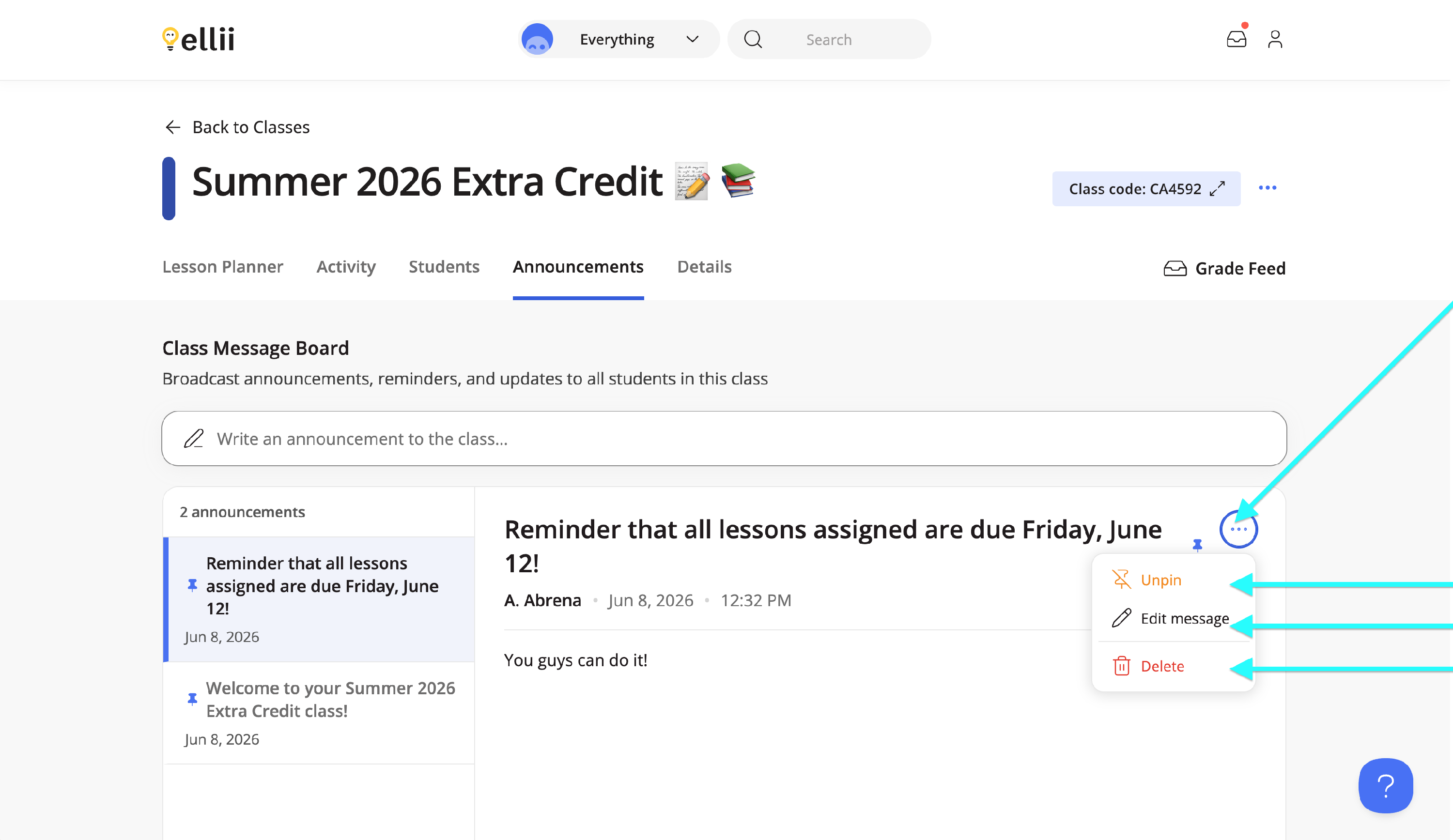
Next, click on the More Options (...) menu and select the appropriate option.
Student View
Step 1
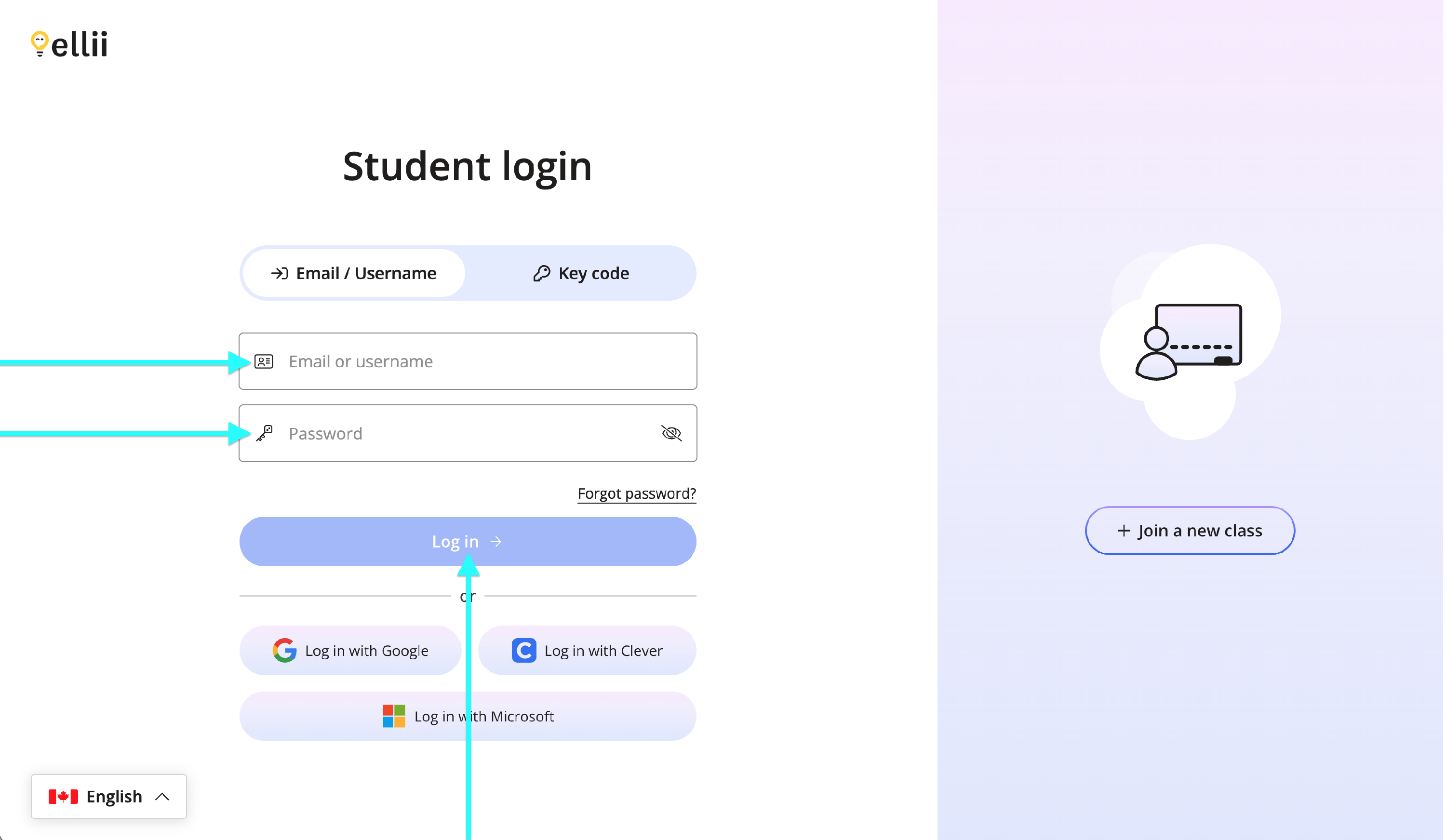
Students will log in via https://ellii.com/students.
Step 2
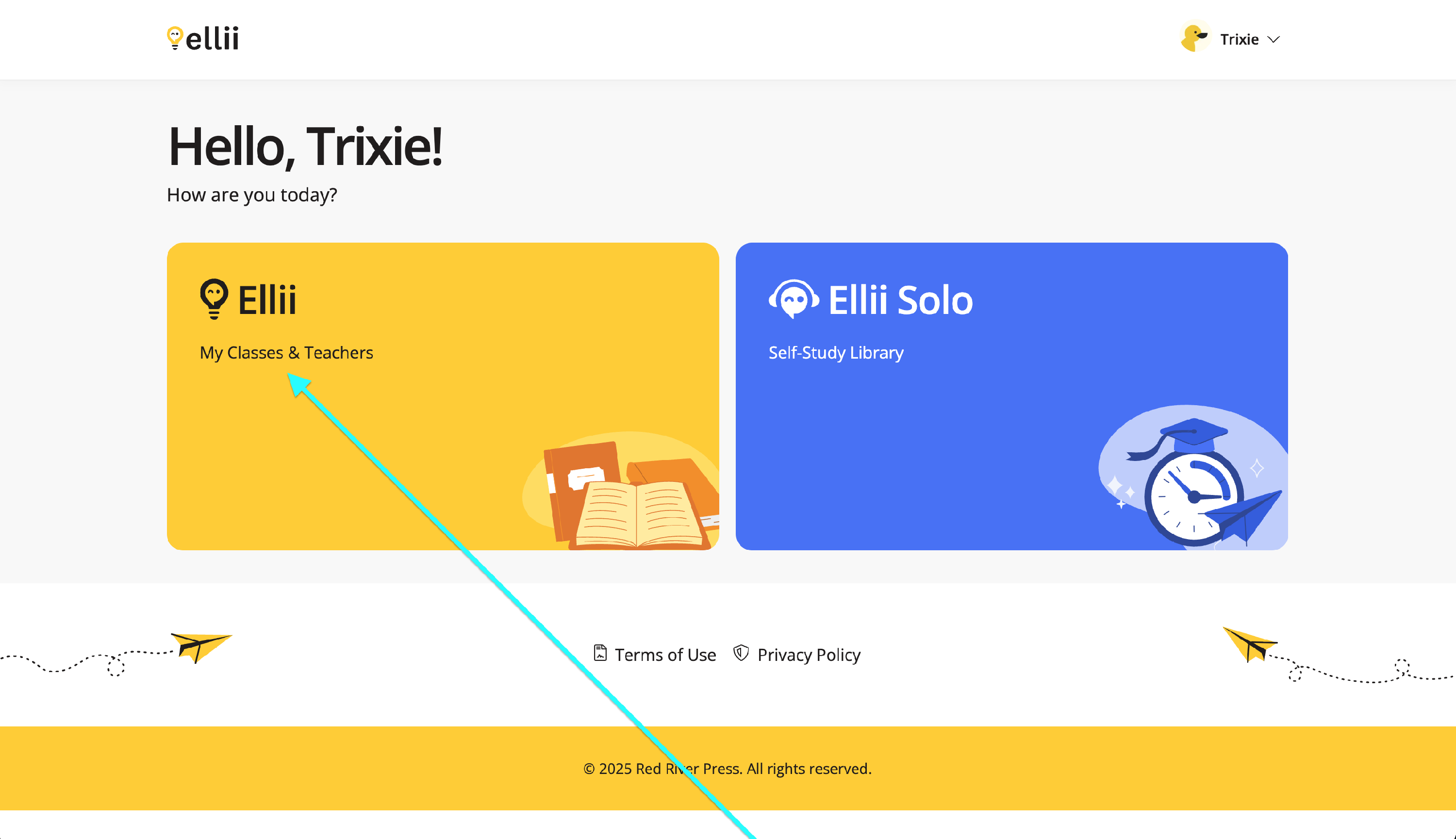
Next, they will click on Ellii My Classes & Teachers.
Step 3
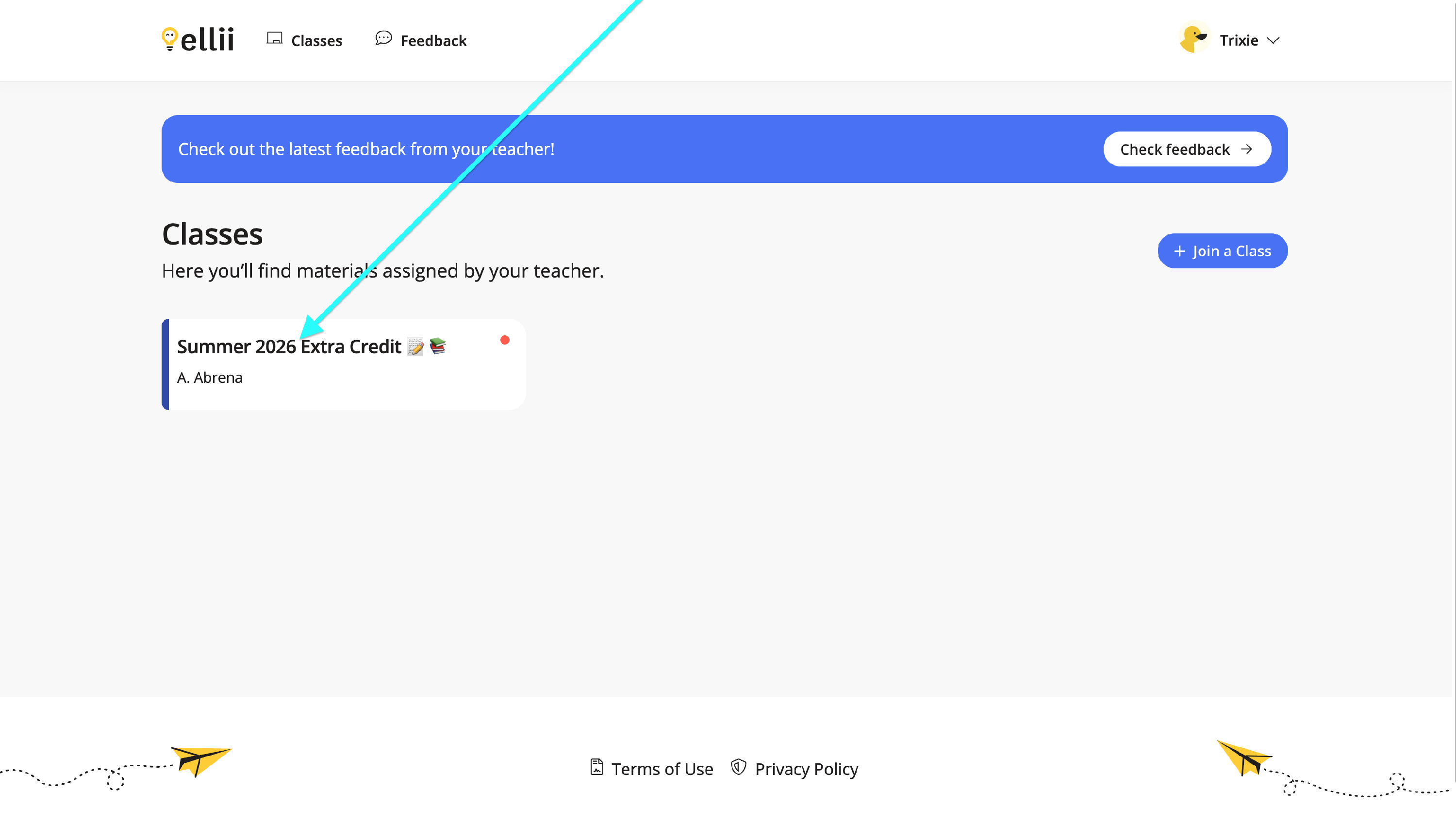
Students will click on the class they would like to work on.
Step 4
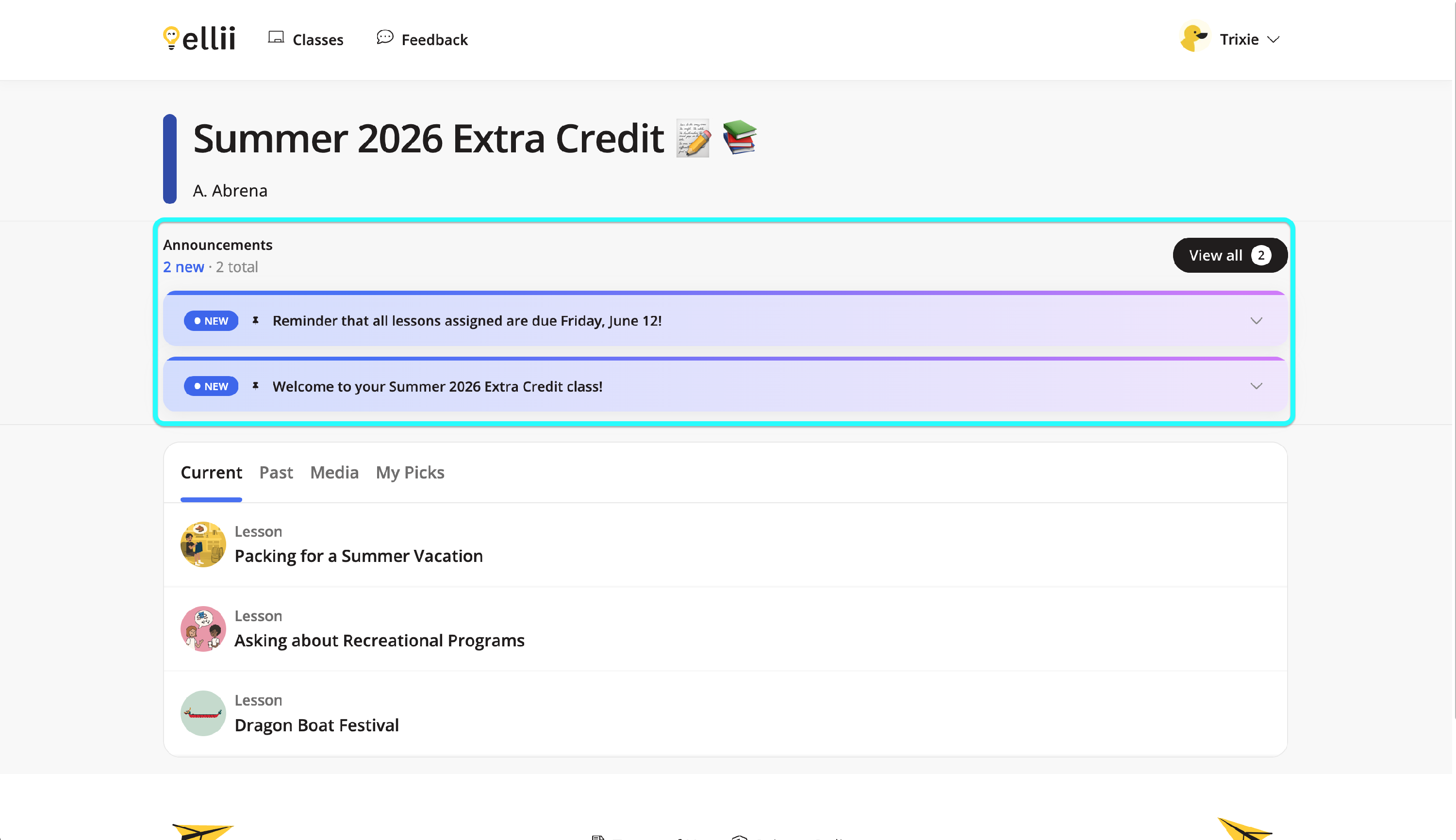
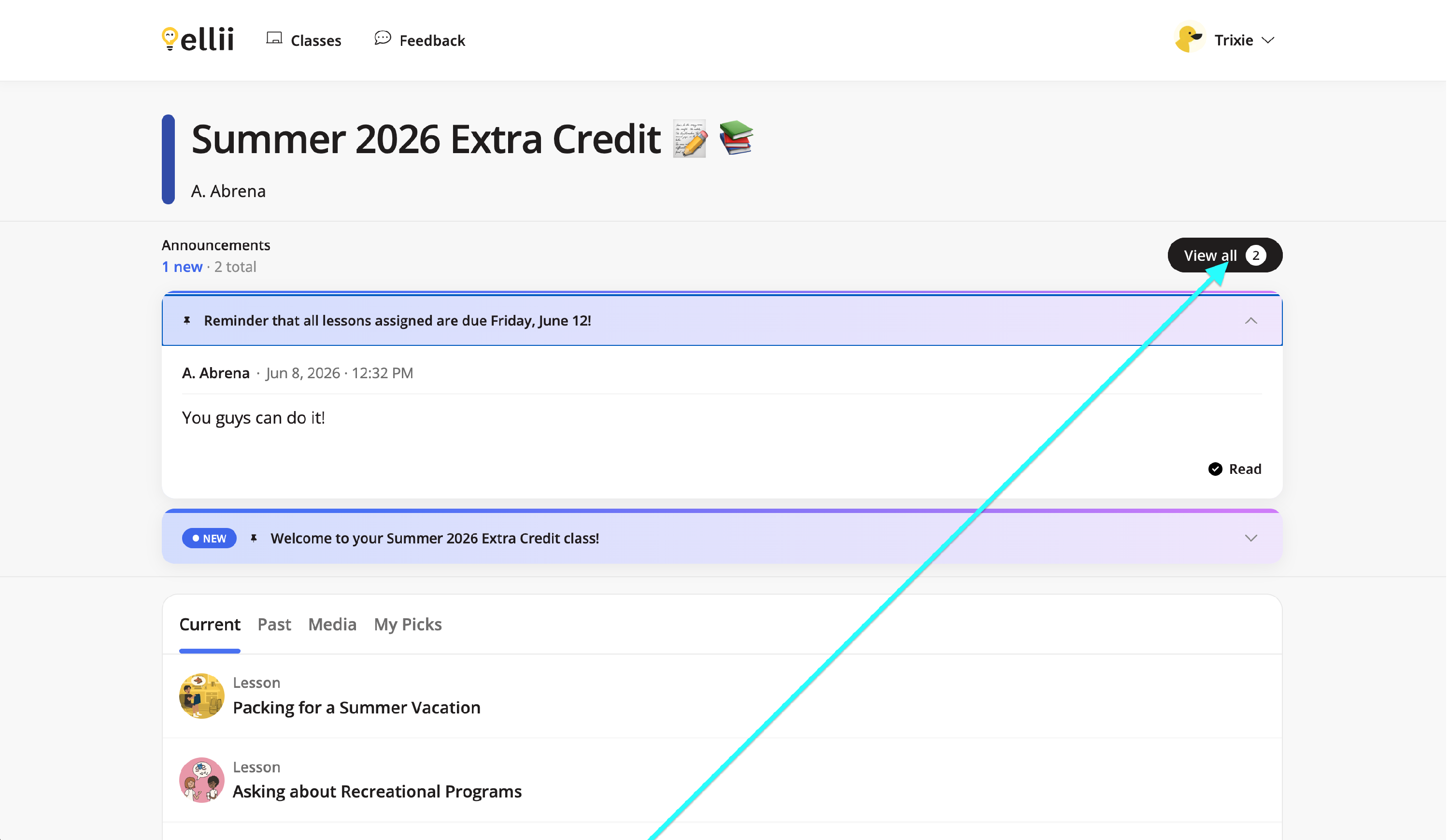
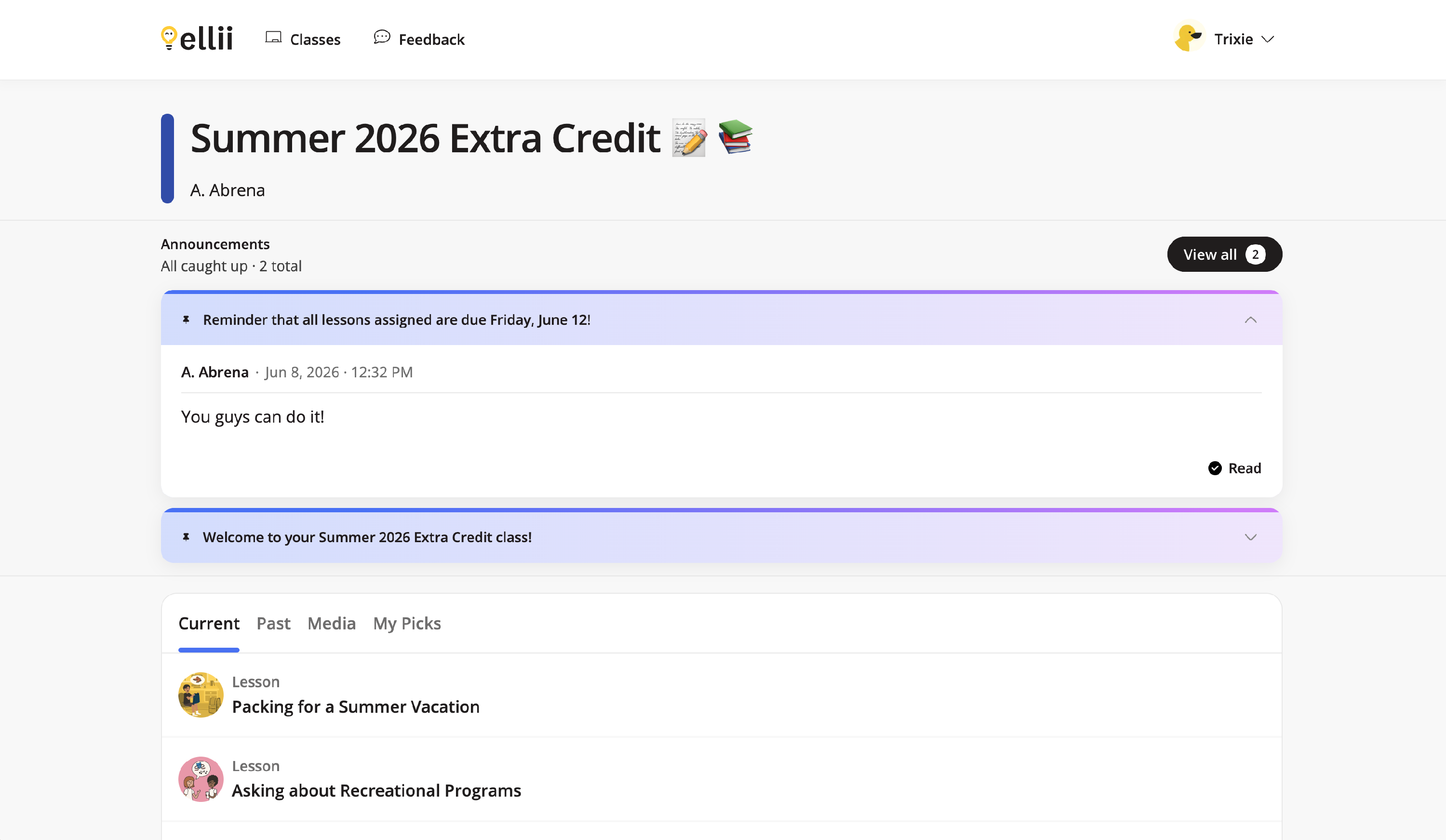
Class messages will be shown under Announcements.
Step 5
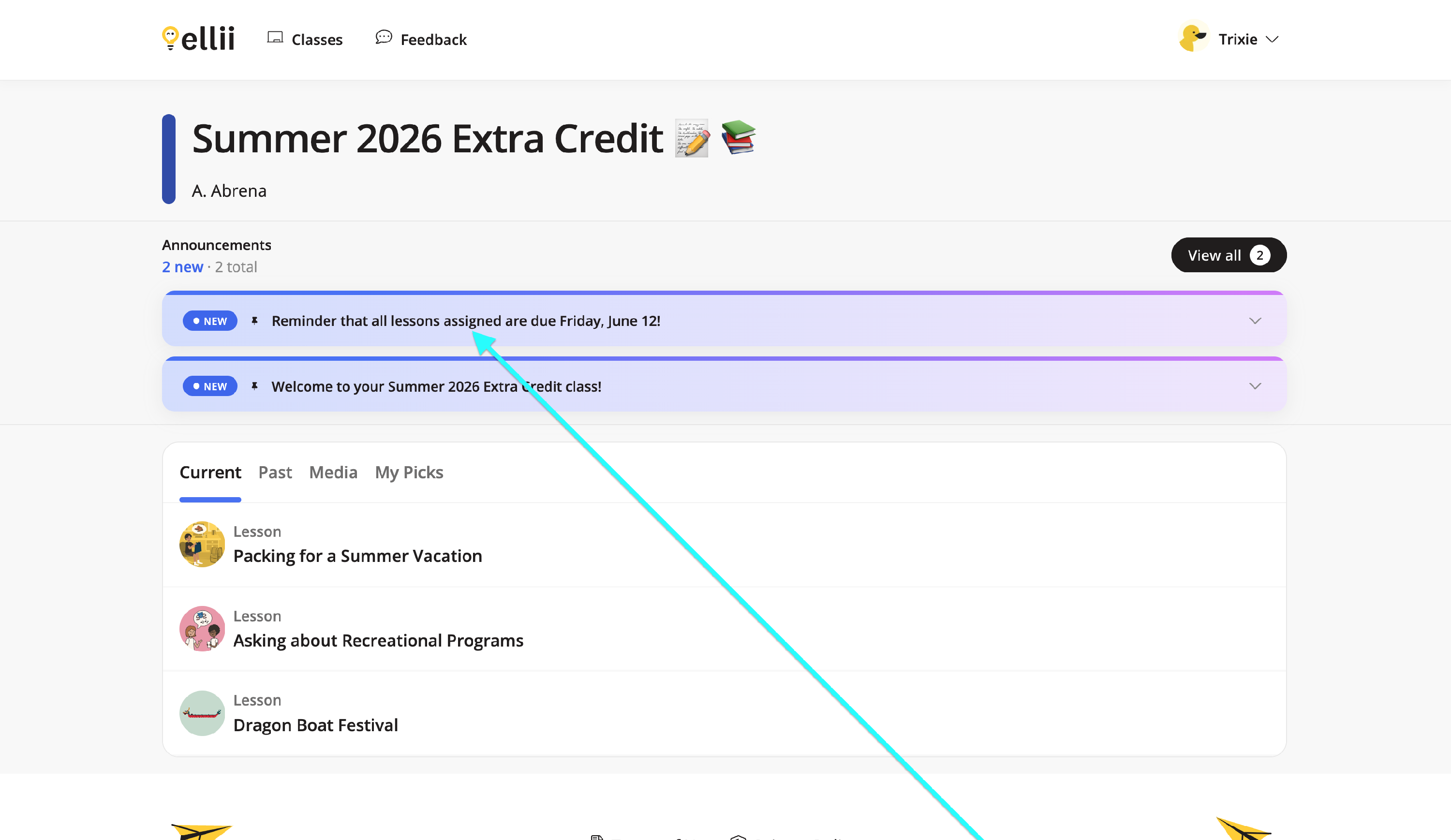
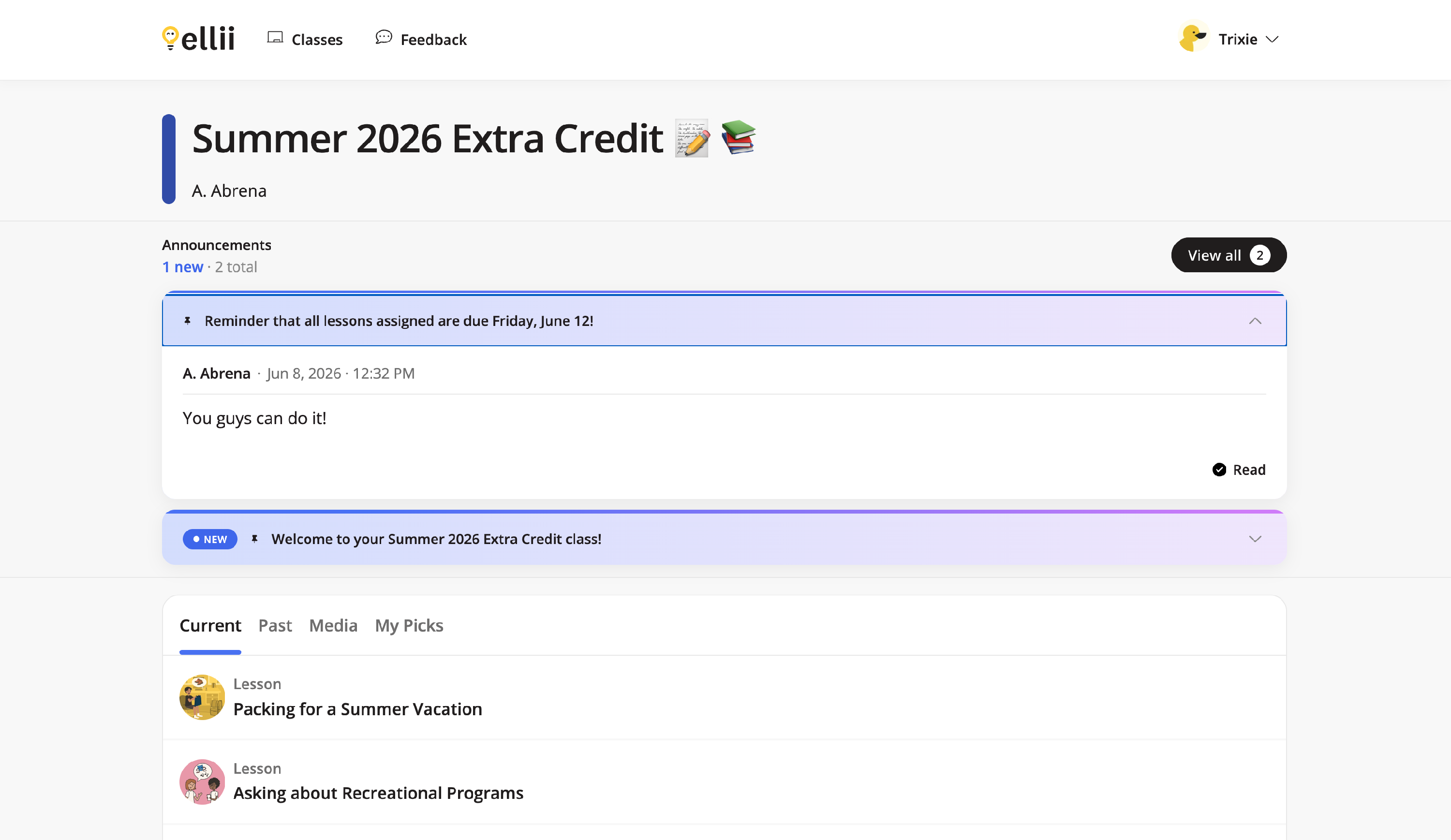
Students can click on an announcement to see more details.
Step 6
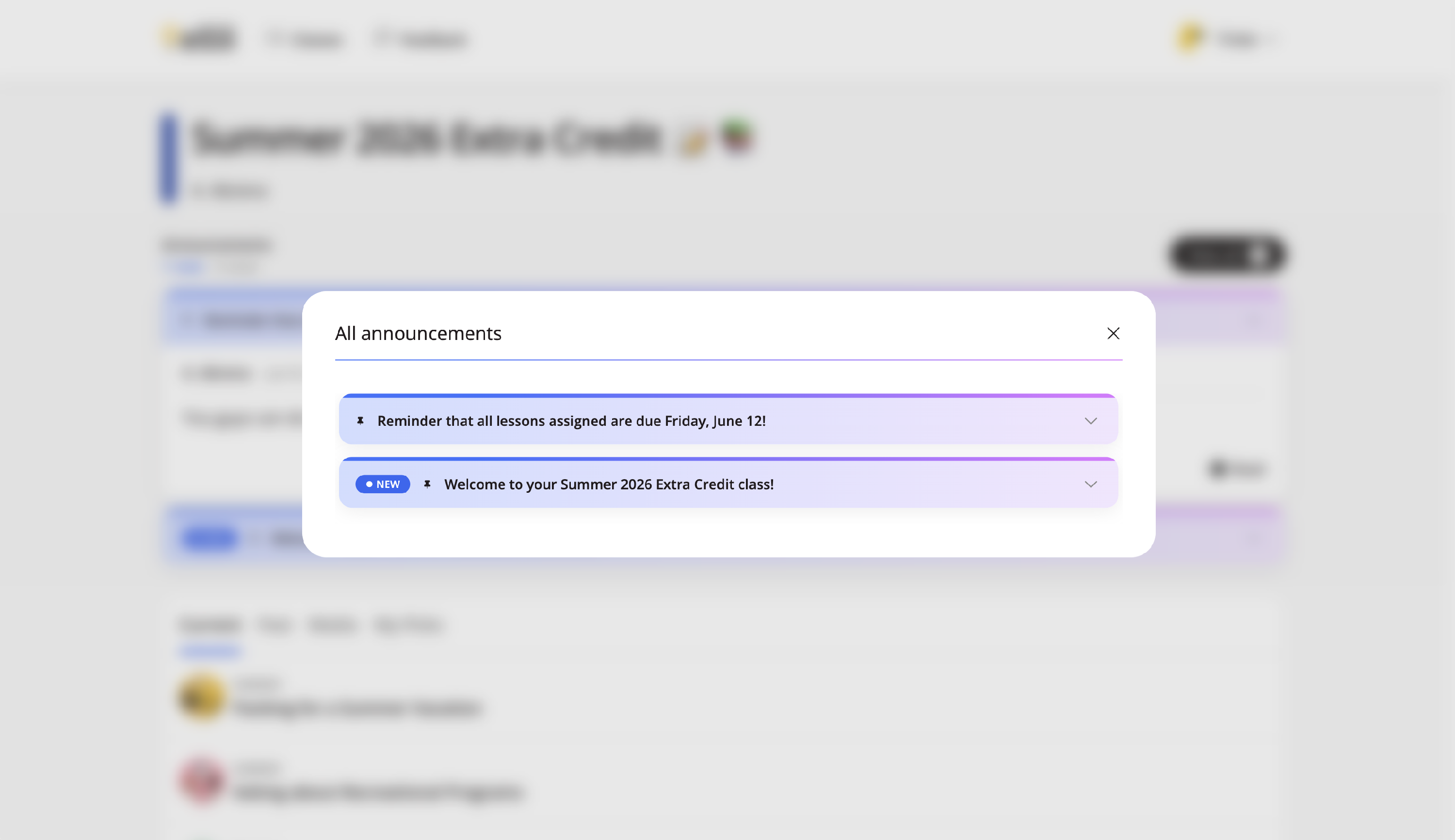
To see all announcements, click on View all.
Step 7
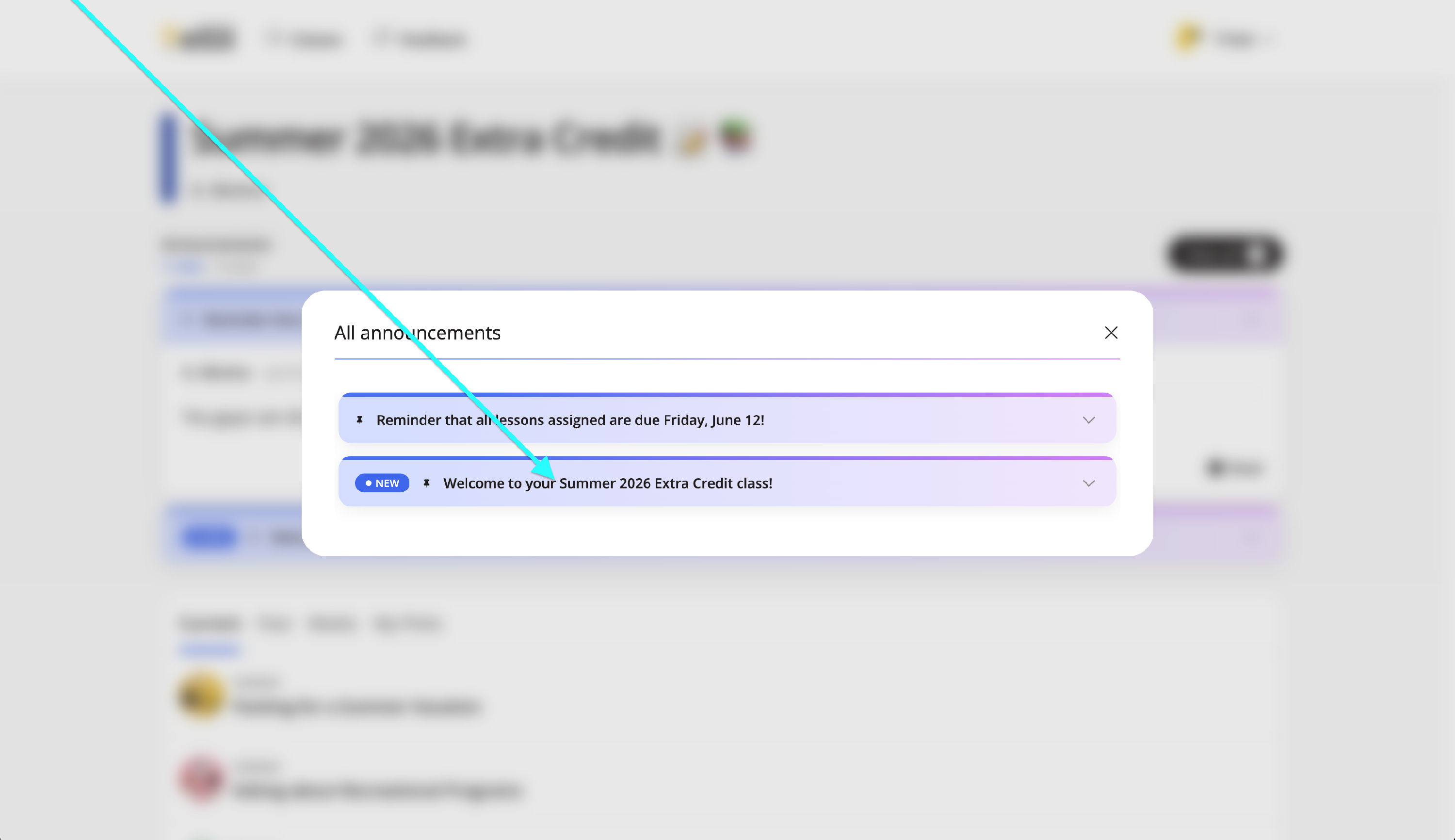
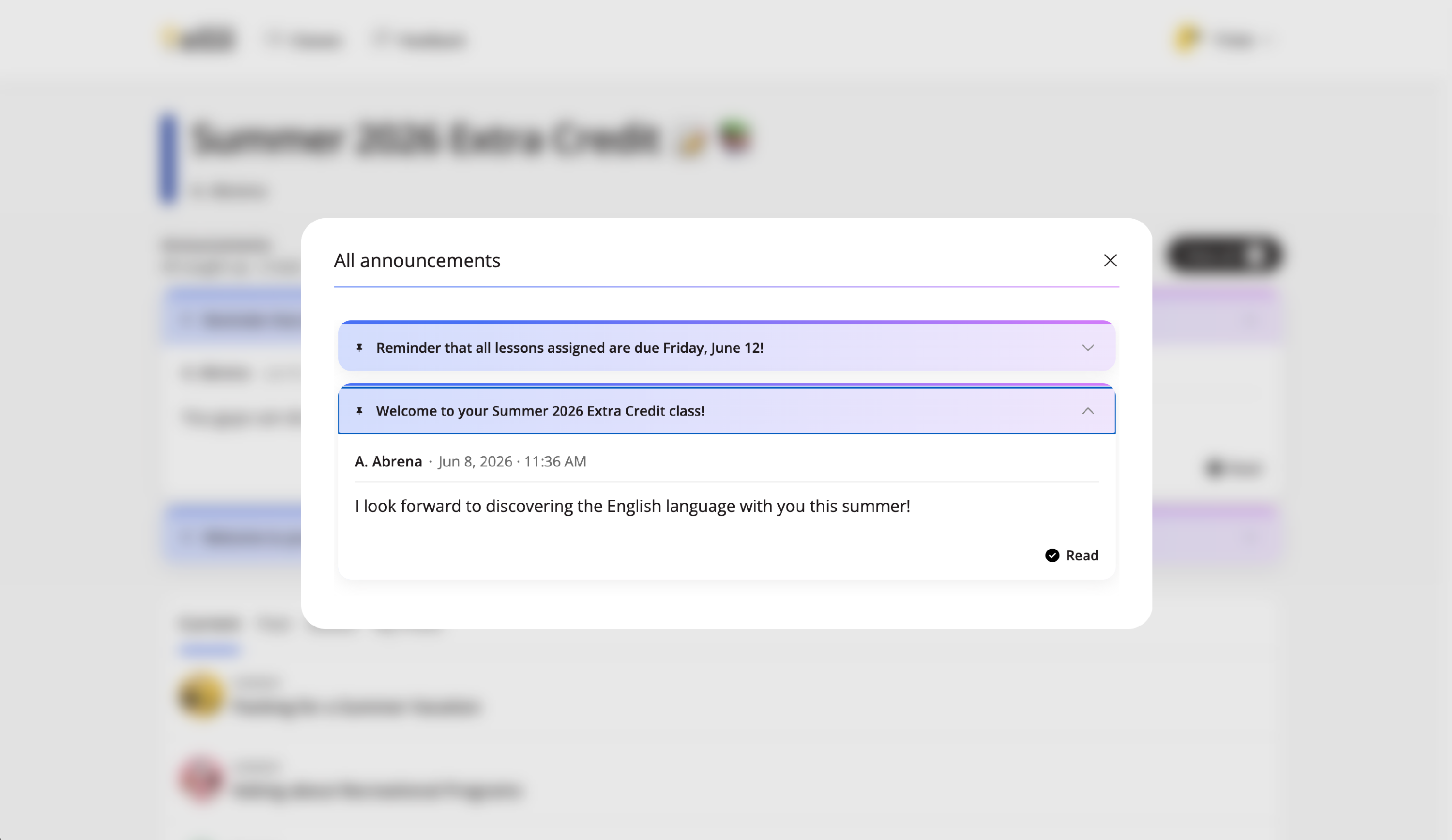
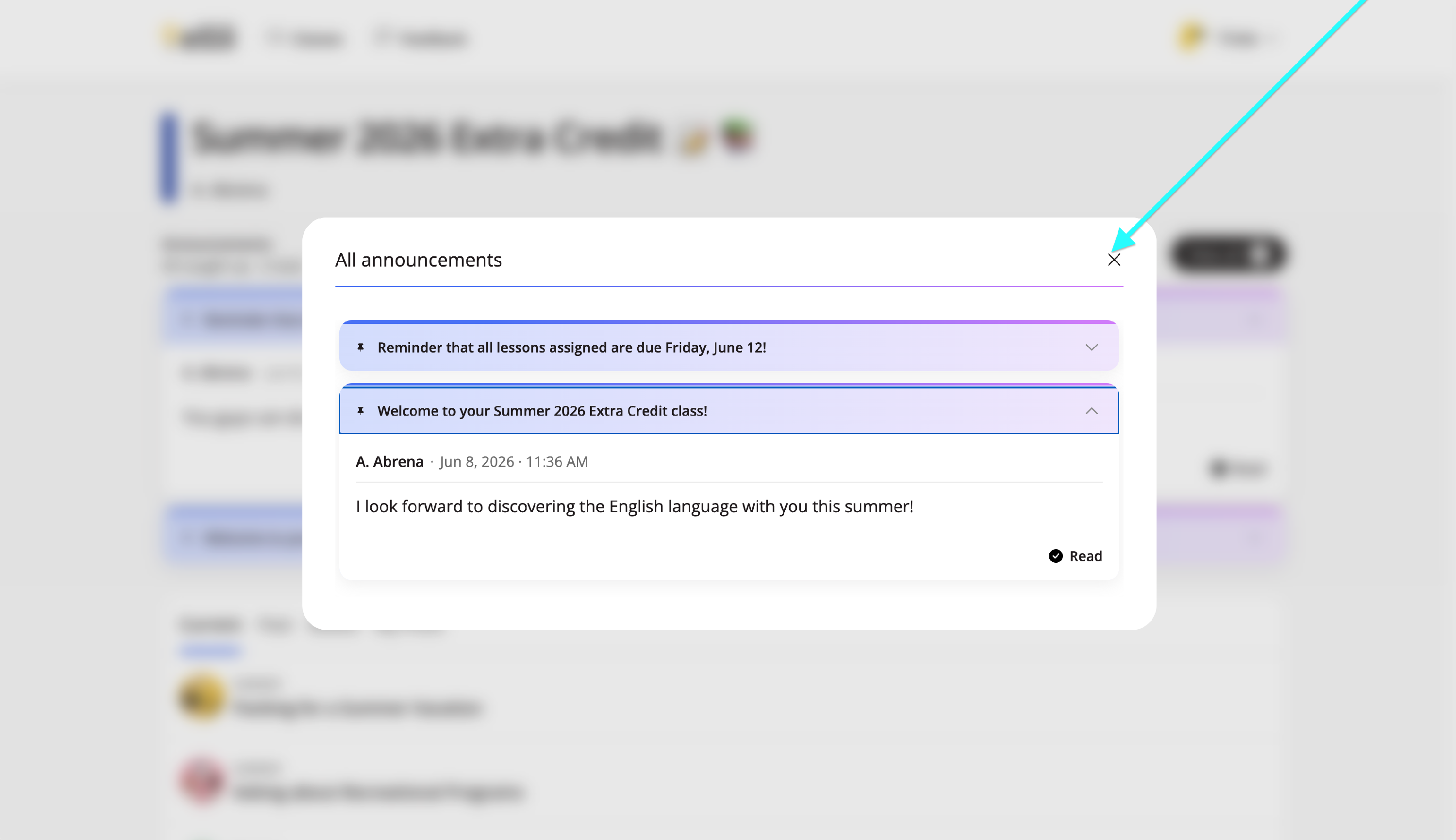
Clicking on an individual announcement will show more details.
Step 8
Clicking the X to returns you to the previous page.
We hope this helps with class announcements and if you have any questions, please feel free to contact us.