
Speaking Task
Speaking is a recording task for speaking practice or assessment with text, or visual prompts. Students can record for up to two minutes and preview, delete, and rerecord. This task can be manually graded and graded with Ellii Bot.
Find the Speaking task in these sections:
and more!
Step 1
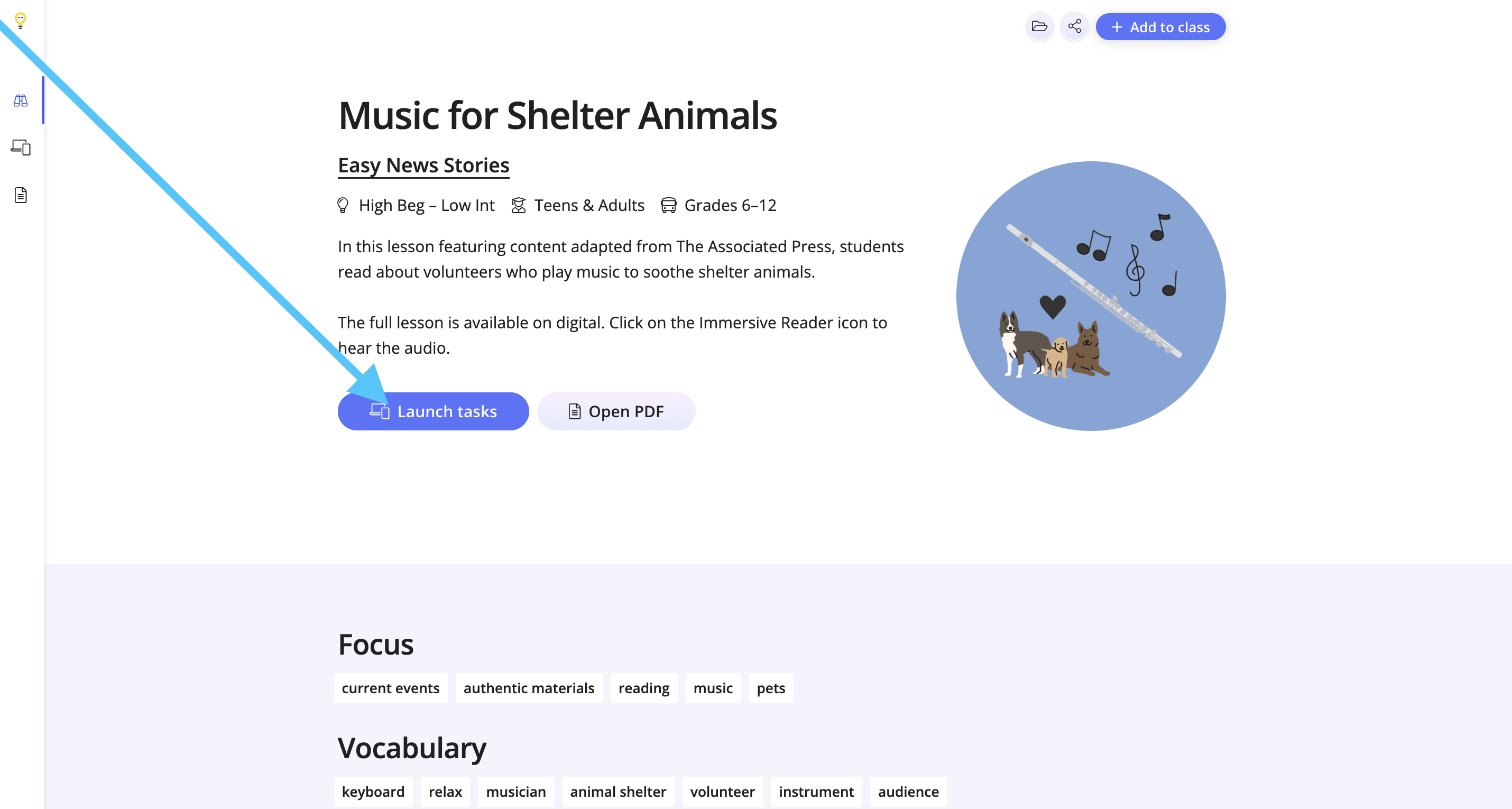
Click Launch Tasks from the lesson overview page.
Step 2
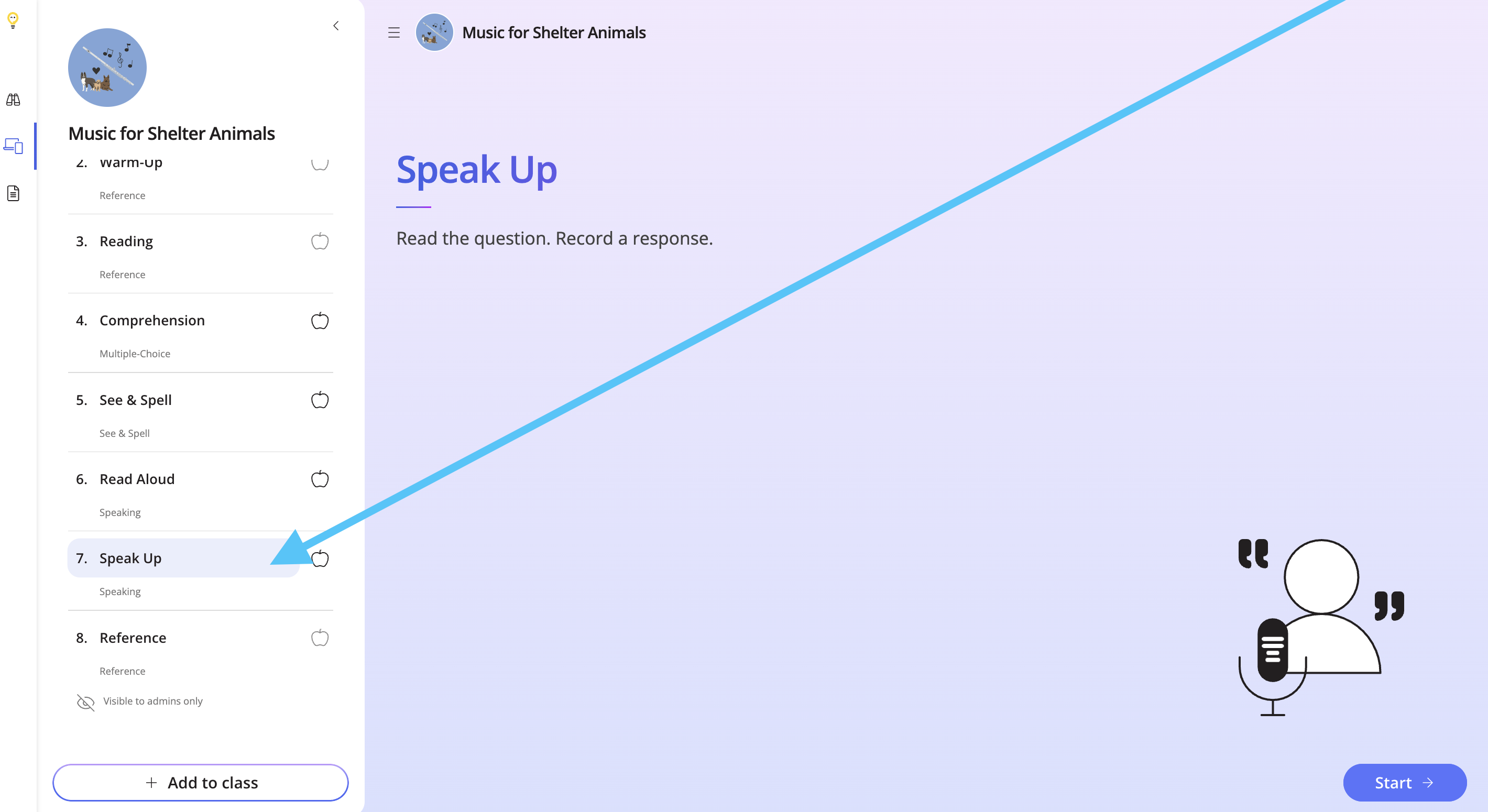
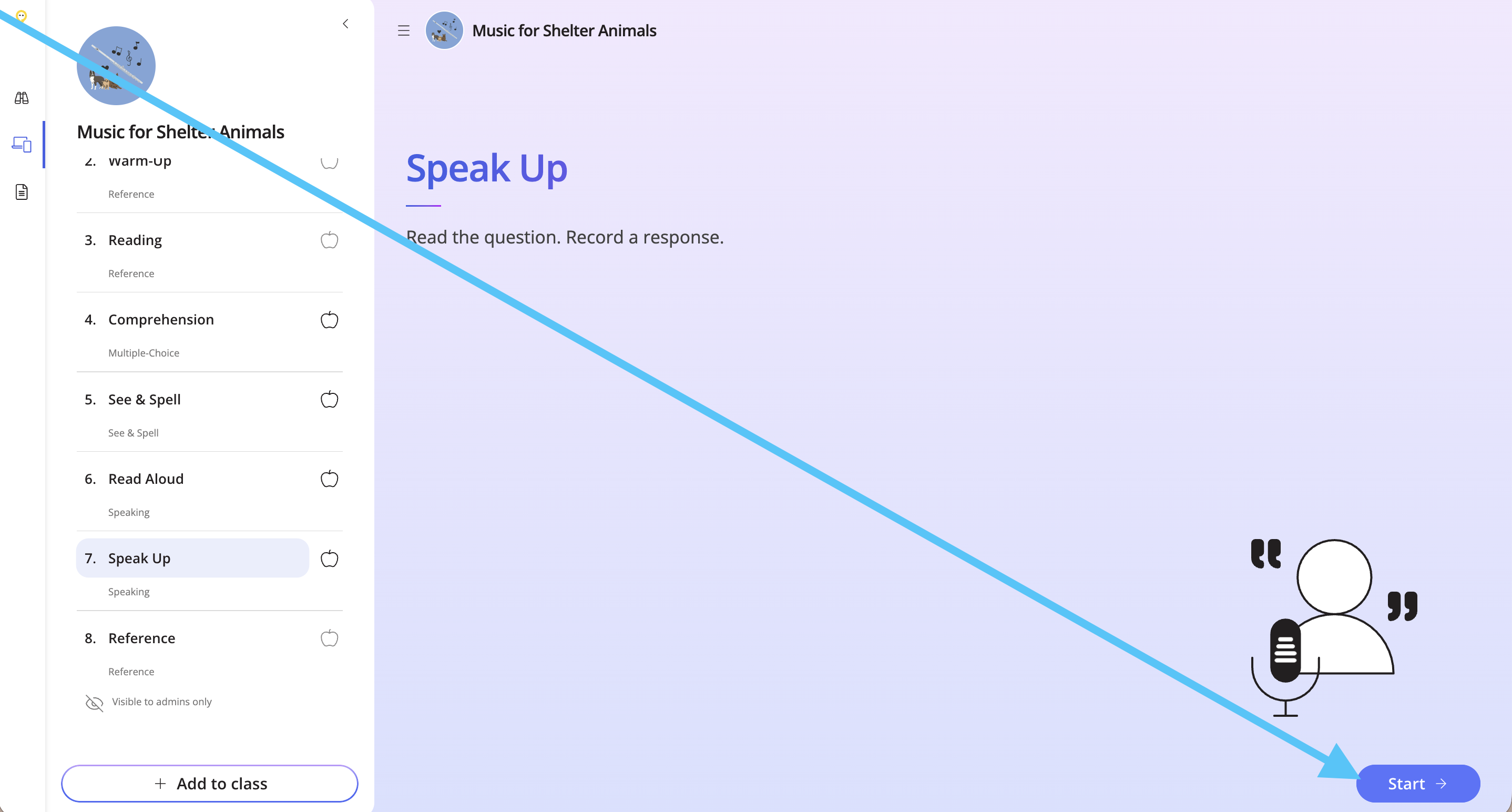
Look for the Speaking task on the left-hand side, and click Start.
Step 3
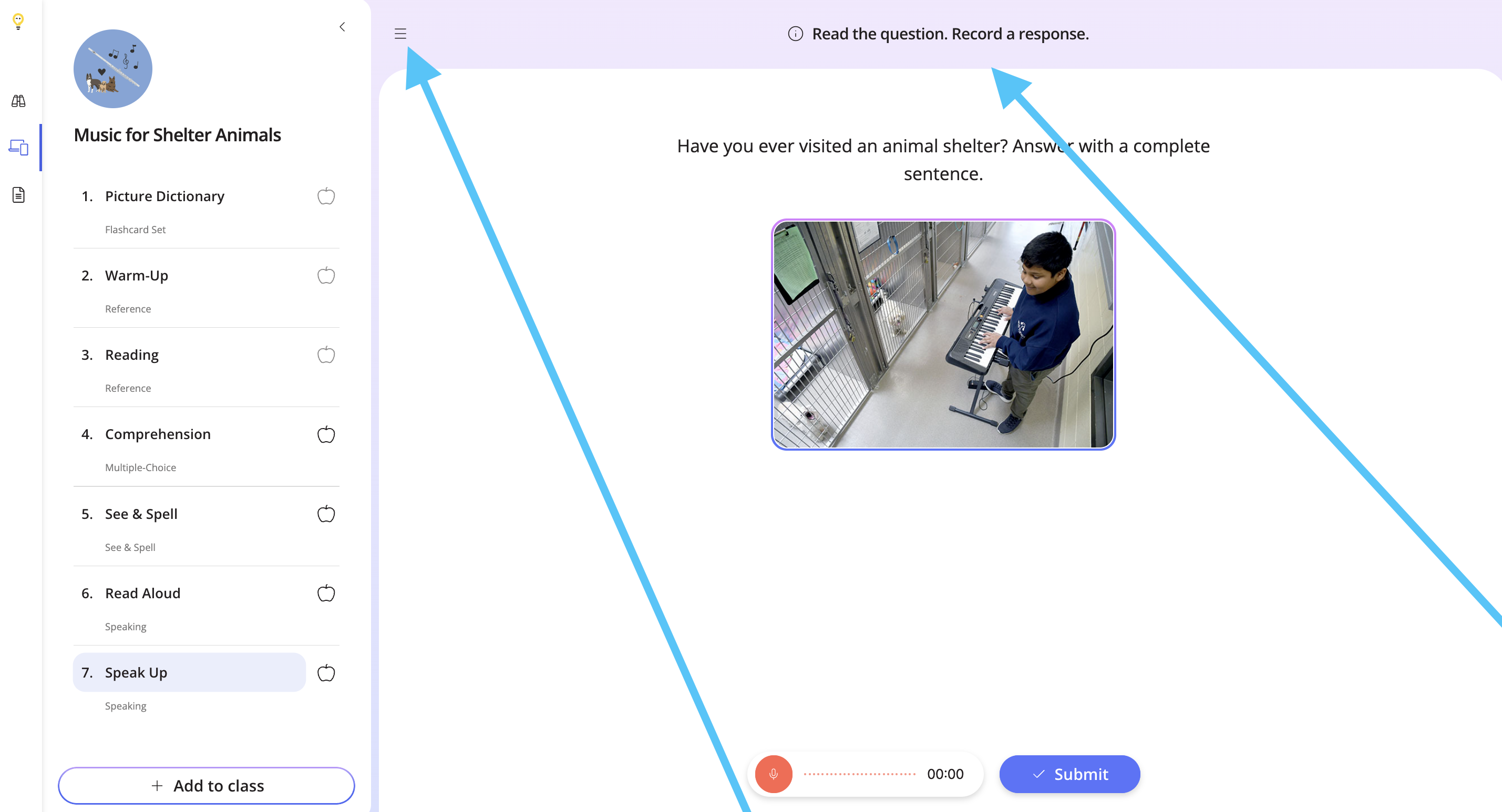
View the instructions at the top, and use the hamburger button to close the tasks list. Use the same button to bring it back.
Step 4
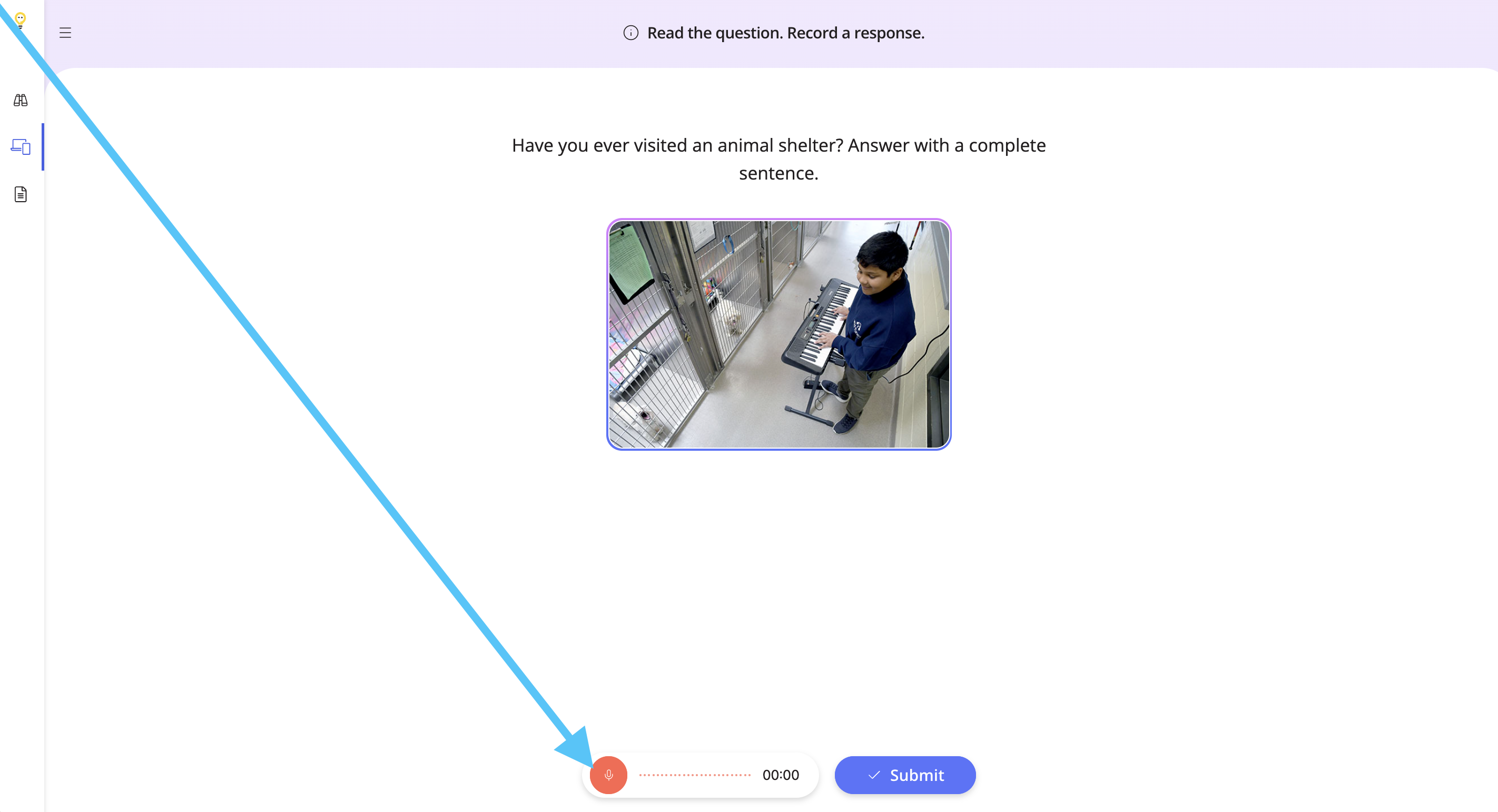
The Speaking task will have a reference of either an image, a text passage, or a video. To begin recording a response, click the Record button.
Step 5
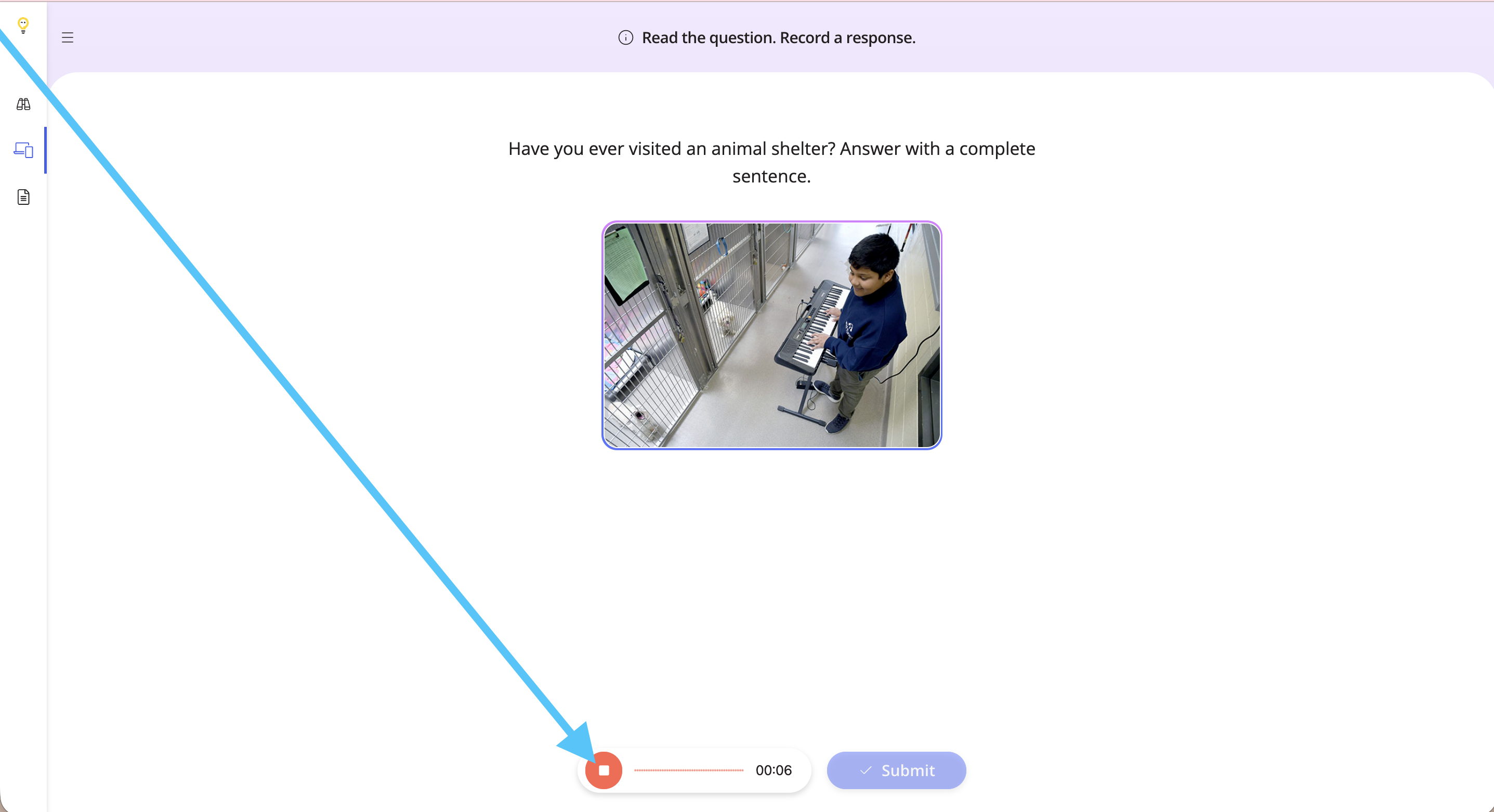
Speak clearly and try to avoid background noise. To stop recording, click the Stop button.
Step 6
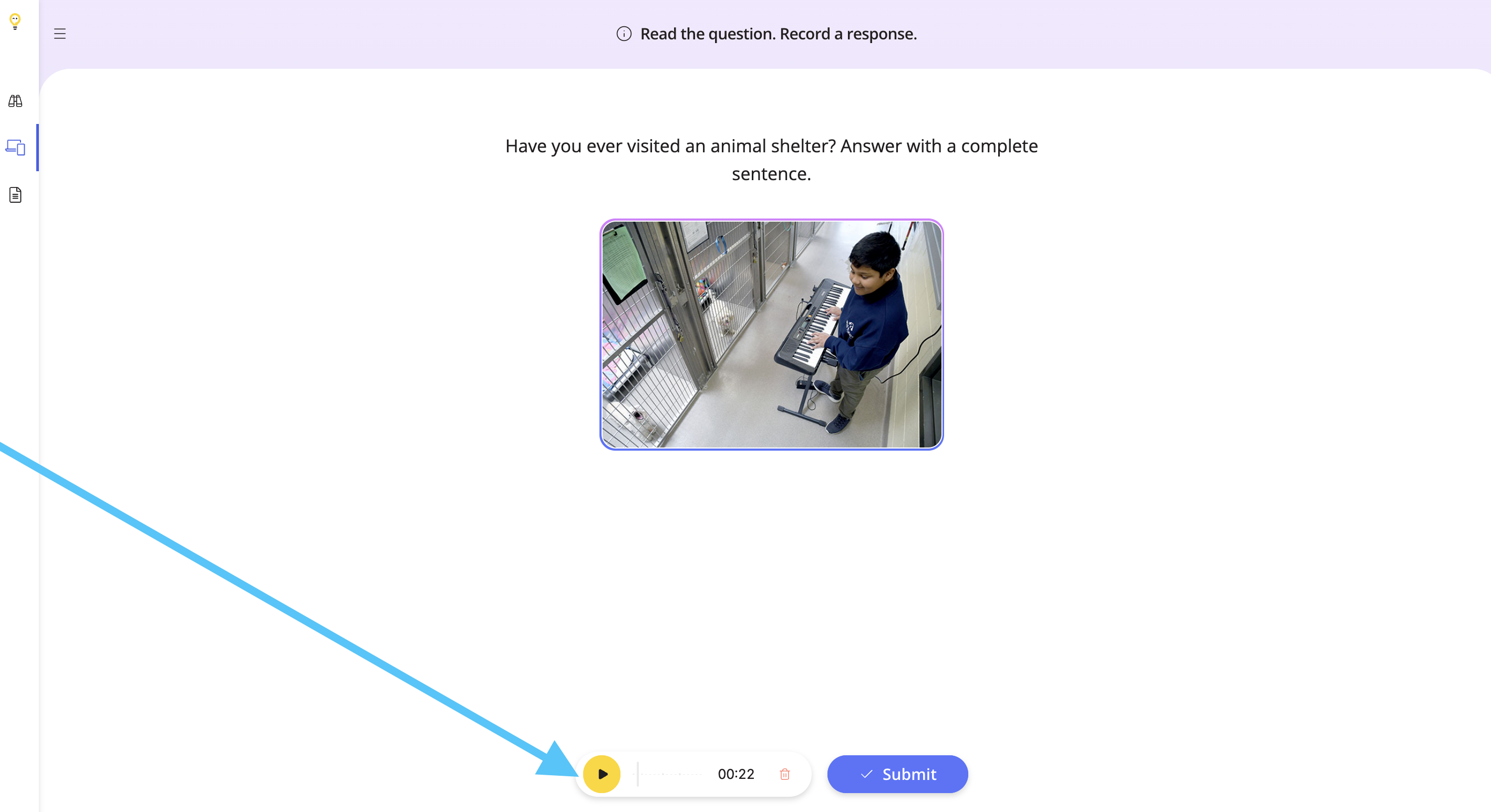
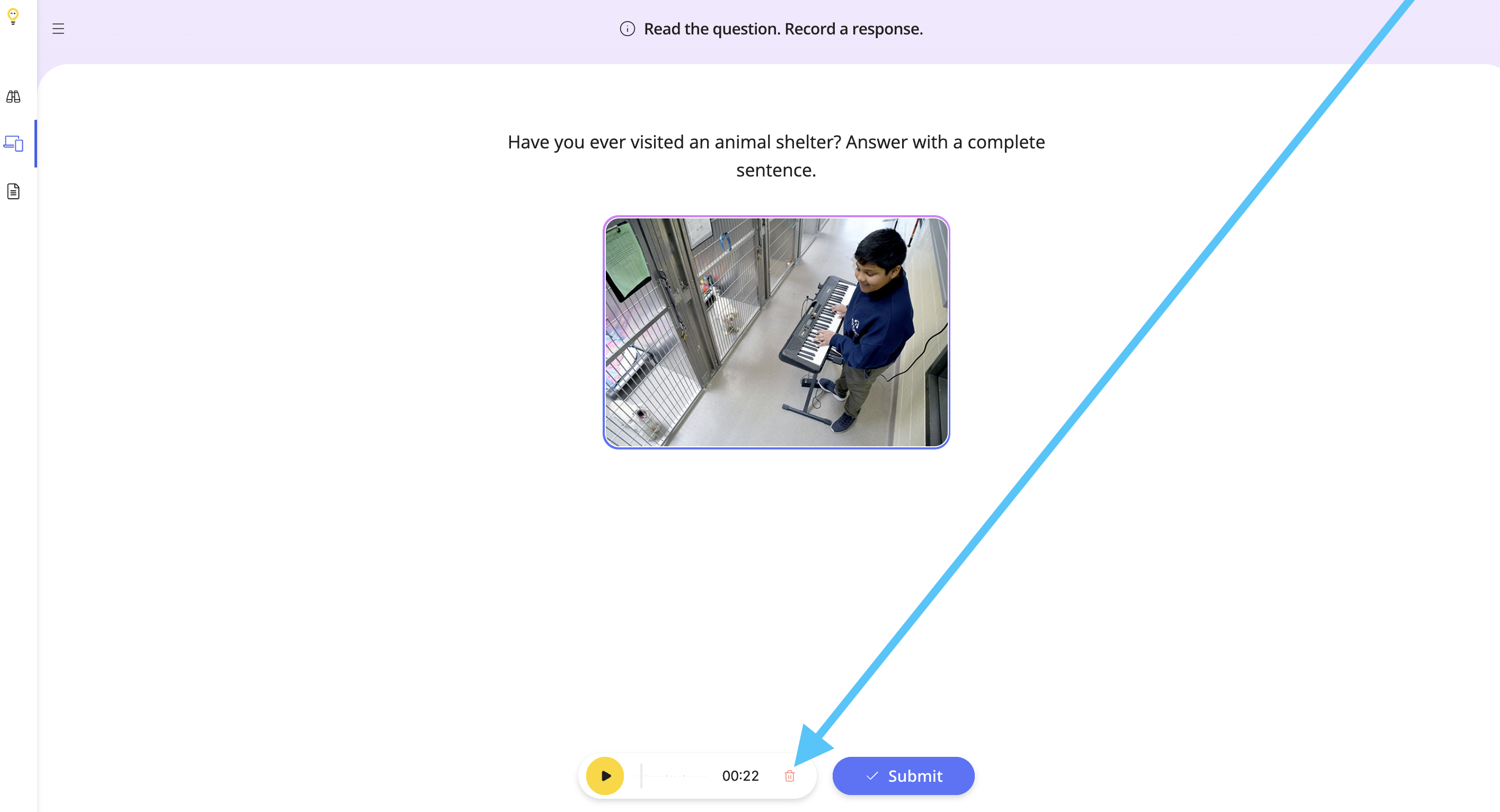
To listen to your response, click the play button. If you would like to delete the recording and try again, click the trash icon.
Step 7
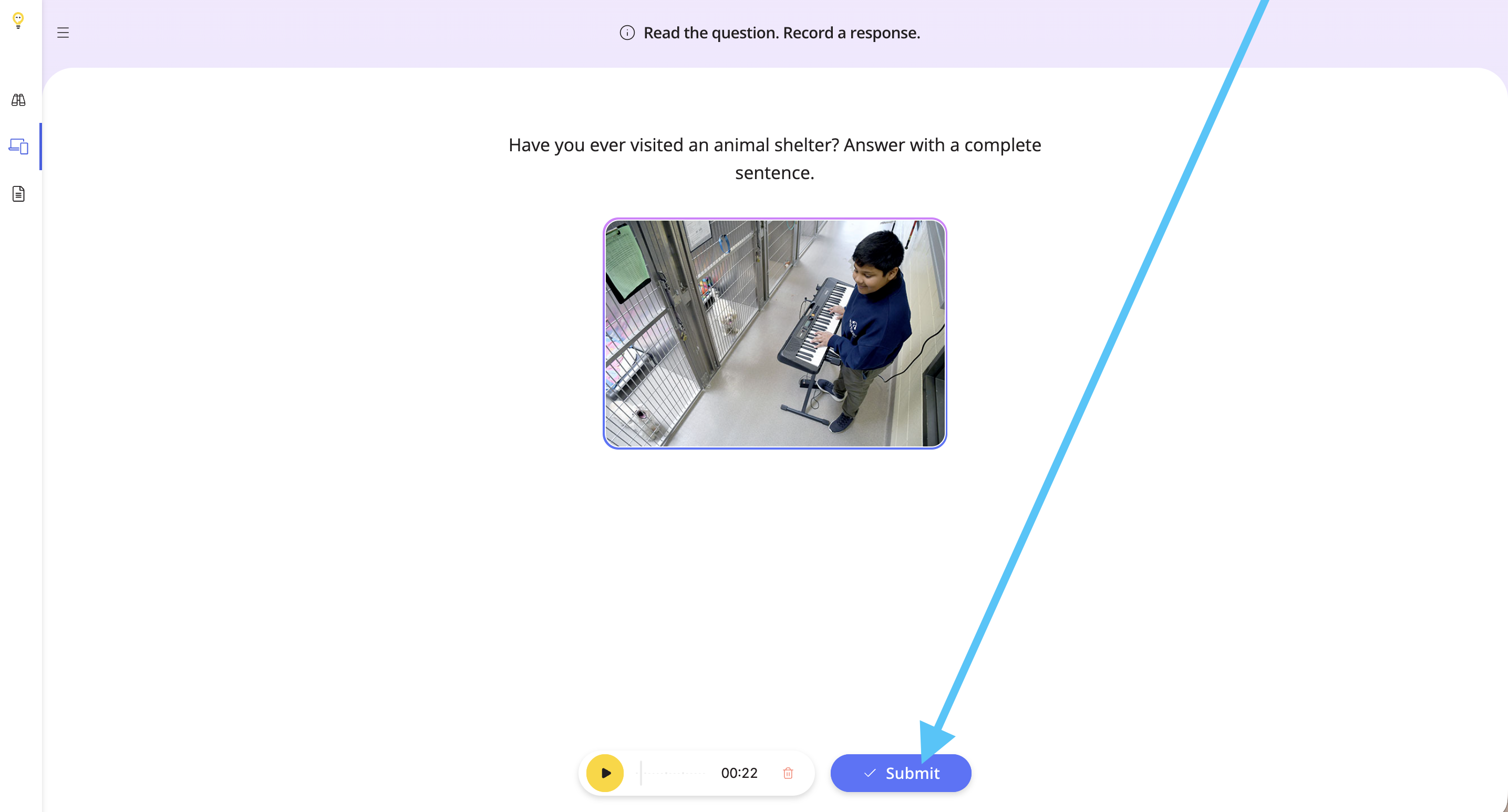
Click Submit to submit the response.
Step 8
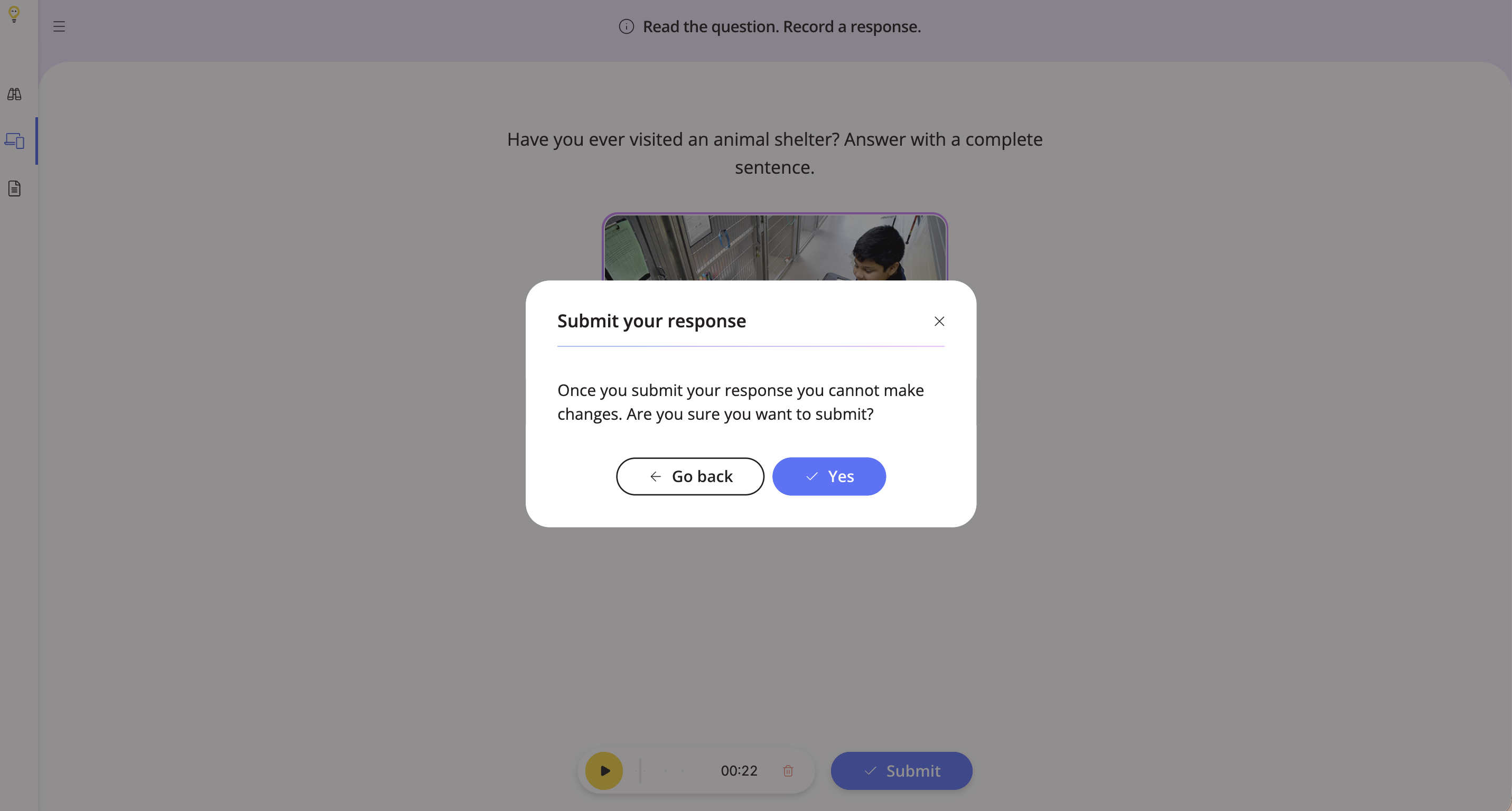
Confirm whether you would like to continue or record your response again.
Step 9
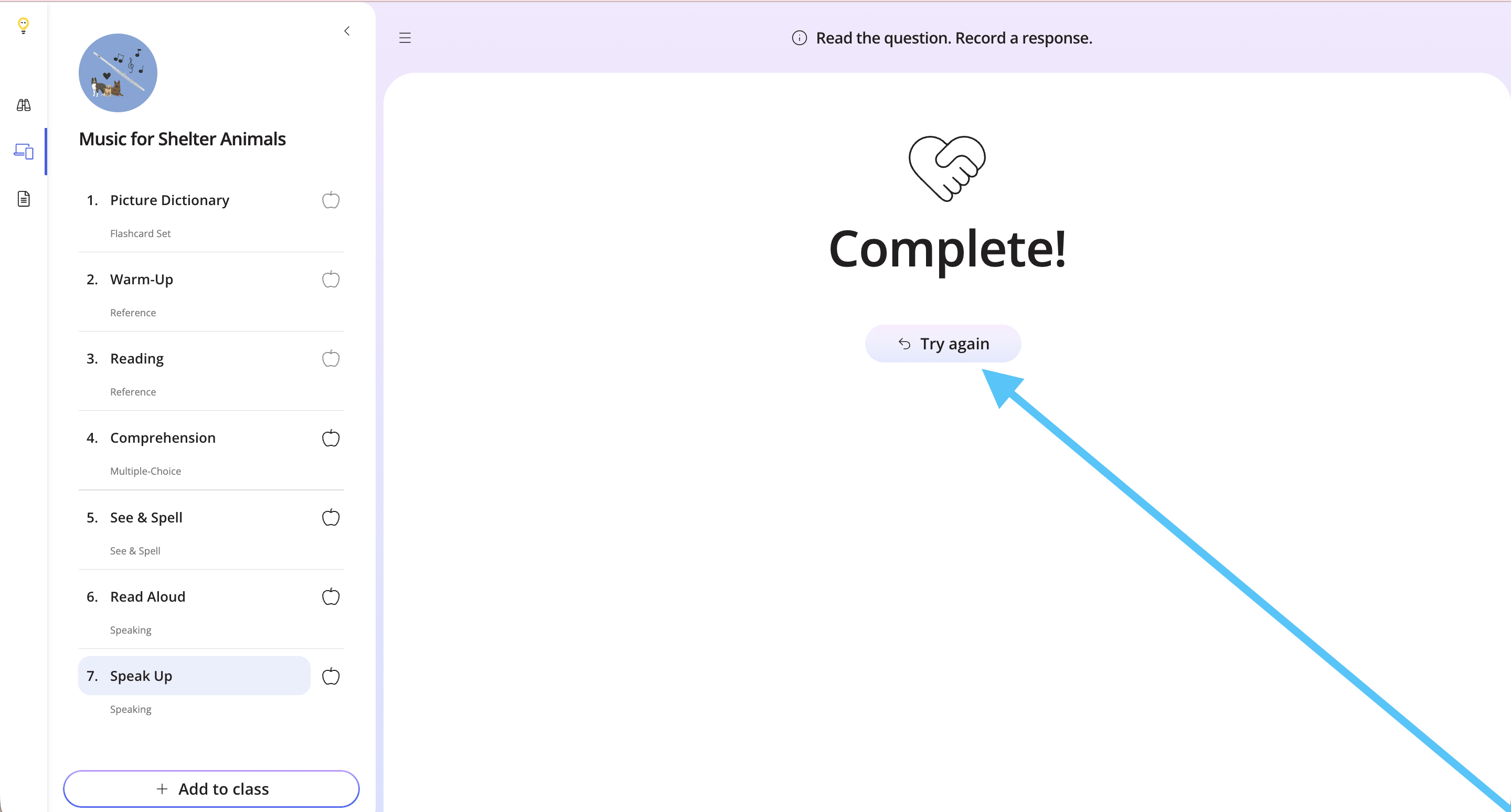
You can then try the task again or choose another task from list.
Step 10
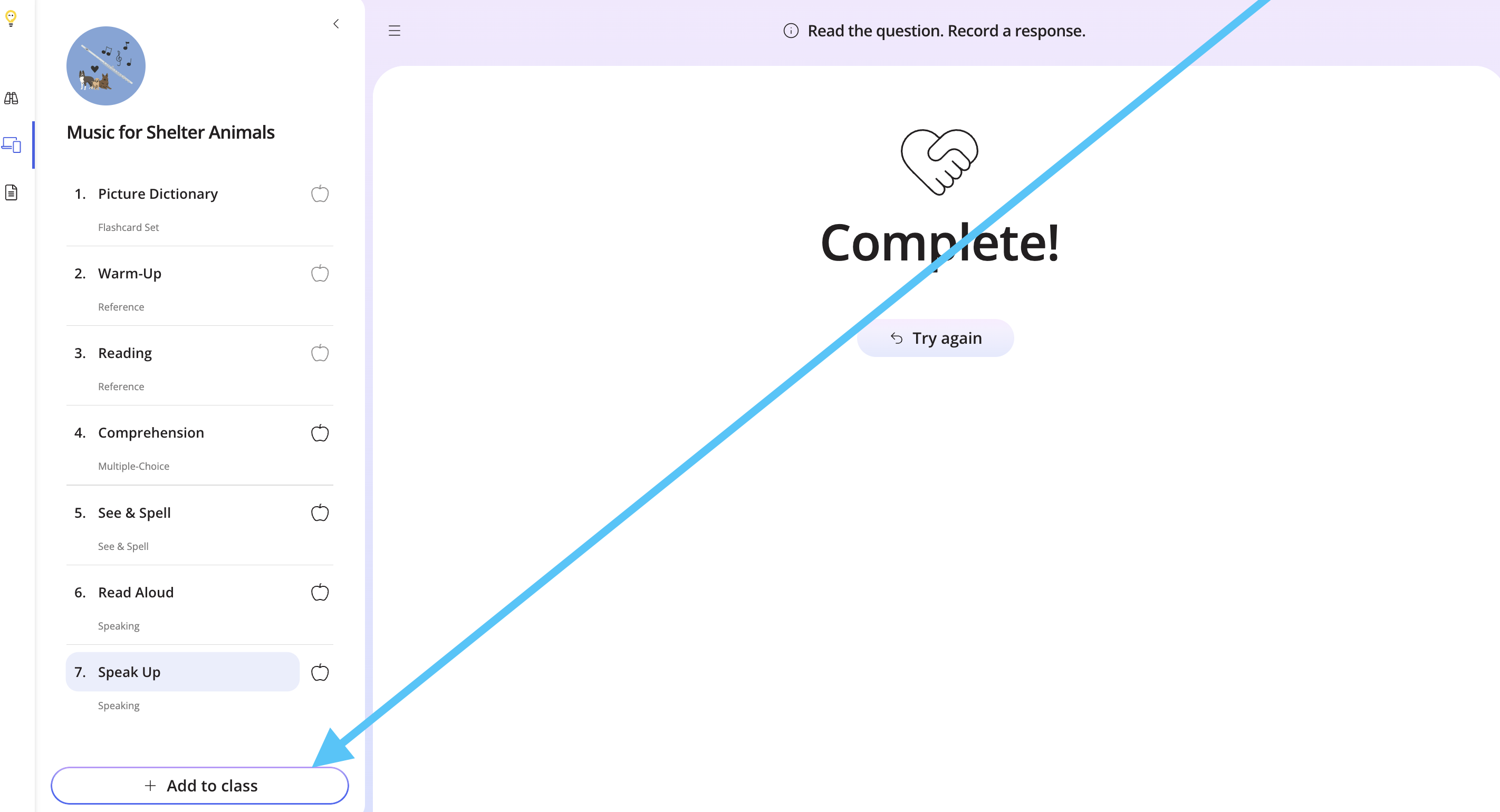
To add the lesson to your class, click Add to Class.
If you would like to assign only this task to your students, check out the help doc below to find out how.