
Image Match Task
Image Match is a vocabulary preview or review task used for matching vocabulary images with words or phrases. Follow the steps below or watch the video to learn more!
Find this task in our beginner level categories:
Step 1
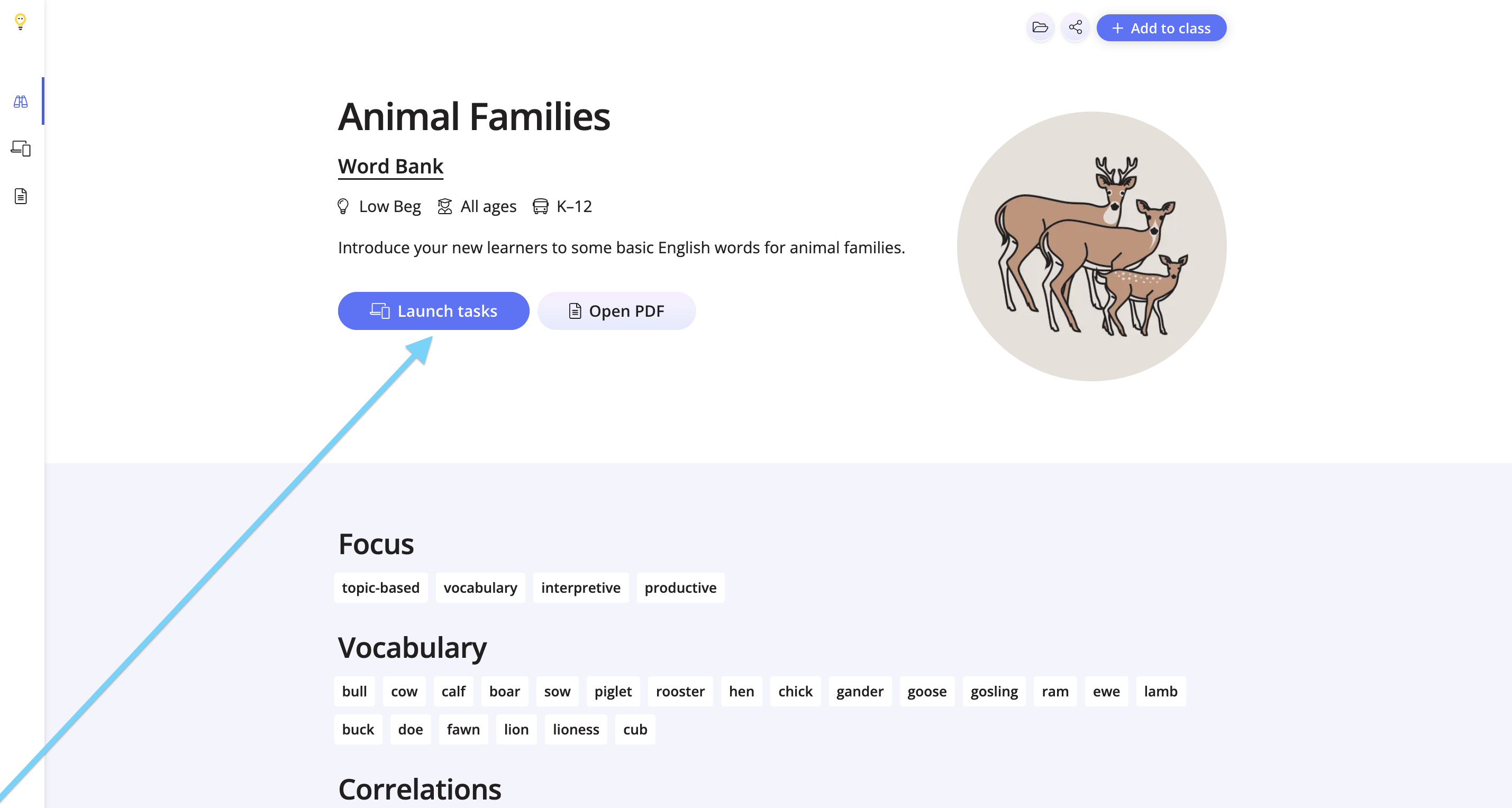
Click Launch Tasks from the lesson overview page.
Step 2
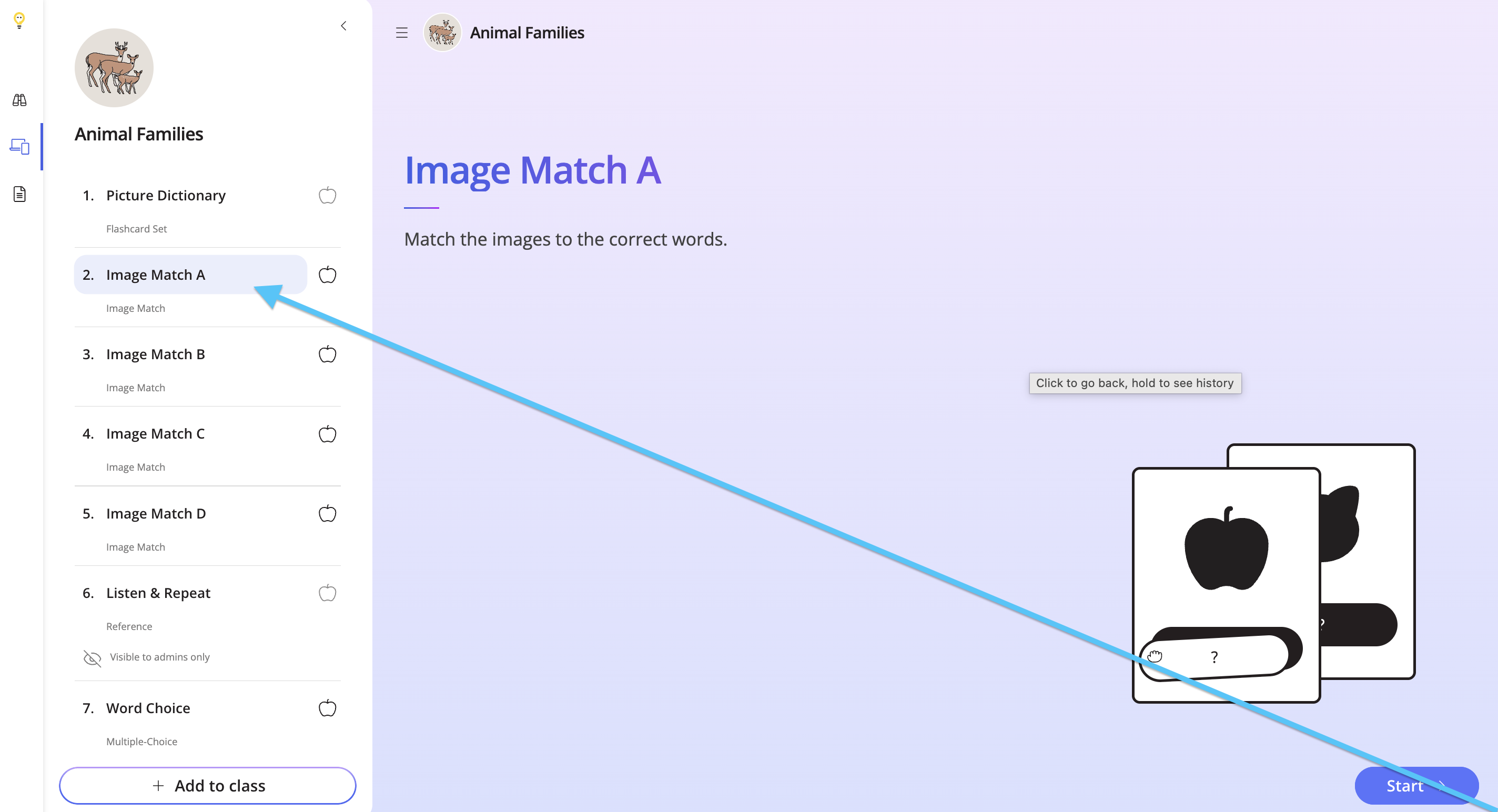
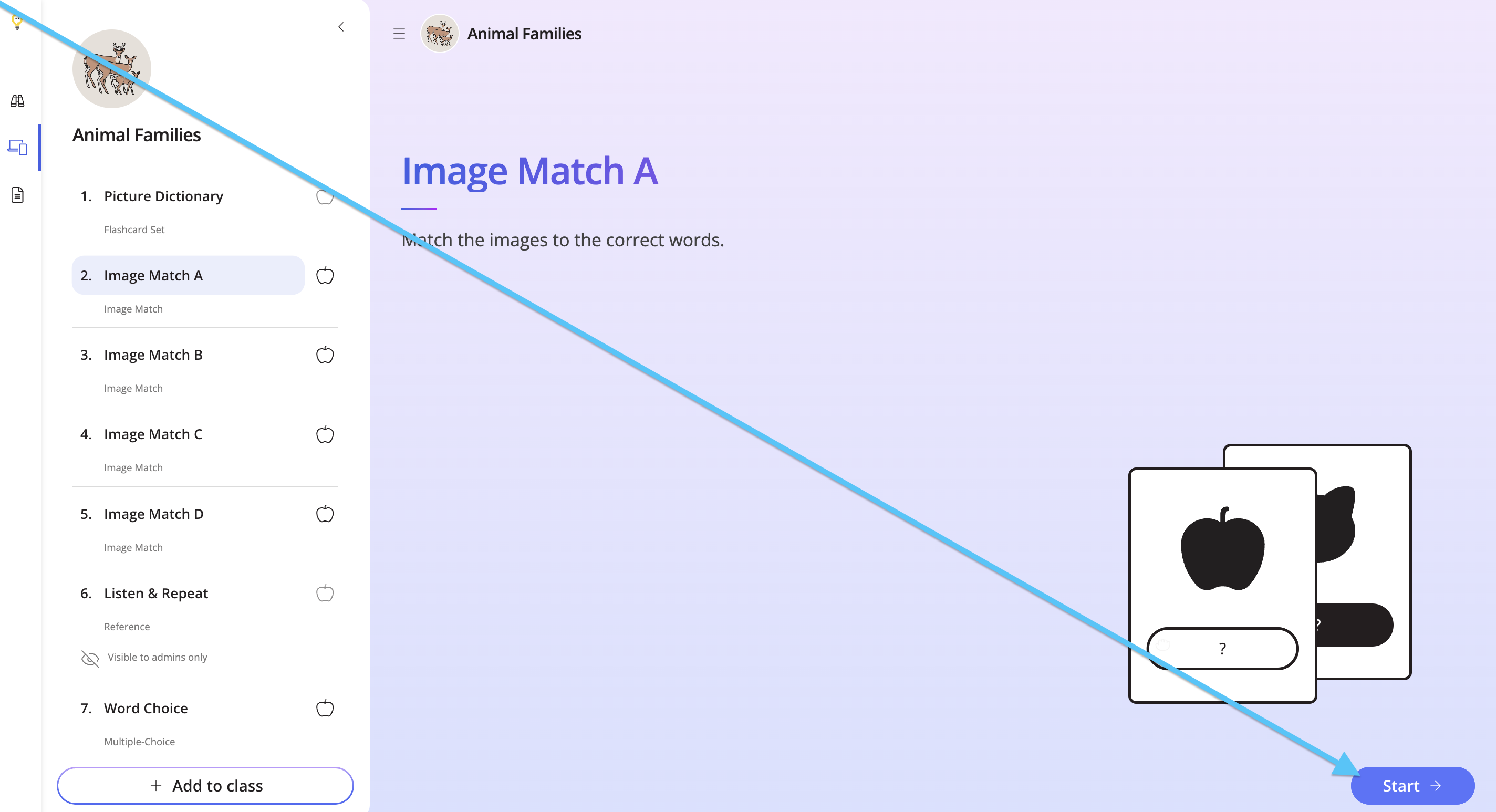
Look for the Image Match task(s) on the left-hand side, and click Start.
Step 3
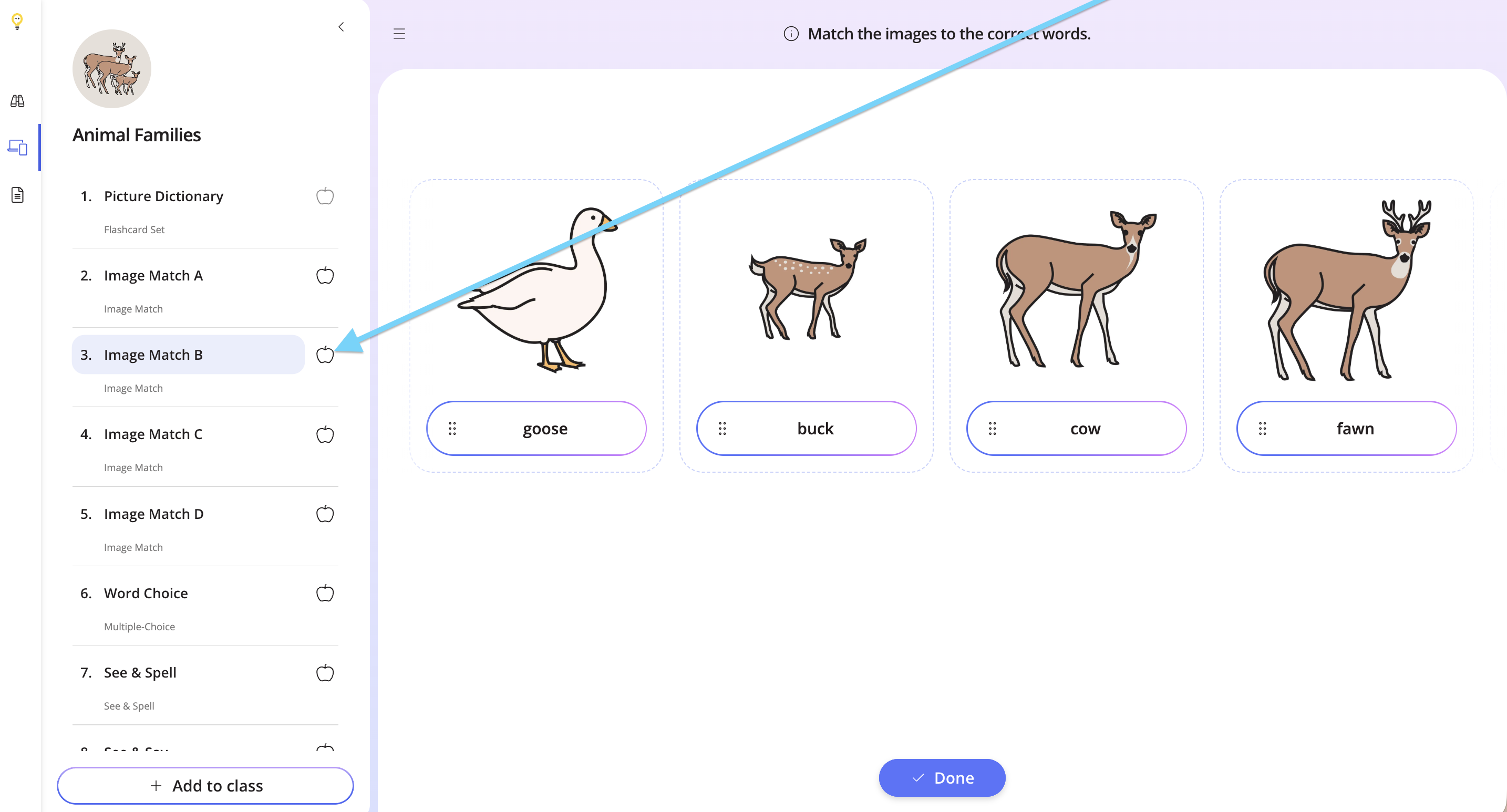
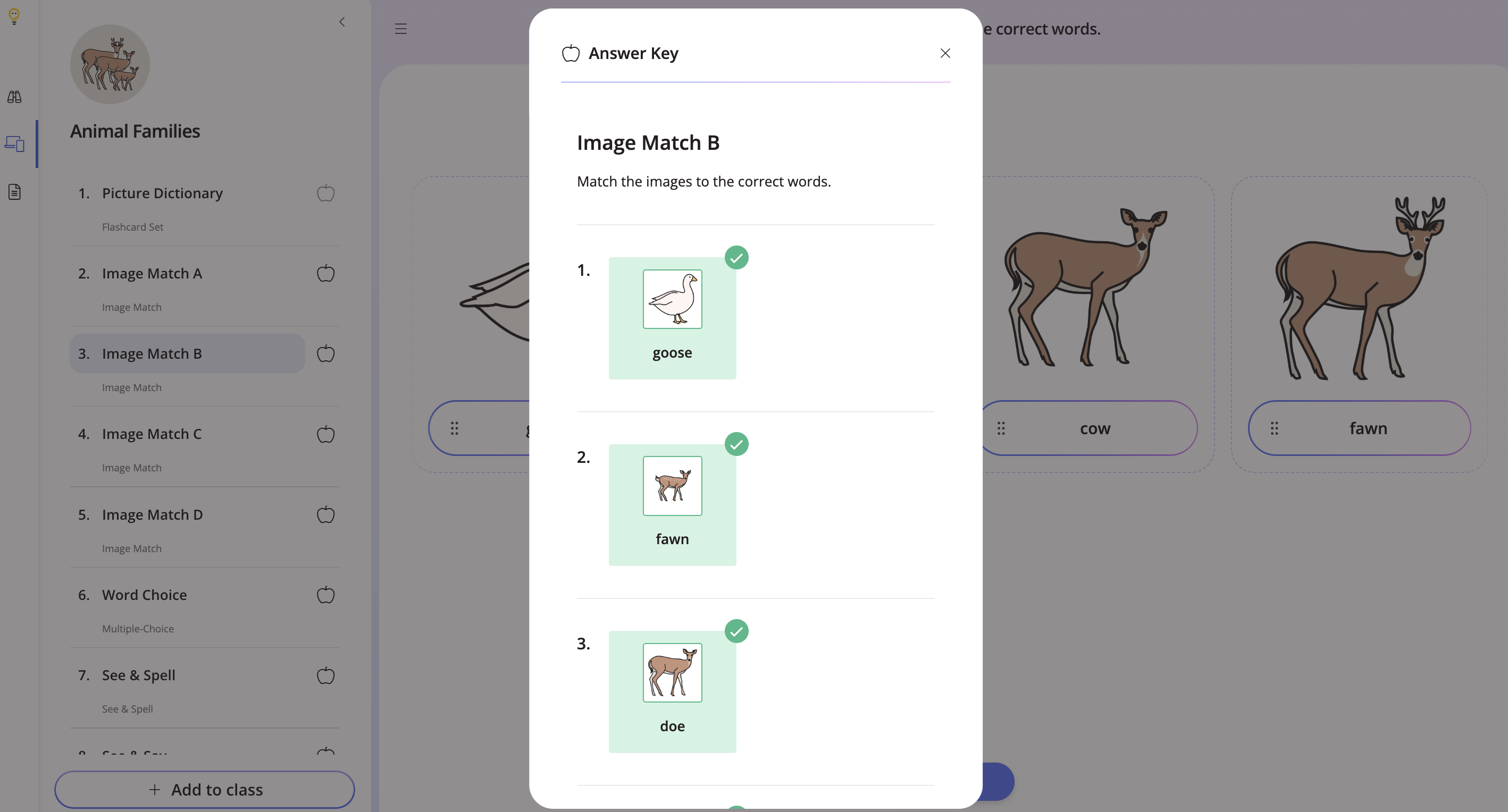
To view the answer key, click the grey apple next to the task.
Step 4
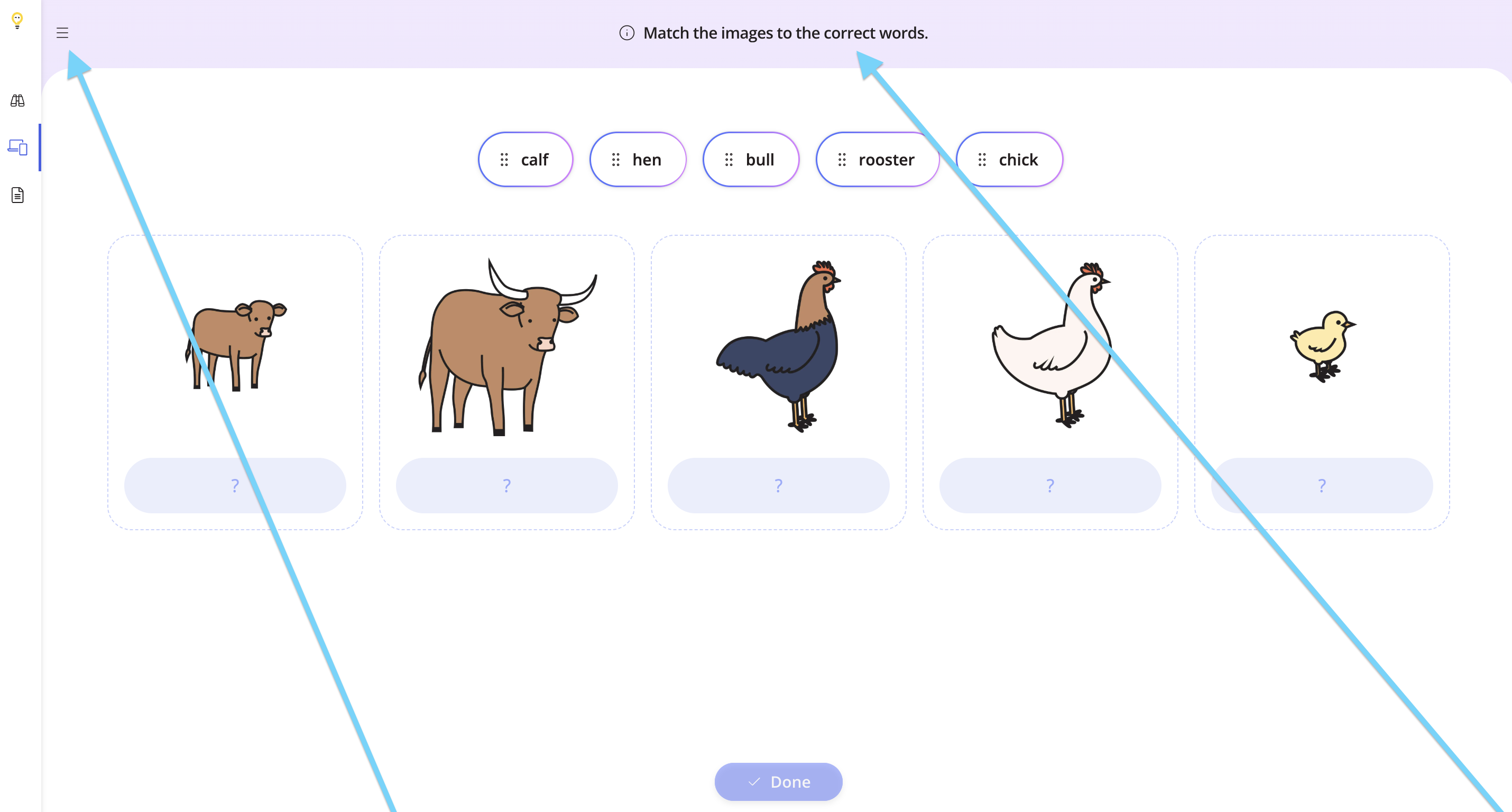
View the instructions at the top. Use the hamburger menu to close and open the task list.
Step 5
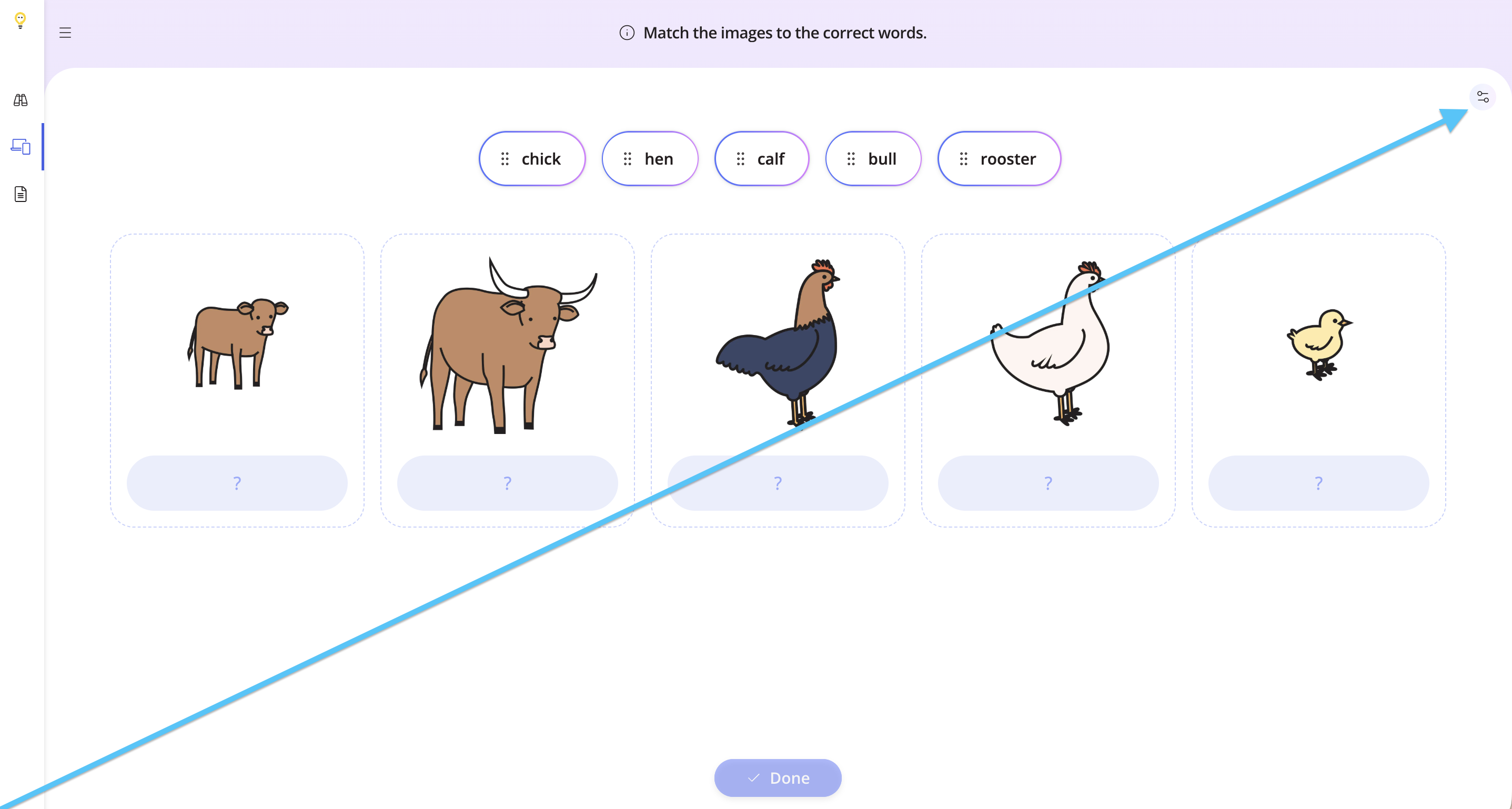
To change how the images are displayed, click the settings button.
Step 6
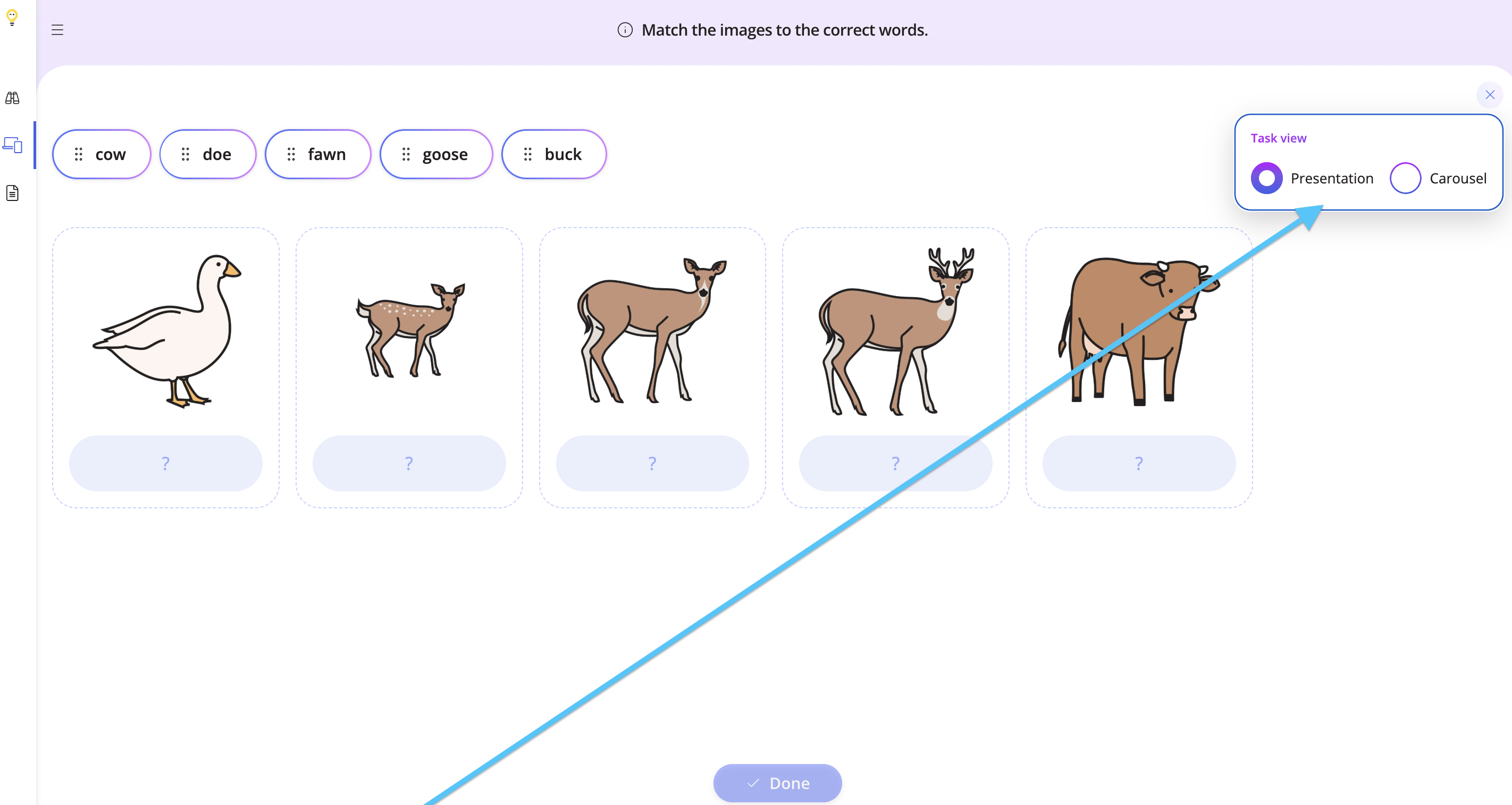
Choose between Carousel and Presentation. Carousel requires you to scroll through the images, and Presentation shows the images on one page.
Step 7
Click a word at the top, and then click the image it corresponds with. You can control the cursor and work with your students in-person, or by screen-sharing online.
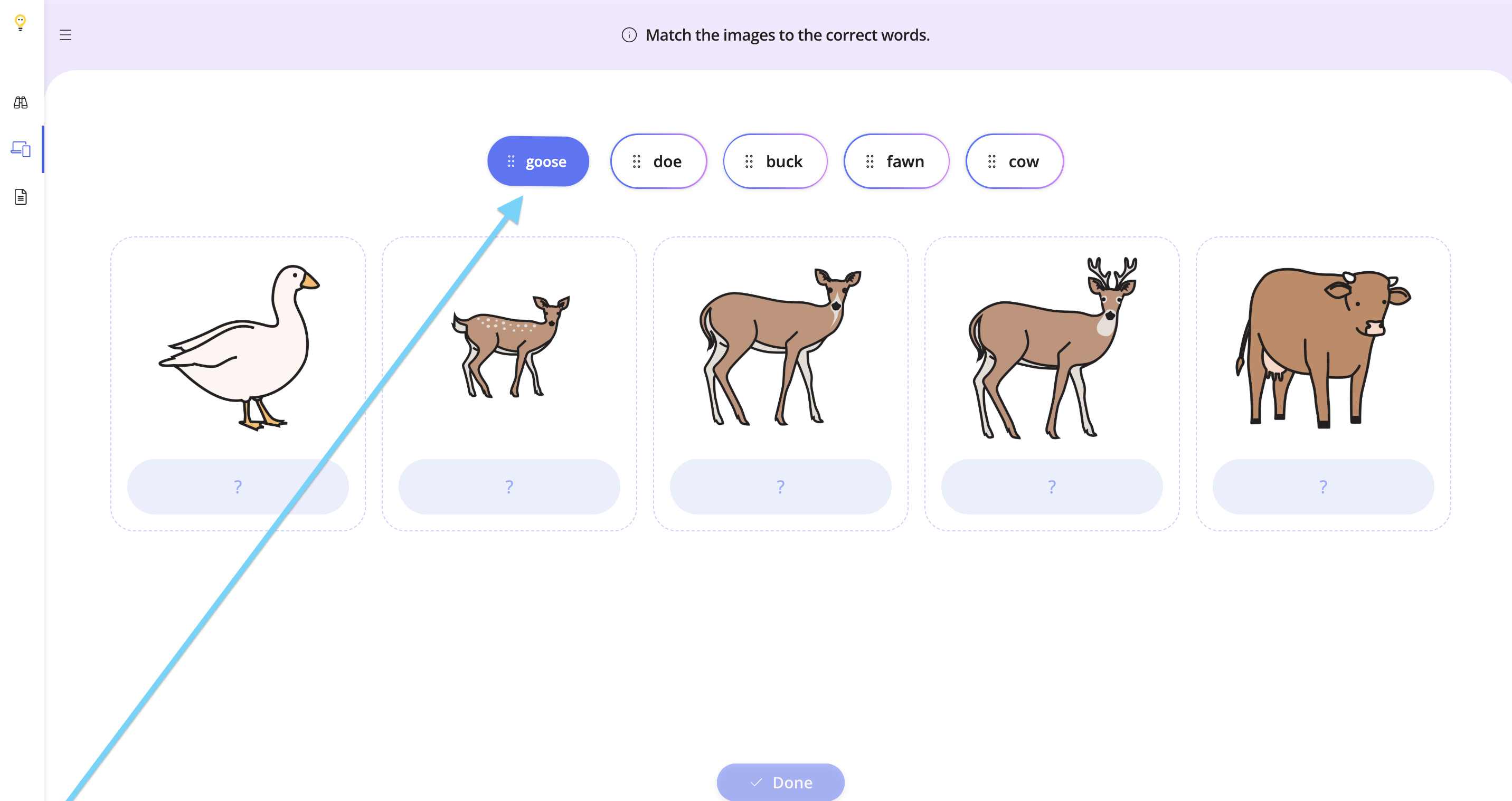
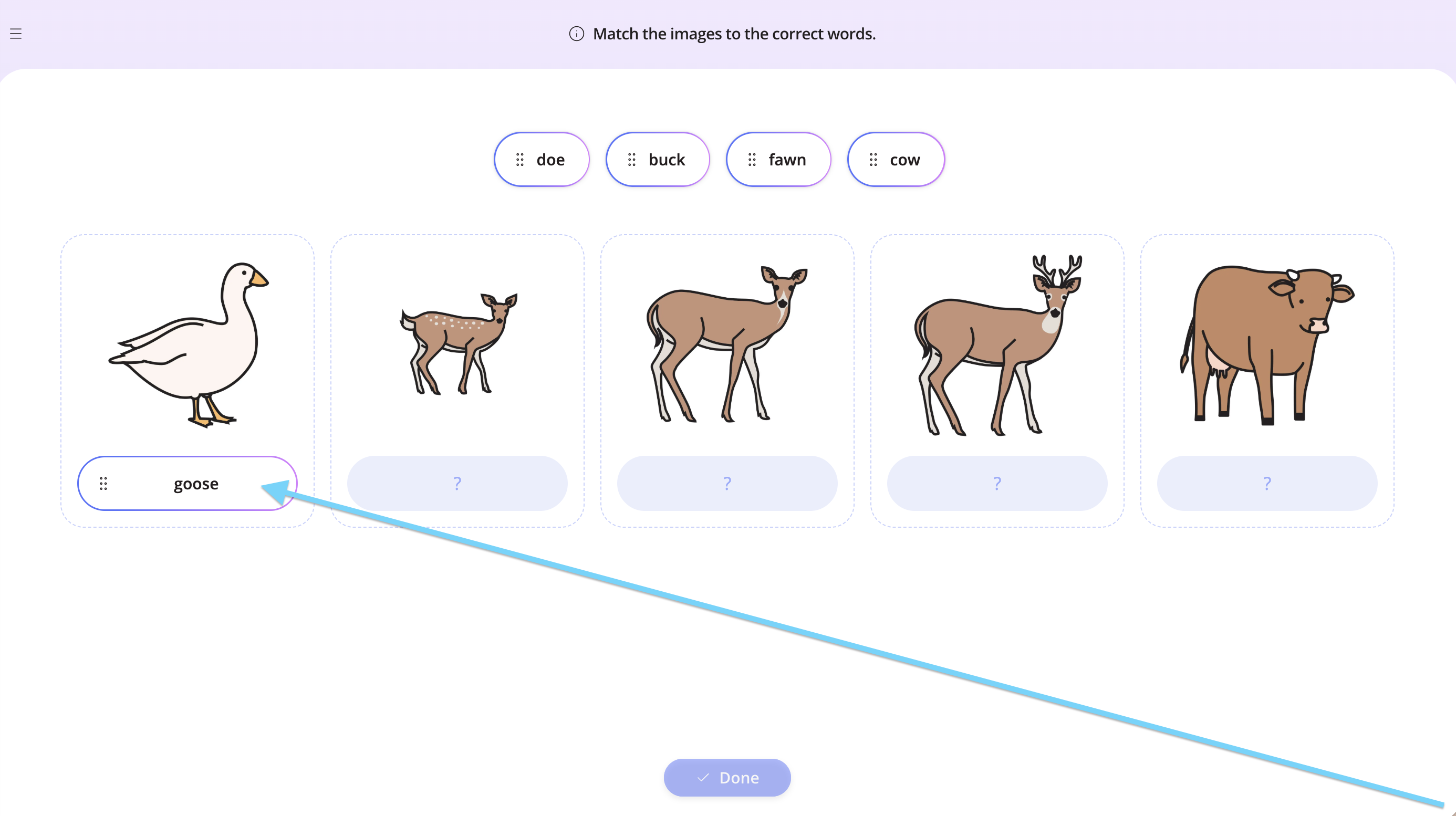
You can also drag and drop a word to the correct space.
Step 8
To move a word to a different space, you can click the word, and click a new space.
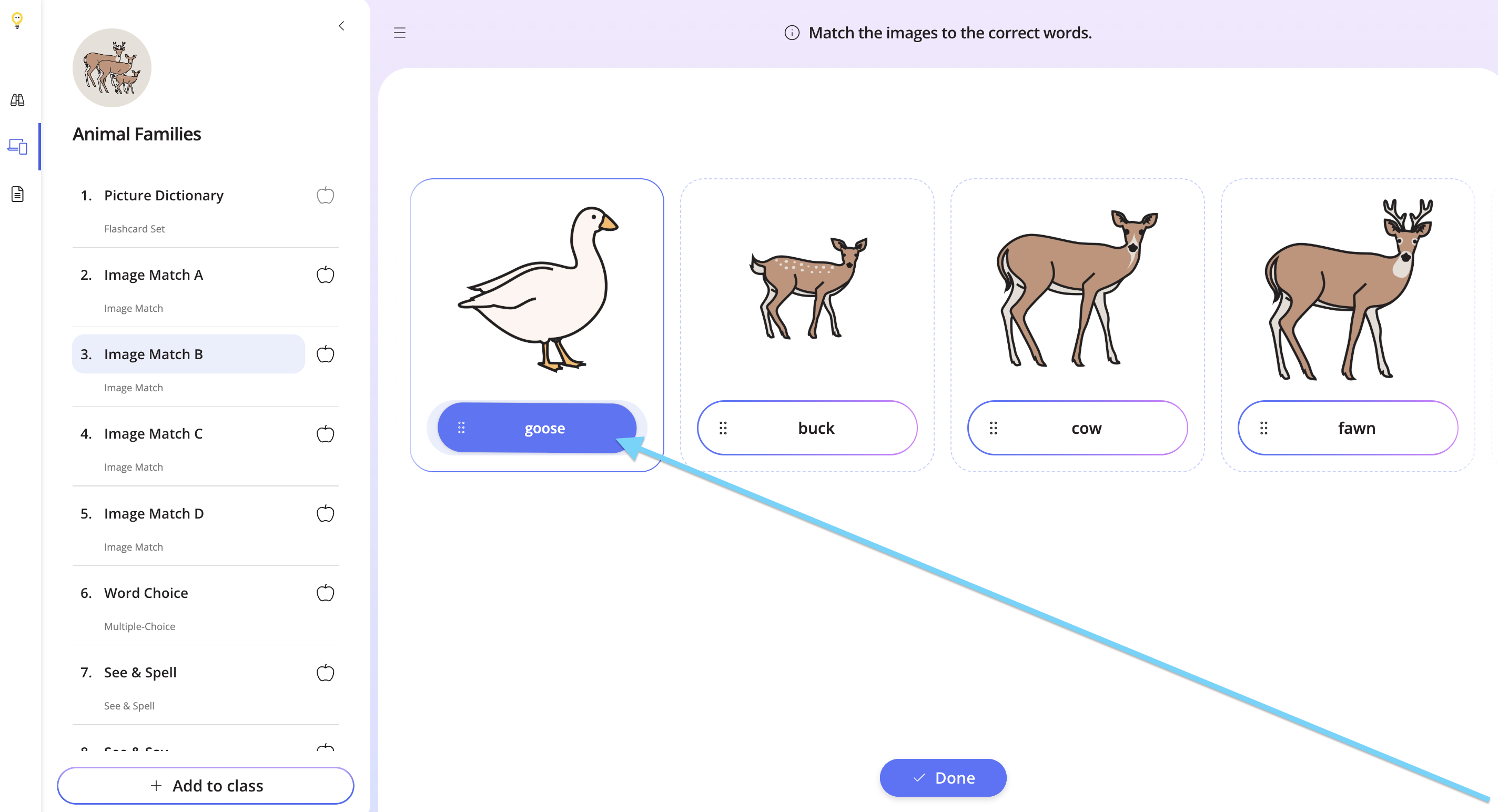
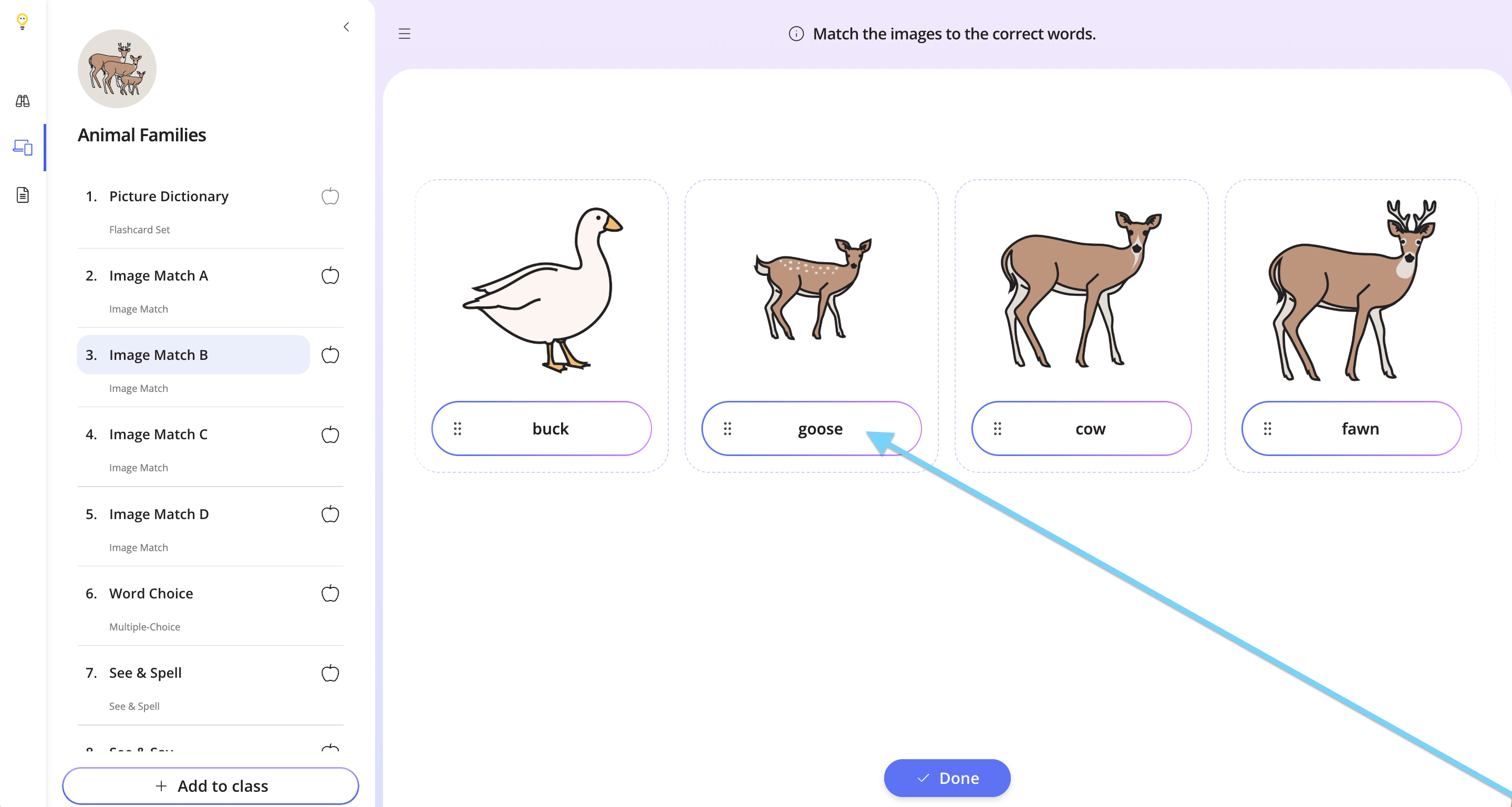
You can also drag the word back to the top.
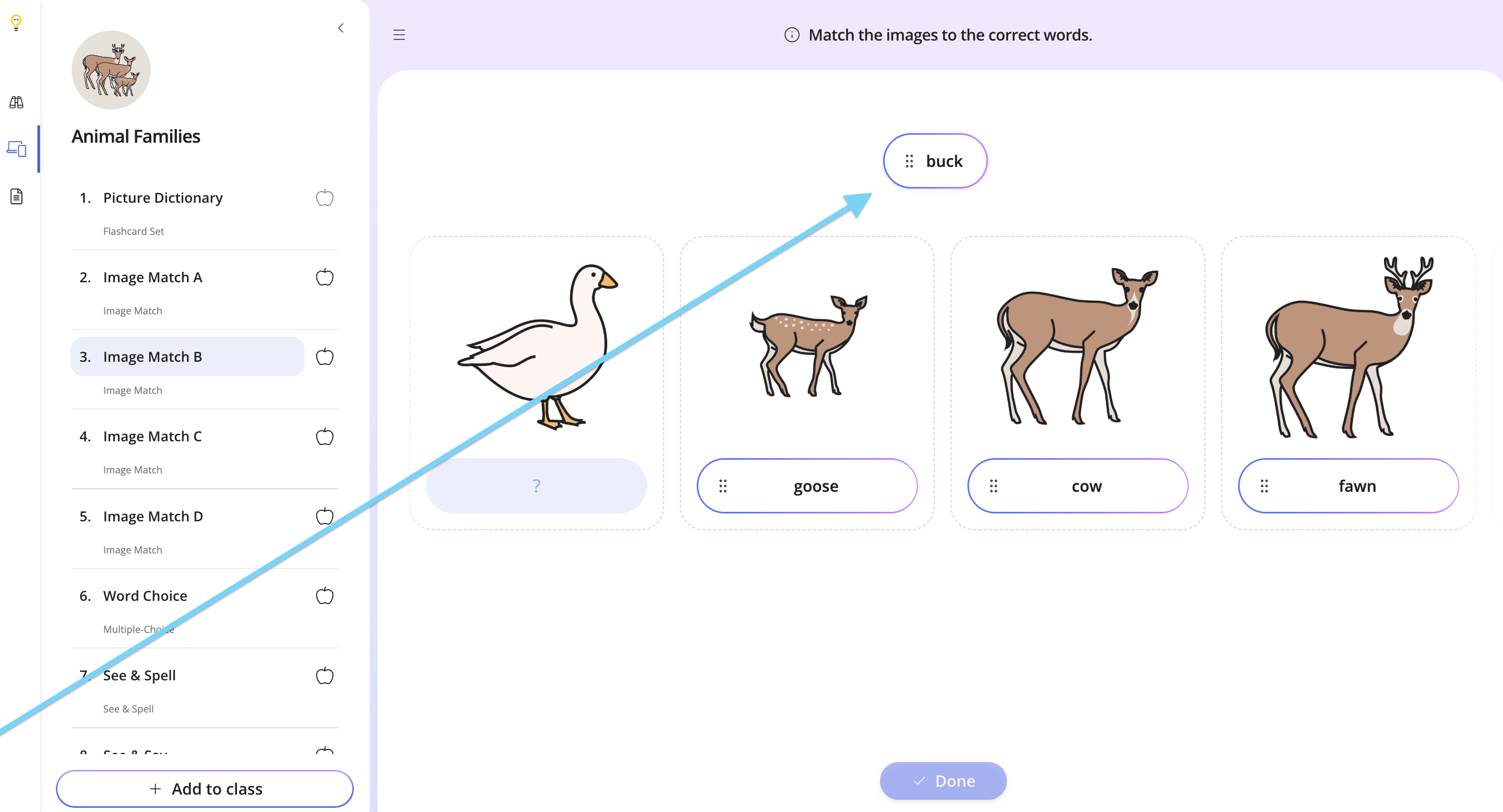
Step 9
Once you have completed the task, click Done.
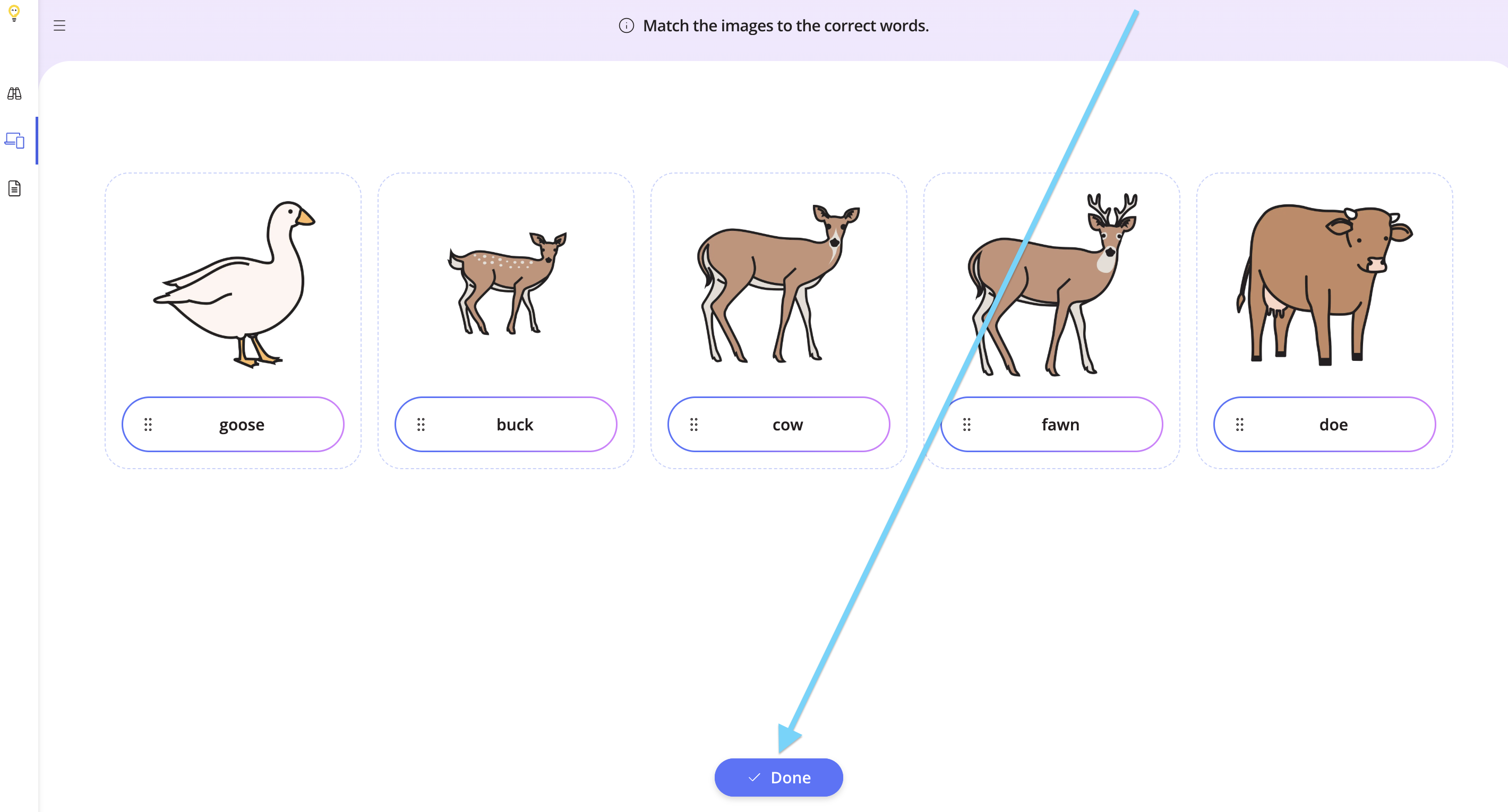
Step 10
You can then try the task again, review the answers, or proceed to the next task.
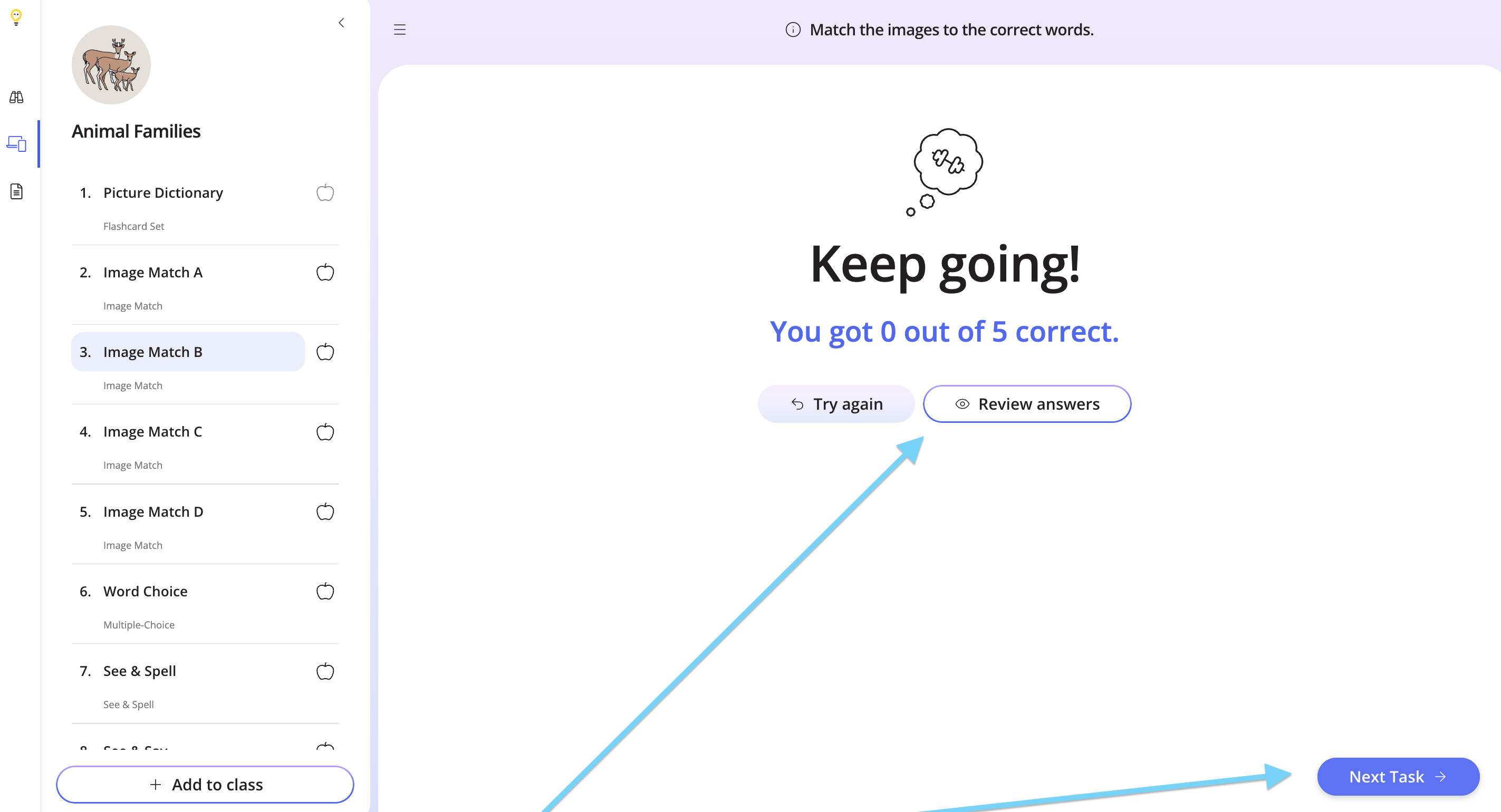
Step 11
To assign the task to your students for homework, click the Add to Class button from the task list.
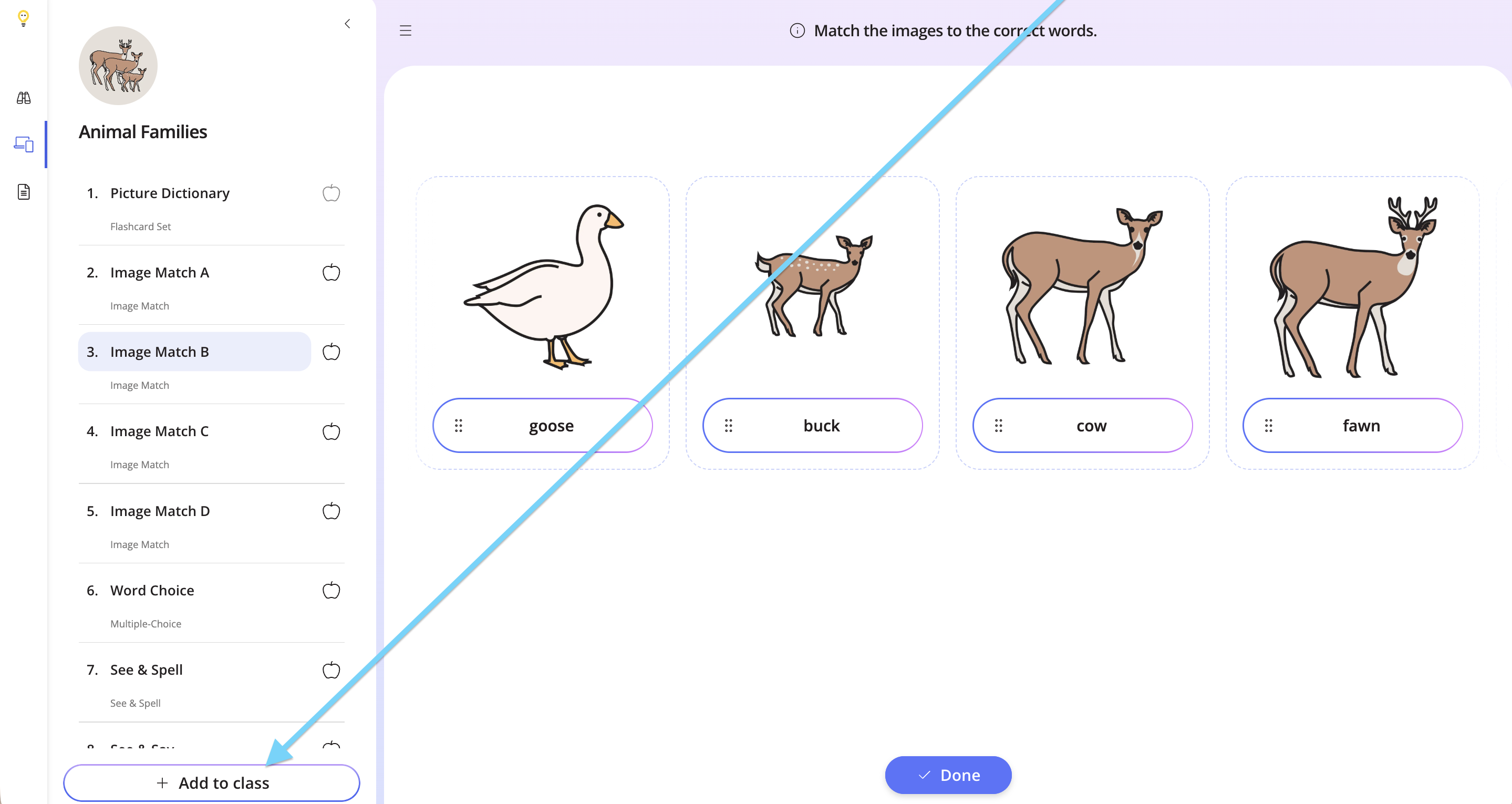
If you would like to assign only this task to your students, check out the help doc below to find out how.
How to Assign Specific Tasks from a Lesson
If you have any questions about the Image Match task, please let us know!