
See & Spell Task
See & Spell is a spelling and typing task with visuals for vocabulary improvement . This task builds off of the earlier tasks in the lesson such as Picture Dictionary.
Fine the See & Spell Task in these sections:
and more!
Step 1
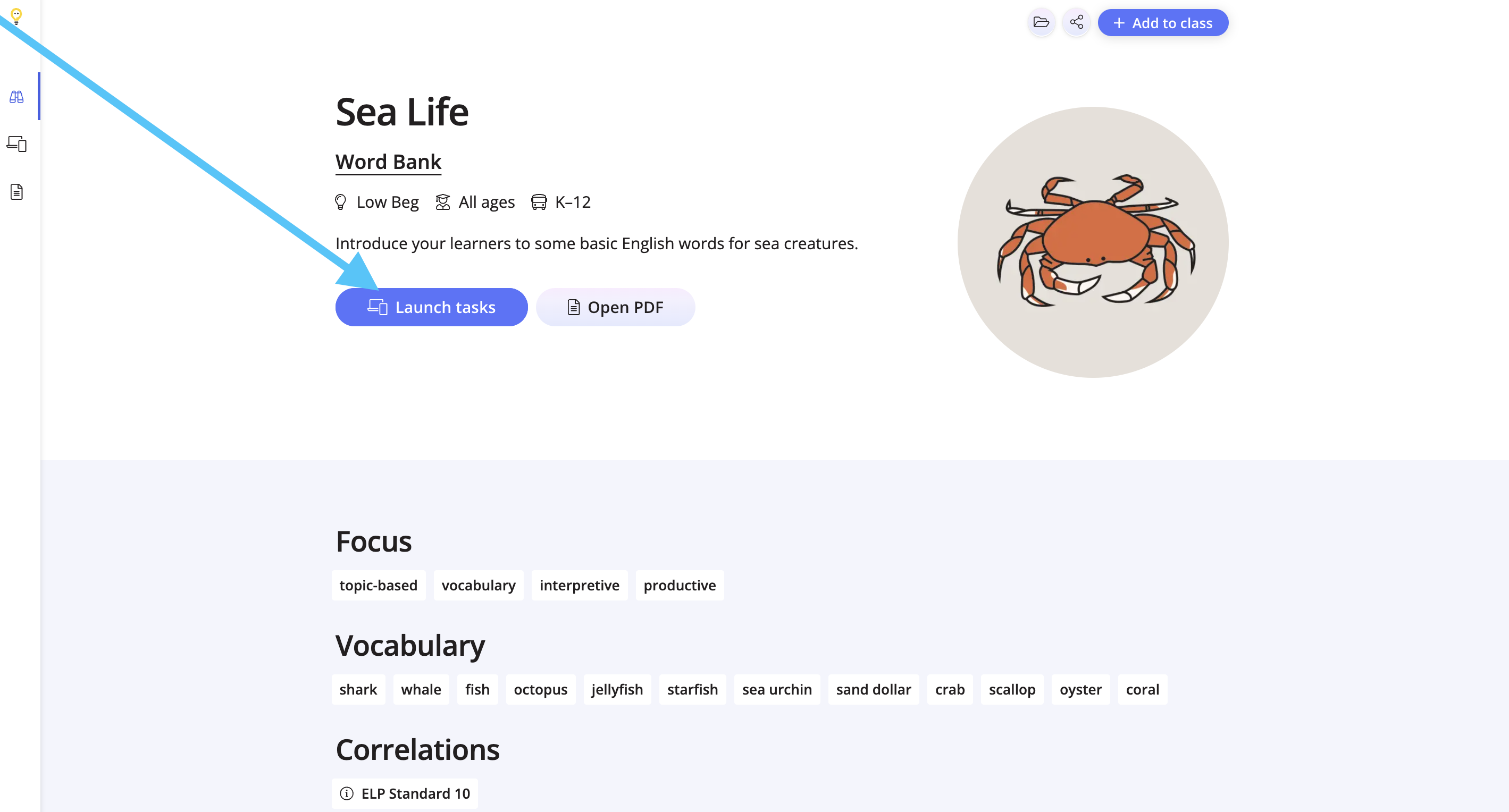
Click Launch Tasks from the lesson overview page.
Step 2
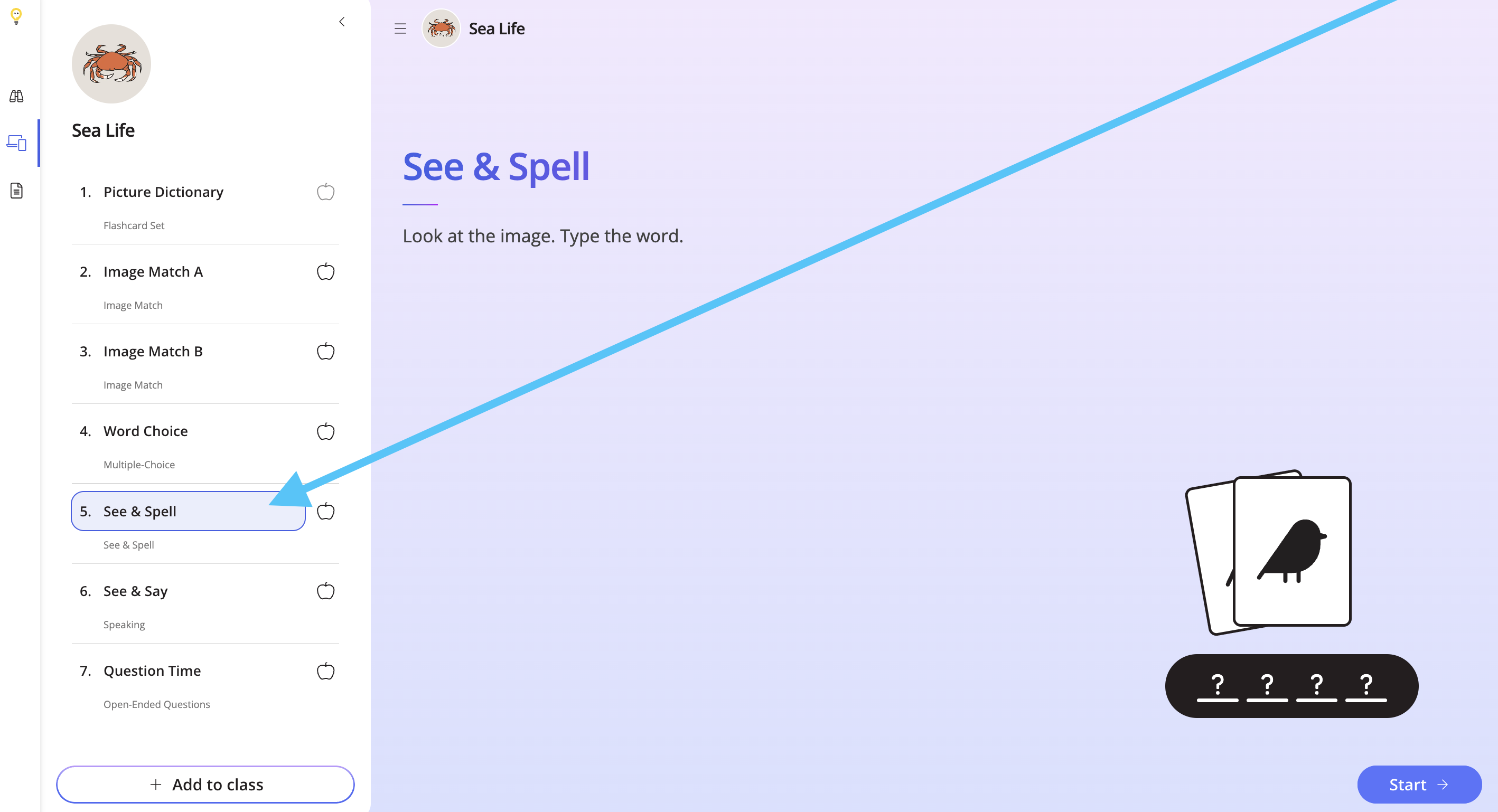
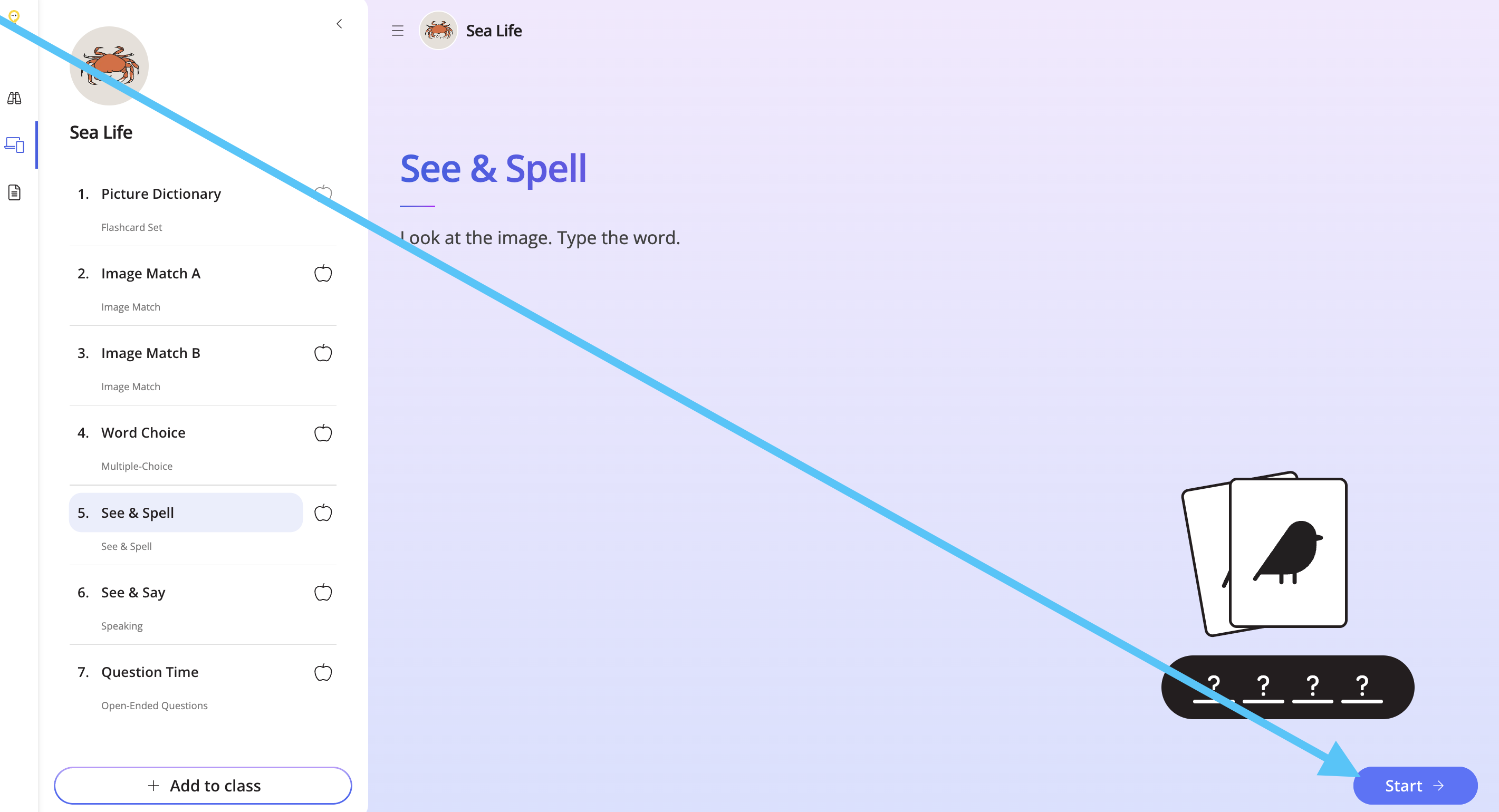
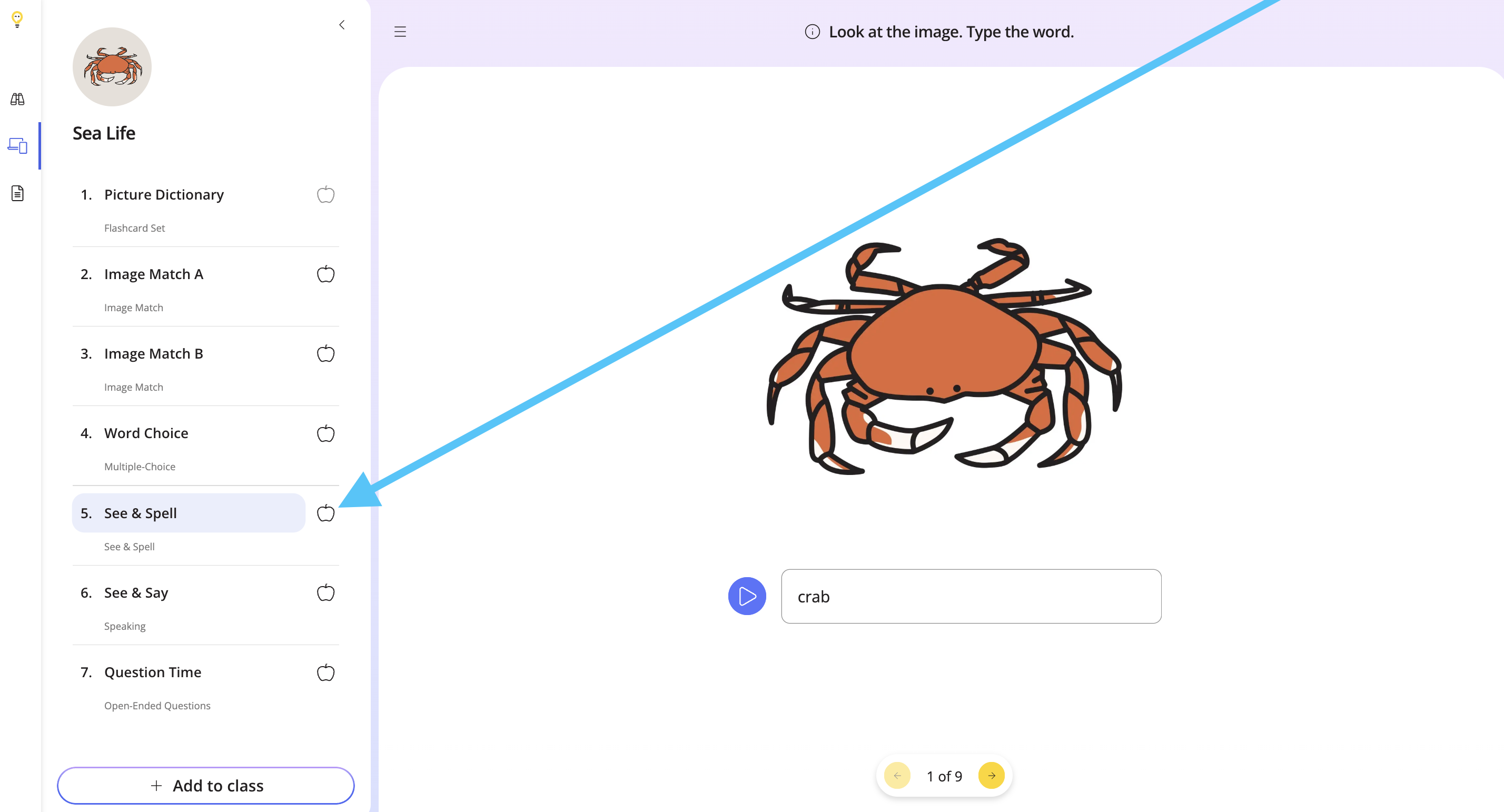
Look for the See & Spell task on the left-hand side, and click Start.
Step 3
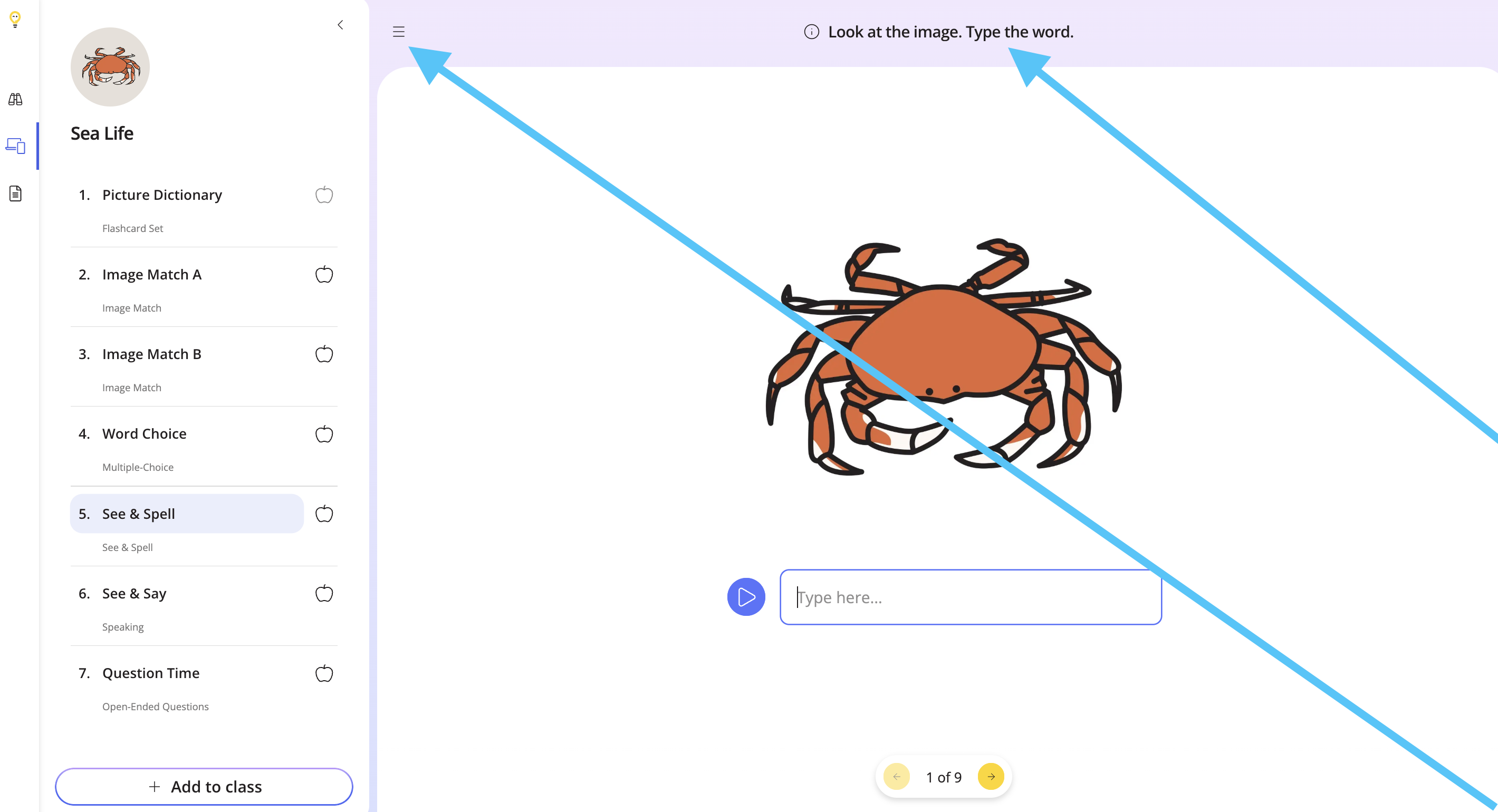
View the instructions at the top, and use the hamburger button to close the tasks list. Use the same button to bring it back.
Step 4
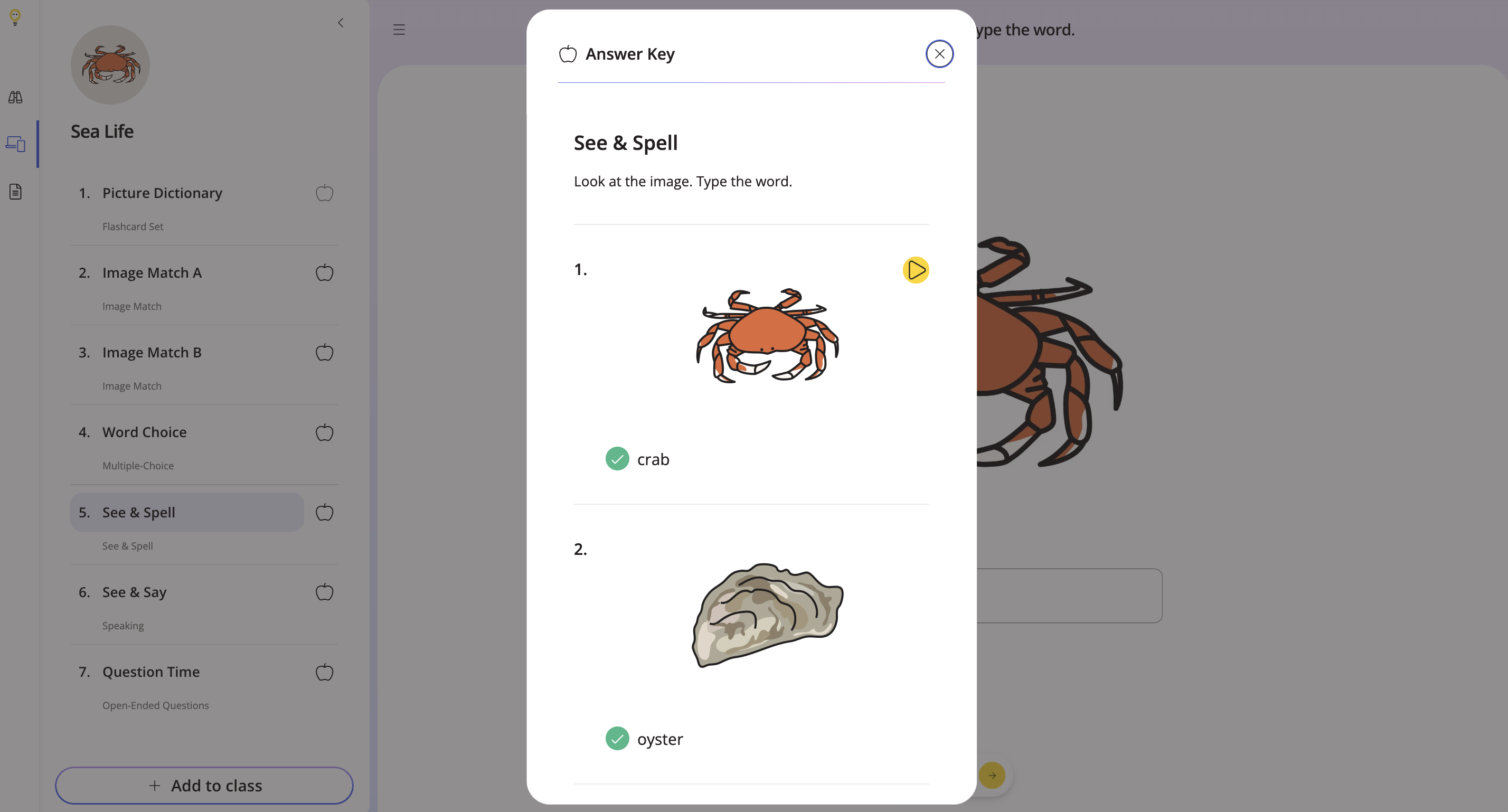
To view the answer key, click the grey apple.
Step 5
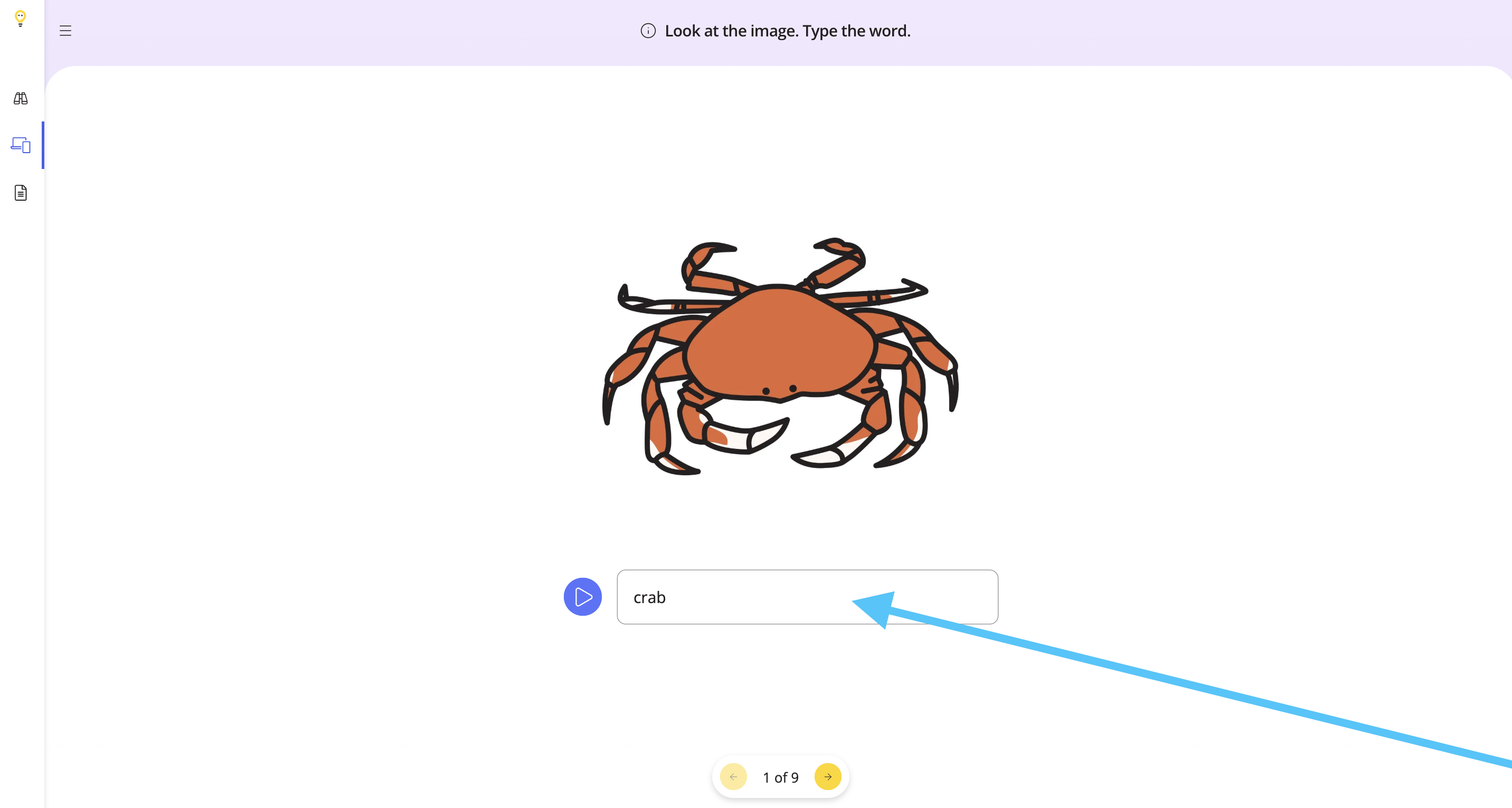
To begin the task, type the word into the box.
Step 6
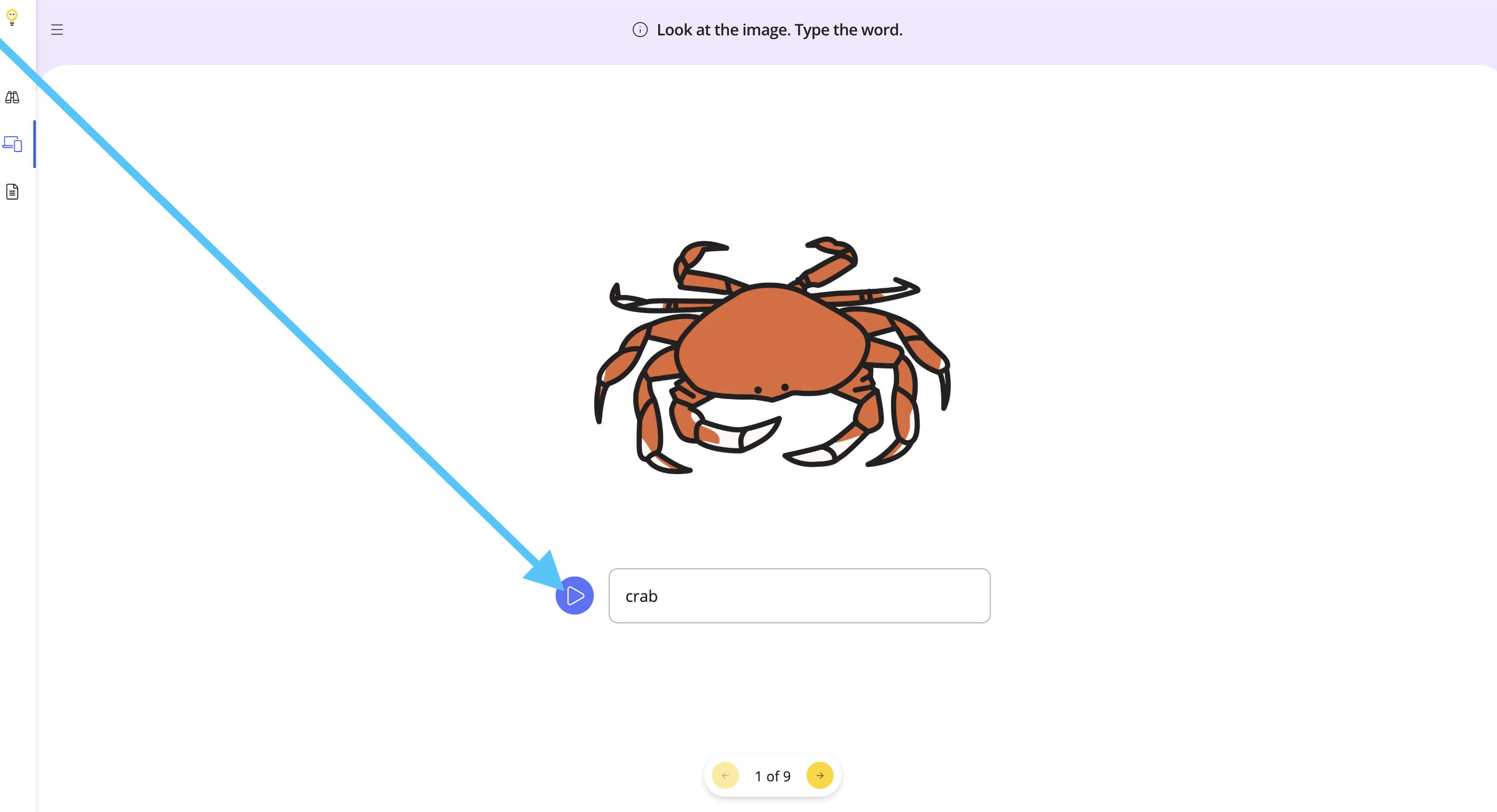
You can listen to audio of the word by clicking the play button.
Step 7
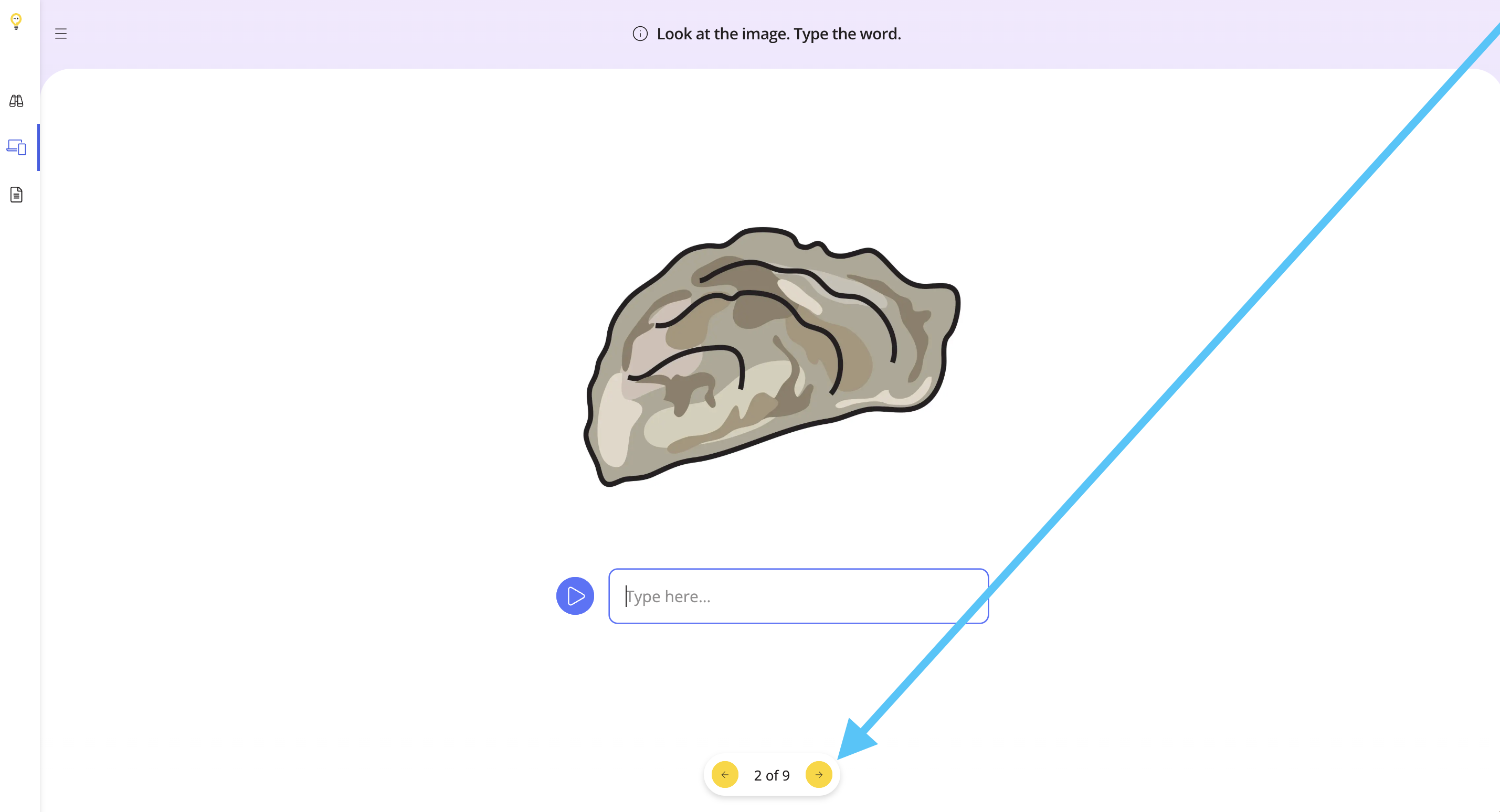
Use the arrows at the bottom to go through the images. Ask your students what the images are and type in the answers, or assign this task as homework and have your students do it.
Step 8
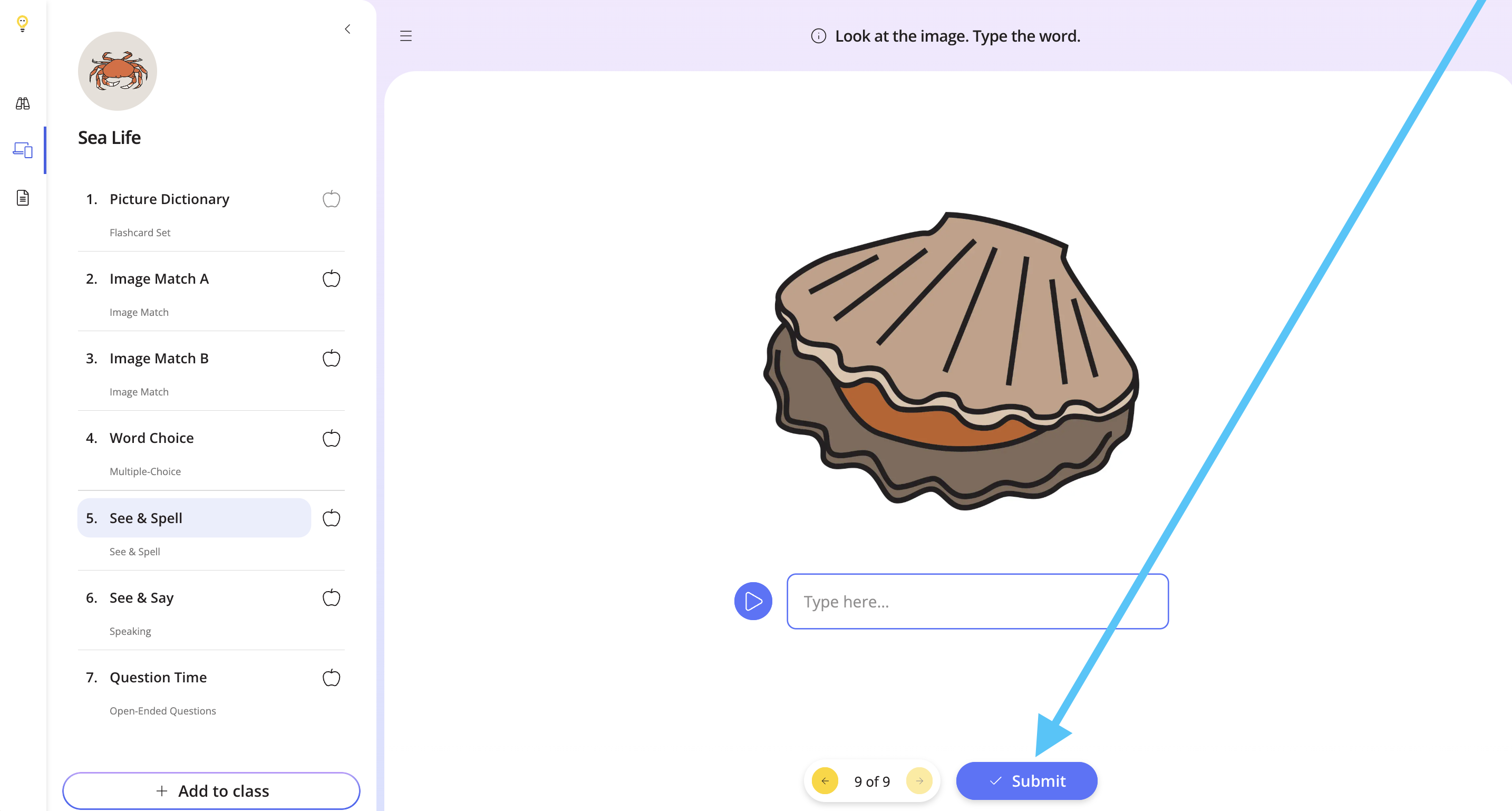
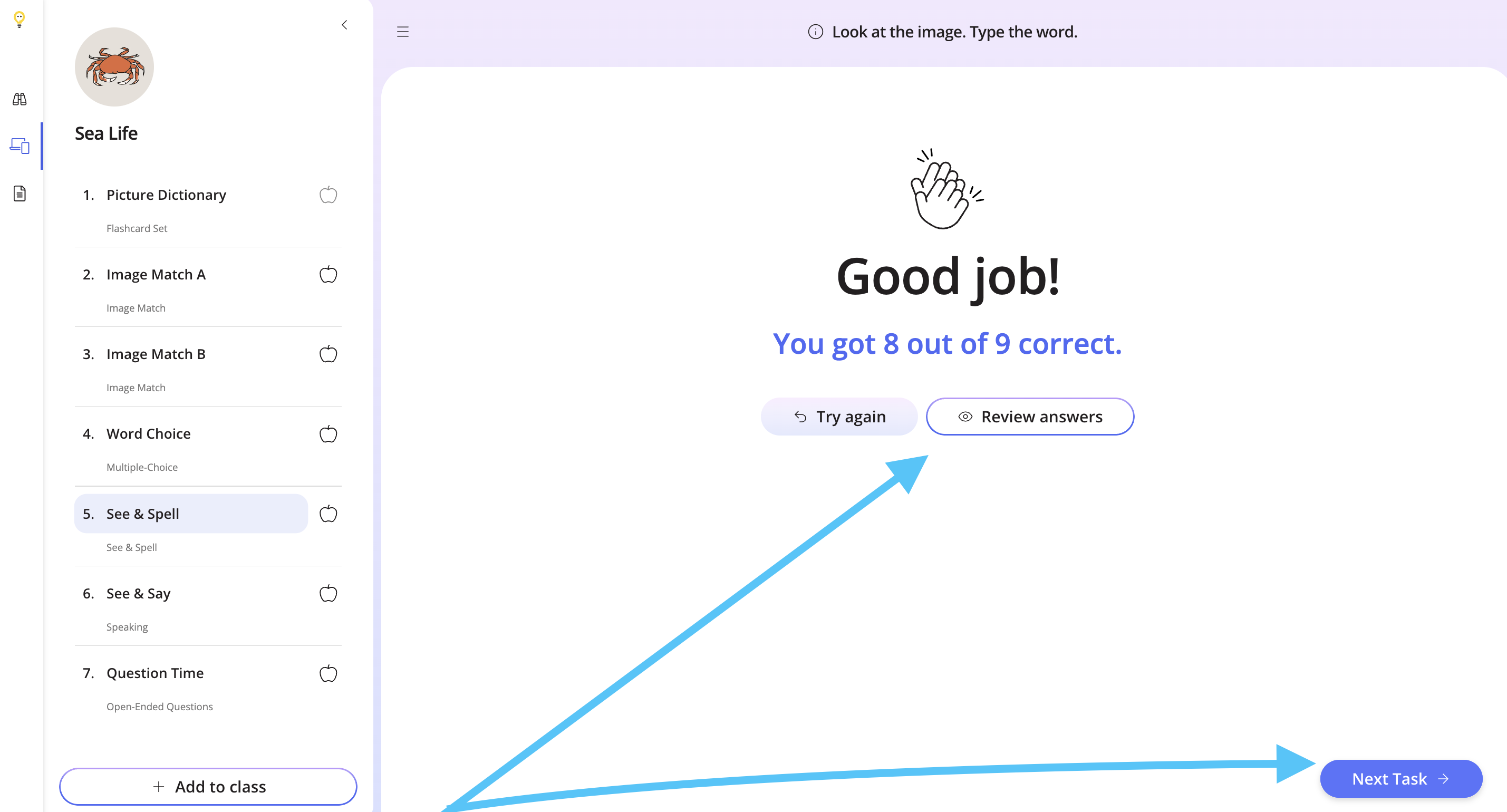
Once you are done, click Submit. You can then try the task again, review your answers, or move on to the next task. You can also click another task from left.
Step 9
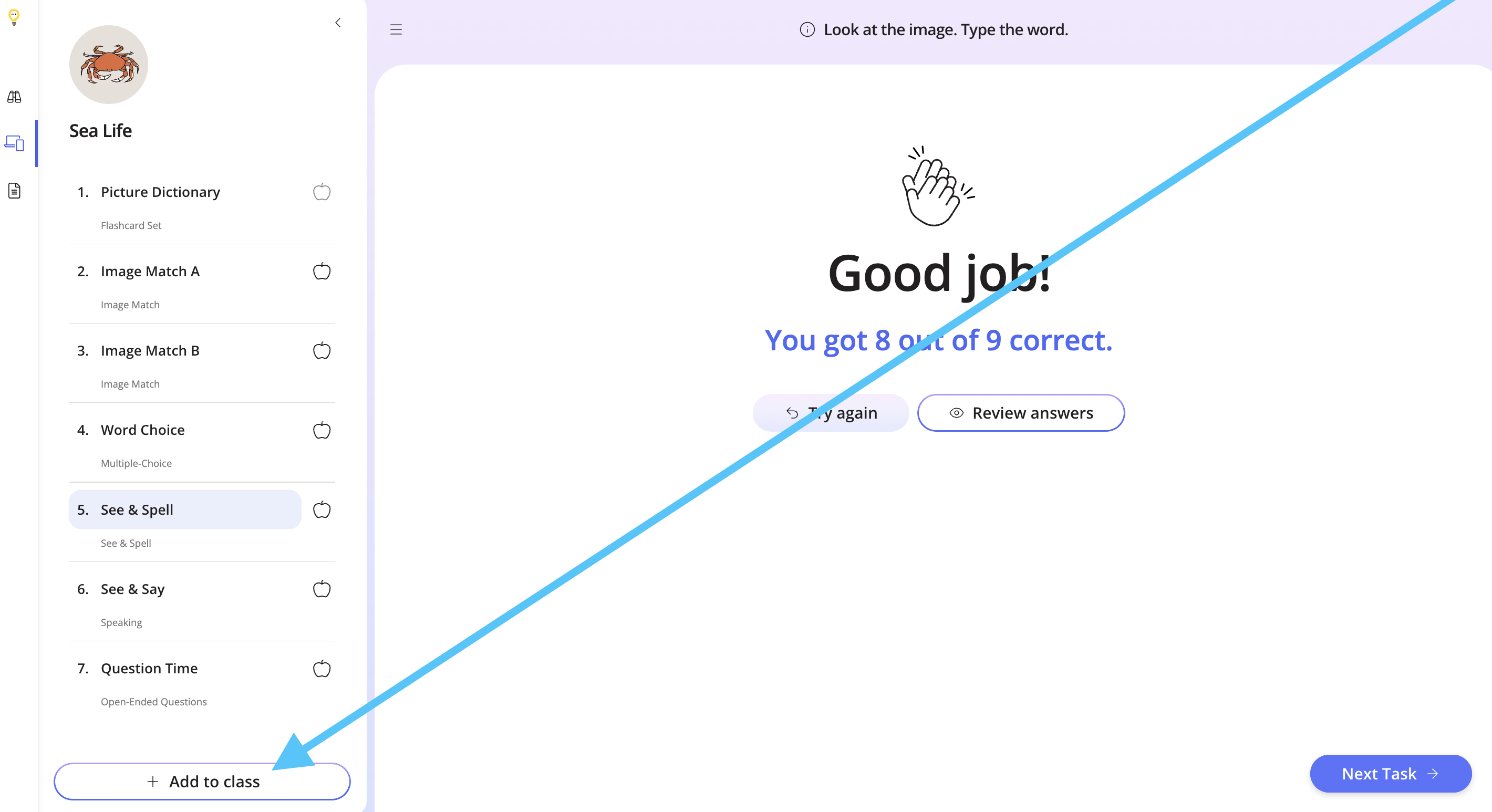
To assign the lesson to your class, click Add to Class.
If you would like to assign only this task to your students, check out the help doc below to find out how.
How to Assign Specific Tasks from a Lesson