
How to View Teachers and Students (Admin)
If you are the administrator of an organization account, please follow the steps below to learn how to view your teachers, their students and their assignments.
Step-by-Step Instructions
Log in to your administrator account here:
Step 1
Once you have logged in, click on the profile icon in the top right corner and clickTeam.


Step 2
On your Team page, click the More Options (...) menu by the teacher's name you'd like to view, and click View Classroom from the drop-down menu.


Step 3
You will see the teacher's profile details at the top. Below you will see the list of all of their classes.

Step 4
Click the More Options (...) menu to edit the teachers in the class, update the class settings, export an assignments report, or archive the class.

Step 5
To view the students connected to the teacher, click the Students tab. You can also download a list of the students by clicking Download list.

Step 6
Click the More Options (...) menu next to a student to change the student’s password (if they log in with a username), edit their first and last name, or archive them.

Step 7
To view a teacher’s class, click the Classes tab and then click the class you would like to view.

Step 8
Once on the teacher’s lesson planner, you can browse through the tabs, and make any changes to the lessons.


Step 9
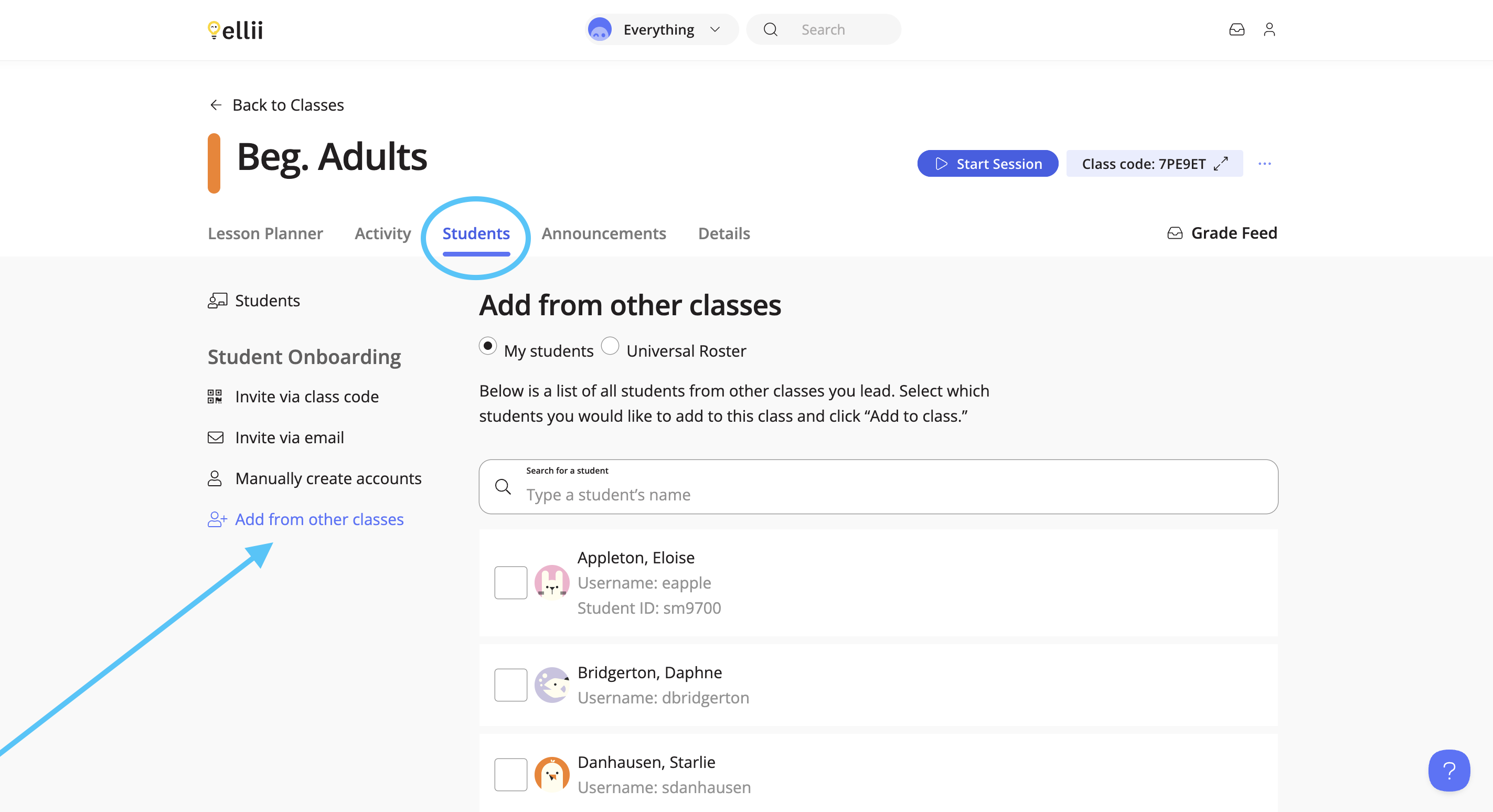
To add students to a teacher’s class click the Students tab from within their class page. Then, click Add from Other Classes on the left.
Step 10
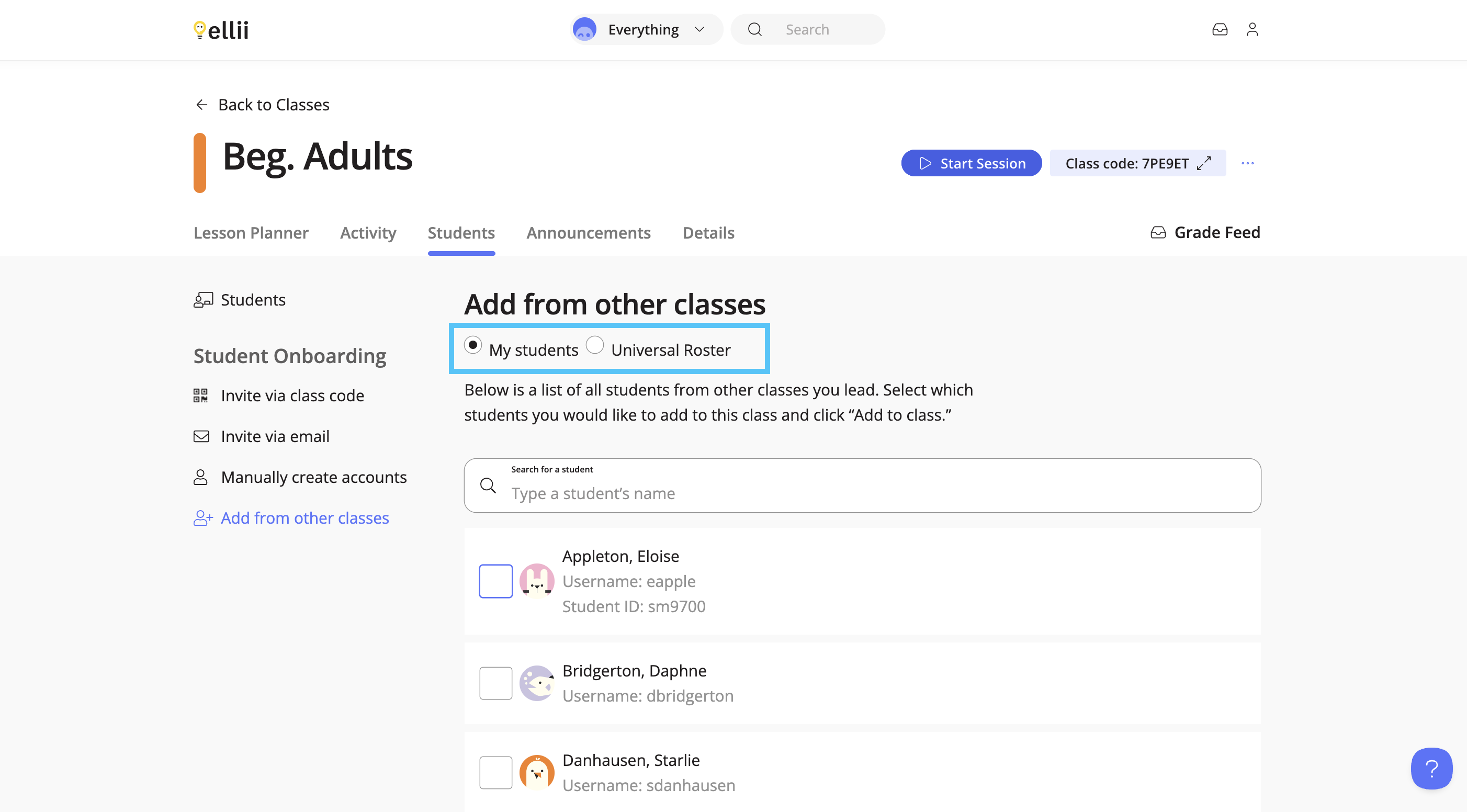
You can choose to add students that are connected to your account, or add students from the Universal Roster.
Step 11
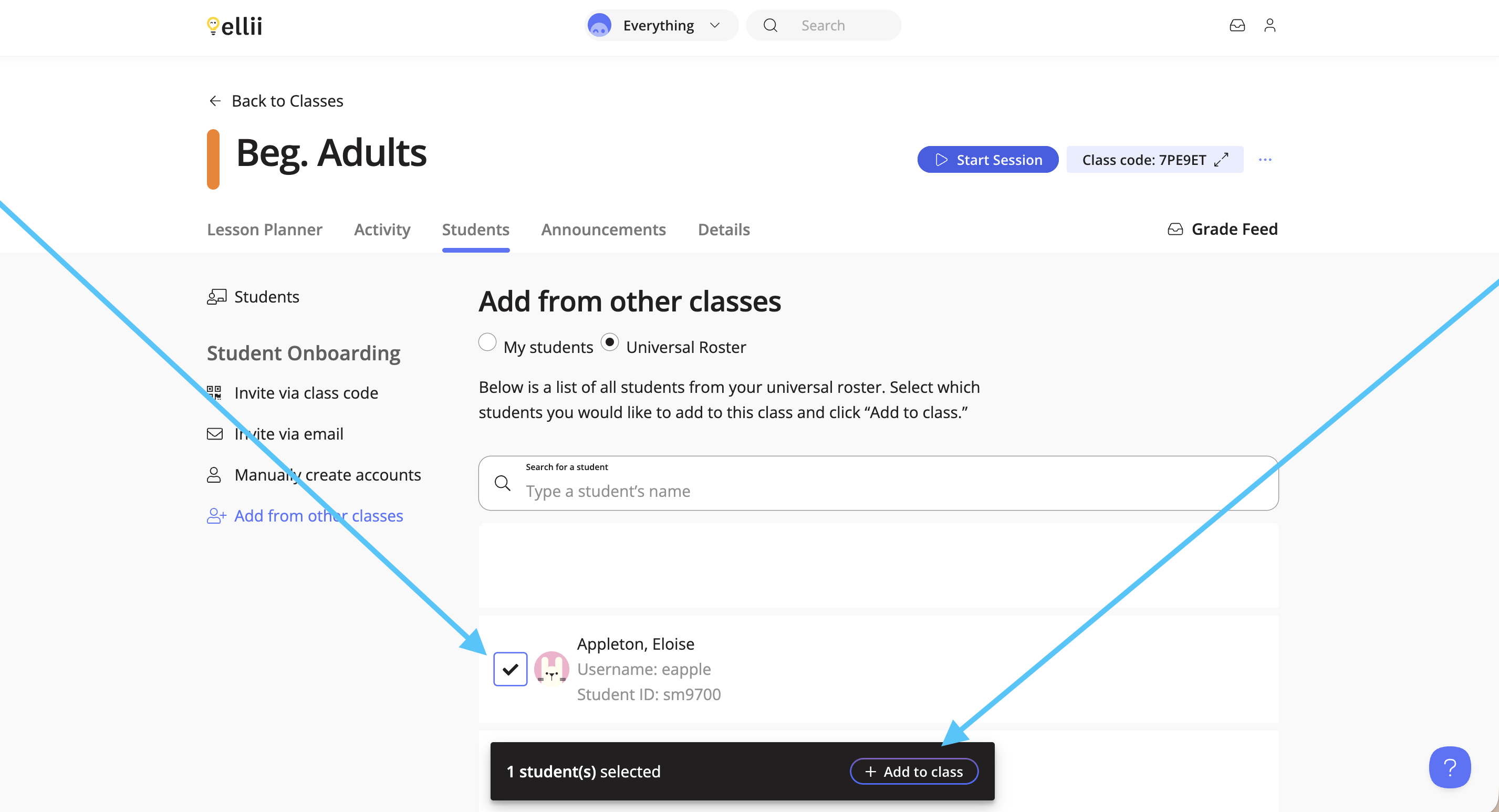
Check off the student or students you would like to add to the teacher’s class and click Add to class at the bottom.
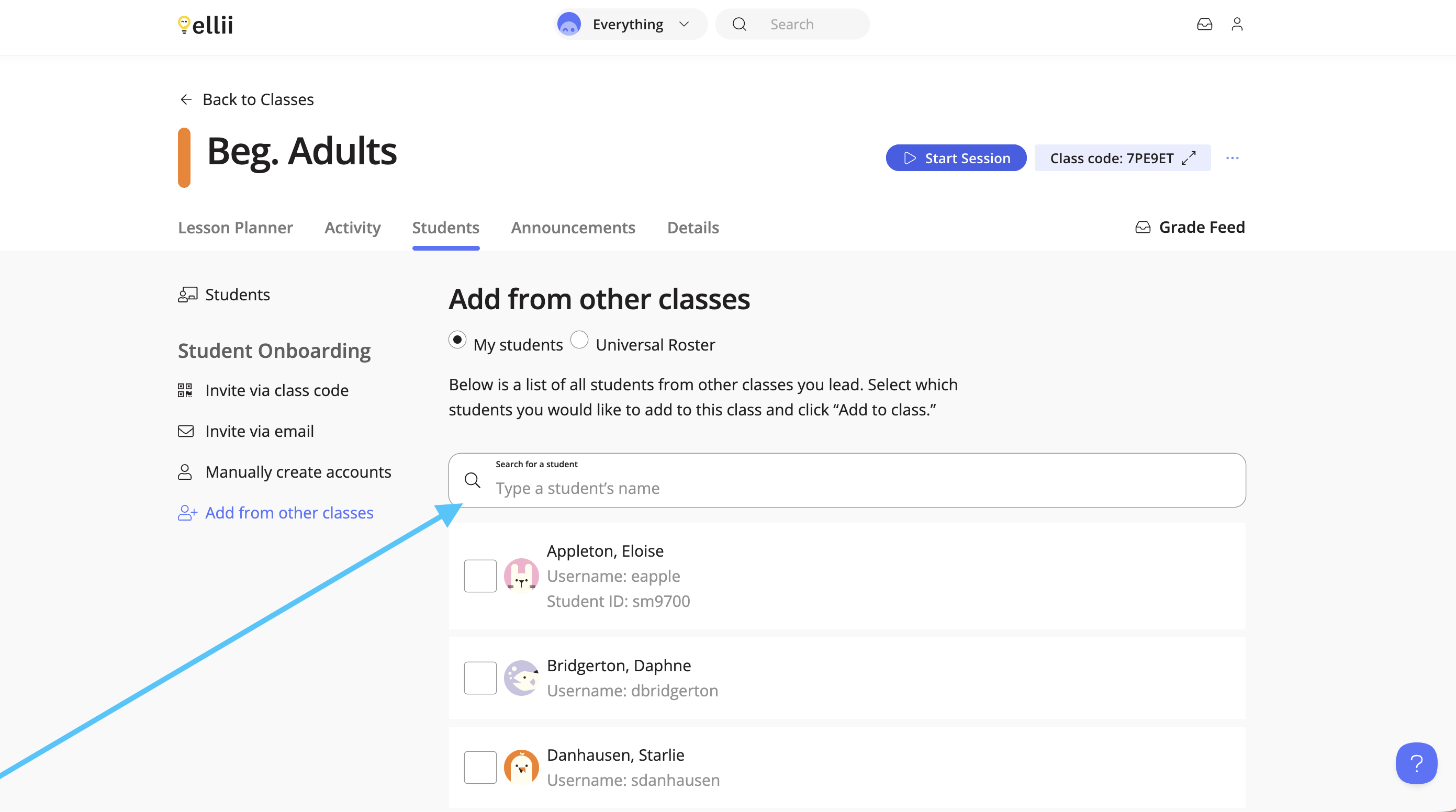
You can also search for a student.
If you have any difficulties, please contact us and we will be happy to assist!